How to Set Up WordPress on Your Windows 11 PC Using XAMPP

Want to try WordPress on your own computer, even without an internet connection? This guide shows you how using a free program called XAMPP.
Install XAMPP, then create a database for WordPress using the XAMPP Shell or phpMyAdmin. Download WordPress, extract its files into the C:xampphtdocs folder, and then run the WordPress installer via your browser at http://localhost/wordpress.
What is XAMPP?
XAMPP is a free tool that lets you turn your Windows 11 computer into a local web server, which is perfect for setting up WordPress without needing a live website.
- Apache (the web server)
- MariaDB (the database where WordPress stores your content)
- PHP (the language WordPress is written in)
You can install XAMPP on Windows 11 or other systems. This guide focuses on Windows 11.
Step 1Install XAMPP
If you don’t have XAMPP yet, follow this guide to install it on Windows 11:
How to Install XAMPP on Windows 11
Once installed, open the XAMPP Control Panel. This is where you manage your web server and database.
Step 2Create a Database for WordPress
WordPress needs a special place to store all your website’s information, like posts and settings, and you’ll create this using XAMPP’s tools by opening the control panel and using the shell.
- Open the XAMPP Control Panel.
- Click the Shell button (see image below) to open a command window.
- In the shell window, type this command to open the database:
mysql -u root
Now enter these commands one by one. Replace your_password_here with a password you’ll remember:
CREATE DATABASE wordpressdb CHARACTER SET utf8mb4 COLLATE utf8mb4_general_ci;

CREATE USER 'wordpressdbuser'@'localhost' IDENTIFIED BY 'your_password_here';

GRANT ALL PRIVILEGES ON wordpressdb.* TO 'wordpressdbuser'@'localhost';

FLUSH PRIVILEGES;

exit
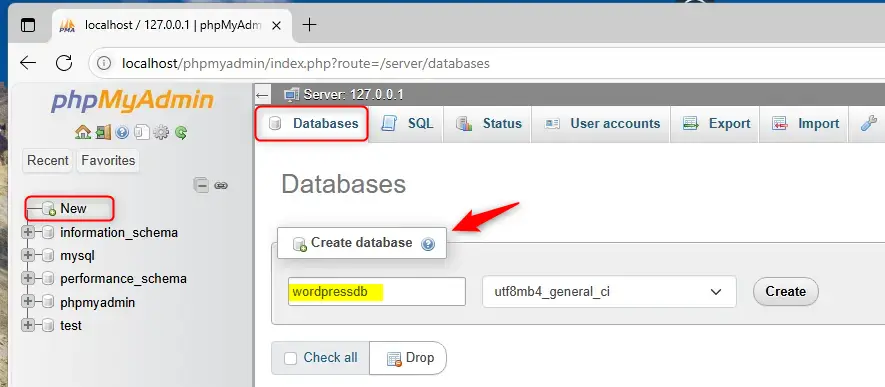
Alternatively, if you prefer a graphical interface, click the Admin button next to MySQL in the XAMPP Control Panel to open phpMyAdmin. From there, create a new database and user with full permissions using the user-friendly interface (see image below):
Step 3Download and Set Up WordPress
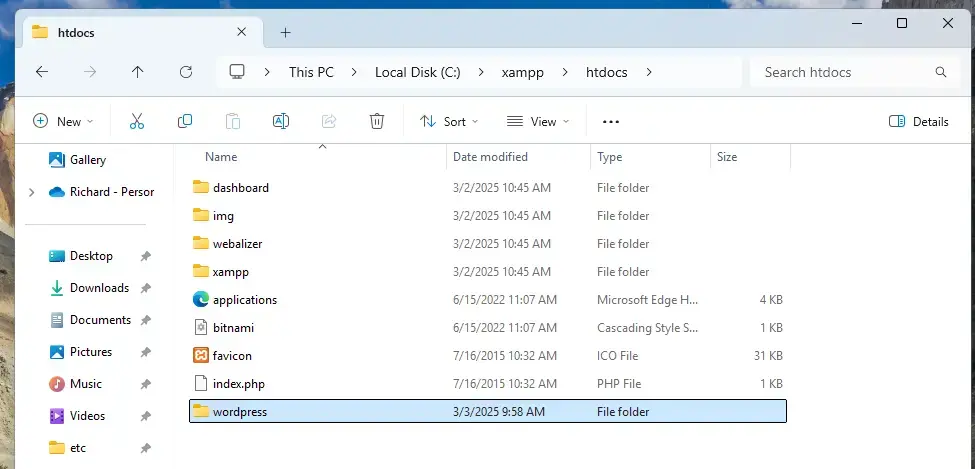
Before installing WordPress, you need to get the latest version and put its files in the right spot on your Windows 11 computer by going to the 📁C:\xampp\htdocs folder and creating a new one.
- Go to the folder
C:\xampp\htdocson your PC. - Create a new folder inside called
wordpress. - Download WordPress from the official WordPress download page.
- Extract the WordPress files you downloaded into the
wordpressfolder you just created.
- Next, open the file
C:\xampp\htdocs\index.htmlwith a text editor like Notepad. This file controls what shows up when you visit your local server. - Replace its content with this code to make your browser go directly to the WordPress site:
<?php

  if (!empty($_SERVER['HTTPS']) && ('on' == $_SERVER['HTTPS'])) {

    $uri = 'https://';

  } else {

    $uri = 'http://';

  }

  $uri .= $_SERVER['HTTP_HOST'];

  header('Location: '.$uri.'/wordpress/');

  exit;

?>
Something is wrong with the XAMPP installation 🙁
- Save the file.
Step 4Restart Apache Server
Go back to the XAMPP Control Panel. Stop the Apache service and then start it again. This makes sure your changes take effect.
Step 5Install WordPress
Now that WordPress is set up on your computer, you’ll use your web browser to run the final installation steps by visiting http://localhost/wordpress to start the setup wizard.
http://localhost/wordpress
You’ll see the WordPress setup screen. Follow these steps:
- Choose your language and click Continue.
- Click Let’s go! to start.
- Enter the database details you created earlier:
- Database Name:
wordpressdb - Username:
wordpressdbuser - Password: the password you set
- Database Host:
localhost - Table Prefix: leave it as
wp_
- Database Name:
- Click Submit.
- Click Run the installation.
- Fill in your site title, choose an admin username and password, and enter your email.
- Click Install WordPress.
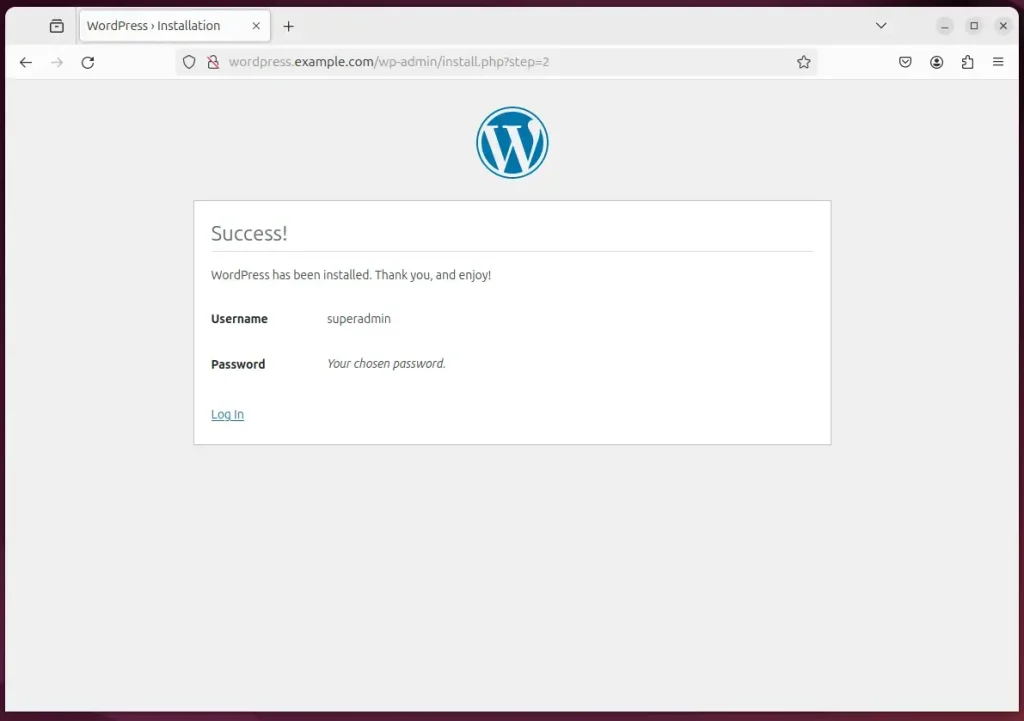
If everything is correct, WordPress will finish the installation and you can log in to your new site!
Summary
- You installed WordPress on your Windows 11 PC using XAMPP — no internet needed!
- You created a database for WordPress to save your website data.
- You downloaded WordPress and set it up to run on your local server.
- You installed WordPress through the web setup wizard.
You’ve successfully installed WordPress on your Windows 11 PC using XAMPP, creating a local website without needing an internet connection, by setting up a database and running the installation wizard.
Can I use WordPress with XAMPP?
Stack-based solutions such as XAMPP make for a great way to develop WordPress websites on your computer. The entire setup process takes no time, and once you have everything installed, you're able to create posts, pages, and the entirety of your WordPress website.
Is XAMPP good for WordPress?
Yes, XAMPP is a great choice for running WordPress locally because it includes all the necessary tools like a web server and database in one easy package.
Does XAMPP work on Windows?
An XAMPP server can be installed and used with a single executable file quickly and easily, functioning as a local test system for Linux, Windows, and Mac OS X. The software packet contains the same components that are found on common web servers.
Was this guide helpful?

About the Author
Richard
Tech Writer, IT Professional
Richard, a writer for Geek Rewind, is a tech enthusiast who loves breaking down complex IT topics into simple, easy-to-understand ideas. With years of hands-on experience in system administration and enterprise IT operations, he’s developed a knack for offering practical tips and solutions. Richard aims to make technology more accessible and actionable. He's deeply committed to the Geek Rewind community, always ready to answer questions and engage in discussions.



No comments yet — be the first to share your thoughts!