How to Send a File to Another Device Using Bluetooth in Windows 11

You can send a file to another device using Bluetooth in Windows 11 by enabling Bluetooth on both devices, pairing them, and then using the “Send to” function.
Bluetooth file transfer is a wireless method for moving data like photos, documents, or music between your PC and nearby devices, such as smartphones or other computers.
This process is particularly useful for quickly sharing small to medium-sized files without needing cables or an internet connection. For instance, sending a picture from your Windows 11 laptop to your Android phone takes just a few clicks.
Ensure both your Windows 11 PC and the target device have Bluetooth enabled and are paired. The receiving device also needs to be discoverable and ready to accept files.
How to Send a File to Another Device Using Bluetooth in 🪟 Windows 11
Windows has built-in tools to handle this whole process. It might seem like a few steps, but each one is pretty fast.
Step 1Open Bluetooth & Devices Settings
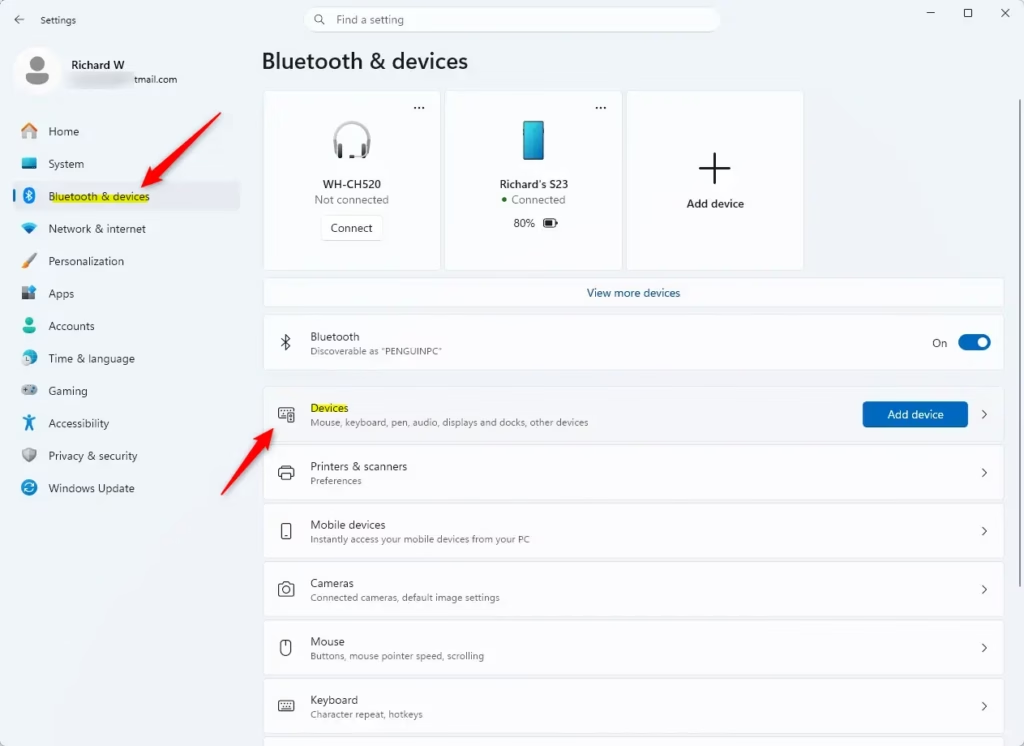
First, let’s open the correct settings menu. Click the Start button, then click the Settings cogwheel icon.
Once the Settings app opens, find Bluetooth & devices in the list on the left side and click on it.
Quick Tip: A very fast way to do this is to press the Windows key + I keys on your keyboard. This opens the Settings app right away. Then, click Bluetooth & devices.
Step 2Find the Bluetooth File Transfer Tool
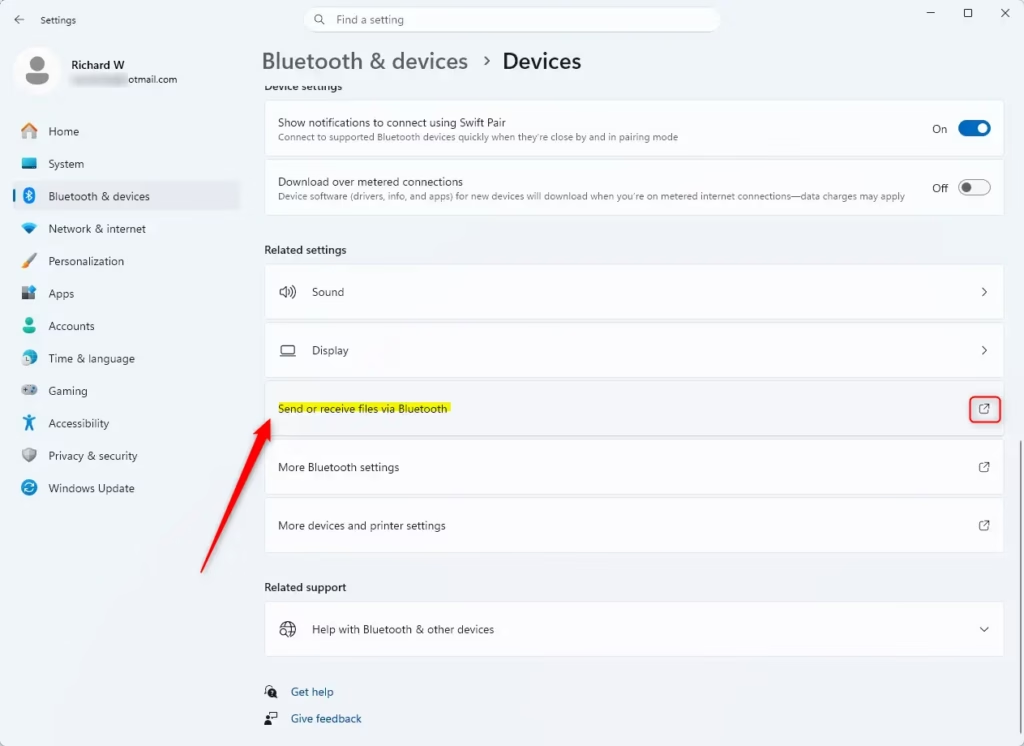
Now that you’re in the Bluetooth & devices section, scroll down a little. Under the heading Related settings, you should see an option that says Send or receive files via Bluetooth. Click this option.
Important: If you don’t see the Send or receive files via Bluetooth option, your PC might be missing a Bluetooth adapter, or the required software (drivers) might not be installed. You might need to get a USB Bluetooth adapter or update your PC’s drivers.
Step 3Choose to Send Files
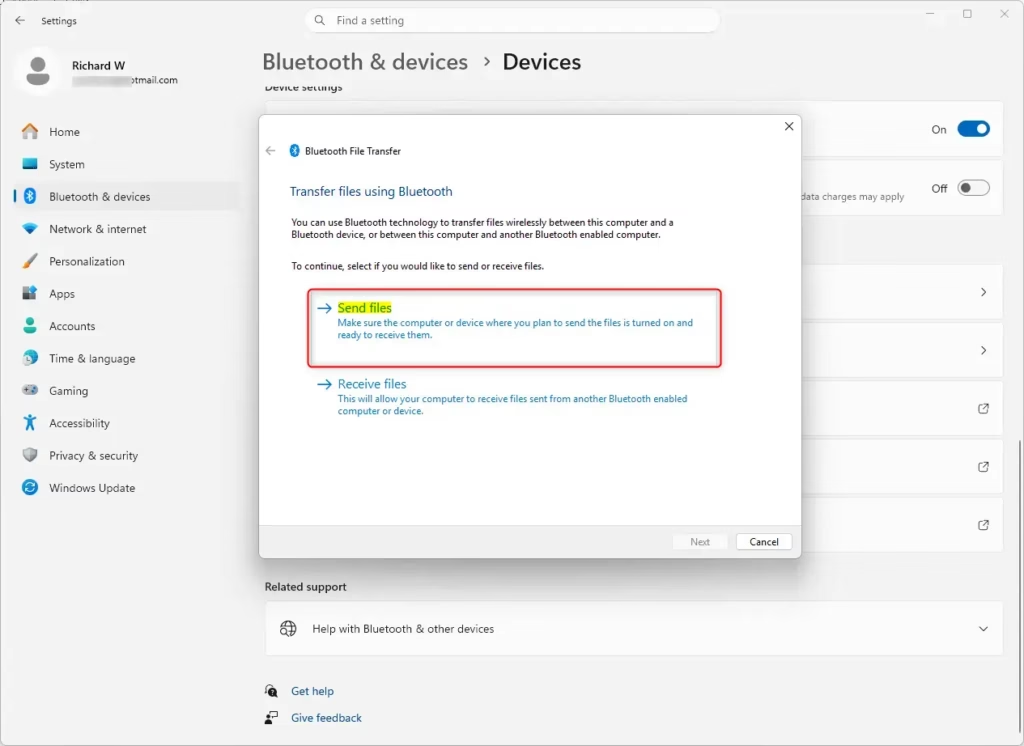
A new window will appear, called Bluetooth File Transfer. At the top, you’ll see two main choices: Send files and Receive files. Since you want to send something, click on Send files.
Step 4Pick the Device You Are Sending To
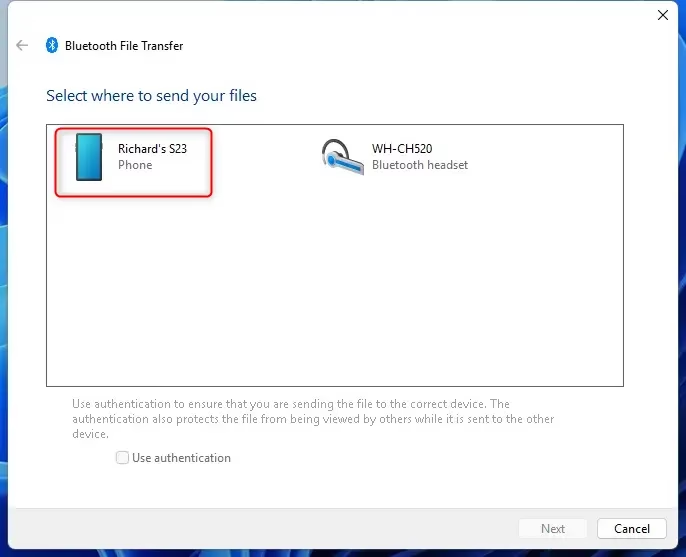
The next screen asks you to choose *which* device you’re sending the file to. You’ll see a list of Bluetooth devices that are available and have already been paired with your PC. Click on the name of the device you want to send the file to.
After you select the correct device, click the Next button.
Helpful Tip: If the device you want to send to isn’t appearing, double-check that it’s on, within range (usually around 30 feet or 10 meters), and has Bluetooth enabled. Also, confirm it’s already paired with your PC. If not, you’ll need to pair it first in the main Bluetooth & devices settings. Pairing essentially means letting the devices acknowledge each other.
You might also see a ‘Use authentication’ option. If your devices are paired, this might be greyed out. If it’s available, it adds security but usually requires confirmation on the receiving device.
Step 5Find and Select the File to Send
Now for the fun part – choosing the file! Click the Browse button. This will open a normal Windows File Explorer window.
Go through your folders, find the file you want to send (it could be a picture, a music file, a document, or anything else!), select it, and then click the Open button.
With your file chosen, click the Next button in the Bluetooth File Transfer window.
Step 6Watch the File Transfer
Your file will now start sending. A new window will appear, called The file is being sent. This screen shows you how the transfer is going, including how much data has been sent and how much time is left.
Warning: If the transfer fails and you see a message like “ Bluetooth file transfer not completed,” don’t worry. The most common reason is that the receiving device is not ready or has stopped accepting files. Try again, making sure the receiving device is waiting for the file. If it’s another Windows device, you might need to check the Receive files part of the Bluetooth File Transfer tool on that computer. For devices that aren’t Windows, check their specific instructions.
Step 7Finish the Transfer
Once the file has been sent successfully, the window will update to say File successfully transferred. All you need to do now is click the Finish button to close the transfer window.
And that’s it! You’ve just sent a file wirelessly using Bluetooth. Pretty cool, right?
Reference:
Summary
Sending files using Bluetooth in Windows 11 is a useful skill. Remember to make sure both devices are paired and ready. Then, go to Settings > Bluetooth & devices > Send or receive files via Bluetooth. From there, you just need to choose Send files, select your device, find your file, and click next. Keep these steps in mind, and you’ll be a Bluetooth file-sending expert in no time!
Was this guide helpful?

About the Author
Richard
Tech Writer, IT Professional
Richard, a writer for Geek Rewind, is a tech enthusiast who loves breaking down complex IT topics into simple, easy-to-understand ideas. With years of hands-on experience in system administration and enterprise IT operations, he’s developed a knack for offering practical tips and solutions. Richard aims to make technology more accessible and actionable. He's deeply committed to the Geek Rewind community, always ready to answer questions and engage in discussions.
No comments yet — be the first to share your thoughts!