
If you use a Windows 11 computer, you might want to know which user profiles belong to which accounts. This guide will help you easily find and match user profiles with their account names.
What Is a User Profile?
When someone signs in to a Windows 11 PC for the first time, Windows creates a user profile. Think of it as a personal folder. This profile stores that user’s settings, documents, pictures, and other files.
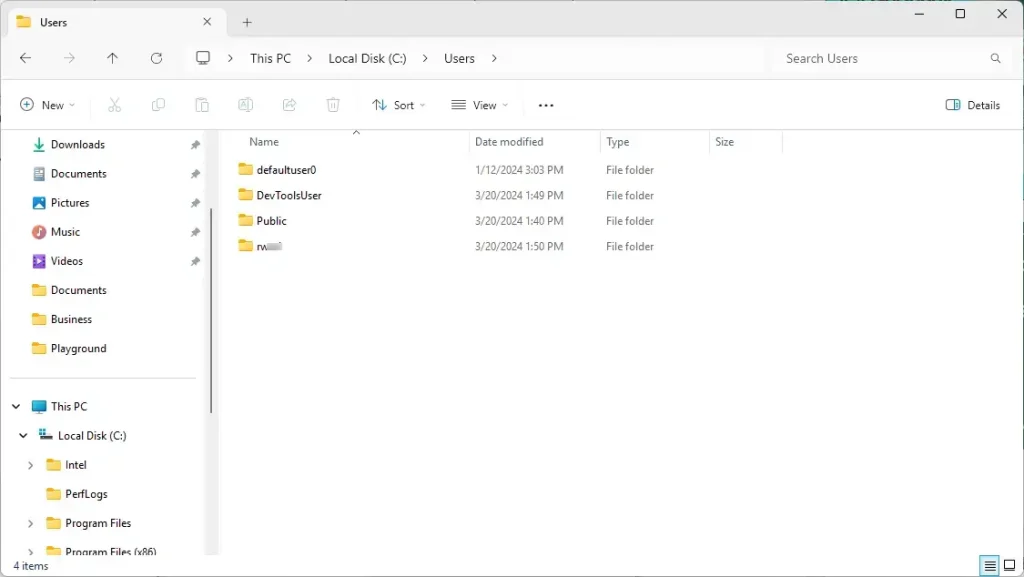
All user profiles are saved in a folder called C:\Users. For example, if your username is UserName, your profile folder will be C:\Users\UserName.
Why Might Profile Names and Account Names Be Different?
Sometimes, a user changes their account name. But the profile folder keeps the old name. This can be confusing if you want to know which profile belongs to which account. Don’t worry — you can check this with a few simple steps.
How to Find User Profiles and Match Them to Account Names
Step 1: Open File Explorer and Go to Your User Profiles Folder
Press Windows + E on your keyboard to open File Explorer. In the address bar, type:
C:\UsersYou’ll see a list of folders — one for each user profile.
Step 2: Open Windows Terminal with PowerShell
Next, we will use PowerShell to get more information about user accounts.
Click the Start button, type Windows Terminal, then click Windows Terminal to open it.
If it opens with Command Prompt by default, click the down arrow (∨) next to the plus sign (+) and select PowerShell.
For help opening Windows Terminal, see this guide.
Step 3: Run a Command to See Profile Information
Copy and paste this command into PowerShell, then press Enter:
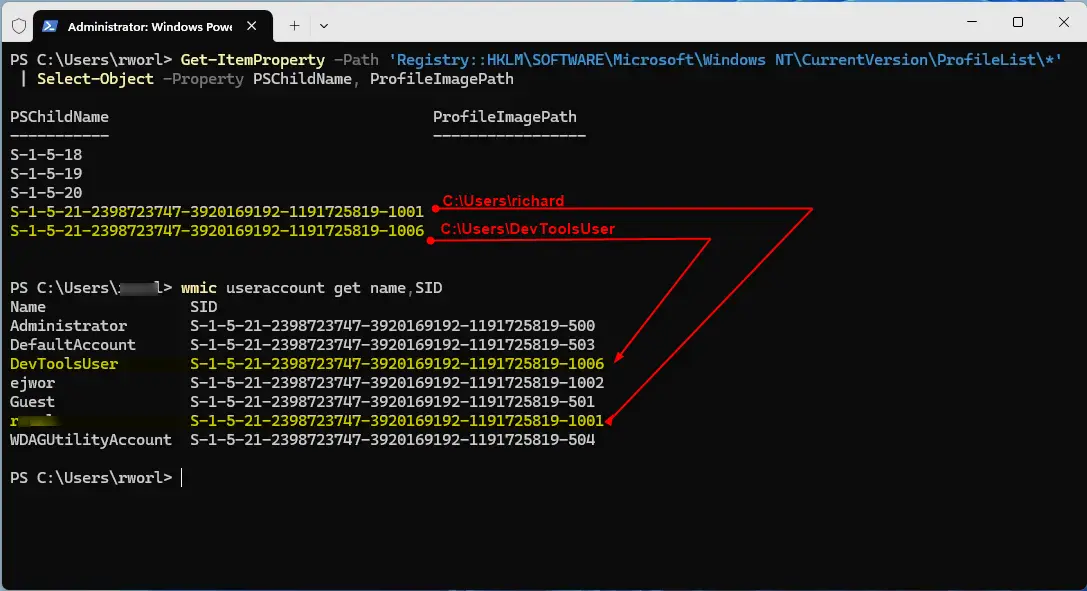
Get-ItemProperty -Path 'Registry::HKLM\SOFTWARE\Microsoft\Windows NT\CurrentVersion\ProfileList\*' | Select-Object -Property PSChildName, ProfileImagePathThis command will show you the list of profile folders and their folder paths.
Step 4: Run Another Command to See Account Names and IDs
Now, paste this command and press Enter:
wmic useraccount get name,SIDThis will list all user account names with their unique IDs (SIDs).
Step 5: Match Profiles to Accounts
Look at both lists and find matching IDs or names. The ProfileImagePath shows the folder path (like C:\Users\UserName). You can match it with the account name from the second list.
Summary
- User profiles are stored in
C:\Usersand hold personal files and settings. - Profile folder names might not always match account names if the account name was changed.
- You can use File Explorer and PowerShell commands in Windows Terminal to see and match profile folders with account names.
- This helps you manage user accounts and understand who uses which profile on your computer.
That’s it! You now know how to check user profiles and accounts on your Windows 11 PC.



Leave a Reply Cancel reply