
What is a Microsoft Account?
A Microsoft account is the email and password you use to sign in to Microsoft services like OneDrive, Outlook, Xbox, and Windows itself. When you sign in to a device with this account, that device gets connected to your Microsoft account.
Why Check Your Linked Devices?
By seeing which devices are connected, you can:
- Know which PCs or Xbox consoles are signed in with your account
- Remove old or unused devices for security
- Manage your devices all in one place
How to View Linked Devices Online
You can always see your linked devices on the Microsoft website:
Go to your Microsoft Devices page
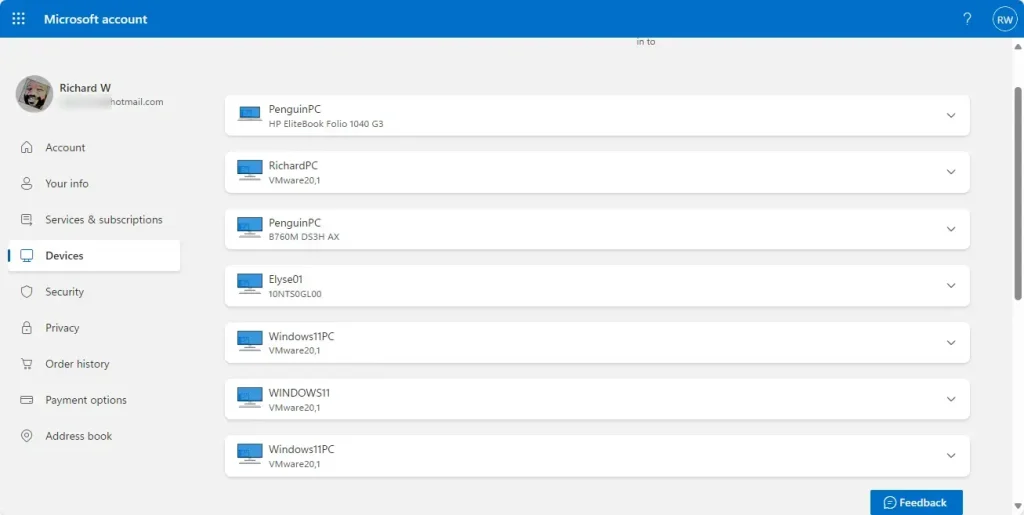
View your linked devices online
How to View Linked Devices Right on Windows 11
Windows 11 has a new feature that lets you see your connected devices directly in the Settings app. This is available if you have the Home or Pro edition and are signed in with your Microsoft account.
Steps to Check Linked Devices in Windows 11
- Open the Settings app:
- Click the Start menu and select Settings, or
- Press Windows key + I on your keyboard.
- In Settings, click on Accounts on the left side.
- On the right, click the Linked devices tile to open it.
- You will see a list of all your devices connected to your Microsoft account. From here, you can manage them.
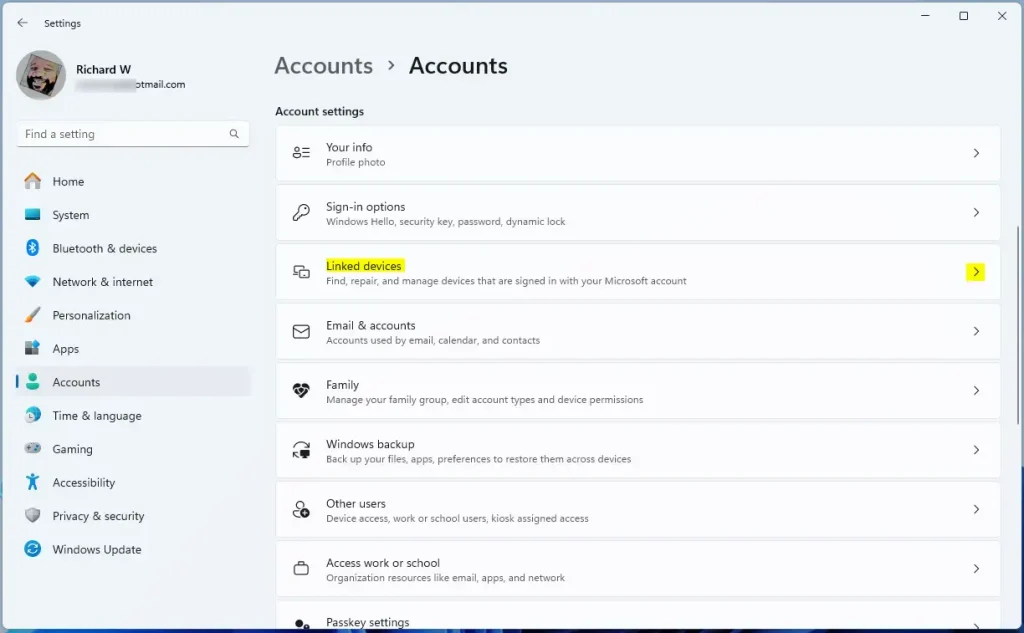
The Linked Devices tile in the Windows 11 Settings app
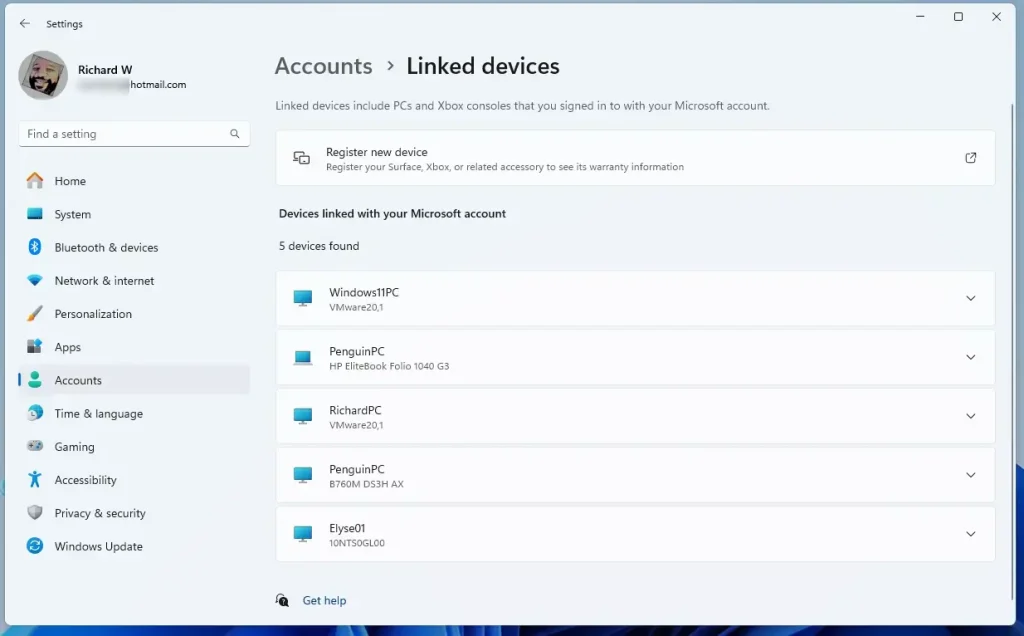
Manage your connected devices
Summary
You can view devices linked to your Microsoft account online or directly in Windows 11. The new Linked Devices page in Windows 11 Settings helps you manage your PCs and Xbox consoles easily. Make sure you are signed into Windows 11 with your Microsoft account to see this option. Read more about this feature on the Microsoft blog.



Leave a Reply Cancel reply