
Windows Update keeps your computer safe and running well. It installs the latest fixes and security patches automatically when you’re connected to the internet.
After updates download and install, your computer needs to restart to complete the process. Sometimes, you might be busy and don’t want your computer to restart right away.
Good news! You can choose when your computer restarts to finish the update. Here are easy steps to schedule a restart on Windows 11.
How to Schedule a Restart for Windows Update in Windows 11
Follow these simple steps to set a restart time after an update:
- When Windows finishes installing updates, you might see a message that lets you pick a restart time. It looks like this:
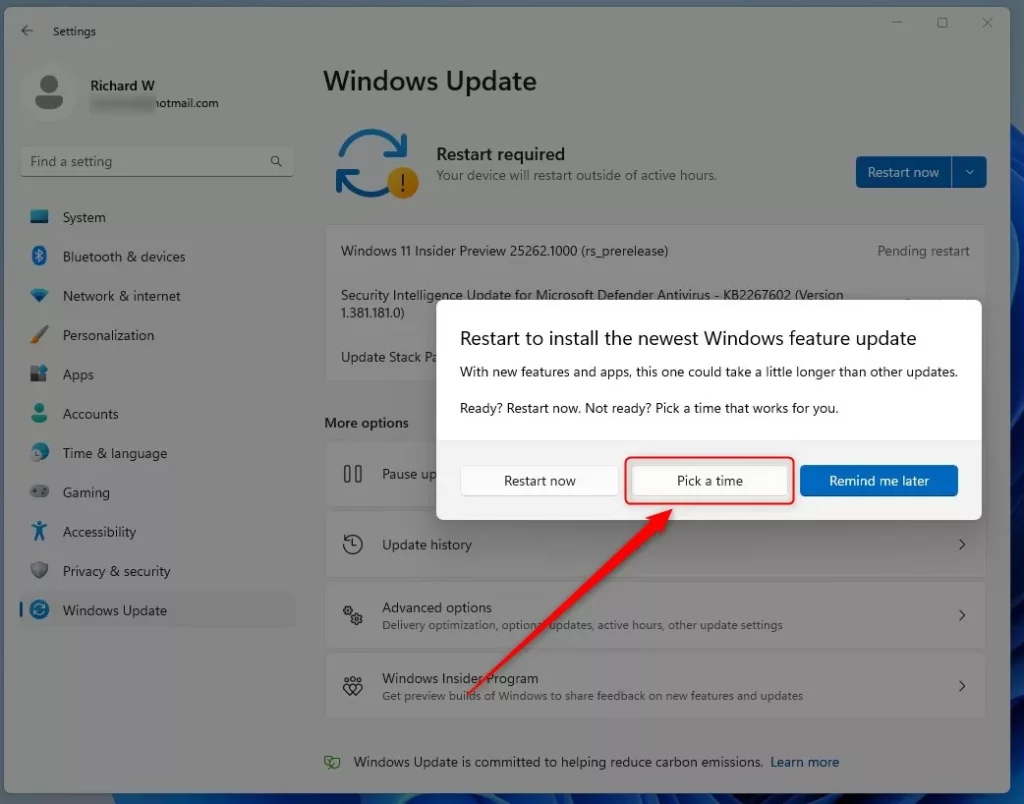
If you missed that message or want to change your restart time, continue to the next step.
- Click the Start menu (the Windows icon in the bottom-left corner).

- Click Settings.
- In the Settings window, click Windows Update on the left side.
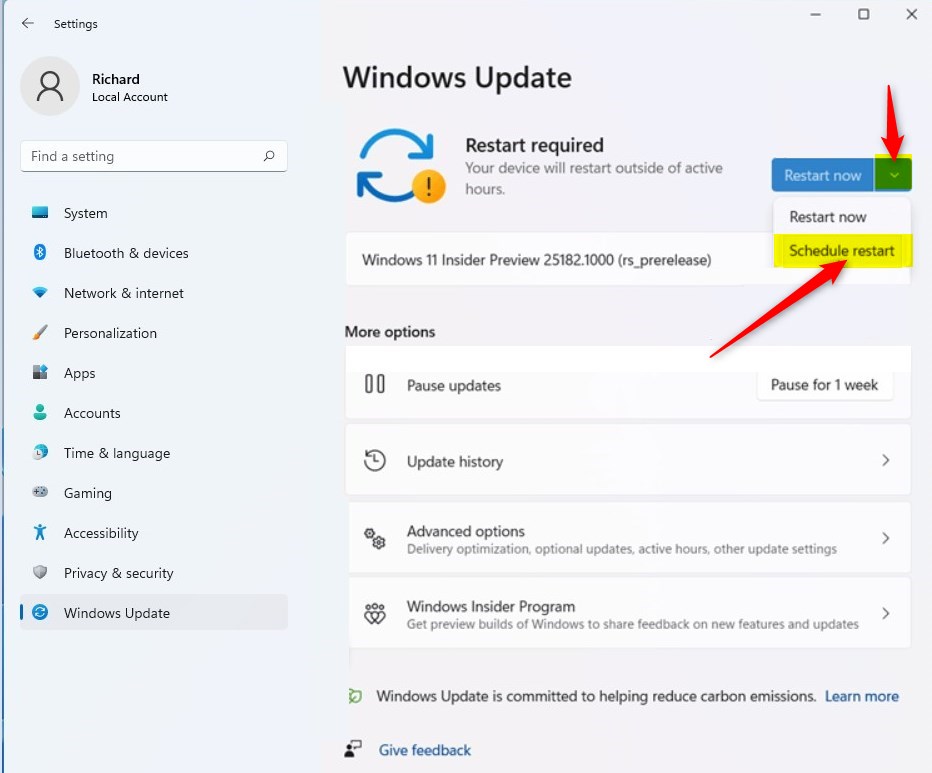
- Click on Schedule restart.
- Choose the day and time when you want your computer to restart. Pick a time when you won’t be using your computer so you don’t get interrupted.
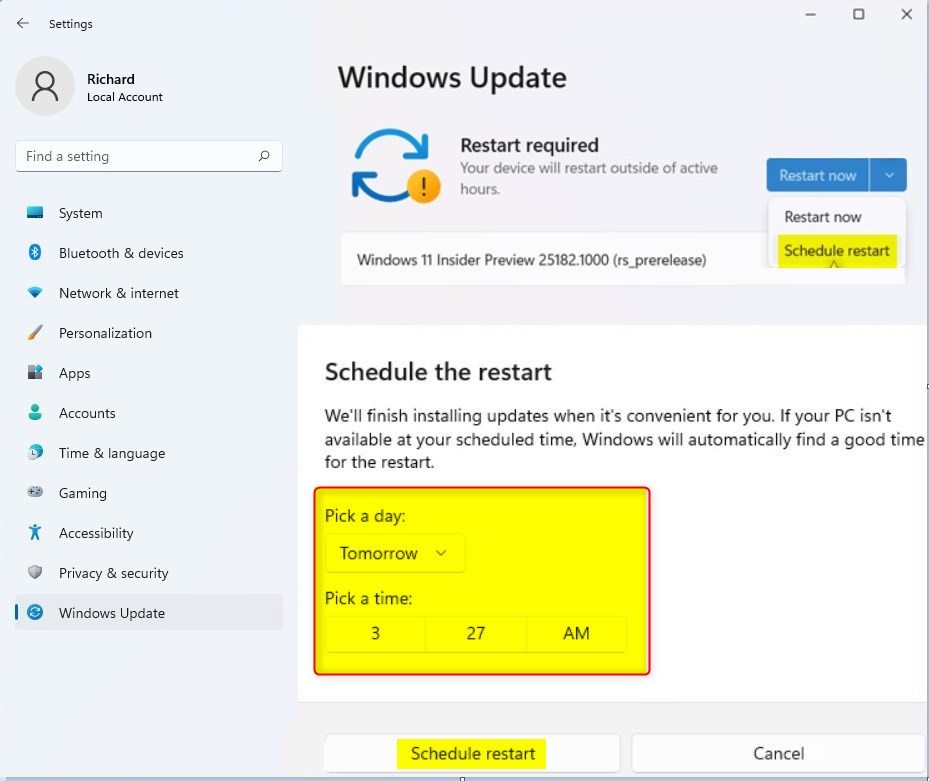
- Click Schedule restart to save your choice.
That’s it! Your computer will restart at the time you picked to finish installing updates.
Why Scheduling Restarts Matters
Why schedule restarts?
- Windows Updates keep your computer safe and running smoothly.
- Scheduling restarts lets you choose a time that won’t interrupt your work or fun.
- It helps prevent sudden restarts when you’re busy using your computer.
- You stay in control of when your PC restarts.
What happens when you schedule a restart?
Your computer will automatically restart at your chosen time to finish installing the updates. Make sure to save any work before that time arrives.
Want to learn more about updating Windows 11? Check out this helpful guide: How to Update Windows 11.
Summary
Scheduling Windows Update restarts in Windows 11 is simple. Open Settings, go to Windows Update, click Schedule restart, pick your preferred day and time, and confirm. This gives you control over when your computer restarts after updates, so you can choose a time that works best for you.



Leave a Reply Cancel reply