

This post describes steps to automatically schedule a task to shut down Ubuntu Linux at a specific time.
If you want to have your computer automatically shut down at a given time, Ubuntu Linux allows you to create a task and schedule it to shut down your computer.
Unlike Windows, which uses an app called Task Scheduler, Ubuntu Linux uses a job scheduler called Cron.
Many of the administrative tasks in Ubuntu Linux run via the command line console. Therefore, you’ll need to get familiar with the command console when using Ubuntu Linux.
To learn more about Cron, please read the post below:
How to use Cron in Ubuntu Linux
For a user who forgets to shut down daily but wants to schedule a task to automatically shut down their Ubuntu Linux at a specific time so that it doesn’t stay on all day using energy, the steps below could be helpful.
We’ll show you how to use Cron to schedule a job to shut down your Ubuntu Linux computer at a specific time.
How to automatically turn off Ubuntu Linux
As mentioned above, keeping your computer on forever may not be suitable for your energy bills. In Ubuntu Linux, you can schedule a job to shut down your computer daily at a specific time.
To do that, you’ll need to read two posts:
After reading the post above, you should know how Cron works and how to shut down Ubuntu Linux.
For example, if you want to shut down your Ubuntu Linux computer every 6:30 PM, you’ll edit crontab, add the shutdown command, and specify the date and time.
Run the commands below to edit the crontab.
sudo crontab -e
When you run crontab -e for the first time, you may get a prompt screen to choose an editor.
no crontab for root - using an empty one
Select an editor.  To change later, run 'select-editor'.

  1. /bin/nano        <---- easiest
  2. /usr/bin/vim.tiny
  3. /bin/ed

Choose 1-3 [1]: 1
Then add the command on a new line below to shutdown daily at 6:30 PM.
30 18 * * * shutdown now
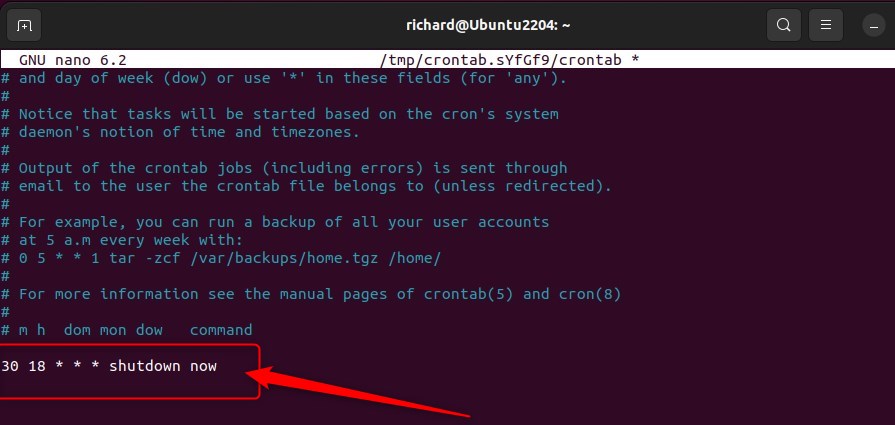
Press CTRL + X to exit, then press Enter to save your changes, and you’re done.
If you want to restart Ubuntu Linux instead, you’ll use -r.
shutdown -r now
Again, using the post above about Cron, you can specify different days, dates, times, and other variables in Cron.
That should do it!
Conclusion:
- Regularly shutting down your Ubuntu Linux system using Cron can help save energy and reduce electricity costs.
- Familiarizing yourself with the command line console and understanding how Cron works is crucial for scheduling automated tasks.
- Be sure to refer to the recommended tutorials for detailed guidance on using Cron and efficiently managing shutdown and restart processes in Ubuntu Linux.



Leave a Reply Cancel reply