How to Restart Ubuntu Linux: A Complete Guide

You restart Ubuntu Linux using a command in the terminal or through the graphical user interface.
Restarting Ubuntu Linux means shutting down and immediately starting up your operating system again. This process effectively closes all open programs and refreshes the system’s memory, which is essential for applying software updates or resolving minor glitches.
The primary command-line method to reboot your system is to type `sudo reboot` in the Ubuntu terminal, which requires root privileges to execute.
Alternatively, from the Ubuntu desktop environment, you can click the system status area in the top-right corner. From there, select the power icon and then choose the “Restart” option.
Restart Ubuntu Linux using the system menu by clicking the top-right status area, selecting the power icon, and choosing “Restart.” Alternatively, open a terminal and type `sudo reboot` or `sudo shutdown -r now`.
How to restart Ubuntu Linux from the system menu
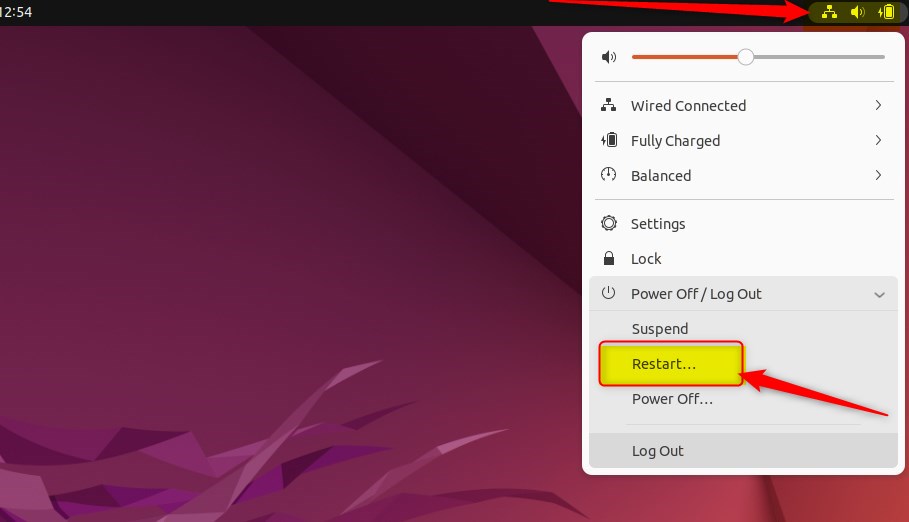
Restarting Ubuntu Linux using the system menu is the easiest way for most people. Just click the top-right corner of your screen to open the menu, then choose the Power Off / Log Out option and select ‘Restart’.
To restart in Ubuntu Linux, click the top-right of the system menu, then select the Power Off / Log Out on the context menu to expand.
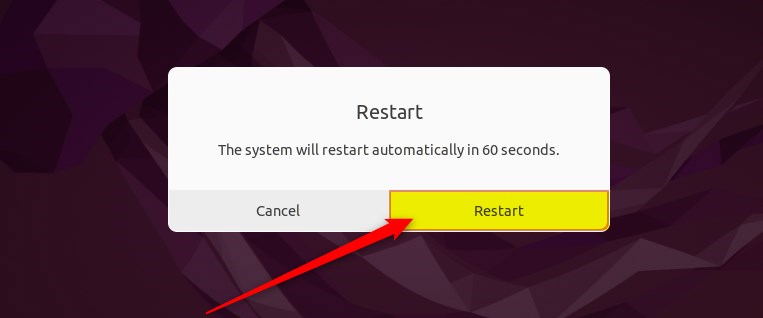
From there, select the ‘Restart’ command and click the ‘Restart’ button to reboot your PC.
Restart Ubuntu Linux from the command line
If you prefer the Ubuntu Linux command line, open it by pressing Ctrl+Alt+T on your keyboard and run the commands below to restart your PC.
sudo shutdown -r now
If you’d like to schedule a restart, use the 24-hour format and specify the time with the shutdown command.
Example: restart at 5:00 PM
sudo shutdown -r 17:00
You can also specify the wait time before shutting down. For example, to restart in 15 minutes, use the command options below:
sudo shutdown -r +15
Restart Ubuntu Linux using the PC Power button
If the menu or commands don’t work, you can restart Ubuntu Linux using the PC power button. Press and hold the power button for about 20 seconds to shut down your computer completely, then press it again to turn it back on.
Hopefully, these restart methods will help you get your computer restarted.
Conclusion:
- There are multiple ways to restart a PC running Ubuntu Linux, including the system menu, the command line, and the power button.
- The system menu provides a standard and common method to restart Ubuntu Linux, accessible from the top-right corner of the top bar.
- Using the command line allows for more precise control, including scheduling restarts at specific times or with a specified wait time.
- As a last resort, holding the power button for up to 20 seconds is also an option to shut down and restart the PC.
- It’s important to choose a restart method that works best for individual situations, and to avoid using the power button as the primary restart method.
How do I restart my Ubuntu system?
Option. Here click on power button click on restart. After that here you'll find a prompt simply click on restart. So that's it this is how you can restart your Ubuntu.
Was this guide helpful?

About the Author
Richard
Tech Writer, IT Professional
Richard, a writer for Geek Rewind, is a tech enthusiast who loves breaking down complex IT topics into simple, easy-to-understand ideas. With years of hands-on experience in system administration and enterprise IT operations, he’s developed a knack for offering practical tips and solutions. Richard aims to make technology more accessible and actionable. He's deeply committed to the Geek Rewind community, always ready to answer questions and engage in discussions.




No comments yet — be the first to share your thoughts!