How to Enable or Disable OneDrive Screenshot Saving in Windows 11

You can enable or disable OneDrive saving your screenshots automatically in Windows 11.
This feature captures whatever is on your screen when you press the Print Screen (PrtScn) key and saves it directly to your OneDrive cloud storage, typically in the “Pictures\Screenshots” folder.
This is useful for immediate cloud backup and accessing screenshots across your devices, but it can quickly consume your OneDrive storage space if you take many screenshots, especially with the free 5GB tier.
Learning to manage this setting ensures your screenshots go where you intend them, either to OneDrive or saved locally on your PC.
OneDrive Folder Backup vs. Screenshot Auto-save
It is important to know the difference between these two features. Screenshot auto-save only moves your captured images to your OneDrive folder. Folder Backup (also known as Known Folder Move) takes your entire Pictures, Documents, and Desktop folders and syncs them to the cloud. If you disable screenshot saving but your files are still syncing, check if your Pictures folder is being backed up in the OneDrive settings under Manage Backup.
Steps to Enable or Disable OneDrive Screenshot Saving
Follow these steps to manage your settings. Note: You do not need admin privileges for these user-level settings.
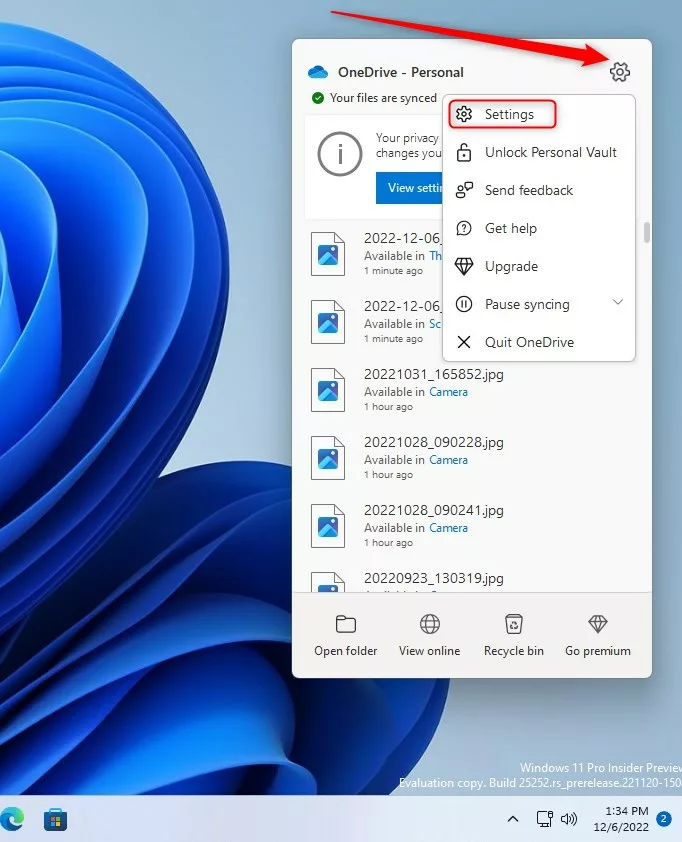
1. Click the OneDrive cloud icon in your taskbar. If you do not see it, click the arrow icon to show hidden icons.

2. Click the Help & Settings gear icon and select Settings.
3. Go to the Sync and Backup tab on the left.
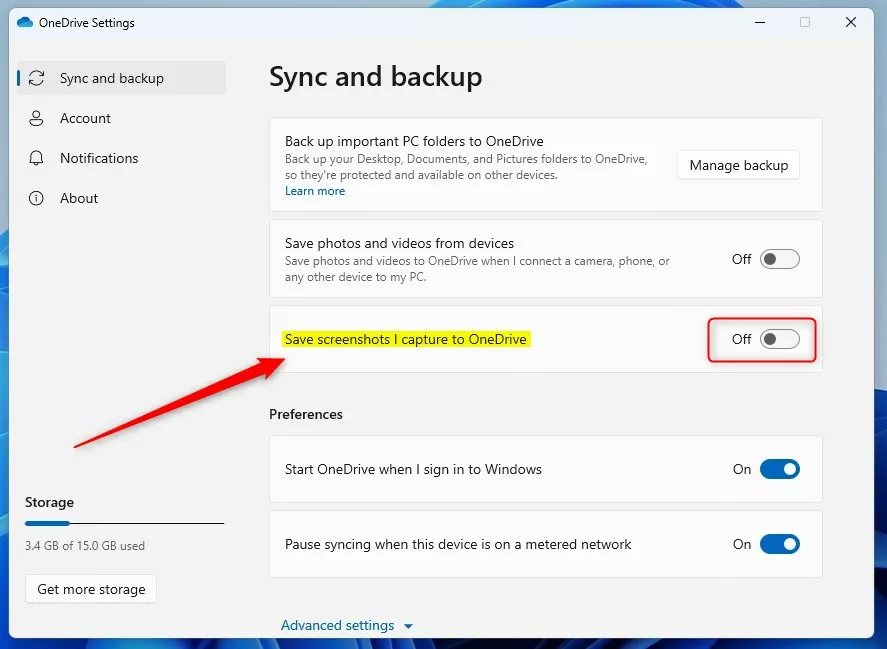
4. Find the toggle for Save screenshots I capture to OneDrive. Switch it On to enable or Off to disable.
Troubleshooting OneDrive Sync Issues
If you turned the setting off but OneDrive still saves your screenshots, try these steps:
- Restart OneDrive: Right-click the icon, select Quit OneDrive, then open it again from the Start menu.
- Check for Updates: Ensure your OneDrive sync client is up to date.
- Registry Check: For advanced users, check the registry. Warning: Modifying the registry incorrectly can cause system issues. Press ⊞ Win+R, type
regedit, and navigate toHKEY_CURRENT_USER\Software\Microsoft\OneDrive. Ensure theAutoSaveCameraPhotosvalue is set to 0.
Summary
Managing your OneDrive screenshot saving settings gives you full control over your privacy and storage. By toggling the Sync and Backup options, you decide whether your images stay on your local hard drive or sync to the cloud. Remember that this is different from full folder backups. If you need more help, check out our guide on managing OneDrive storage.” }
Why does OneDrive keep saving my screenshots even after I turn off the setting?
This usually happens because the OneDrive sync client is stuck or the setting did not sync to the cloud. Try restarting the OneDrive app or signing out and back into your account. If the issue persists, check if your Pictures folder is being actively backed up by the OneDrive Folder Backup feature.
Does disabling OneDrive screenshot saving delete my existing files?
No, disabling this feature will not delete your existing files. It only stops new screenshots from being automatically uploaded to your cloud storage. Your previously saved images will remain in your OneDrive folder until you manually move or delete them from your local computer.
Was this guide helpful?

About the Author
Richard
Tech Writer, IT Professional
Richard, a writer for Geek Rewind, is a tech enthusiast who loves breaking down complex IT topics into simple, easy-to-understand ideas. With years of hands-on experience in system administration and enterprise IT operations, he’s developed a knack for offering practical tips and solutions. Richard aims to make technology more accessible and actionable. He's deeply committed to the Geek Rewind community, always ready to answer questions and engage in discussions.


No comments yet — be the first to share your thoughts!