
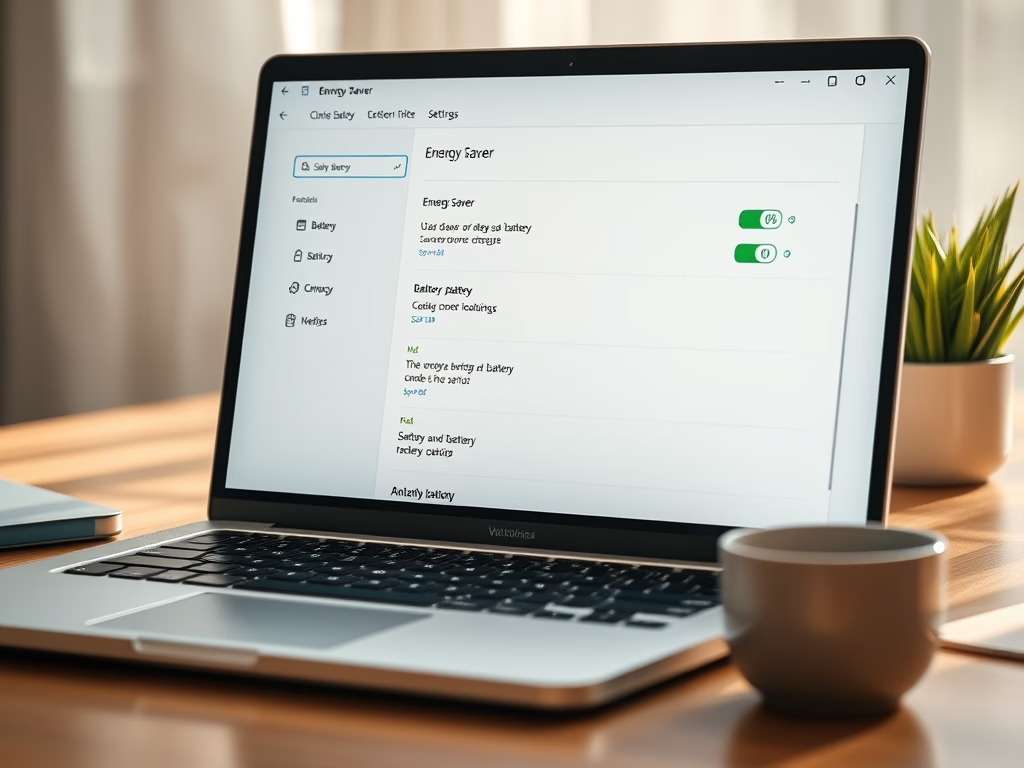
If you want your laptop’s battery to last longer, Windows has a helpful feature called Energy saver. It lowers your computer’s power use when your battery is running low.
Energy Saver helps your laptop use less power, so your battery lasts longer between charges.
You can turn Energy Saver on or off anytime, whether you’re on battery or plugged in. It’s easy to access through the Quick Settings menu—the small icons near your clock at the bottom right of your screen. Learn more about Quick Settings here.
Windows can also turn Energy Saver on automatically when your battery reaches a certain level, like 20% or 30%. This means you don’t have to remember to turn it on yourself.
How to Set Energy Saver to Turn On Automatically
Follow these simple steps to set Energy Saver to start automatically when your battery drops to a certain percentage:
- Open Settings: Click the Start menu button (Windows icon) and select Settings, or press Windows key + I on your keyboard.
- In the Settings window, click System on the left side.
- Click on Power & battery (or just Power) on the right.
- Find the Energy saver section and click it to expand the options.
- Under Turn energy saver on automatically when battery level is at, pick the battery percentage you want from the dropdown menu:
- Never (Energy saver won’t turn on automatically)
- 10%
- 20%
- 30% (default)
- 40%
- 50%
- Always (Energy saver is always on)
- Close the Settings window. Your choice will save automatically!

Bonus: Use PowerShell to Set Energy Saver Automatically
If you like using commands, you can also tell Windows when to turn Energy Saver on using PowerShell.
- Open PowerShell on your computer.
- Type this command and press Enter:
powercfg /setdcvalueindex SCHEME_CURRENT SUB_ENERGYSAVER ESBATTTHRESHOLD <percentage>
Replace <percentage> with the number you want:
- 0 means Energy Saver will never turn on automatically.
- 30 is the default setting.
- 100 means Energy Saver is always on.
For example, to set Energy Saver to turn on at 20%, you’d type:
powercfg /setdcvalueindex SCHEME_CURRENT SUB_ENERGYSAVER ESBATTTHRESHOLD 20
And that’s it!
Summary
- Energy Saver helps your laptop use less power and keep your battery going longer.
- You can set it to turn on automatically when your battery hits a certain level, so you don’t have to remember to do it yourself.
- You can change this setting easily from Windows Settings or by using PowerShell commands if you prefer.
Using Energy Saver is a simple way to make sure your laptop lasts as long as possible between charges!


Leave a Reply Cancel reply