How to Quickly Switch Between HKCU and HKLM Keys in Windows 11 Registry Editor

If you’re diving into the Windows 11 Registry Editor, you’ll often need to navigate between HKCU and HKLM. Here’s a quick trick to make that switch much faster.
Navigate to a key in Registry Editor, then right-click it. Select “Go to 🗝️HKEY_LOCAL_MACHINE” to switch from HKCU, or “Go to 🗝️HKEY_CURRENT_USER” to switch from HKLM. This instantly opens the same key in the other hive, if it exists.
What is the Registry Editor?
Think of the Registry Editor as Windows’ control panel for deep settings. It lets you see and tweak how your computer and apps behave.
Understanding HKCU and HKLM
In Windows Registry Editor, HKCU and HKLM are like two main filing cabinets for computer settings; HKCU stores settings just for you, the current user, while HKLM holds settings that affect everyone on the computer.
- HKCU (🗝️HKEY_CURRENT_USER): This holds settings just for the user who is logged in right now.
- HKLM (🗝️HKEY_LOCAL_MACHINE): This holds settings that apply to the whole computer, for all users.
Why Switch Between HKCU and HKLM?
Sometimes you need to check or change a setting in both places. Luckily, Windows lets you quickly jump between the same spot in HKCU and HKLM if that key exists in both. This saves you time from manually browsing through the Registry tree.
How to Switch Between HKCU and HKLM Keys
- Open Registry Editor by typing
regeditin the Start menu search and pressing Enter. - Navigate to a key under HKCU or HKLM that you want to check.
- Right-click on the key (folder) in the left panel.
- Look for the option “Go to 🗝️HKEY_LOCAL_MACHINE” if you are in HKCU, or “Go to 🗝️HKEY_CURRENT_USER” if you are in HKLM, and click it.
- The Registry Editor will instantly open the same key in the other hive, if it exists there.
Switching between the same registry keys in HKCU and HKLM is super quick once you know how; after opening the Registry Editor and finding a key, just right-click it and choose the ‘Go to 🗝️HKEY_LOCAL_MACHINE’ or ‘Go to 🗝️HKEY_CURRENT_USER’ option.
Right-click a key and choose “Go to 🗝️HKEY_LOCAL_MACHINE” to switch.
You can do the same from HKLM back to HKCU:
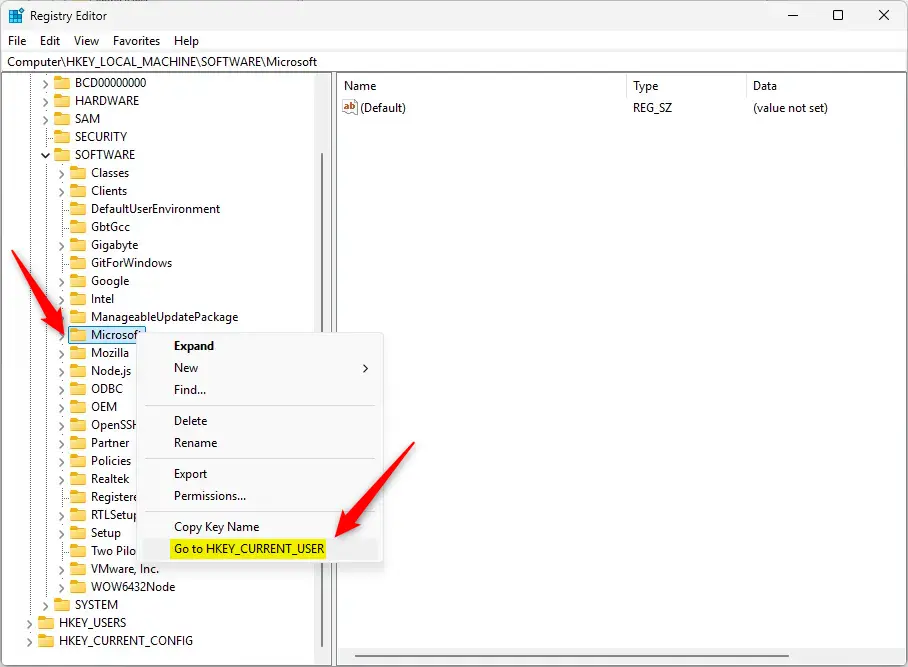
Switching between the same registry keys in HKCU and HKLM is super quick once you know how; after opening the Registry Editor and finding a key, just right-click it and choose the ‘Go to 🗝️HKEY_LOCAL_MACHINE’ or ‘Go to 🗝️HKEY_CURRENT_USER’ option.
Right-click a key and choose “Go to 🗝️HKEY_CURRENT_USER” to switch.
Important Note
This shortcut only works if the key exists in both HKCU and HKLM. If it doesn’t, the option won’t appear.
What Happens When You Use This Shortcut?
When you click the “Go to” option, you instantly jump to the same location in the other hive. This means you skip the manual folder search. You’ll save time and stay organized when working with settings in both places.
Summary
To quickly switch between HKCU and HKLM registry keys, remember that HKCU is for your personal settings and HKLM is for all users, and you can use the ‘Go to’ command to jump between them instantly.- The Registry Editor helps you manage important Windows settings.
- HKCU is for user-specific settings; HKLM is for computer-wide settings.
- You can quickly jump between the same keys in HKCU and HKLM using the “Go to” command.
- Be careful when editing the Registry — wrong changes can cause problems with Windows.
- For more beginner-friendly tips on using the Registry Editor, check out this helpful guide.
What is HKCU in the registry?
🗝️HKEY_CURRENT_USER. Contains the root of the configuration information for the user who is currently logged on. Your folders, screen colors, and Control Panel settings are stored here.
Was this guide helpful?

About the Author
Richard
Tech Writer, IT Professional
Richard, a writer for Geek Rewind, is a tech enthusiast who loves breaking down complex IT topics into simple, easy-to-understand ideas. With years of hands-on experience in system administration and enterprise IT operations, he’s developed a knack for offering practical tips and solutions. Richard aims to make technology more accessible and actionable. He's deeply committed to the Geek Rewind community, always ready to answer questions and engage in discussions.




No comments yet — be the first to share your thoughts!