

This article explains how to pause and resume syncing Google Drive on Windows 11.
Google Drive is a cloud storage and file synchronization service developed by Google. It allows users to store and share files in the cloud, synchronize files across devices, and collaborate with others in real time.
When you use Google Drive, you can pause and resume syncing anytime. When you pause syncing, your files and changes are not synchronized in real-time. Once you resume, all the changes will be synchronized.
You might want to pause and resume syncing in Google Drive for several reasons. For example, you may have limited internet bandwidth and want to conserve it by temporarily pausing syncing.
You might also want to make changes to files without them being synced in real-time, or you may want to prevent syncing during a specific period to avoid interruptions. Whatever the reason, pausing and resuming syncing in Google Drive is a simple and useful feature that can help you manage your files and internet usage more efficiently.
Pause syncing to Google Drive
As mentioned above, users can pause and resume syncing to Google Drive for several reasons. Whatever the reasons, the steps below show you how to do that.
First, open the Google Drive flyout window from the notification area. You can do that by clicking the Taskbar overflow and selecting the Google Drive icon to open its flyout window.
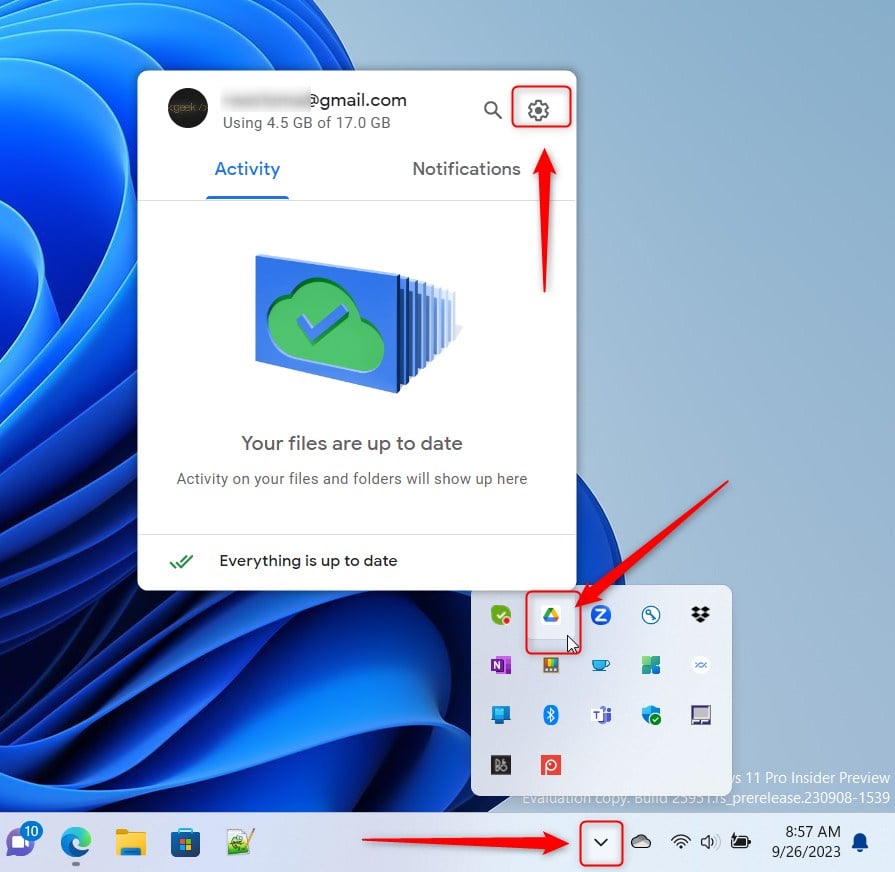
When the flyout opens, select the Settings (gear) at the top of the screen and click Pauses synching.
Google Drive will still be paused until you manually re-enable syncing.

To resume, click the Google Drive icon on the Taskbar overflow section and select Settings Resume syncing.
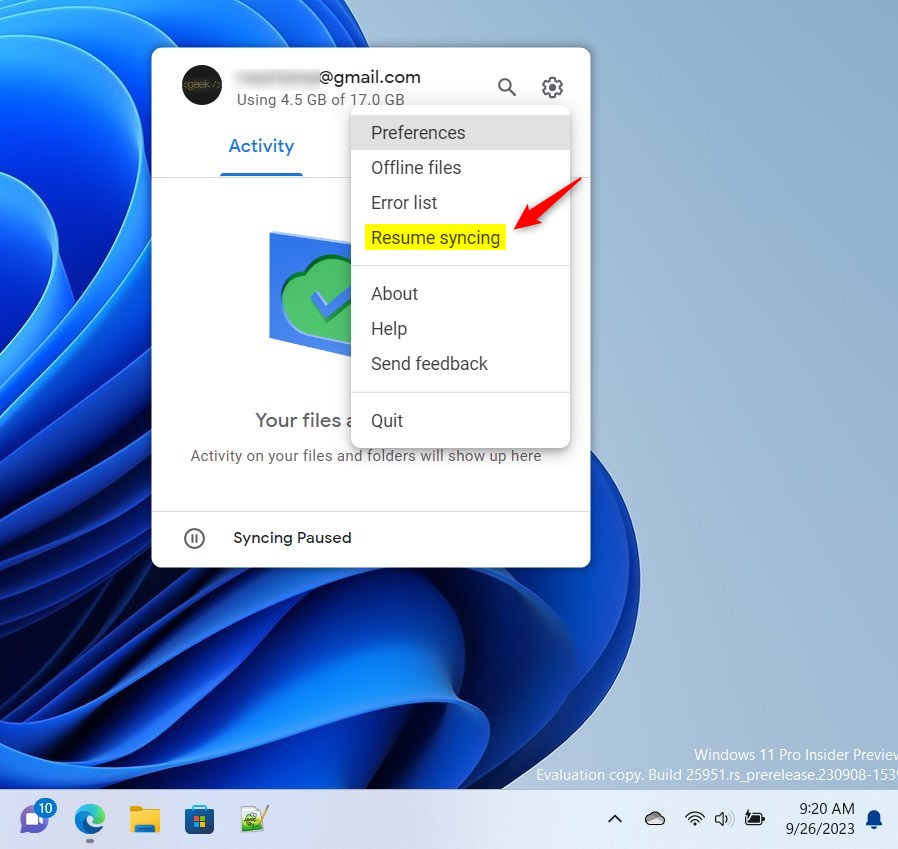
That should do it!
Conclusion:
- Effortless Management: Pausing and resuming syncing in Google Drive allows for efficient internet bandwidth usage and file management.
- Flexibility and Control: Users can make file changes without immediate synchronization and easily prevent interruptions during specific periods.
- User-Friendly Process: The straightforward steps ensure a simple and seamless experience for pausing and resuming syncing.
Frequently Asked Questions
How do I pause Google Drive syncing on Windows 11?
Can I resume syncing after pausing Google Drive?
Why would I want to pause Google Drive syncing?
Will my files be updated while syncing is paused?
Is it easy to pause and resume syncing in Google Drive?

Leave a Reply Cancel reply