

This post describes the steps to open File Manager (nautilus) as an administrator in Ubuntu Linux.
When you log in to Ubuntu Linux, you’re logged in as a normal user who can use root or administrative privileges to perform administrative tasks using the sudo command.
Once you are in as a normal user, opening File Manager or Nautilus with root privileges is challenging. A tool called nautilus-admin used to work, but it does not anymore.
Once installed, that tool claims to open files and folders as administrator from the context menu. I tried, and it didn’t work as well. It will install, right, but it will not allow me to delete files that the root user owns.
It’s sometimes nice to have the ability to edit files and open folders as root or administrator. Below, I will show you how to do that.
This post assumes that you are a member of the sudoers file or can run the sudo command.
Without you being able to run the sudo command, the steps below will not work.
To run File Manager as root, press the keyboard shortcut Ctrl — Alt — T to open the terminal console.
Once the terminal is open, run the commands below to launch the file manager as an administrator.
sudo nautilus
It will prompt you to type your password, and if you have the right to run the command, it will open the file manager (nautilus) as administrator or root.
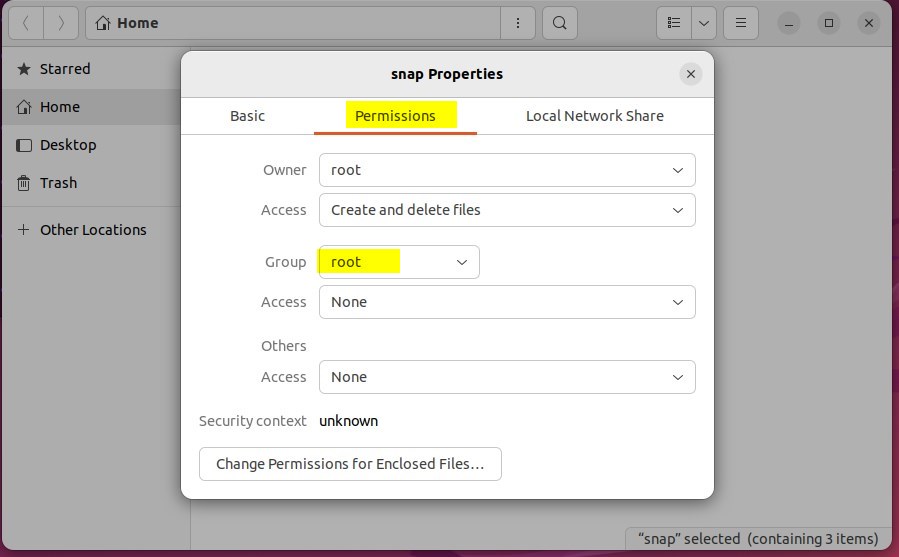
You cannot browse any folder and delete it if it’s not used by a process or another user.
That should do it!
Conclusion:
- Opening File Manager as an administrator in Ubuntu Linux can be useful for editing files and managing folders that require root privileges.
- The traditional terminal method and running “sudo nautilus” still works for opening File Manager with root access.
- While third-party tools like nautilus-admin may not function as expected, the sudo command remains a reliable option for accessing File Manager with elevated privileges.
- Following the steps outlined in this post, users can effectively utilize root or administrative privileges to perform necessary tasks within File Manager.


Leave a Reply