

This article explains how name a browser window in Microsoft Edge.
Microsoft Edge is the default browser in Windows 11. However, users can switch to their preferred or favorite browser anytime. Edge is based on Chromium, similar to Google Chrome and other Chromium-based browsers today.
Your Microsoft Edge browser allows you to open multiple tabs for different web pages. Sometimes, opening multiple tabs can be confusing, and it can be challenging to identify the correct tab.
Edge has a feature that lets you name a window according to the content that you have open in it. This way, you can quickly identify which window you need to access and avoid wasting time searching for the right one.
Below are multiple ways to name a window in Microsoft Edge browser.
Name a window in Microsoft Edge
As mentioned above, users can name windows in Microsoft Edge to help them identify which window you need to access.
Here’s how to do it.
First, open Microsoft Edge browser.
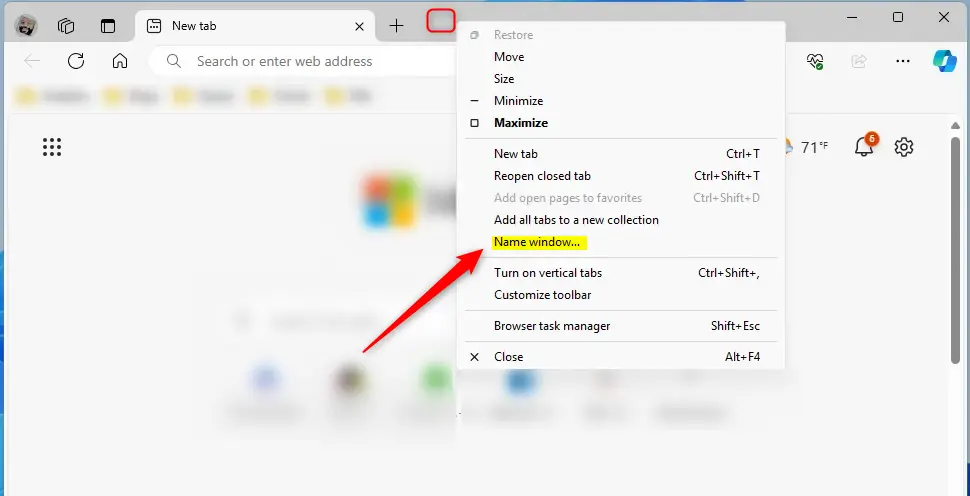
When Edge opens, right-click on the title bar, and select “Name window” from the drop-down menu.
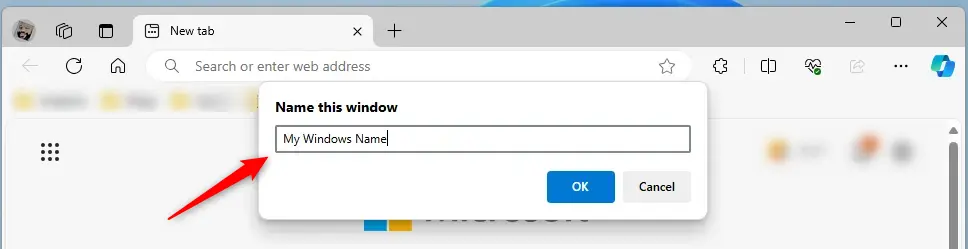
Then, enter a name for the window in the text box that appears and click “OK” to apply the name.
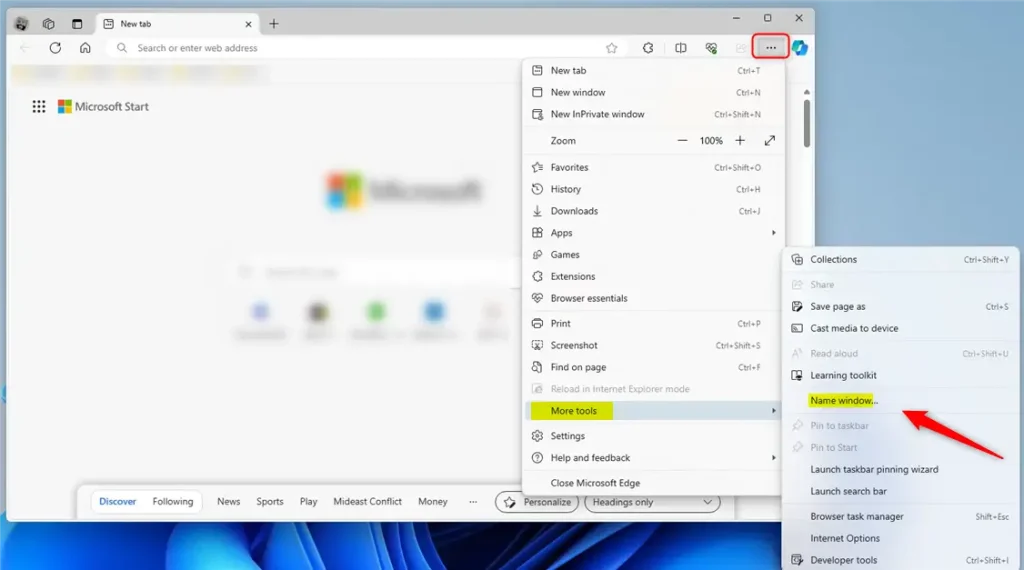
Alternatively, click on the Settings and more (Alt+F) three dots menu icon, select More tools, and click on Name window.
With multiple windows open, hover your mouse over the Microsoft Edge icon on the taskbar to display windows with their corresponding names.

That should do it!
Reference:
Conclusion:
- Naming windows in Microsoft Edge can significantly improve your browsing experience by helping you quickly identify and access the right window.
- Naming a window is straightforward, whether using the right-click method on the title bar or accessing the option through the “Settings and more” menu.
- Following the steps outlined in this article, you can efficiently manage multiple open windows in Microsoft Edge and enhance your productivity while browsing.



Leave a Reply Cancel reply