Joomla Migration to Google Cloud: Step-by-Step Guide

- The latest version of Google Chrome
- Firefox
- Microsoft Edge
- Microsoft Internet Explorer 11 and later
- Safari 8 and later. Note that Safari is not supported in private browser mode.
- All Linux VM images are natively available in Google Cloud.
No additional software or browser extensions are needed. Log in to Google Cloud Console and go to Menu ==> Compute Engine ==> VM instances.
In the list of virtual machine instances, click SSH in the row of the instance that you want to connect to.
Alternatively, you can open an SSH connection to an instance by clicking its name and SSH from the instance details page.
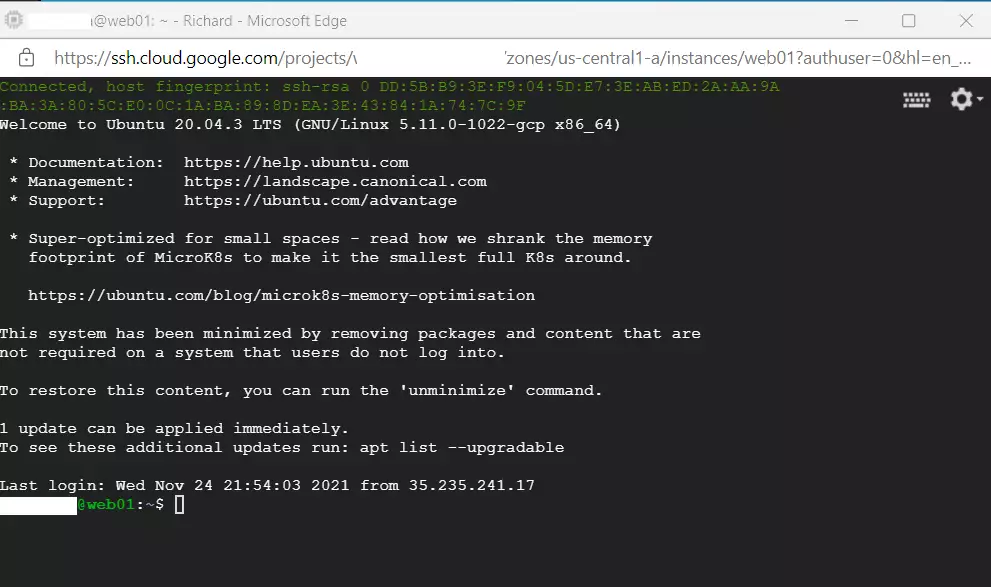
An SSH terminal window with the Ubuntu Linux instance created in the series’s second post will open.
You should now be able to run commands in Ubuntu Linux created on the Google Cloud server.
Install LAMP or LEMP on the new server before migration
Now that your Google Cloud server is ready, you need to install the same software stack, like LAMP or LEMP, that your current Joomla site uses.
Your goal is to ensure the new Google server has all the servers and packages that are the same as the current server. We’ve listed some helpful posts that you can use to install Apache, Nginx, MySQL, MariaDB, or PHP.
You may want to use some other posts when installing LAMP or LEMP on Ubuntu Linux.
- How to install Apache on a Google Cloud server (alternative to Nginx)
- How to install Nginx on a Google Cloud server (alternative to Apache)
- How to install PHP on a Google Cloud server
- How to install MySQL or MariaDB database server
You can use the posts above to install the same servers and packages you have installed on your current server. However, use the identical posts mentioned above to install specific packages on your new server.
Once all the packages are installed, you can transfer content from your current server to the new one.
Configure your new Google server similar to your current server
To make sure your Joomla site works correctly after moving to Google Cloud, you need to set up the new server to be just like your old one.
Ensure the web server (Apache or Nginx) settings are on old and new servers, including the same directory structure and Virtual Host or Server block content.
- Apache directory: /etc/apache2/
- Nginx directory: /etc/nginx/
Your PHP configuration should also be identical to your current server’s PHP settings. Use the post above to install a specific PHP version and all the modules on your current server.
- PHP directory: /etc/php/
Your MySQL or MariaDB configurations should also mimic your current server. Validate each file, directory, and other data to ensure your new server is no different from your current server before migration.
- MySQL / MariaDB directory: /etc/mysql/
Once you have that done, you can continue with the migration process.
Back up current server data and database before migration
Before moving your Joomla site to Google Cloud, it’s crucial to create a backup of all your website files and its database from your current server.
First, you need the Joomla website content and database content. Back up the website content as well as the content in the database.
Before you back up your current server, it’s best to stop any new changes from being made. This way, your backup will be a true reflection of your site at that moment.
To back up Joomla content, log on to your server via SSH if you have access. Once on your current server SSH console, run the commands below to back up your Joomla content, usually at this location: /var/www/html/.
When you run the commands below, a backed-up file named current-server-backup.tar will be created with your Joomla content.
sudo tar -cvf current-server-backup.tar /var/www/html/Next, back up your database content. Again, you need to use the root account or an account with full access to the database you wish to back up.
To backup all databases on the server, you run the commands below:
sudo mysqldump -u username –p --all-database > all_databases_backup.sqlIn addition, a file named all_databases_backup.sql should also be created in the current working directory.
You should now have two files: current-server-backup.tar and all_database_backup.sql.
Copy the current server’s content to the Google Cloud server
At this point, you should be ready to copy the current server’s content over to your new server. There are many ways to get the tar and SQL data files to the new server.
You can use the rsync command from the new server by SSHing it and a command similar to that shown below (changing the host names as needed).
While connected to your Google Cloud console, run the commands below to connect to your current server and copy over the backed-up content.
rsync -avz user@old-server.com:/home/<username>/all_database_backup.sql
rsync -avz user@old-server.com:/home/<username>/current-server-backup.tar
You could also use SCP to copy your files securely; the syntax looks like this:
scp user@old-server.com:/home/<username>/all_database_backup.sql /home/username/
scp user@old-server.com:/home/<username>/current-server-backup.tar /home/username/
If you can’t get the files using SSH, then you can use the wget command to download the files to your new Google Cloud server.
You must copy the files to the current server web server root directory to be able to use the commands below.
cd ~
wget http://old-web-site.com/all_database_backup.sql
wget http://old-web-site.com/current-server-backup.tar
Once the files are copied to your new server, continue to extract them below and import the database content into your database server.
Restore the current server’s content to the Google Cloud server
After backing up your Joomla site, you’ll restore that backup onto your new Google Cloud server, placing the files and database in the correct spots.
tar -xvf current-server-content.tar
sudo cp -rf /var/www/html/ /var/www/html/
Next, run the commands below to import the database content to your servers.
sudo mysql -u root -p < all_database_backup.sql
At this point, your Google server should have the current servers and database content. Next, run the commands below to set up the current permissions to match the server.
Now, double-check that all settings on your current server are identical to those on your new Google Cloud server. Once all have been validated, restart your web server.
sudo systemctl restart nginx
sudo systemctl restart apache2
If you get an error, make sure to resolve it.
Update your DNS and point your domain to your new Google server IP address
Once your Joomla site is running on Google Cloud, you’ll update your domain’s DNS settings to point visitors to the new server’s IP address.
Once your local test is successful, log in to your DNS provider portal and update the DNS A record to point to your new server IP address.
If everything works, you can continue fine-tuning your new server to ensure everything is configured correctly.
And that’s how you migrate your Joomla site to Google Cloud.
Conclusion:
This post showed you how to migrate a Joomla website to a Google Cloud server. Please use the comment form below if you find any errors above or have something to add.
You migrate your Joomla website to Google Cloud, ensuring zero downtime during the transfer.
Website migration involves moving your Joomla installation, database, and files to a new hosting environment. This process keeps your site accessible to visitors throughout the transition, which is crucial for business continuity.
This guide details moving your Joomla site, whether currently local or on another server, to a Google Cloud Platform (GCP) instance. GCP provides a robust suite of cloud computing services and infrastructure.
You’ll prepare your GCP environment and configure your Joomla application for a smooth move. The process begins with setting up your Google Cloud server and concludes with updating your domain’s DNS records to point to the new host.
Migrate your Joomla site by first inventorying your current server for web server, database, and PHP versions. Then, set up your Google Cloud server via the Google Cloud Console. Finally, install LAMP or LEMP on your new server to match your current setup.
Taking inventory of a Linux server before migration
Before you move your Joomla site to Google Cloud, it’s important to check what’s currently running on your old Linux server.
These are what you’ll need to gather from your current server:
- Web server and version number
- Database server and version number
- PHP and related modules
- Other servers and services and how they’re configured
If you’re using Apache, here’s how to check its version on Ubuntu.
apache2 -v
For more in-depth checks and installation steps, check out this guide:
How to check and install specific Apache versions on Ubuntu Linux
If you’re using Nginx, here’s how to check its version on Ubuntu.
nginx -v
For more in-depth checks and installation steps, check out this guide:
How to check and install specific Nginx versions on Ubuntu Linux
To check what version of PHP is installed and how to install a specific version on Ubuntu Linux, read the post below:
How to check and install specific PHP versions on Ubuntu Linux
Whether you’re running MySQL or MariaDB, the post below shows you how to determine which version of MySQL or MariaDB runs on Ubuntu Linux.
How to find what version of MySQL or MariaDB runs on Ubuntu Linux
How to set up and connect to your Google Cloud server
After checking your current server, you’ll set up your new Google Cloud server, which is like getting a virtual computer ready for your Joomla site.
Your Google Cloud server, also known as a Compute Engine instance, lets you connect using SSH, a secure command-line interface, right from your browser within the Google Cloud Console.
SSH from the browser supports the following:
- Web browsers
- The latest version of Google Chrome
- Firefox
- Microsoft Edge
- Microsoft Internet Explorer 11 and later
- Safari 8 and later. Note that Safari is not supported in private browser mode.
- Virtual machine configurations
- All Linux VM images are natively available in Google Cloud.
No additional software or browser extensions are needed. Log in to Google Cloud Console and go to Menu ==> Compute Engine ==> VM instances.
In the list of virtual machine instances, click SSH in the row of the instance that you want to connect to.
Alternatively, you can open an SSH connection to an instance by clicking its name and SSH from the instance details page.
An SSH terminal window with the Ubuntu Linux instance created in the series’s second post will open.
You should now be able to run commands in Ubuntu Linux created on the Google Cloud server.
Install LAMP or LEMP on the new server before migration
Now that your Google Cloud server is ready, you need to install the same software stack, like LAMP or LEMP, that your current Joomla site uses.
Your goal is to ensure the new Google server has all the servers and packages that are the same as the current server. We’ve listed some helpful posts that you can use to install Apache, Nginx, MySQL, MariaDB, or PHP.
You may want to use some other posts when installing LAMP or LEMP on Ubuntu Linux.
- How to install Apache on a Google Cloud server (alternative to Nginx)
- How to install Nginx on a Google Cloud server (alternative to Apache)
- How to install PHP on a Google Cloud server
- How to install MySQL or MariaDB database server
You can use the posts above to install the same servers and packages you have installed on your current server. However, use the identical posts mentioned above to install specific packages on your new server.
Once all the packages are installed, you can transfer content from your current server to the new one.
Configure your new Google server similar to your current server
To make sure your Joomla site works correctly after moving to Google Cloud, you need to set up the new server to be just like your old one.
Ensure the web server (Apache or Nginx) settings are on old and new servers, including the same directory structure and Virtual Host or Server block content.
- Apache directory: /etc/apache2/
- Nginx directory: /etc/nginx/
Your PHP configuration should also be identical to your current server’s PHP settings. Use the post above to install a specific PHP version and all the modules on your current server.
- PHP directory: /etc/php/
Your MySQL or MariaDB configurations should also mimic your current server. Validate each file, directory, and other data to ensure your new server is no different from your current server before migration.
- MySQL / MariaDB directory: /etc/mysql/
Once you have that done, you can continue with the migration process.
Back up current server data and database before migration
Before moving your Joomla site to Google Cloud, it’s crucial to create a backup of all your website files and its database from your current server.
First, you need the Joomla website content and database content. Back up the website content as well as the content in the database.
Before you back up your current server, it’s best to stop any new changes from being made. This way, your backup will be a true reflection of your site at that moment.
To back up Joomla content, log on to your server via SSH if you have access. Once on your current server SSH console, run the commands below to back up your Joomla content, usually at this location: /var/www/html/.
When you run the commands below, a backed-up file named current-server-backup.tar will be created with your Joomla content.
sudo tar -cvf current-server-backup.tar /var/www/html/Next, back up your database content. Again, you need to use the root account or an account with full access to the database you wish to back up.
To backup all databases on the server, you run the commands below:
sudo mysqldump -u username –p --all-database > all_databases_backup.sqlIn addition, a file named all_databases_backup.sql should also be created in the current working directory.
You should now have two files: current-server-backup.tar and all_database_backup.sql.
Copy the current server’s content to the Google Cloud server
At this point, you should be ready to copy the current server’s content over to your new server. There are many ways to get the tar and SQL data files to the new server.
You can use the rsync command from the new server by SSHing it and a command similar to that shown below (changing the host names as needed).
While connected to your Google Cloud console, run the commands below to connect to your current server and copy over the backed-up content.
rsync -avz user@old-server.com:/home/<username>/all_database_backup.sql
rsync -avz user@old-server.com:/home/<username>/current-server-backup.tar
You could also use SCP to copy your files securely; the syntax looks like this:
scp user@old-server.com:/home/<username>/all_database_backup.sql /home/username/
scp user@old-server.com:/home/<username>/current-server-backup.tar /home/username/
If you can’t get the files using SSH, then you can use the wget command to download the files to your new Google Cloud server.
You must copy the files to the current server web server root directory to be able to use the commands below.
cd ~
wget http://old-web-site.com/all_database_backup.sql
wget http://old-web-site.com/current-server-backup.tar
Once the files are copied to your new server, continue to extract them below and import the database content into your database server.
Restore the current server’s content to the Google Cloud server
After backing up your Joomla site, you’ll restore that backup onto your new Google Cloud server, placing the files and database in the correct spots.
tar -xvf current-server-content.tar
sudo cp -rf /var/www/html/ /var/www/html/
Next, run the commands below to import the database content to your servers.
sudo mysql -u root -p < all_database_backup.sql
At this point, your Google server should have the current servers and database content. Next, run the commands below to set up the current permissions to match the server.
Now, double-check that all settings on your current server are identical to those on your new Google Cloud server. Once all have been validated, restart your web server.
sudo systemctl restart nginx
sudo systemctl restart apache2
If you get an error, make sure to resolve it.
Update your DNS and point your domain to your new Google server IP address
Once your Joomla site is running on Google Cloud, you’ll update your domain’s DNS settings to point visitors to the new server’s IP address.
Once your local test is successful, log in to your DNS provider portal and update the DNS A record to point to your new server IP address.
If everything works, you can continue fine-tuning your new server to ensure everything is configured correctly.
And that’s how you migrate your Joomla site to Google Cloud.
Conclusion:
This post showed you how to migrate a Joomla website to a Google Cloud server. Please use the comment form below if you find any errors above or have something to add.
Was this guide helpful?

About the Author
Richard
Tech Writer, IT Professional
Richard, a writer for Geek Rewind, is a tech enthusiast who loves breaking down complex IT topics into simple, easy-to-understand ideas. With years of hands-on experience in system administration and enterprise IT operations, he’s developed a knack for offering practical tips and solutions. Richard aims to make technology more accessible and actionable. He's deeply committed to the Geek Rewind community, always ready to answer questions and engage in discussions.




No comments yet — be the first to share your thoughts!