How to Enable or Disable Notifications in the Settings app on Windows 11

You enable or disable notifications on Windows 11 through the Settings app to control which app alerts you receive.
Notifications are brief pop-up messages from apps and Windows itself, designed to keep you informed about updates, reminders, or new messages.
It’s important to manage these alerts. Too many can distract you, but missing too few might mean you skip something important.
In Windows 11, you have granular control to customize notification settings for each application, ensuring you only get the alerts you want.
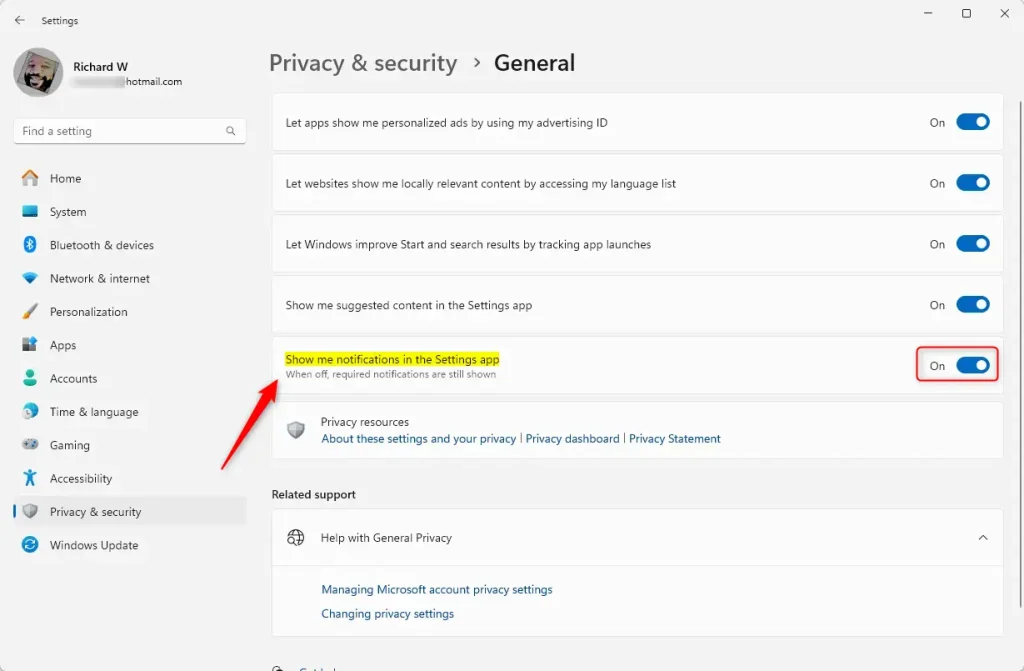
Go to Settings > Privacy & security > General. Use the toggle switch to turn notifications On or Off. This controls whether you see app notifications within the Settings app itself.
Turn Notifications On or Off in 🪟 Windows 11 Settings
You can easily turn notifications on or off in Windows 11 through the Settings app. This lets you control which alerts you see and when, helping you stay focused or informed.
- Open the Settings app: Click the Start button (the Windows icon) at the bottom-left corner, then click the gear icon labeled Settings. Or press
Windows key + Ion your keyboard. - On the left side, click Privacy & security.
- On the right side, find and click the General section to open it.
- Look for the option called Show me notifications in the Settings app.
- Use the toggle switch to turn it On (blue) or Off (gray) depending on what you want.
Note: Even if you turn this off, some important notifications will still show.
Once you’re finished, you can close the Settings window.
Change Notification Settings Using the Registry Editor (Advanced)
For advanced control over Windows 11 notifications, you can use the Registry Editor. This method lets you fine-tune settings beyond the basic options, but it requires careful steps.
- Open Registry Editor as Administrator: %📂%FLAG_ADMIN%%
- Press
Windows key + S, typeregedit, then right-click Registry Editor and choose Run as administrator. - Confirm any prompts that appear.
- Press
- In Registry Editor, go to this location (you can copy-paste it in the address bar at the top):
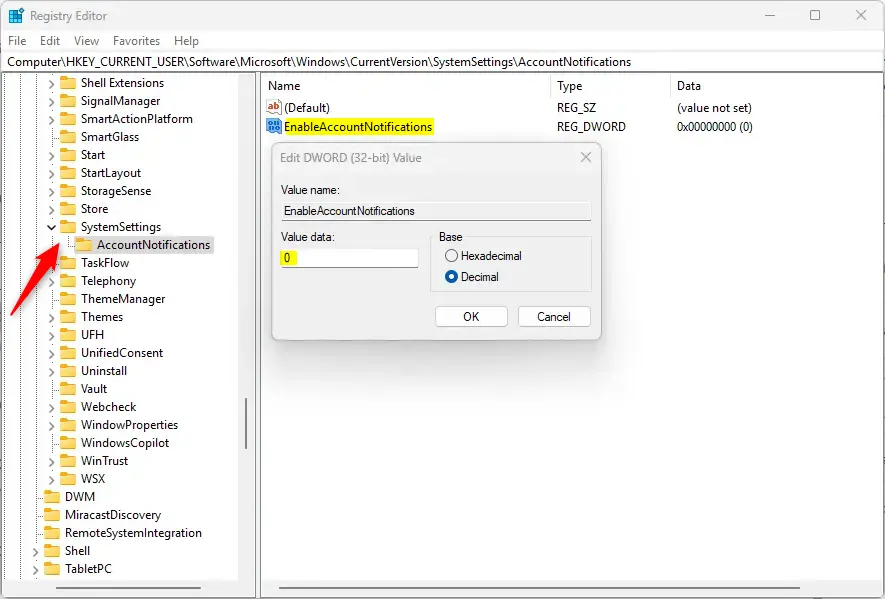
Computer\HKEY_CURRENT_USER\Software\Microsoft\Windows\CurrentVersion\SystemSettings\AccountNotifications - On the right side, look for EnableAccountNotifications.
- Double-click EnableAccountNotifications to edit it:
- Type
1to turn notifications ON. - Type
0to turn notifications OFF. - Then click OK.
- Type
- If you don’t see EnableAccountNotifications, right-click on an empty space on the right side, choose New > DWORD (32-bit) Value, and name it EnableAccountNotifications. Then set its value as above.
- Close Registry Editor and restart your computer to apply the changes.
Summary
- You can control how Windows 11 shows notifications by turning them on or off in the Settings app.
- Use the Privacy & Security > General section to find the notification toggle.
- Advanced users can also use the Registry Editor to change notification settings.
- Adjust these settings to reduce distractions or stay informed—whichever suits you best!
You can control how Windows 11 shows notifications by turning them on or off in the Settings app, or use the Registry Editor for more advanced changes. Adjust these settings to reduce distractions or stay informed.
Helpful Links:
Why are my notifications not popping up on 🪟 Windows 11?
If your Windows 11 notifications aren’t popping up, first check that ‘Show notification banners’ is turned on in Settings > System > Notifications for each app. Also, ensure Focus Assist is off, as it can block messages.
Was this guide helpful?

About the Author
Richard
Tech Writer, IT Professional
Richard, a writer for Geek Rewind, is a tech enthusiast who loves breaking down complex IT topics into simple, easy-to-understand ideas. With years of hands-on experience in system administration and enterprise IT operations, he’s developed a knack for offering practical tips and solutions. Richard aims to make technology more accessible and actionable. He's deeply committed to the Geek Rewind community, always ready to answer questions and engage in discussions.


No comments yet — be the first to share your thoughts!