

This post shows students and new users how to install and make Opera their default web browser on Windows 11.
Why Use Opera?
Opera is a web browser made for speed and efficiency. Many users worldwide prefer Opera over Chrome or Edge.
Opera is built to be fast. It also has privacy features. These features block ads and trackers. Ads and trackers slow you down and invade your privacy online. If you want a faster, more private browsing experience, Opera is worth trying.
Windows 11 comes with Microsoft Edge as the default browser. But many people prefer Opera instead. You can change your default browser anytime.
What You Need
First, you need to have Opera installed on your computer. If you don’t have it yet, download Opera using the link below.
Download the Opera Browser for Computer
Once you download it, install it. Then follow the steps below to make it your default browser.
How to Set Opera as Your Default Browser
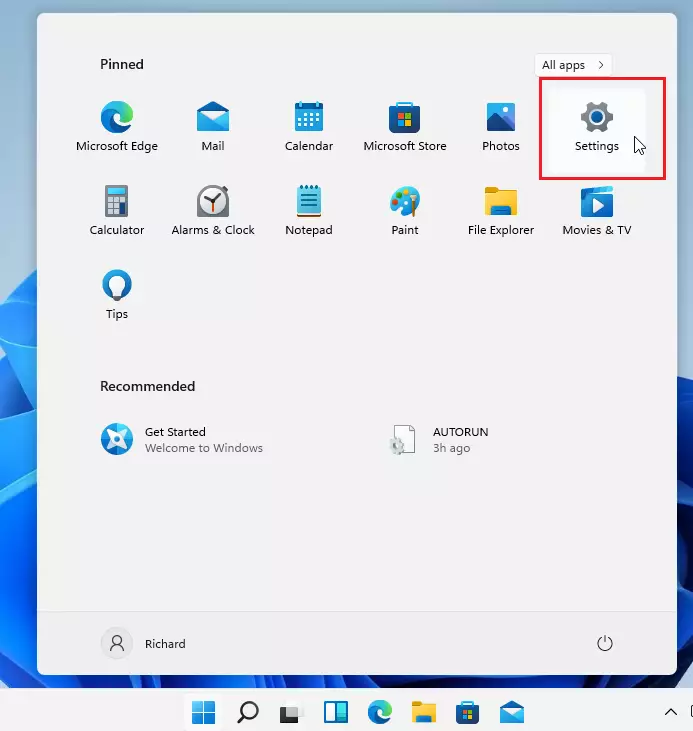
Step 1: Open Windows Settings
Windows 11 stores most of its settings in one place. This is called System Settings. You can open it two ways:
- Press the Windows key + I on your keyboard
- Click Start and then click Settings
You can also use the search box on the taskbar. Type “Settings” and click to open it.
Step 2: Go to Default Apps Settings
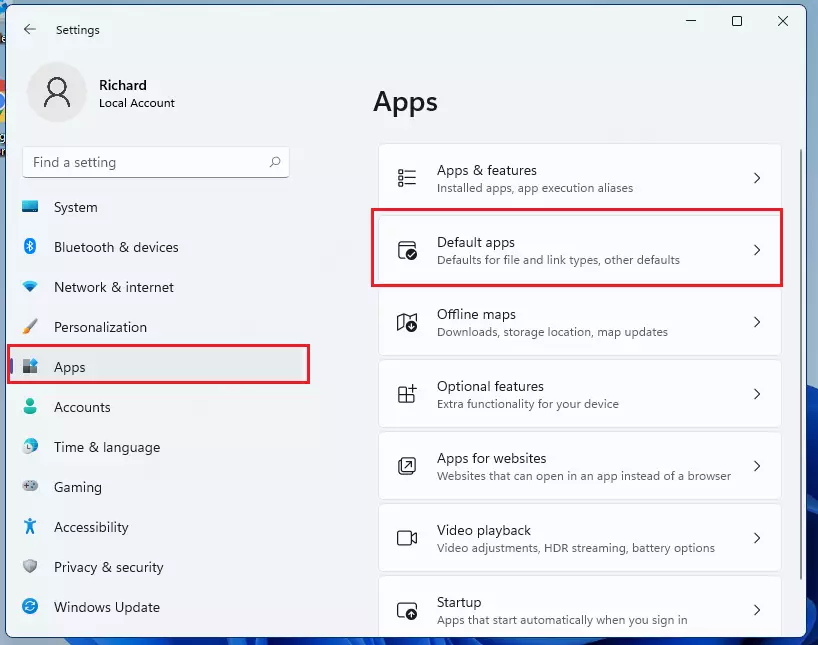
Windows Settings will open. Look for Apps on the left side. Click it.
On the right side of your screen, click Default Apps.
Step 3: Search for Microsoft Edge
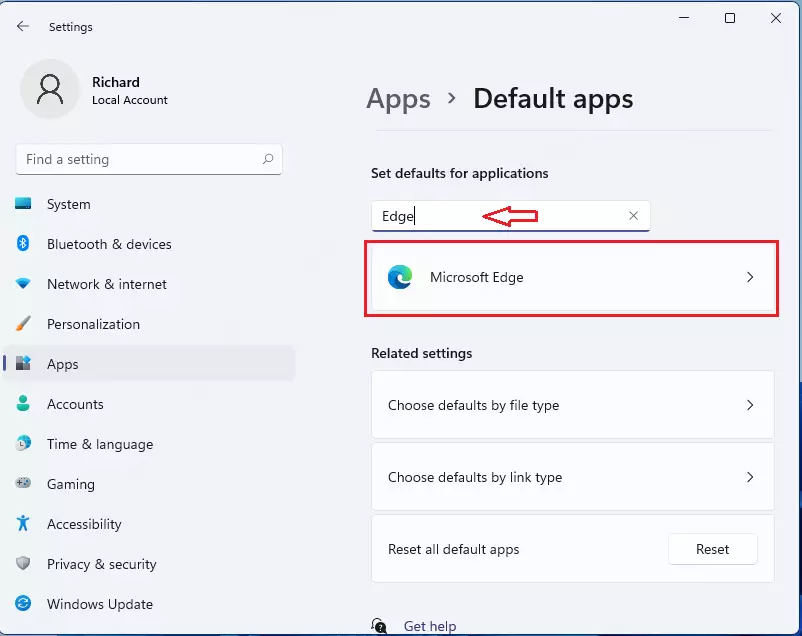
When Default Apps settings open, use the search box at the top. Type “Edge” in the search box.
Microsoft Edge will appear in the results below. Click on it.
Step 4: Switch Each File Type to Opera
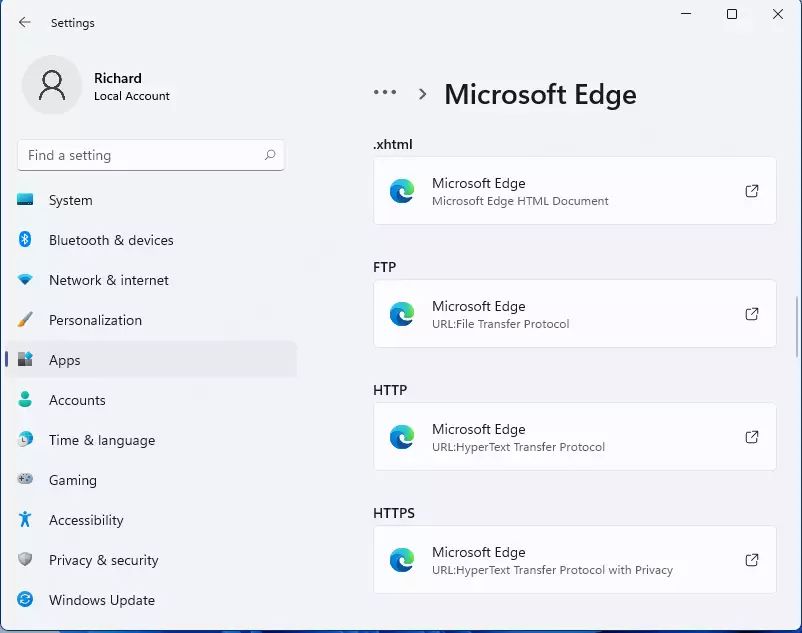
The next page shows all the file types and link types that Edge handles. You will see a list of items like:
- HTML files
- HTTP links
- HTTPS links
- And more
You need to change each one from Edge to Opera. Select each type one by one and switch it to Opera.
Step 5: Confirm the Switch
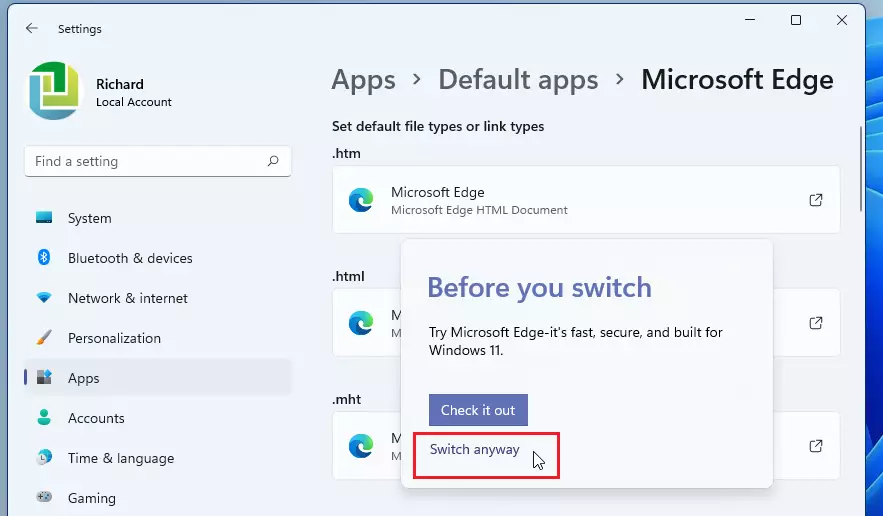
When you select Microsoft Edge, a pop-up window may appear. This window asks you to try Edge before switching. If you still want to use Opera, click Switch anyway.
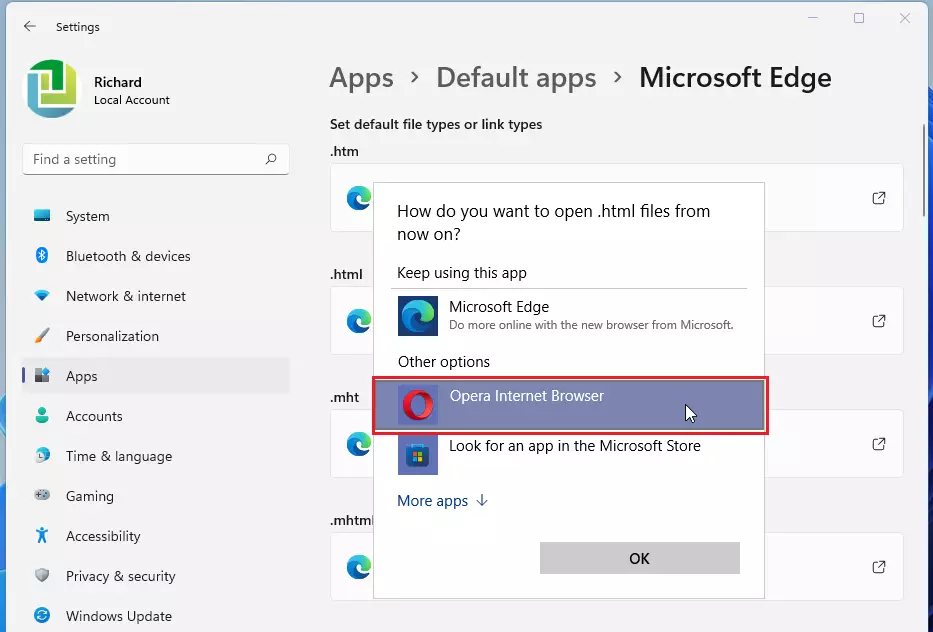
Choose Opera as the default for each file type. Then click OK to confirm.
Step 6: Use “More Apps” if Needed
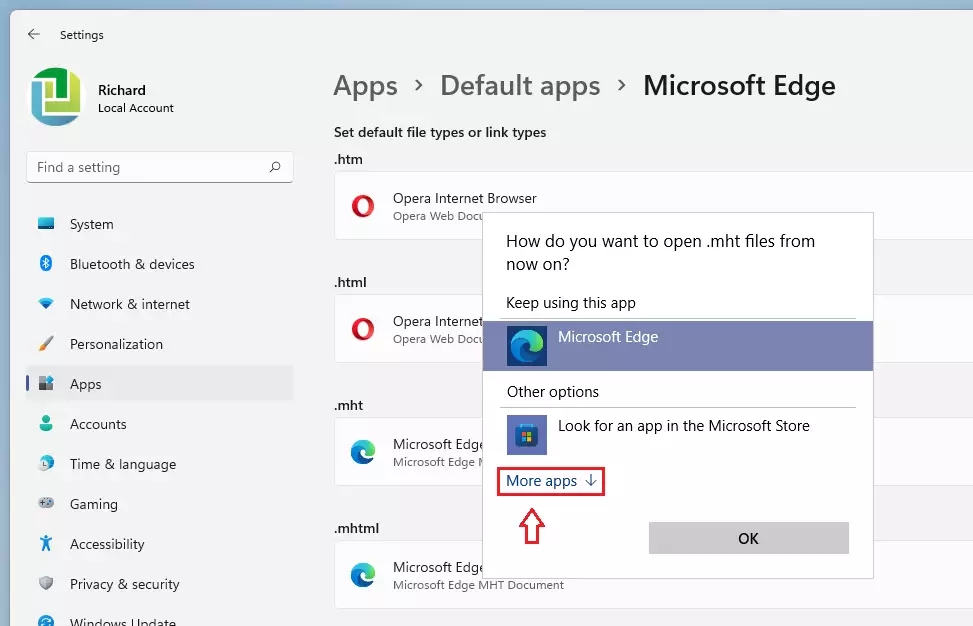
Sometimes Opera doesn’t show up right away when you select a file type. If this happens, click the More apps link. This will show hidden apps, including Opera.
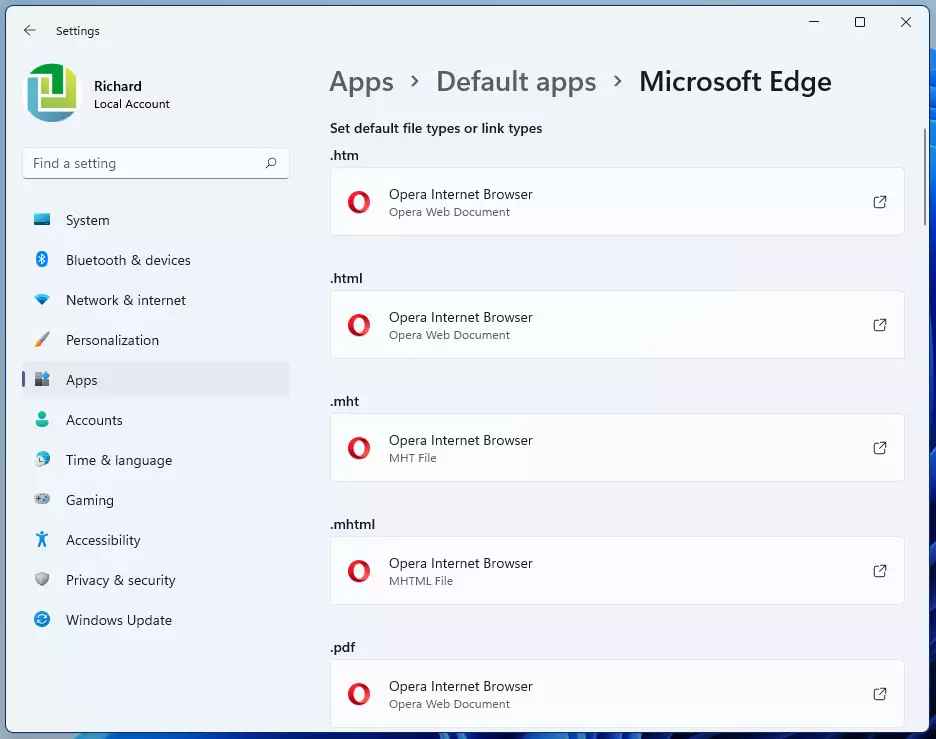
When you’re done, every file type should now be set to Opera.
What Happens Next?
Opera is now your default browser on Windows 11. When you click a link, open a file, or use anything that needs a web browser, Opera will open automatically.
Summary
Setting Opera as your default browser on Windows 11 is quick and easy. Here’s what you learned:
- Why Opera: Opera is fast and efficient. It blocks ads and trackers to keep you safe and speed up your browsing.
- Download First: Make sure Opera is installed on your computer before you start.
- Use System Settings: Windows 11 keeps all settings in one place. Press Windows key + I to open it quickly.
- Change Default Apps: Go to Apps, then Default Apps. Search for Edge and change each file type to Opera.
- Confirm Changes: Click “Switch anyway” if a pop-up appears. Use “More apps” if Opera doesn’t show up.
- Now You’re Done: Opera will open automatically when you click links or open files.
How do I set Opera as my default browser in Windows 11?
Is Opera a good alternative to Microsoft Edge?
What should I do if Opera doesn't appear in the default apps list?
Can I still use Microsoft Edge after setting Opera as my default browser?
Do I need to install Opera before making it my default browser?


Leave a Reply