

This article explains how to install and make Firefox your default web browser on Windows 11.
Why Use Firefox?
Mozilla Firefox is a privacy-focused web browser. It displays web pages using the Gecko rendering engine instead of Chromium, which Google Chrome and Microsoft Edge use. Many people prefer Firefox because it offers better privacy protection and more control over their browsing experience.
Windows 11 comes with Microsoft Edge as the default browser. But if you’d rather use Firefox, you can easily change this setting.
What You Need
This guide assumes Firefox is already installed on your computer. If not, download Firefox first using the link below.
Download Firefox Browser — Fast, Private & Free
Once you install Firefox, follow the steps below to make it your default browser.
How to Set Firefox as Your Default Browser
Step 1: Open Windows Settings
Windows 11 stores most settings in one central location called System Settings. You can open it two ways:
- Press
Windows key + Ion your keyboard - Click Start ==> Settings
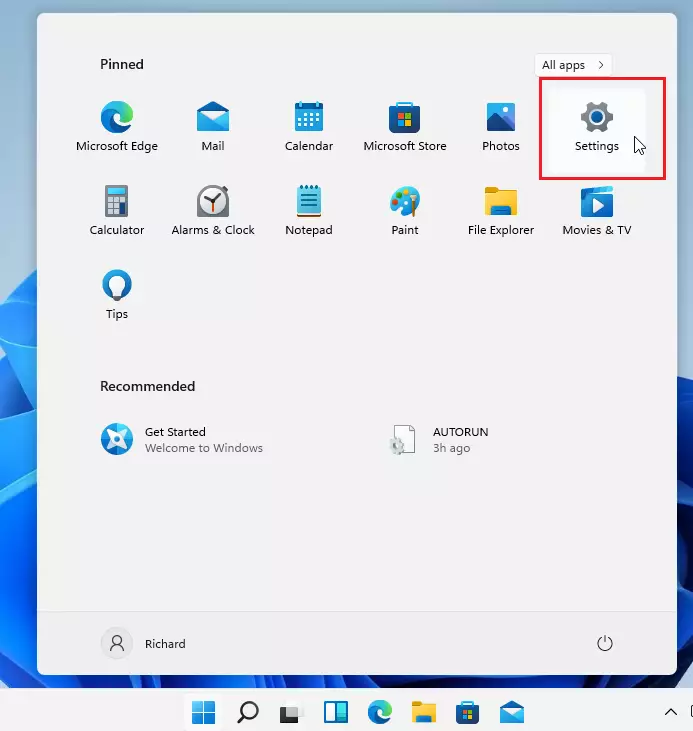
You can also use the search box on your taskbar. Type “Settings” and click to open it.
Step 2: Navigate to Default Apps
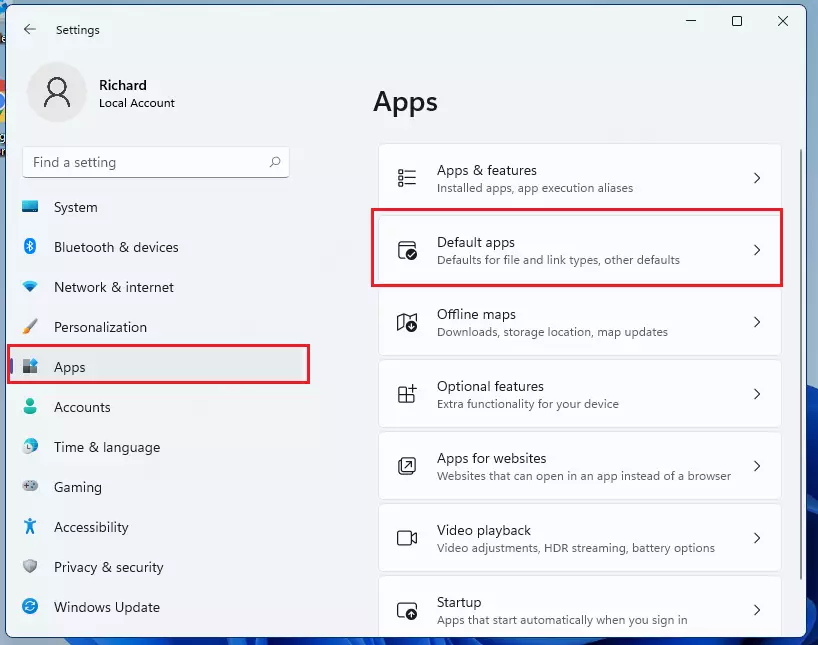
In Windows Settings, click Apps on the left side. Then select Default Apps on the right side of your screen.
Step 3: Find Microsoft Edge
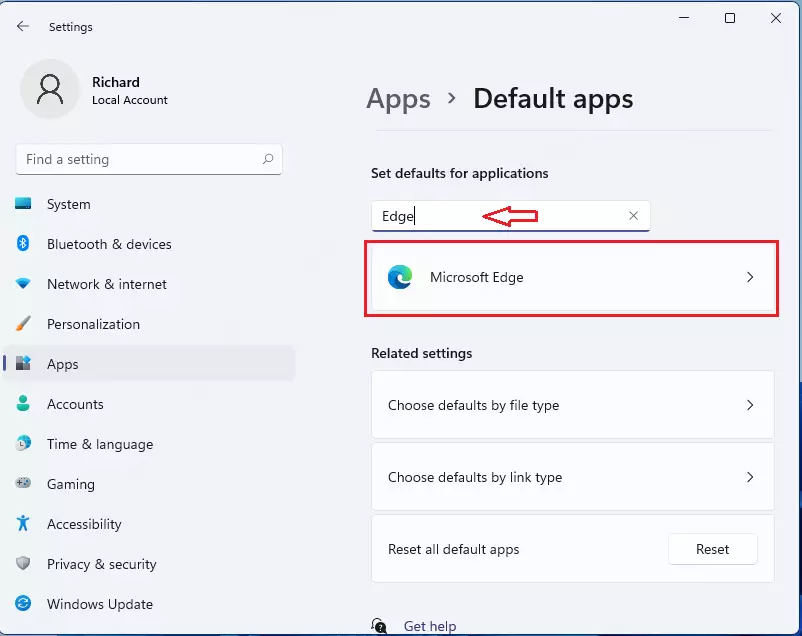
When the default app settings open, use the search box at the top. Type “Edge” to search for it.
Microsoft Edge will appear in the results below. Click on it.
Step 4: Switch Each File Type to Firefox
The next page shows all the file types and link types that Edge currently handles. You need to change each one to Firefox.
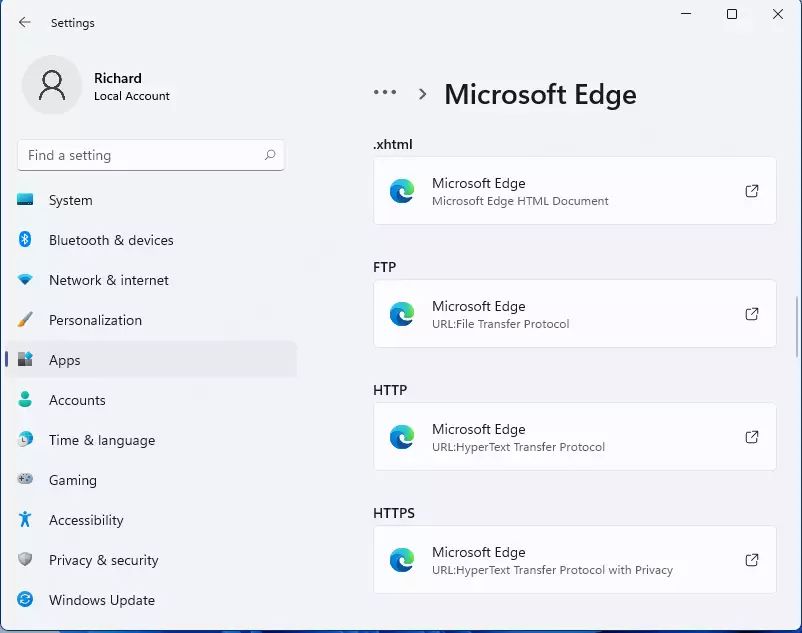
When you select Microsoft Edge, a pop-up window may appear asking you to check out Edge before switching. If you want to continue anyway, click Switch anyway.
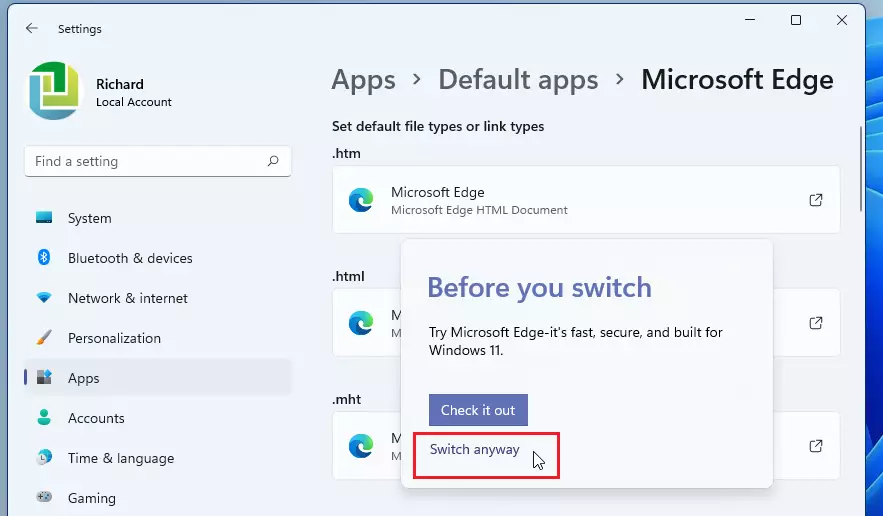
Choose Firefox as the default for each file type. Then click OK to confirm and complete the switch.
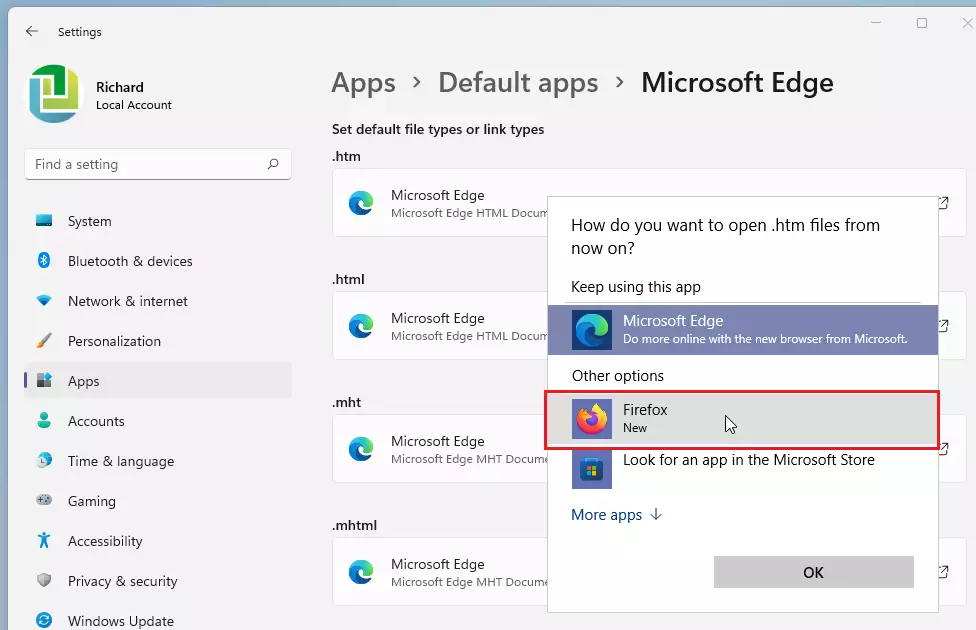
Step 5: Show Hidden Apps (If Needed)
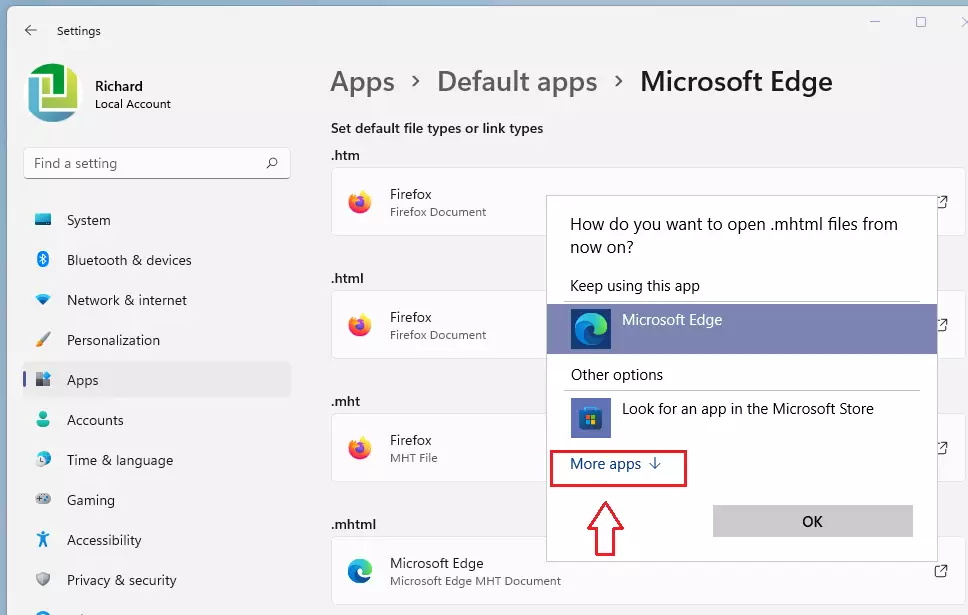
Sometimes Firefox won’t appear when you select a file extension. Click the More apps link to show hidden apps and find Firefox.
Step 6: Verify All File Types Are Changed
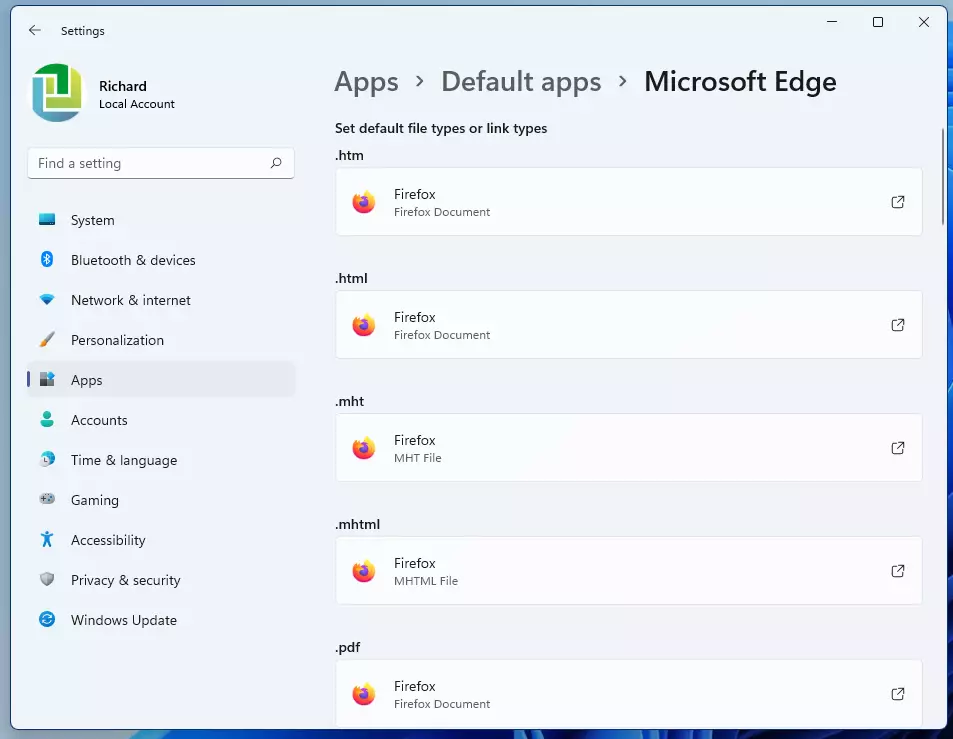
When you’re done, check that each file type now shows Firefox as the default.
What Happens Now?
Firefox is now your default web browser for Windows 11. Any links you click will automatically open in Firefox instead of Edge. You’ll also have better privacy protection and access to Firefox extensions that enhance your browsing.
Summary
Setting Firefox as your default browser on Windows 11 is simple and takes just a few minutes. You open Windows Settings, go to Apps ==> Default Apps, search for Edge, and switch each file type to Firefox. Once complete, all your web links and browsing will happen in Firefox. This gives you a more private browsing experience with features and extensions you prefer. Firefox is a reliable choice for users who want an alternative to the built-in Microsoft Edge browser.




Leave a Reply Cancel reply