
This guide will show you how to give someone full access to your Windows 11 PC by making their account an Administrator. This means they can change important settings and install programs.
What is an Administrator Account?
Windows 11 has two main types of user accounts:
- Standard User: Can use the computer but can’t make big changes like installing software.
- Administrator: Has full access and can change almost anything on the PC.
When you create a new user, they usually start as a Standard User. If you want to give them more control, you need to make them an Administrator.
How to Change a User to Administrator
Follow these easy steps:
- Open the Settings App
Click on the Start menu (the Windows icon on the bottom left) and select Settings.
Or press Windows key + I on your keyboard to open Settings quickly.
Learn more about Windows Settings
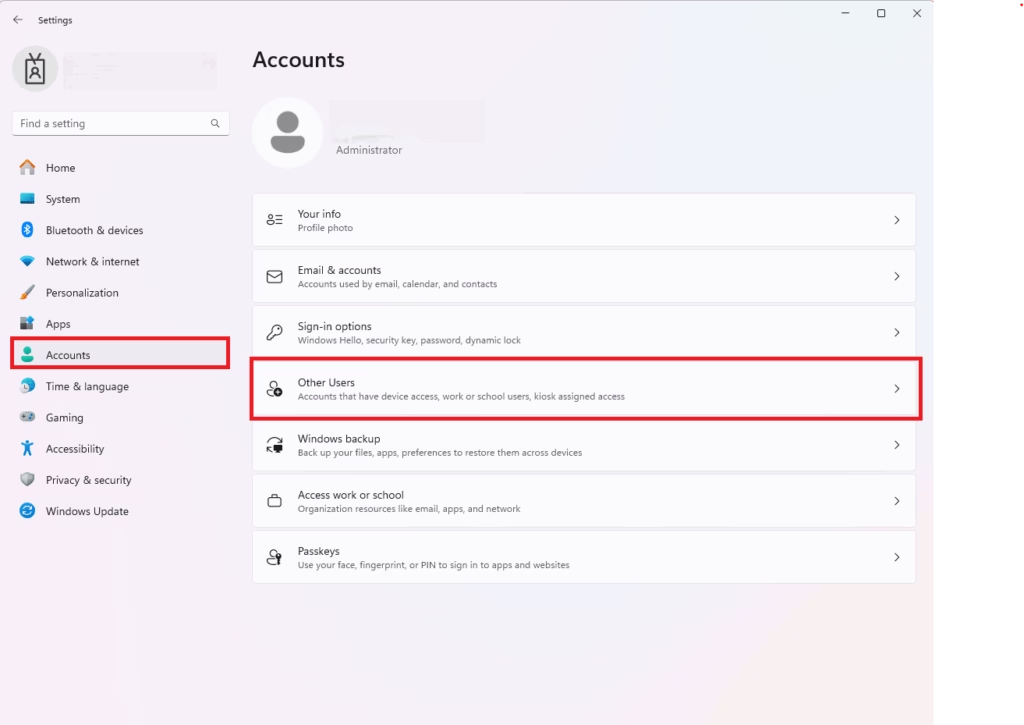
- Go to Accounts
In the Settings window, click on Accounts from the menu on the left side.
- Choose Other Users
On the right side, find and click the Other Users section to see the list of users.
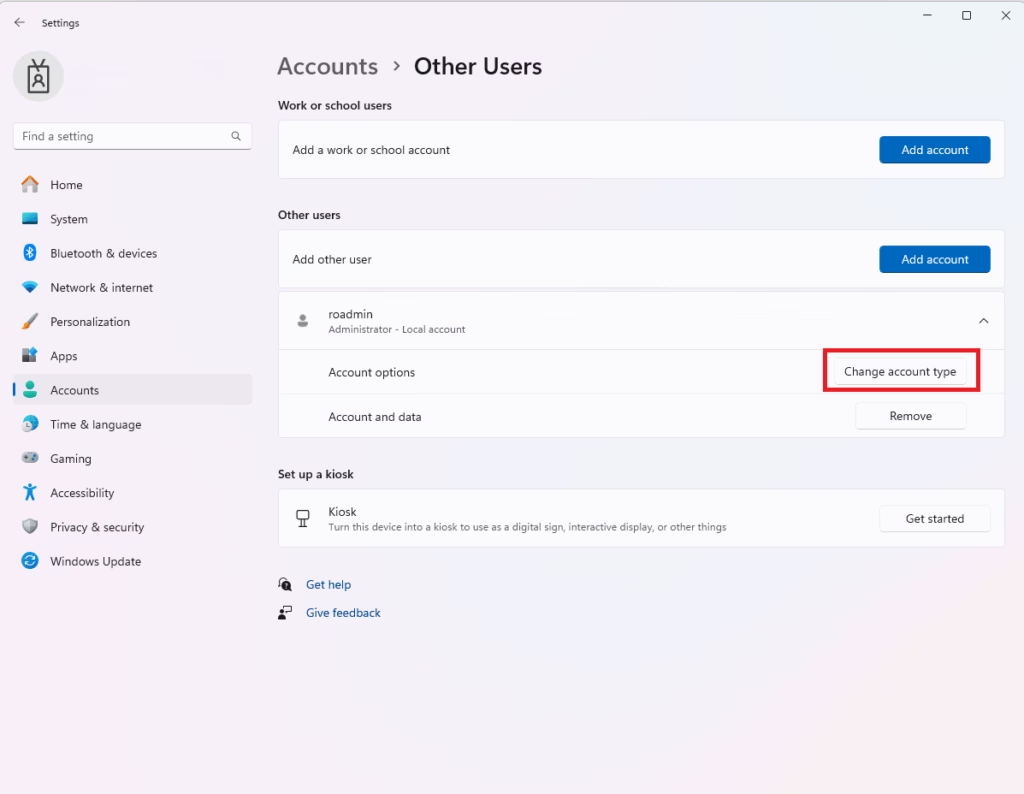
- Select the User You Want to Change
Click the user account you want to make an Administrator.
- Change Account Type
Click the Change account type button.
- Set to Administrator
In the pop-up window, click the drop-down menu and select Administrator, then click OK.
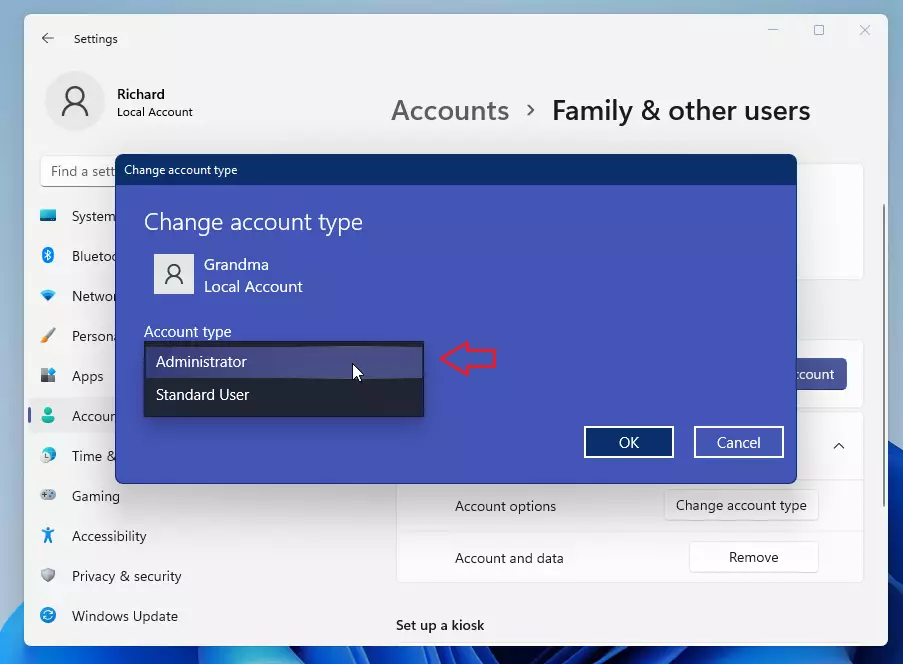
That’s it! The user now has Administrator rights on your Windows 11 PC.
Important Tips
- Only give Administrator rights to people you trust because they can change important settings.
- If you want to change roles later, just come back to Settings > Accounts > Other Users.
- Keep an eye on user accounts and their permissions to keep your PC safe.



Leave a Reply Cancel reply