
This article explains how to check which version of Windows 11 is running on your PC.
Why Check Your Windows 11 Version?
Knowing your Windows 11 version is important. Different versions may need different software or drivers. Checking your version can save you time and hassle when installing new programs.
Method 1: Quick Check Using the Run Command
Here’s the fastest way to see your Windows version:
- Press the Windows logo key + R on your keyboard. Or click the Start button and search for “Run command.”
- Type the following in the box that opens:
winver
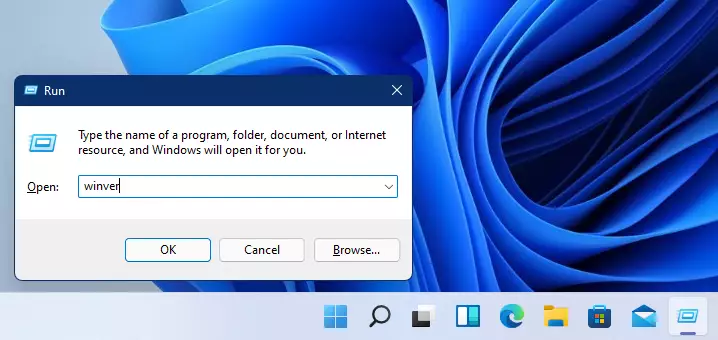
- Press OK.
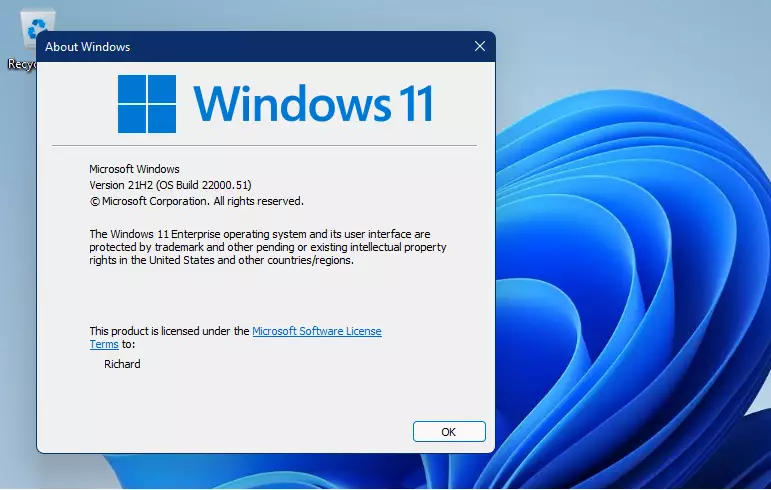
What happens? A window will pop up showing your Windows version. This gives you basic information quickly.
Method 2: Check Full Details in Settings
Want more detailed information? Follow these steps:
- Click the Start button.
- Go to Settings.
- Click System from the left menu.
- Scroll down and select About.
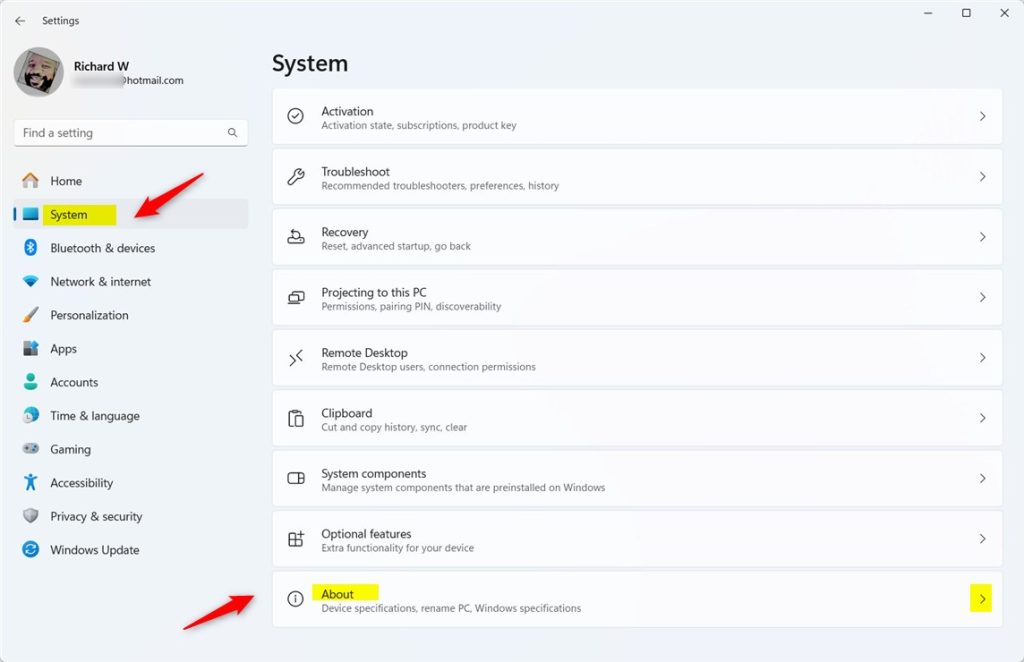
What happens? You’ll see detailed information about your computer. This includes your device name, processor type, and how much RAM you have.
Look under Windows specifications. You’ll find which edition of Windows you’re using and the version number.
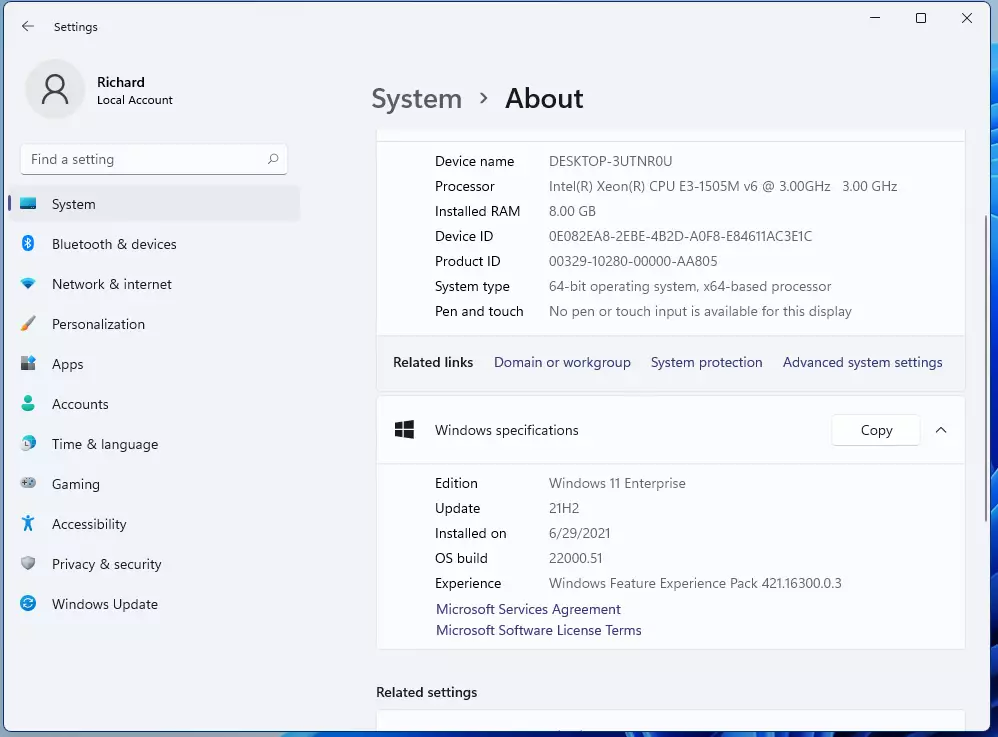
For example, you might see “Windows 11 Enterprise” with “64-bit” as the system type.
Method 3: Get Even More Details With System Information
Need the deepest level of detail? Use the System Information tool:
- Click the Windows search button (magnifying glass icon).
- Type System Information.
- Click the result that appears.
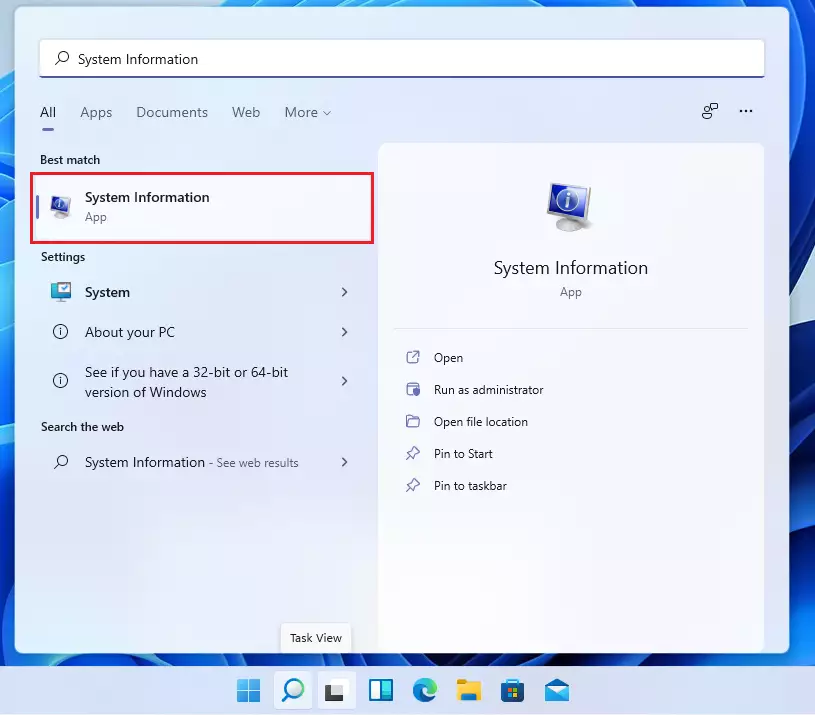
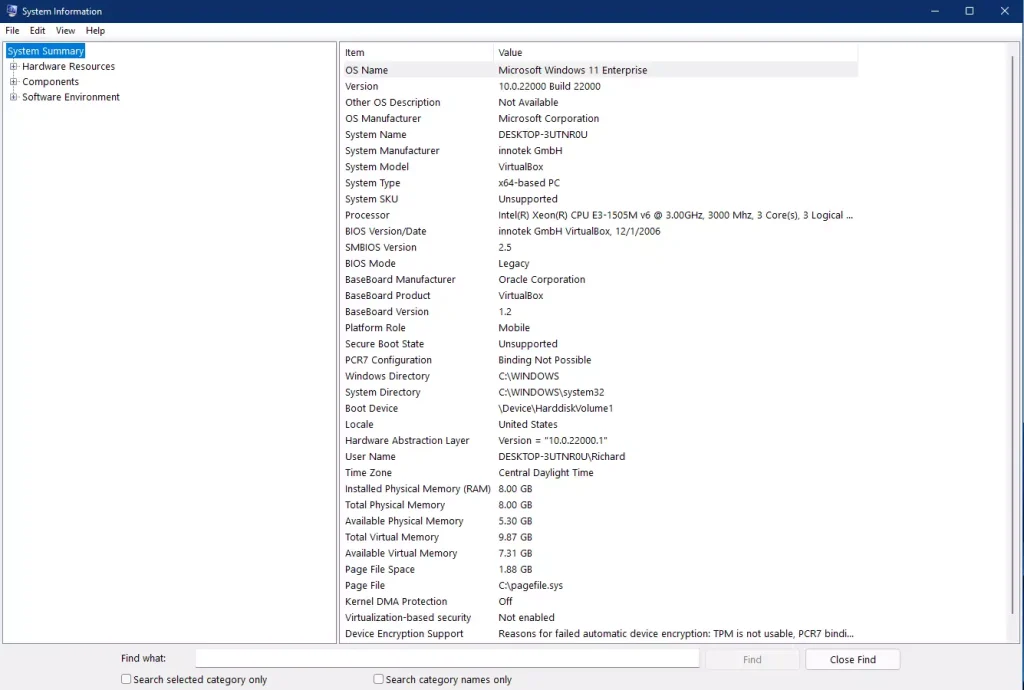
What happens? A detailed summary page opens. It shows even more technical details about your system.
Summary
Checking your Windows 11 version is easy and takes just a few seconds. You have three options depending on how much detail you need:
- Quick check: Use the
winvercommand for basic version info. - Detailed check: Go to Settings > System > About for edition and version details.
- Full details: Open System Information for comprehensive technical specifications.
Knowing your Windows version helps you install the right software and drivers. It also improves your computer’s overall performance. Taking a minute to check this information now can save you frustration later.
Leave a Reply Cancel reply