
This article explains how to install Webmin on Ubuntu 24.04.
Webmin is a web-based system administration tool for Unix-like systems, including Ubuntu. It provides a user-friendly interface for managing various aspects of your server without needing to use the command line extensively.
This tool lets you manage server configurations via a web browser. It offers modules for managing services like Apache, DNS, file sharing, user accounts, and more. Its centralized management makes it easier to oversee multiple aspects of your server.
Since it’s web-based, you can manage your server remotely from any location with internet access, simplifying server administration and making managing a server much more user-friendly.
Install required packages
Webmin relies on some packages to be installed on Ubuntu to run. Below are some of the packages that you must install.
Run the command below to install them.
sudo apt install python3 shared-mime-info unzip apt-show-versions libapt-pkg-perl libauthen-pam-perl libio-pty-perl libnet-ssleay-perl
After installing the packages above, download the Webmin installer package.
Download and install Webmin
Your system should be ready to install Webmin.
Run the command below to download the latest version of Webmin.
curl -L -O https://www.webmin.com/download/deb/webmin-current.deb
You may have to install curl [sudo apt install curl] if you don’t already have it.
Once downloaded, install Webmin by running the command below.
sudo dpkg -i webmin-current.deb
After installing, open the Webmin config file by running the command below.
sudo nano /etc/webmin/miniserv.conf
Then, add a new line with the IP addresses you want to allow access to the server.
# add a new line at the end to allow IP addresses
allow=127.0.0.1 192.168.0.0/24
Save and exit the file.
Restart Webmin by running the command below.
sudo systemctl restart webmin
You should then be able to access the server hostname or IP address, followed by port 10000 from clients’ IPs, which is allowed.
http://example.com:10000
Users who are admins or can run the sudo command are allowed to log in on the login page.
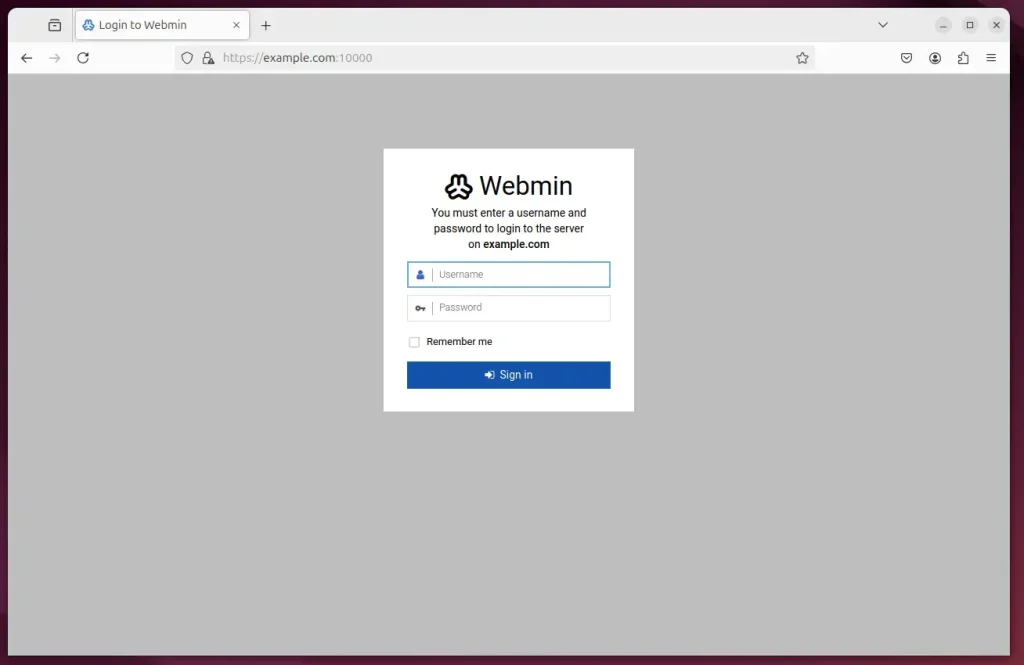
Start managing your server.
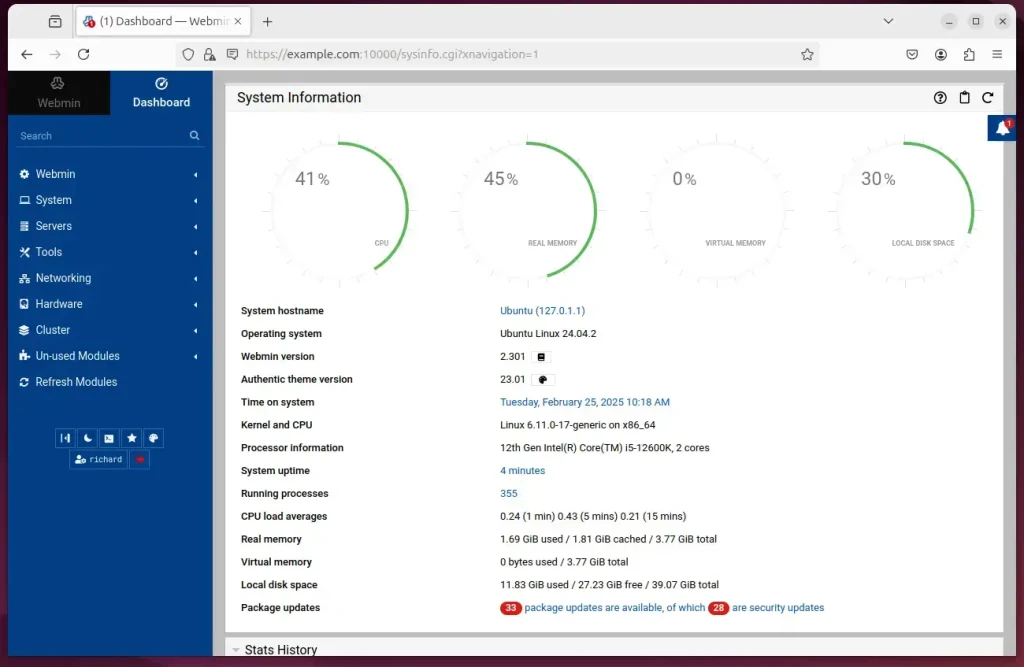
That should do it!
Conclusion:
Installing Webmin on Ubuntu 24.04 is a straightforward process that enhances server management capabilities. Here are the key takeaways:
- Web-Based Management: Webmin provides a user-friendly interface for managing server configurations without extensive command line use.
- Remote Access: Manage your server from anywhere with internet access, simplifying server administration.
- Essential Packages: Ensure necessary packages are installed before proceeding with the Webmin setup.
- Installation Steps: Follow the commands to download and install Webmin, configure access, and restart the service.
- Access and Use: Log in through the designated port to begin managing your server effectively.
Following these steps, you can harness Webmin’s full potential for your server management needs.



Leave a Reply Cancel reply