How to Install Syncthing on Ubuntu 24.04

You can install Syncthing on Ubuntu 24.04 to automatically sync files and folders across your devices.
Syncthing is a free, open-source application that creates a peer-to-peer file synchronization network, meaning it transfers data directly between your computers without relying on a central server. This ensures your data remains private.
With Syncthing, you get secure, encrypted file transfers between your machines. You can select which folders to sync and even control bandwidth usage, providing a flexible and private way to keep your files consistent.
Install Syncthing by opening your terminal and running “sudo apt update” followed by “sudo apt install syncthing”. Enable the service to start automatically with “systemctl –user enable syncthing”. Access the web interface at http://127.0.0.1:8384 to configure your sync settings.
Install Syncthing
To sync files with Syncthing, install it on all your devices. Open your terminal and run these commands:
sudo apt update
sudo apt install syncthing
After installing, you need to tell the system to start Syncthing automatically when you log in. Run this command:
systemctl –user enable syncthing
You can start or stop the Syncthing service whenever you need with these commands:
systemctl –user start syncthing
systemctl –user stop syncthing
Configure Syncthing
Once the service is running, you need to set up a secure login for the web interface.
- Open your web browser and go to http://127.0.0.1:8384.
- Navigate to the Settings menu in the top right corner.
- Click on the GUI tab.
- Enter a unique username and a strong, secure password in the provided fields.
- Click Save.
The interface will refresh and prompt you to log in with your new credentials.
Log in to the Syncthing portal
If you have trouble accessing the portal, check the service status. You can find your configuration path by running:
systemctl –user status syncthing
Open a browser and go to http://127.0.0.1:8384. Navigate to the Settings menu (top right corner) and click the GUI tab. Enter a unique username and a strong, secure password. Then, click Save.
https://your-ip-address:8384
Enter the username and password you just created to log in.
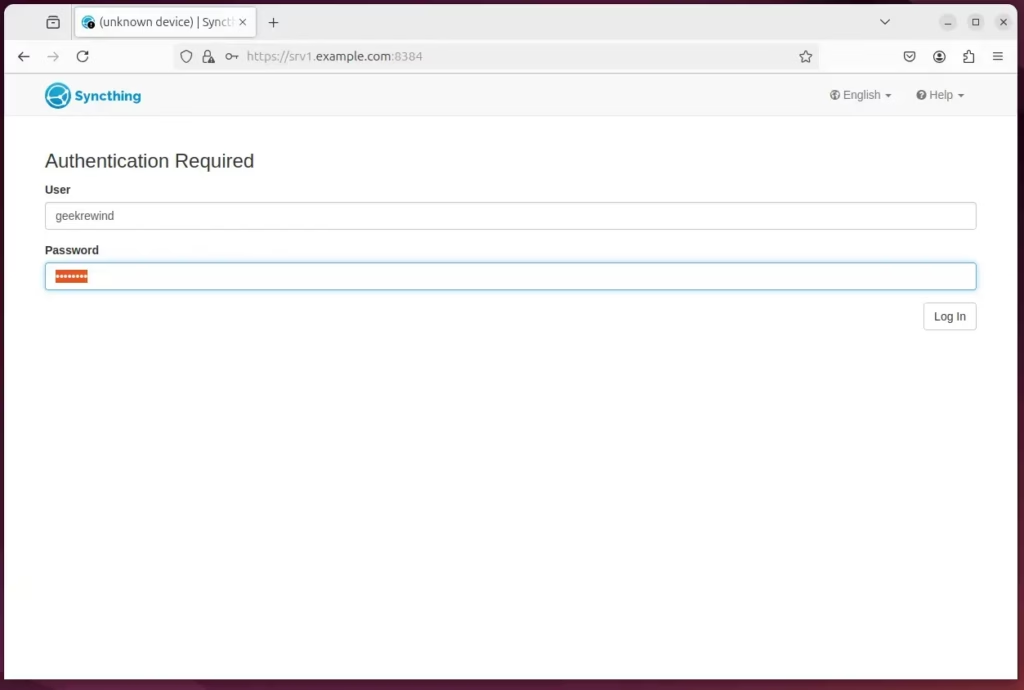
Once you log in, click the “Actions” button and select “Show ID” on the top menu.
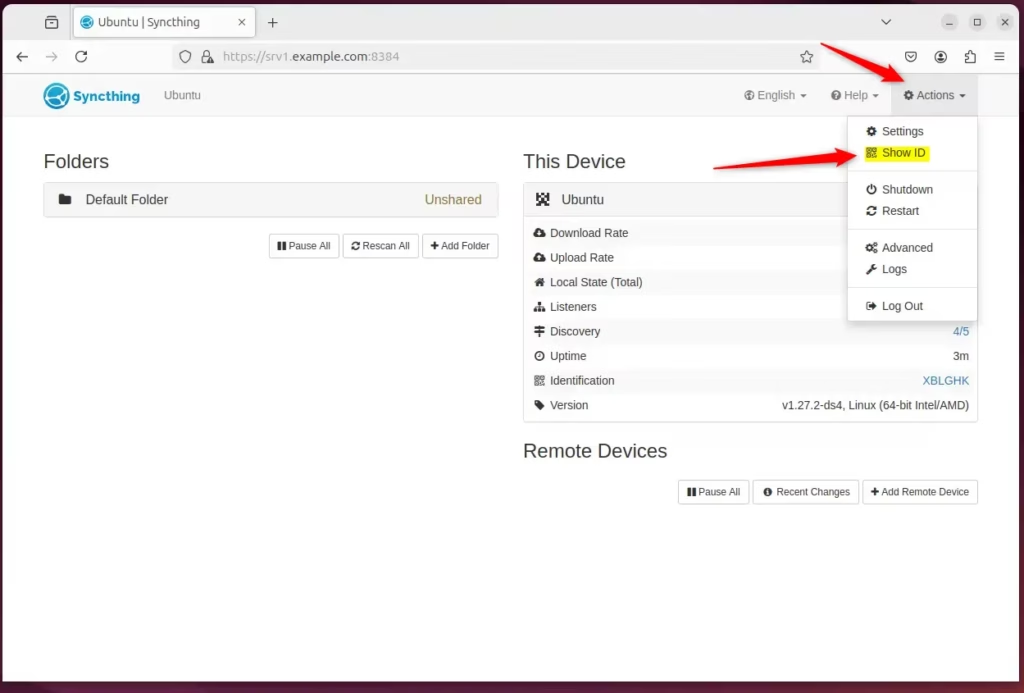
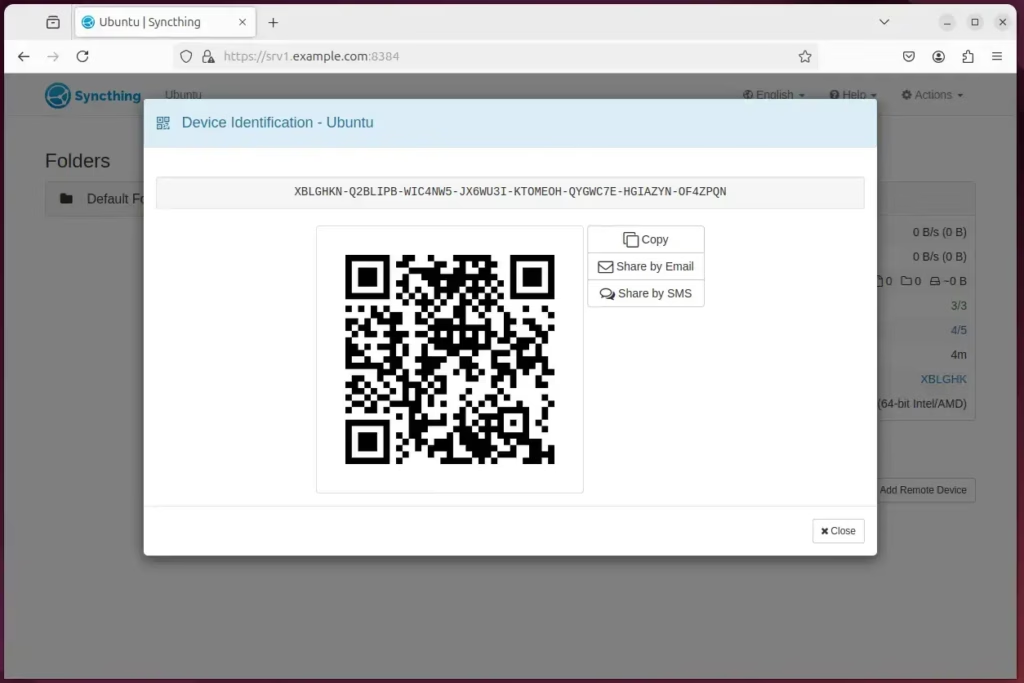
Copy the connection ID and use it to add a remote device.
Click “Add Remote Device” on the remote host and enter the connection ID you copied from the other host. Return to the original host and confirm the request to connect.
Using GUI Wrappers
If you prefer not to use a web browser, you can install a GUI wrapper. These tools sit in your desktop taskbar and make managing your sync status much easier. Look for “Syncthing GTK” or “SyncTrayzor” in your software center to simplify your daily management.
Conclusion
Syncthing offers a flexible and effective way to sync files across multiple devices. By following these steps, you ensure your data remains secure and private.
- Open-source: A free solution for file synchronization.
- Direct Connection: Connects devices directly to keep your data private.
- Customizable: Choose specific folders and set limits to fit your needs.
- Real-time Sync: Files update automatically whenever you make a change.
Was this guide helpful?
100% of readers found this helpful (1 votes)

About the Author
Richard
Tech Writer, IT Professional
Richard, a writer for Geek Rewind, is a tech enthusiast who loves breaking down complex IT topics into simple, easy-to-understand ideas. With years of hands-on experience in system administration and enterprise IT operations, he’s developed a knack for offering practical tips and solutions. Richard aims to make technology more accessible and actionable. He's deeply committed to the Geek Rewind community, always ready to answer questions and engage in discussions.




No comments yet — be the first to share your thoughts!