How to Install or Uninstall Built-in Sysmon on Windows 11

Install Sysmon by opening Windows Terminal as administrator, enabling the Sysmon feature, and then running “Sysmon -i”. Uninstall it by disabling the Sysmon feature in Terminal and restarting your PC when prompted. You need administrator rights for both actions.
What is Sysmon?
Sysmon is a helpful Windows tool that keeps an eye on what’s going on inside your computer, logging important events like when new programs start or when your computer connects to the internet.
Why use Sysmon? It gives you a detailed view of your system’s activity. This helps you find security threats and troubleshoot problems.
What happens when you install it? Sysmon starts logging system events automatically. You can then review these logs to get a clear picture of your computer’s activity.
Good news! Newer versions of Windows 11 (such as build 26220 and later) already include Sysmon, so you won’t need to download any extra software.
Important: Before you start, though, remember this: you must be signed in as an Administrator to install or uninstall Sysmon. ⚙️
Option 1Install or Uninstall Sysmon Using Windows Settings
- Open Settings by pressing ⊞ Win+I.
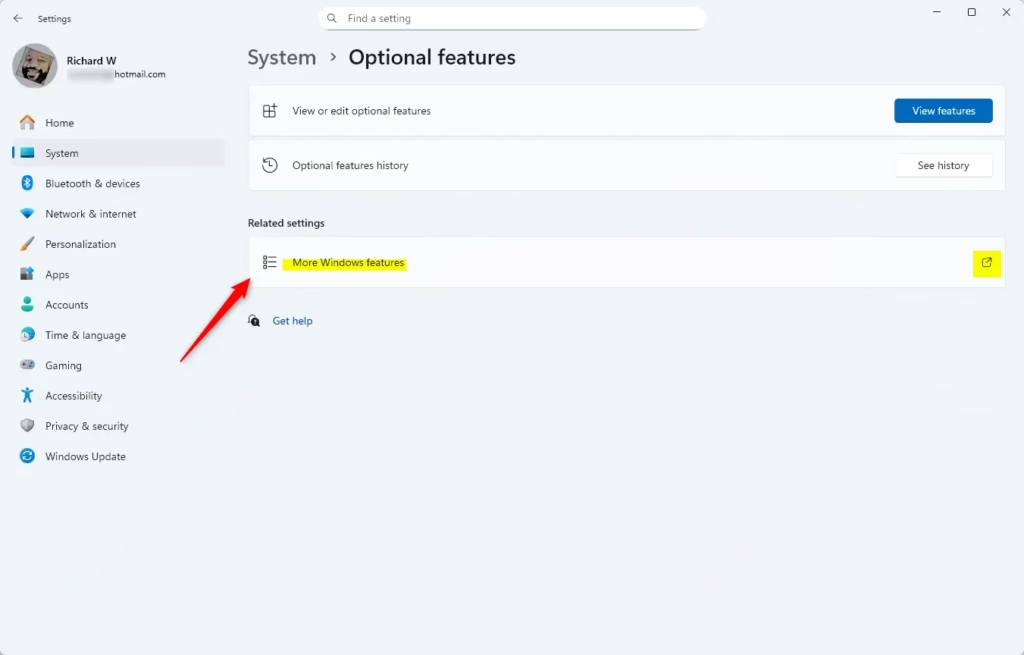
- Click System from the left menu, then select Optional features on the right.
- Click More Windows Features near the top.
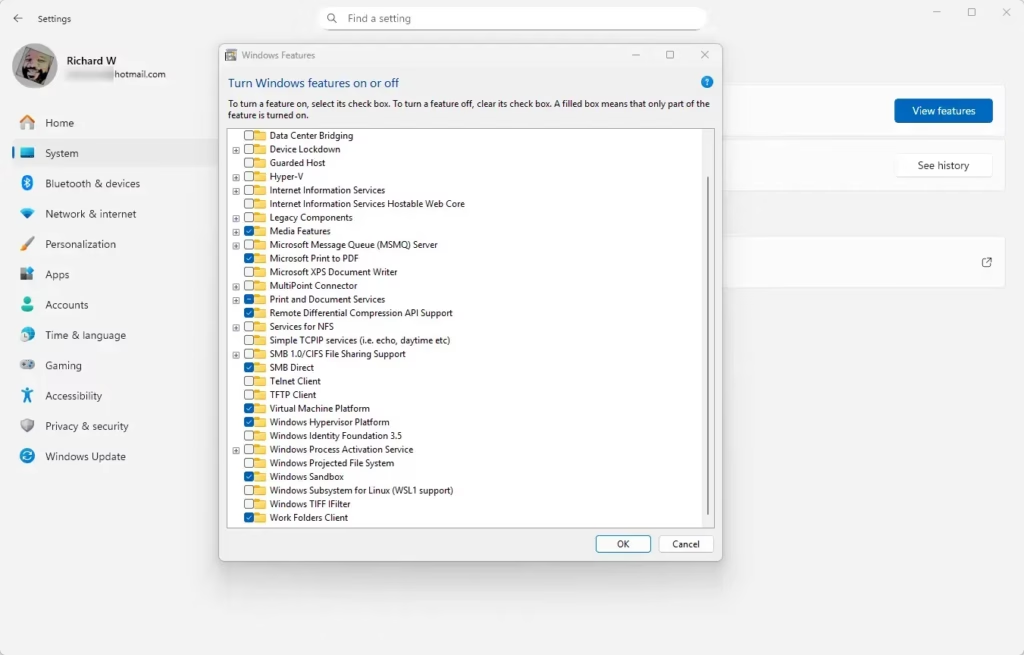
- In the new window, find Sysmon in the list.
- To install, check the box next to Sysmon. To uninstall, uncheck the box .
- Click OK.
- Depending on your choice:
- If installing, click Close.
- If uninstalling, click Restart now to finish the removal.
You can easily add or remove Sysmon right from Windows 11’s Settings menu, which is a straightforward way to manage this useful tool without needing complicated commands.
Finish Installing Sysmon via Command Line
- Open Windows Terminal (Admin) (Admin). ⚙️ Choose either PowerShell or Command Prompt.
- Type or paste the command below, then press Enter:
Sysmon -i - After it finishes, you can close the Terminal and Settings.
Option 2Install Sysmon Using Command Line Only
- Open Windows Terminal (Admin) ⚙️ and pick PowerShell or Command Prompt.
- Run one of these commands to turn on the Sysmon feature:
- PowerShell:
Enable-WindowsOptionalFeature -Online -FeatureName Sysmon - Command Prompt:
DISM /Online /Enable-Feature /FeatureName:"Sysmon"
- PowerShell:
- Next, run this command to install Sysmon itself:
Sysmon -i - Close the Terminal when done.
Option 3Uninstall Sysmon Using Command Line
- Open Windows Terminal (Admin) ⚙️ and pick PowerShell or Command Prompt.
- Run one of these commands to turn off (uninstall) Sysmon:
- PowerShell:
Disable-WindowsOptionalFeature -Online -FeatureName Sysmon - Command Prompt:
DISM /Online /Disable-Feature /FeatureName:"Sysmon"
- PowerShell:
- When asked, type Y and press Enter to restart your PC and finish uninstalling.
Summary
- What Sysmon Does: Tracks and logs important system activities to help spot security problems.
- Admin Rights Needed: You must be signed in as an administrator to add or remove Sysmon. ⚙️
- Easy Installation Options: Use Settings or Command Line tools like Windows Terminal.
- Restart May Be Required: Removing Sysmon usually needs a reboot to complete.
- Built into Windows 11: No need to download anything extra on newer Windows 11 versions.
Sysmon on Windows 11 helps you track and log what your computer is doing, which is great for spotting security issues, and you can install it easily using Windows Settings or the command line.
Is Sysmon included in 🪟 Windows 11?
Sysmon, or System Monitor, is an optional Windows feature for Windows 11 and Windows Server 2025. When you turn it on, it stays active even after restarts, watching and recording system activity in the Windows Event Log.
Is Microsoft rolling out native Sysmon monitoring in 🪟 Windows 11?
Microsoft has started integrating System Monitor (Sysmon) directly into Windows 11. This is a significant change in how advanced system telemetry and threat detection can be implemented across Windows systems.
How do I set up Sysmon on Windows?
In Event Viewer, navigate to Applications and Services Logs > Microsoft > Windows > Sysmon > Operational. Look for Sysmon events like Process Create, Network Connect, or File Create. If you see these events, it confirms that built-in Sysmon is enabled and actively using its configuration.
Was this guide helpful?

About the Author
Richard
Tech Writer, IT Professional
Richard, a writer for Geek Rewind, is a tech enthusiast who loves breaking down complex IT topics into simple, easy-to-understand ideas. With years of hands-on experience in system administration and enterprise IT operations, he’s developed a knack for offering practical tips and solutions. Richard aims to make technology more accessible and actionable. He's deeply committed to the Geek Rewind community, always ready to answer questions and engage in discussions.



No comments yet — be the first to share your thoughts!