How to Install GNOME Desktop on Ubuntu 24.04

This article explains how to install GNOME Desktop on Ubuntu 24.04.
GNOME Desktop is a user-friendly graphical interface designed for Unix-like operating systems, especially those based on Linux.
Install GNOME by opening the terminal and running either ‘sudo apt install ubuntu-desktop-minimal’ for a core installation or ‘sudo apt install ubuntu-desktop’ for a full suite. After the installation completes, reboot your system to access the graphical login screen.
Why Install GNOME on Ubuntu 24.04 Server?
Installing GNOME on Ubuntu 24.04 Server turns your command-line system into a user-friendly desktop, making it easier to run apps and manage files visually if you prefer windows and icons.
Prerequisites
Before you begin, ensure your system is up to date. Open your terminal and run these commands (requires admin privileges):
sudo apt update && sudo apt upgrade -y
Installation Variants: Minimal vs. Full
You have two main choices when you install GNOME Ubuntu 24.04. The ubuntu-desktop-minimal package installs only the core components, saving disk space and system resources. The full ubuntu-desktop package includes extra software like office suites and media players.
Option 1Minimal Installation
sudo apt install ubuntu-desktop-minimal
Option 2Full Installation
sudo apt install ubuntu-desktop
What Happens When Done?
After you install GNOME on Ubuntu 24.04, your system gets a login screen manager like gdm3 and uses tools like xorg or Wayland to show graphics, replacing the text prompt with a visual login after a reboot.
sudo reboot
Ubuntu GNOME Desktop Login Screen
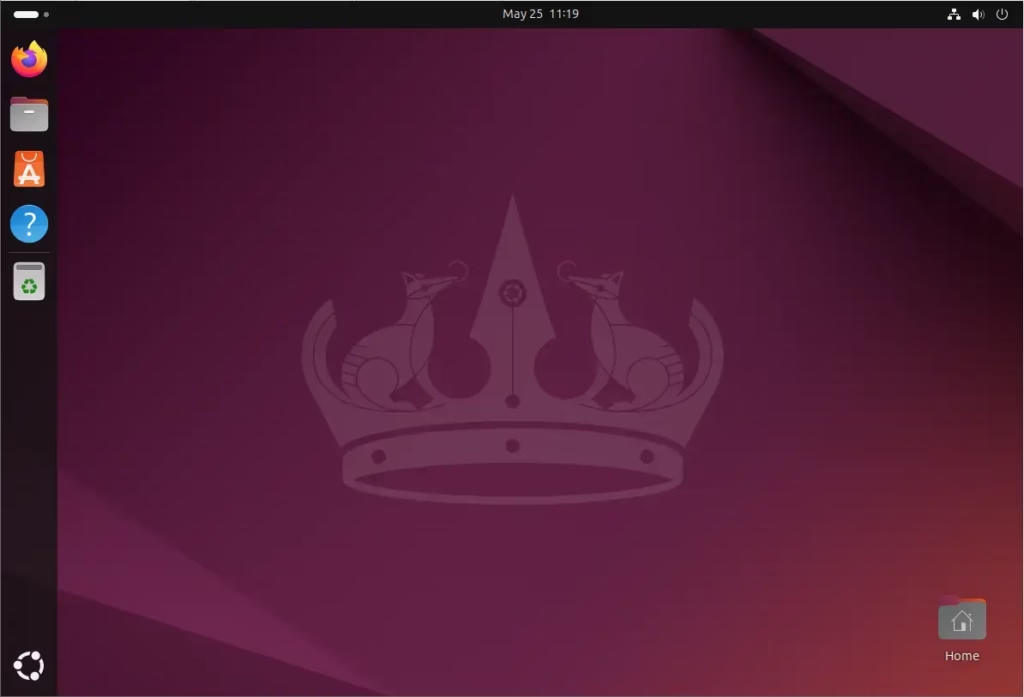
Ubuntu GNOME Desktop Environment
How to Switch Between GNOME and CLI
If you want to save resources, you can switch back to the command line (CLI) mode. Use this command to stop the graphical interface (requires admin privileges):
sudo systemctl set-default multi-user.target
To return to the GUI later, run:
sudo systemctl set-default graphical.target
Summary
Installing GNOME on Ubuntu 24.04 changes your server into a desktop, letting you pick a minimal or full setup based on your needs, but remember it uses more resources and you can switch between modes easily.
Does installing GNOME slow down Ubuntu Server?
Yes, installing a GUI consumes extra RAM and CPU cycles. If your server has limited resources, the background processes required for GNOME may impact performance. For high-traffic servers, it is usually better to stick with the command line interface to ensure maximum efficiency and stability.
Can I uninstall GNOME if I no longer need it?
Yes, you can remove it. Use the command sudo apt purge ubuntu-desktop to remove the desktop environment. Follow this with sudo apt autoremove to clean up leftover packages. Be careful, as this may remove some system utilities that rely on graphical libraries.
Was this guide helpful?

About the Author
Richard
Tech Writer, IT Professional
Richard, a writer for Geek Rewind, is a tech enthusiast who loves breaking down complex IT topics into simple, easy-to-understand ideas. With years of hands-on experience in system administration and enterprise IT operations, he’s developed a knack for offering practical tips and solutions. Richard aims to make technology more accessible and actionable. He's deeply committed to the Geek Rewind community, always ready to answer questions and engage in discussions.


No comments yet — be the first to share your thoughts!