How to Install Drupal with OpenLiteSpeed on Ubuntu Linux

You install Drupal with OpenLiteSpeed on Ubuntu Linux by setting up a robust web server environment for your content management system.
Drupal is a versatile, free and open-source content management system (CMS) for creating dynamic websites. OpenLiteSpeed is a fast, lightweight web server that boasts excellent performance and an easy-to-use admin panel.
This setup provides a powerful alternative to Apache or Nginx, often showing significant speed advantages in performance tests. You’ll get Drupal running on your Ubuntu machine, ready for your next web project.
Install OpenLiteSpeed, download Drupal to `/tmp`, move it to `/usr/local/lsws/Example/drupal`, and set permissions. Create a database and user in MySQL. Finally, configure OpenLiteSpeed’s Virtual Host document root and index files, enable rewrite rules, and reload the server.
How to install OpenLiteSpeed on Ubuntu Linux
Installing OpenLiteSpeed on Ubuntu Linux is the first step to running Drupal, and it requires setting up the web server, the latest PHP, and the MariaDB database.
This post below shows you how to install OpenLiteSpeed, the latest PHP version, and the MariaDB database server. Those three components are required to run Drupal.
How to Install OpenLiteSpeed on Ubuntu Linux – Website for Students
After installing OpenLiteSpeed, continue below.
How to download Drupal on Ubuntu Linux for OpenLiteSpeed
After setting up OpenLiteSpeed, you’ll need to download the latest Drupal package and move its files to the correct directory for your web server.
cd /tmp
wget https://www.drupal.org/download-latest/tar.gz
tar -zxvf tar.gz
After extracting the Drupal archive, move the content into the OpenLiteSpeed default VirtualHost directory.
sudo mv /tmp/drupal-* /usr/local/lsws/Example/drupalNext, run the commands below to change the permissions of the Drupal folder to run on OpenLiteSpeed.
sudo chown -R nobody:nogroup /usr/local/lsws/Example/drupal/
sudo chmod -R 755 /usr/local/lsws/Example/drupal/
How to create a Drupal database on Ubuntu
Drupal needs a database to store all its content, so the next step is to create a new database and a user for it on your Ubuntu system.
To create a database for Drupal, run the commands below:
sudo mysql -u root -p
Then, create a database called drupaldb
CREATE DATABASE drupaldb;Next, create a database user called drupaldbuser and set a password
CREATE USER 'drupaldbuser'@'localhost' IDENTIFIED BY 'new_password_here';
Then, grant the user full access to the database.
GRANT ALL ON wpdb.* TO 'drupaldbuser'@'localhost' WITH GRANT OPTION;Finally, save your changes and exit.
FLUSH PRIVILEGES;
EXIT;
How to configure OpenLiteSpeed to support Drupal
To make OpenLiteSpeed work with Drupal, you need to log into its admin panel and change the Document Root setting to point to your Drupal installation folder.
https://localhost:7080/login.php
Login using the admin login details above.
After logging on, go to the Virtual Hosts ==> General tab and edit the Document Root location section.
Then, edit the Document Root to point to the Drupal folder created above.
$VH_ROOT/drupal/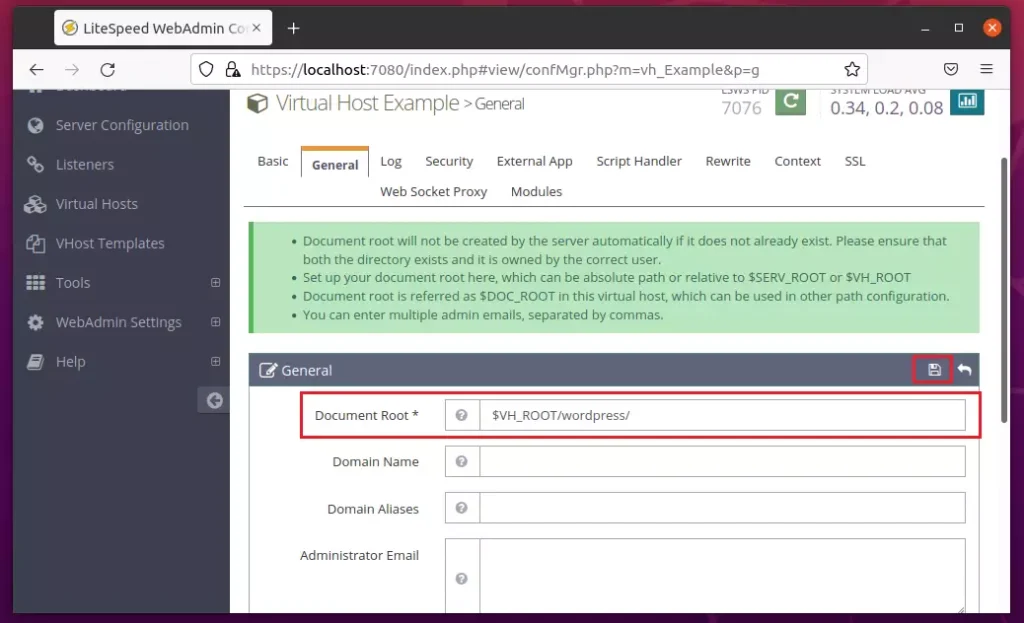
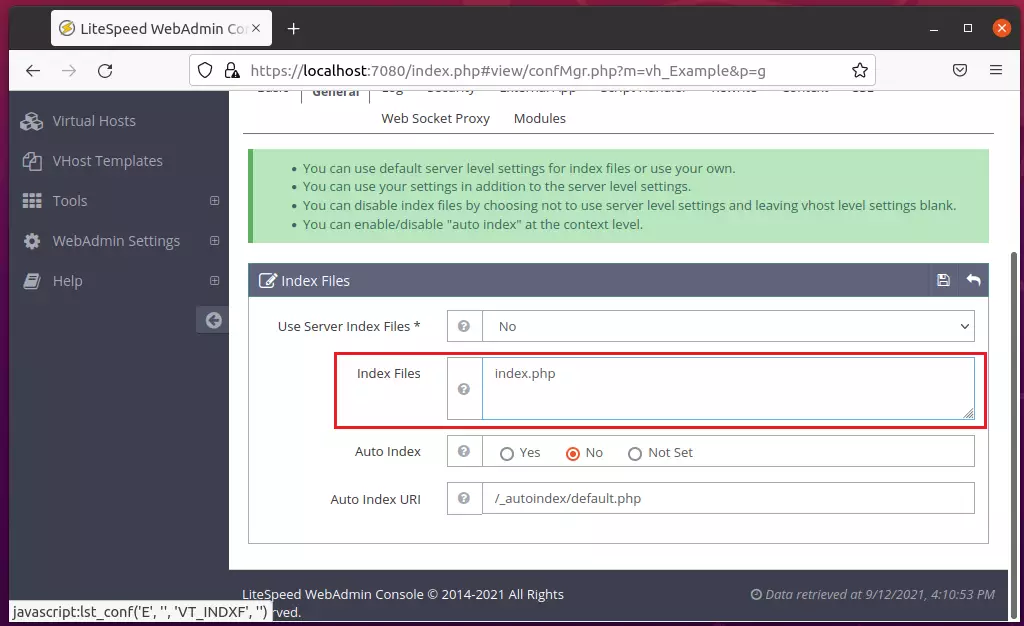
On the same General tab, edit the Index Files section and replace index.html with index.php, as shown below.
index.php
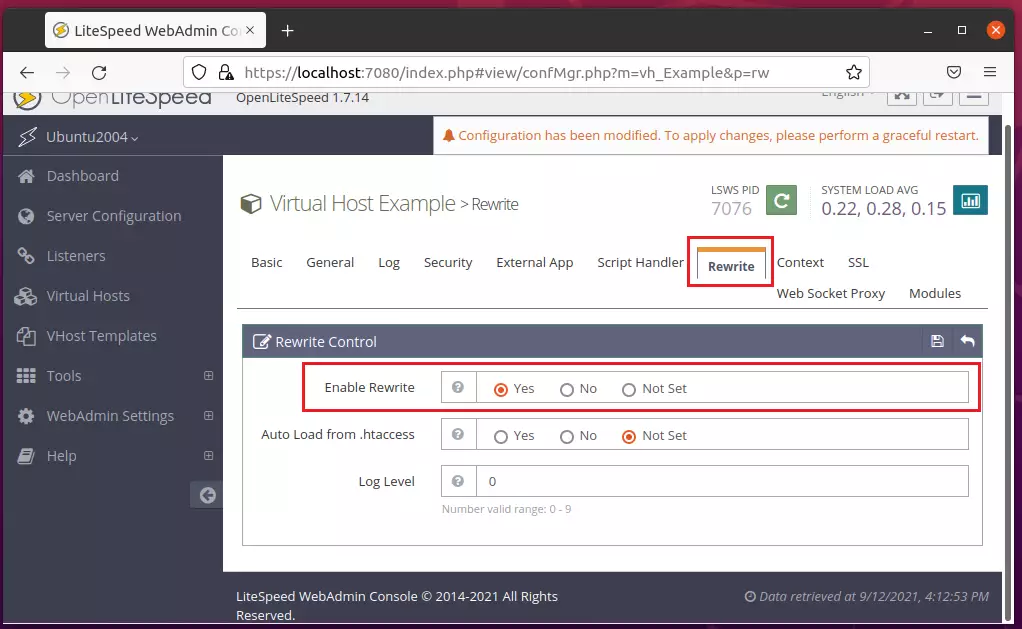
Next, go to Virtual Hosts ==> Rewire Rules, edit Rewrite Control, then choose Yes to enable rewrite.
Save your change.
Next, under Virtual Hosts ==> Rewrite, edit the Rewrite Rules. Copy and paste the lines below into the rules box and save.
ReWriteEngine On
RewriteCond %{REQUEST_FILENAME} !-f
RewriteCond %{REQUEST_FILENAME} !-d
RewriteCond %{REQUEST_URI} !=/favicon.ico
RewriteRule ^/ index.php [L]
<IfModule LiteSpeed>
CacheLookup on
</IfModule>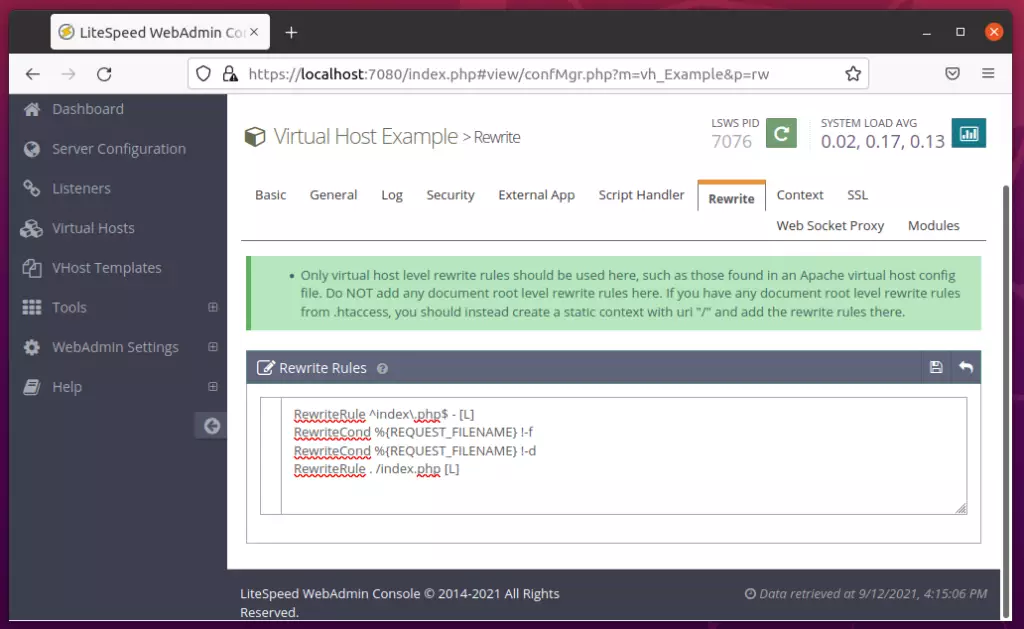
After making all the changes above, reload OpenLiteSpeed.
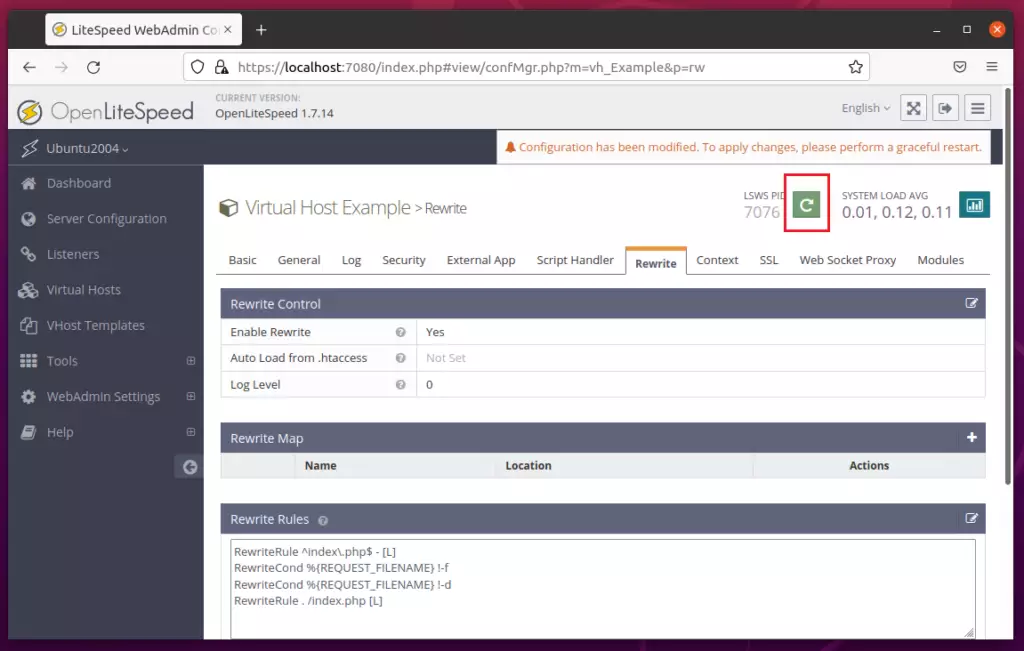
Finally, open your web browser and browse to the server hostname or IP address.
http://localhost
A Drupal setup wizard should appear. Follow the wizard to complete the setup.
Select the installation language, then click Save and Continue.
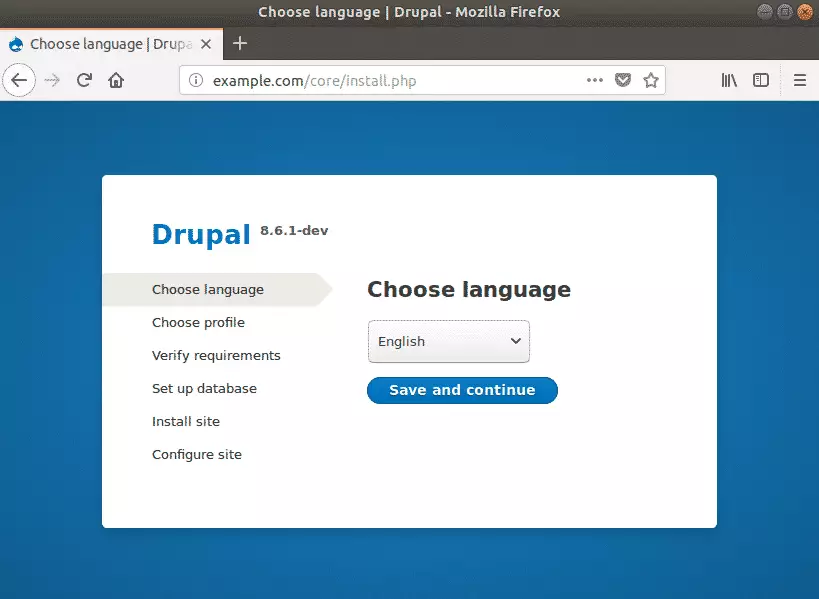
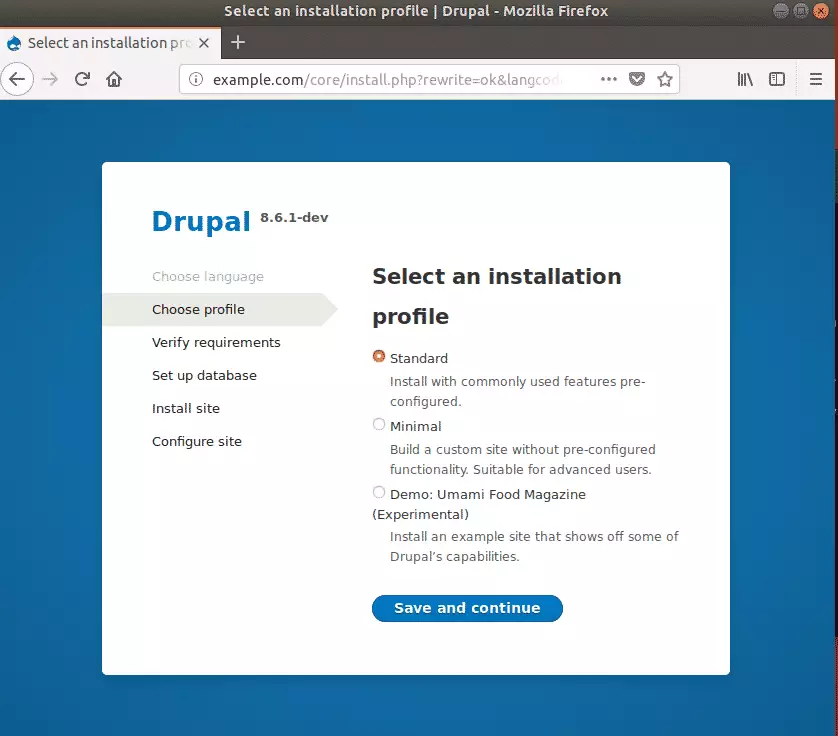
On the next screen, choose the Standard installation option to include commonly used pre-configured features.
This is the most popular option for most websites running Drupal CMS.
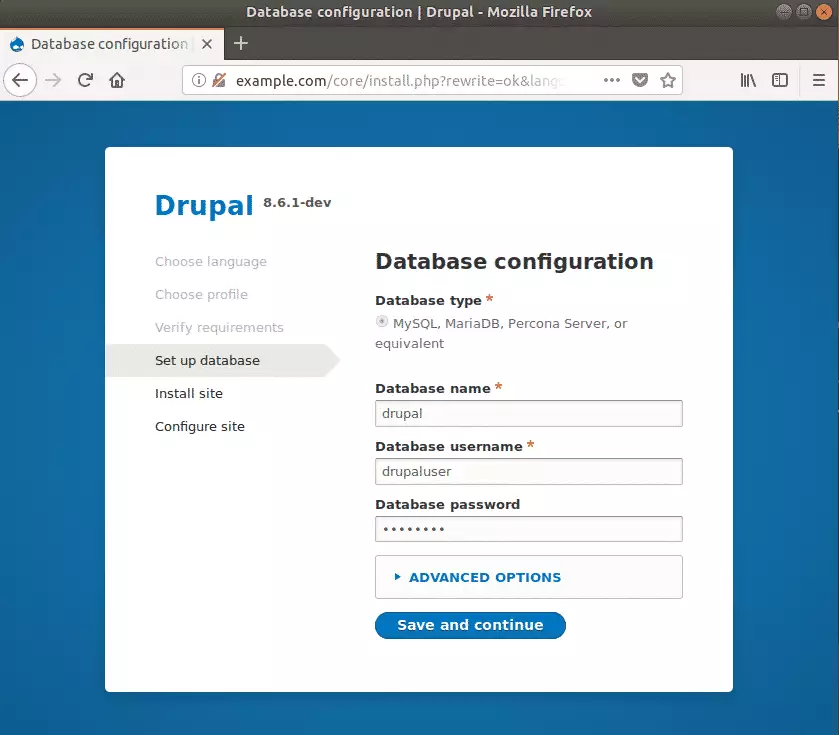
Next, type in the database connection info, click Save and continue.
After that, enter the site information, including the Site name, Site admin email address, username, and password, and continue.
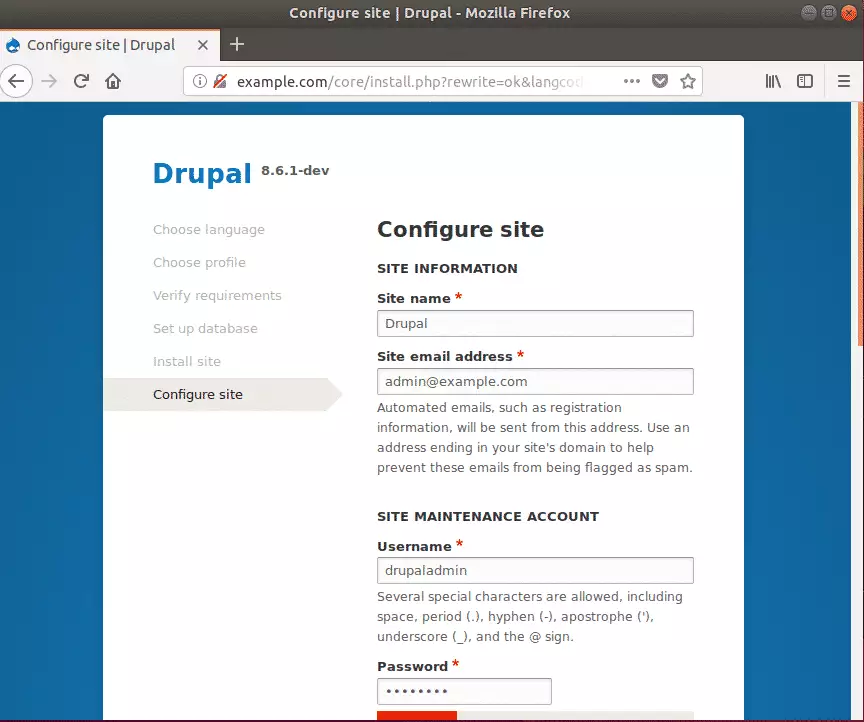
When you’re done, Drupal should be installed and ready to use. Login as admin and begin configuring your site.
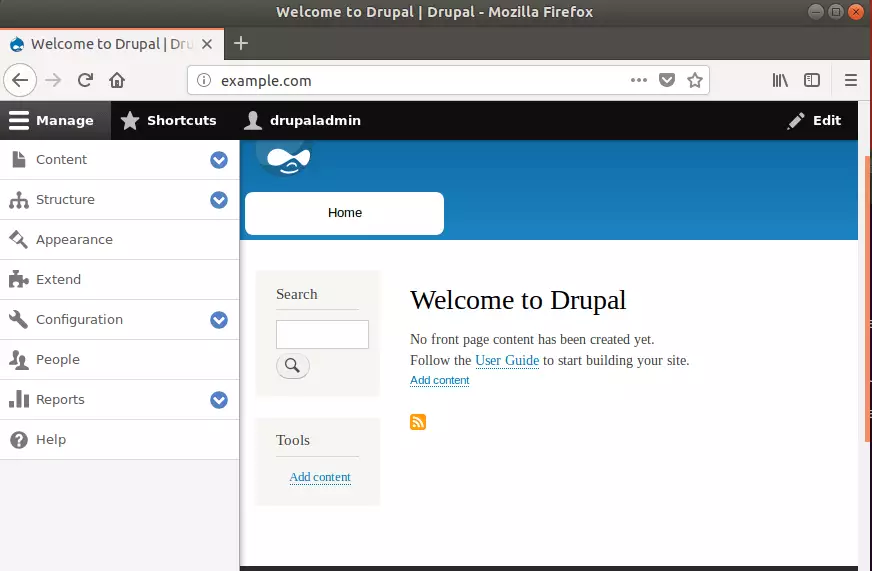
That should do it!
Conclusion:
This post showed you how to install Drupal on Ubuntu Linux with an OpenLiteSpeed web server. Please use the comment form below if you find any errors above or have something to add.
Was this guide helpful?

About the Author
Richard
Tech Writer, IT Professional
Richard, a writer for Geek Rewind, is a tech enthusiast who loves breaking down complex IT topics into simple, easy-to-understand ideas. With years of hands-on experience in system administration and enterprise IT operations, he’s developed a knack for offering practical tips and solutions. Richard aims to make technology more accessible and actionable. He's deeply committed to the Geek Rewind community, always ready to answer questions and engage in discussions.


hi, i install drupal as you explain but i have problem with borken images, site installs image but the image styles can not created. I think litespeed can not read htaccess rewrit direcktives. I use cyberpanel with opnlitespeed. Thank you for information.