

This article explains how to install Discord on Ubuntu 24.04.
Discord is a communication platform with a dedicated voice, video, and text, making it ideal for gamers, communities, and team collaboration.
The installation process on Ubuntu is straightforward, allowing users to access the app easily through the terminal or software center.
There are multiple ways to install Discord on Ubuntu Linux. We will list some methods to install it on your Ubuntu desktop.
Install Discord using the DEB package
One of the easiest ways to install Discord is to download its official DEB package and install it using the terminal or software center.
Run the command below to download the Discord DEB package using the terminal.
wget -O discord.deb "https://discord.com/api/download?platform=linux&format=deb"
Then, run the command below to install the downloaded package.
sudo apt install ./discord.deb
Once installed, you can launch it using the command below or open the app in the desktop apps center.
discord
Install Discord using Snap
If the method above doesn’t work, install Discord using the Snap package manager.
To do that, run the command below from the terminal.
sudo snap install discord
Once installed, you can launch it using the command below or open the app in the desktop apps center.
discord
Install Discord using Flatpak
Another way to install Discord is to use the Flatpak package manager. Flatpak uses a sandboxing package installation, enhancing security and allowing easy updates.
Flatpak is a third-party application distribution system not included in Ubuntu by default.
You must install the Flatpak package manager and then install Discord from there.
First, update and install Flatpak.
sudo apt update && sudo apt upgrade
sudo apt install flatpak
Next, add the Flatpak repository to Ubuntu.
flatpak remote-add --if-not-exists flathub https://flathub.org/repo/flathub.flatpakrepo
Finally, install Discord.
flatpak install flathub com.discordapp.Discord
Once installed, you can launch it using the command below or open the app in the desktop apps center.
flatpak run com.discordapp.Discord
Install Discord from the Software Center
If you are uncomfortable using the terminal, use Software Center in Ubuntu to install Discord. However, installing Discord from the software center might not install the latest version.
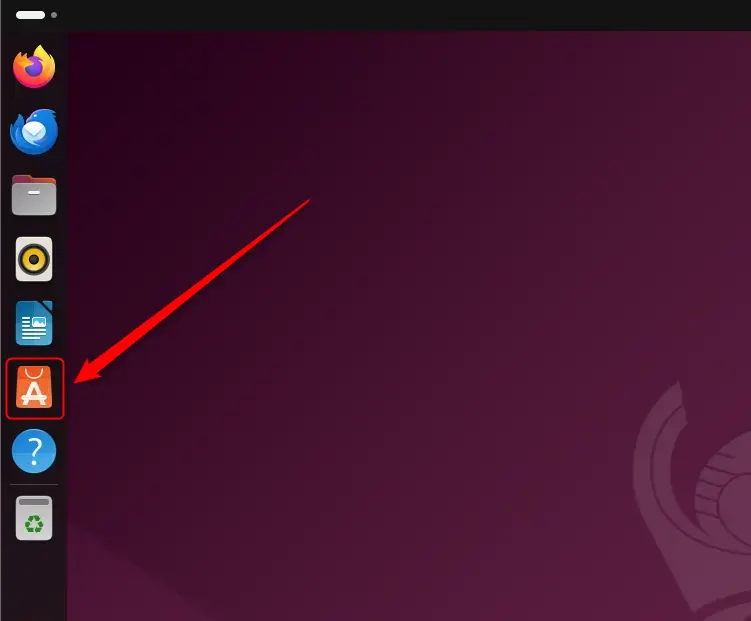
Click on the Software Center icon on the sidebar to open it.
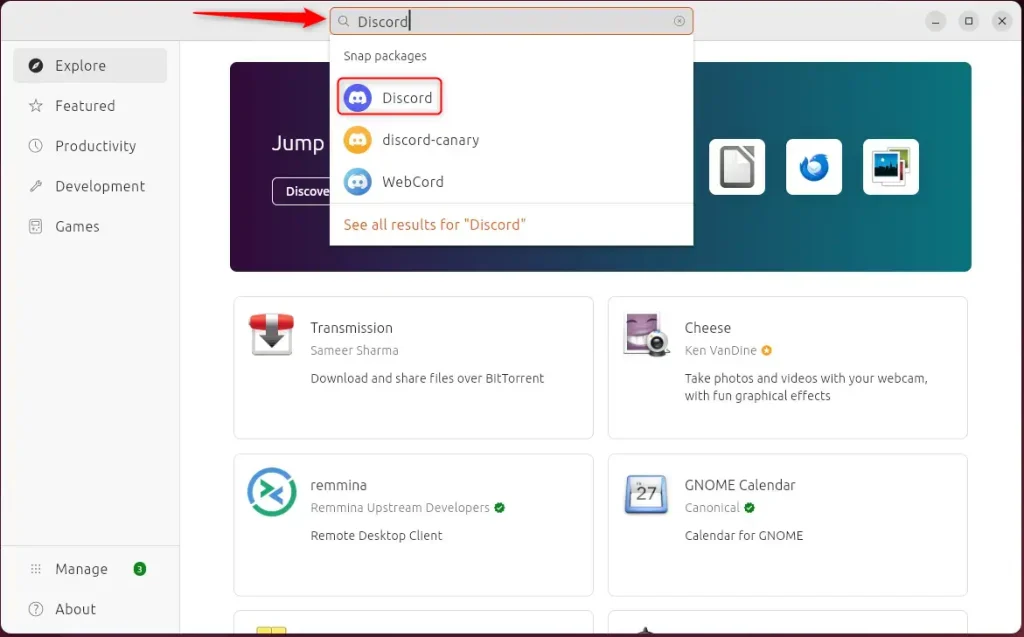
Search for Discord and install it.
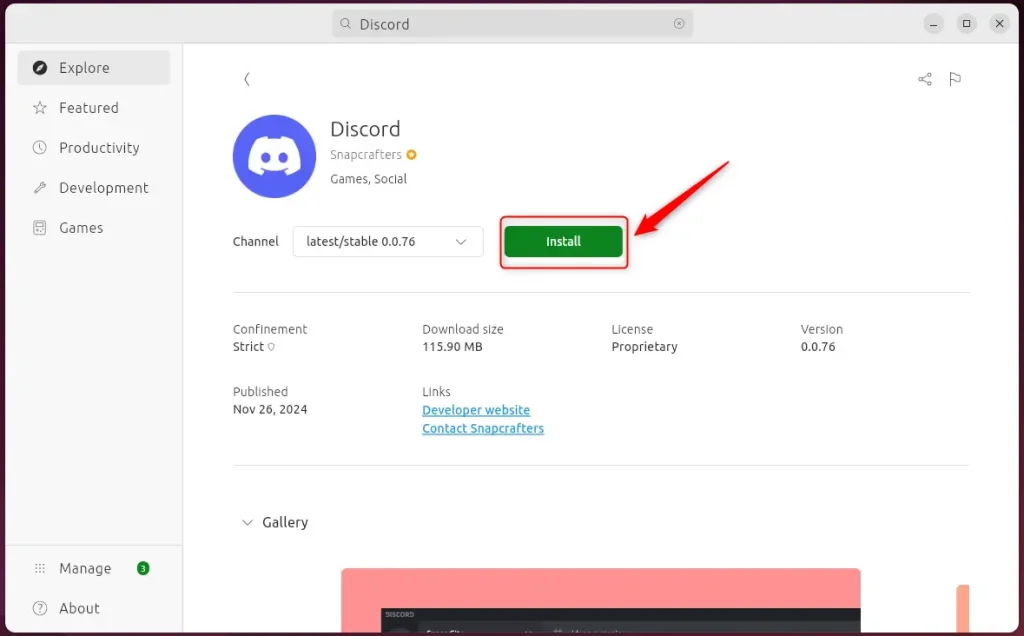
Click Install.
Use the app launcher and launch it.
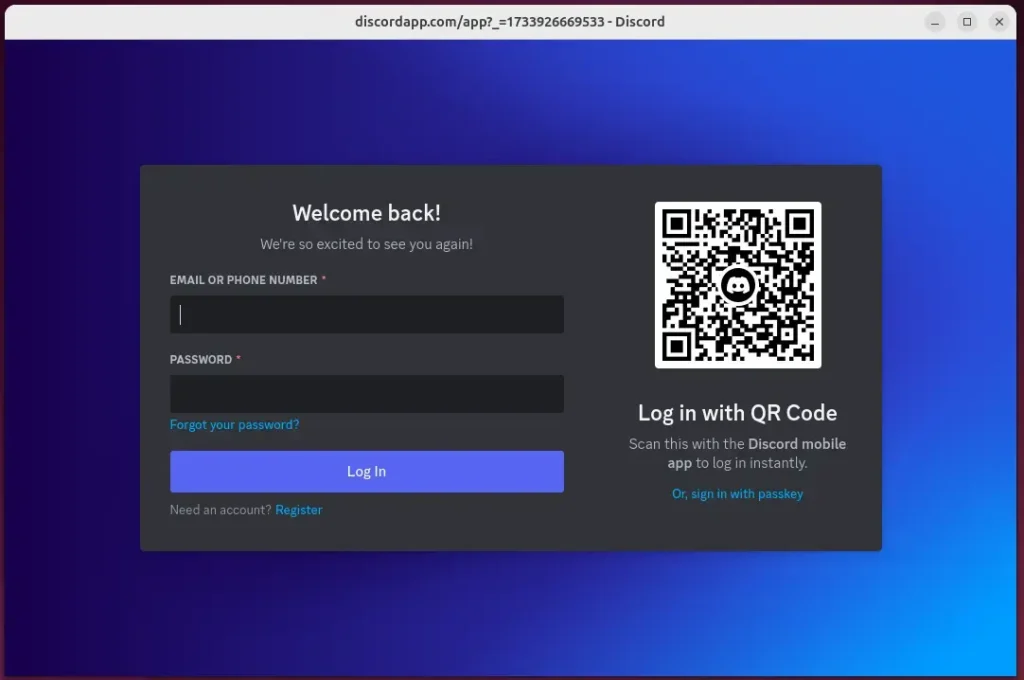
That should do it!
Conclusion:
Installing Discord on Ubuntu 24.04 is a simple and flexible process with multiple methods available to suit your preferences. Here are the key points to remember:
- Multiple Installation Methods: You can choose between DEB package, Snap, Flatpak, or the Software Center.
- User-Friendly: Most methods can be executed through the terminal, but the Software Center offers a graphical interface for ease of use.
- Secure and Updated: Flatpak enhances security with its sandboxing approach and allows easy updates.
- Accessibility: Once installed, launching Discord is straightforward, whether from the terminal or desktop apps center.
- Community and Collaboration: Discord provides a robust platform for gamers, communities, and teams to communicate effectively.
Choose the installation method best for your comfort level and enjoy connecting with others on Discord!


Leave a Reply