
AMPPS stack on Windows 11 sets up a complete local web server on your computer for building and testing websites offline. This free software bundle combines Apache, MariaDB, and PHP into one package that lets you run dynamic sites right on your desktop.
The installer includes over 400 ready-to-use web applications along with tools like Softaculous and phpMyAdmin for managing databases. WordPress developers also get a built-in manager to handle themes, plugins, and site copies without extra setup.
Download the AMPPS installer from its website and run the setup file. Follow the prompts in the installation wizard, accepting default settings and clicking Install. Once complete, launch AMPPS and allow it through the Windows Defender Firewall if prompted.
Install and configure AMPPS on 🪟 Windows 11
AMPPS installation on Windows 11 lets you run a local web server with Apache, MySQL, and PHP right on your PC. To set it up, download the Windows installer from the official website, run the setup file as an administrator, and follow the on-screen prompts to place the server files in your preferred folder.
Getting AMPPS running on Windows 11 takes only a few minutes before you can access everything through the localhost portal. The steps below will help you get it running in Windows 11.
First, download a copy of AMPPS for your Windows or macOS machine.
Download AMPPS for Windows or macOS.

Then, run the downloaded installer from your Downloads folder.
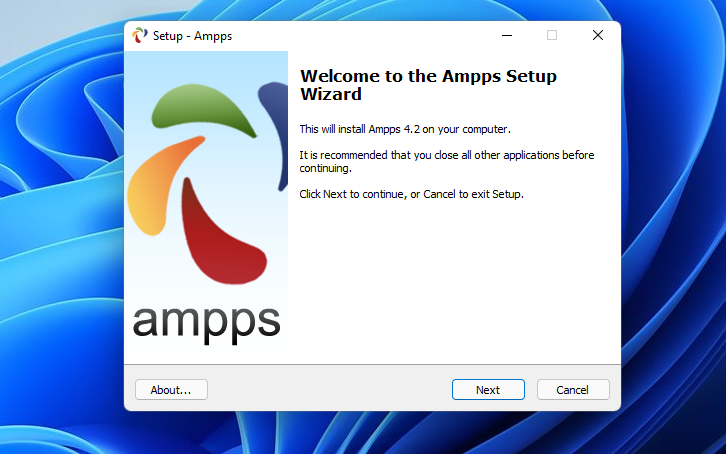
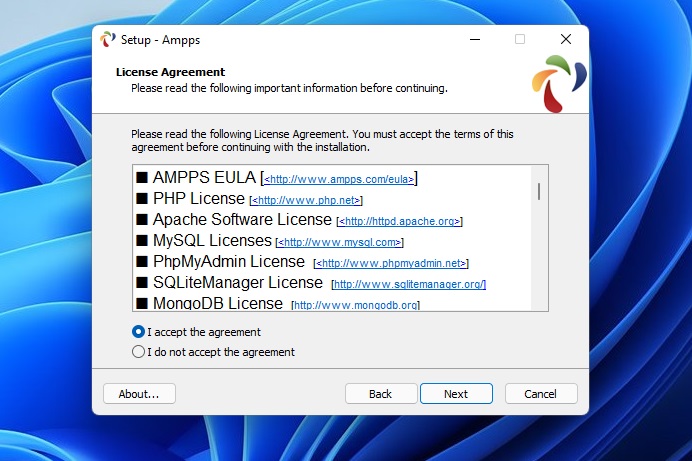
Accept the licensing terms for the packages.
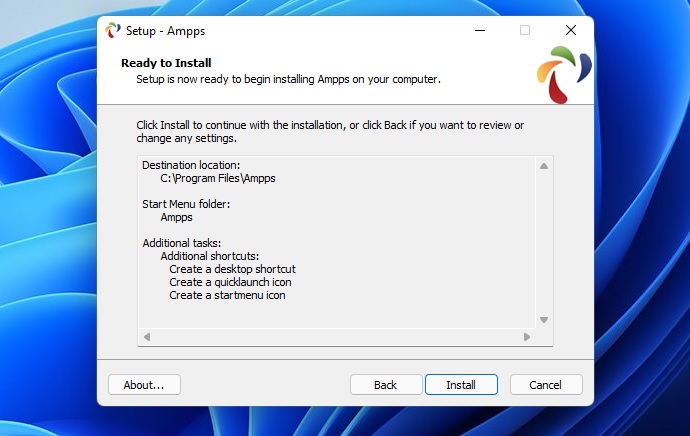
Proceed through the setup wizard and accept the default settings. On the Ready to Install screen, click Install.
Finally, click Finish to launch AMPPS on your device.
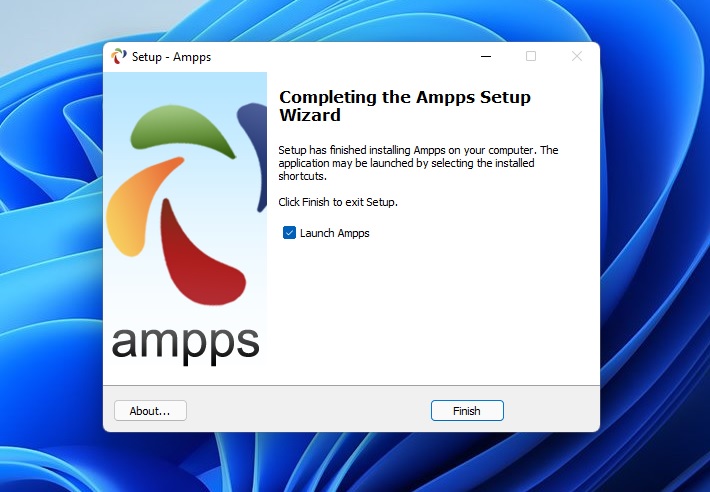
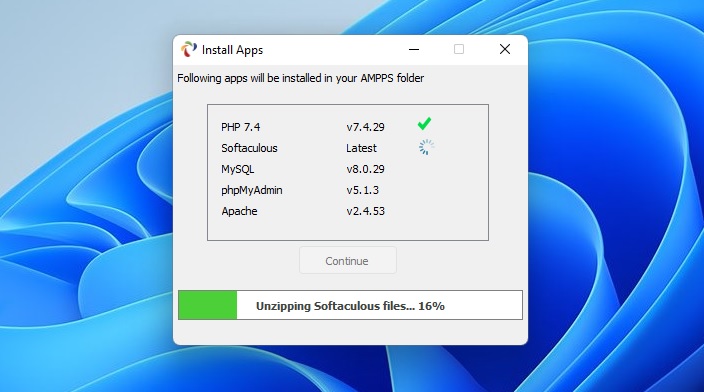
AMPPS will begin downloading the necessary packages within the install folder. These packages are used to build your websites and apps.
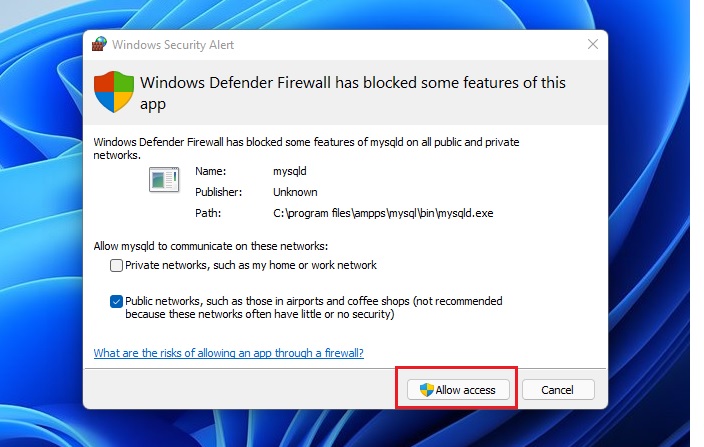
If Windows Defender Firewall is enabled, security prompts will appear asking to allow MySQL and other services to communicate through the firewall.
AMPPS should display a pop-up window in the bottom right corner of your screen, as shown below.
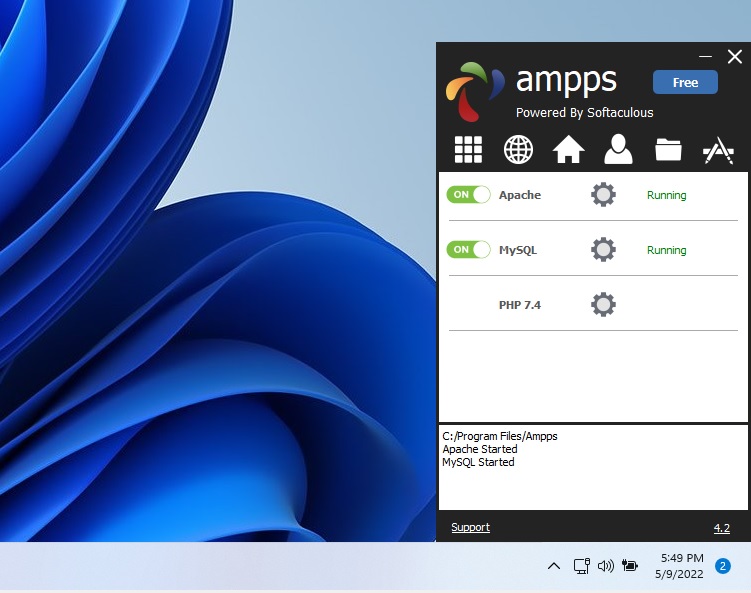
Click on the Home folder to access its browser portal. Here, system management tools configure all services and features.
Reaching this portal also works using the URL below:
http://localhost/ampps
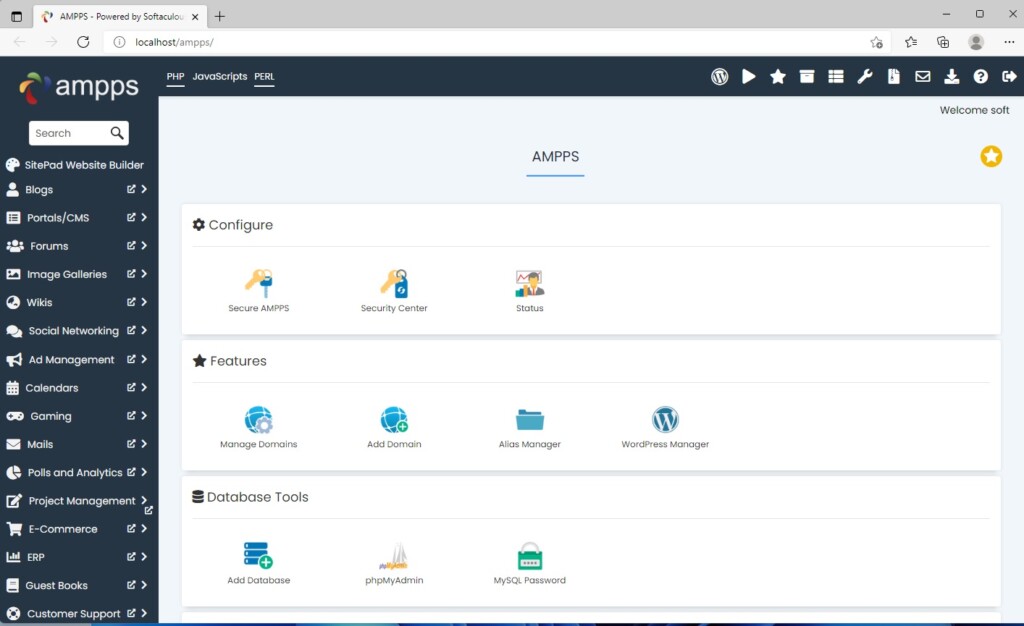
AMPPS operates as a lightweight local server stack for web development on Windows.
Conclusion:
- AMPPS is a lightweight WAMP and MAMP stack, enabling easy website creation on Windows and macOS.
- With AMPPS, users can install over 400 web apps with a single click using Softaculous Auto Installer.
- The feature-rich WordPress Manager in AMPPS facilitates easy WordPress site management, including themes, plugins, and site cloning.
- Installation and configuration of AMPPS on Windows 11 is straightforward and can be accessed through the localhost portal.
Was this guide helpful?

About the Author
Richard
Tech Writer, IT Professional
Richard is a writer at Geek Rewind who turns complex IT tasks into clear, step-by-step guides. He draws on years of hands-on experience in system administration and enterprise IT operations, focusing on Windows, Linux and WordPress: the problems people actually run into, and the fixes that work. His server and WordPress guides come from systems he runs himself. Richard builds and maintains the platform behind Geek Rewind, from its Ubuntu servers and Nginx configuration to its custom WordPress plugins. Many new tutorials start with readers' questions, and he's always glad to answer them in the comments.


No comments yet — be the first to share your thoughts!