
This article explains how to install a language pack in Windows 11.
Windows allows users to install language packs with a few clicks. It uses the installed language packs for features like Settings and File Explorer.
If a language is listed under Preferred Languages but doesn’t appear on the Windows display language list, you must download and install its language pack (if available).
Once you install additional language packs, Windows will add them to your list of Windows display languages. Language packs can include features to support text-to-speech, speech recognition, handwriting, keyboard, optical character recognition, and more.
The steps below show you how to install a language pack in Windows 11.
How to add language packs to Windows 11
As mentioned above, Windows uses your preferred language packs for features like Settings and File Explorer. Therefore, if a language is listed under Preferred Languages but doesn’t appear on the Windows display language list, you’ll need to install its language pack (if it’s available).
Below is how to add a language pack to Windows 11
Windows 11 has a centralized location for the majority of its settings. From system configurations to creating new users and updating Windows, all can be done from the System Settings pane.
To get to System Settings, you can use the Windows key + I shortcut or click on Start ==> Settings, as shown in the image below:

Alternatively, you can use the search box on the taskbar to search for Settings. Then select to open it.
In Windows Settings, click Time & Language, then on the right pane, select the Language & region tile to expand it.
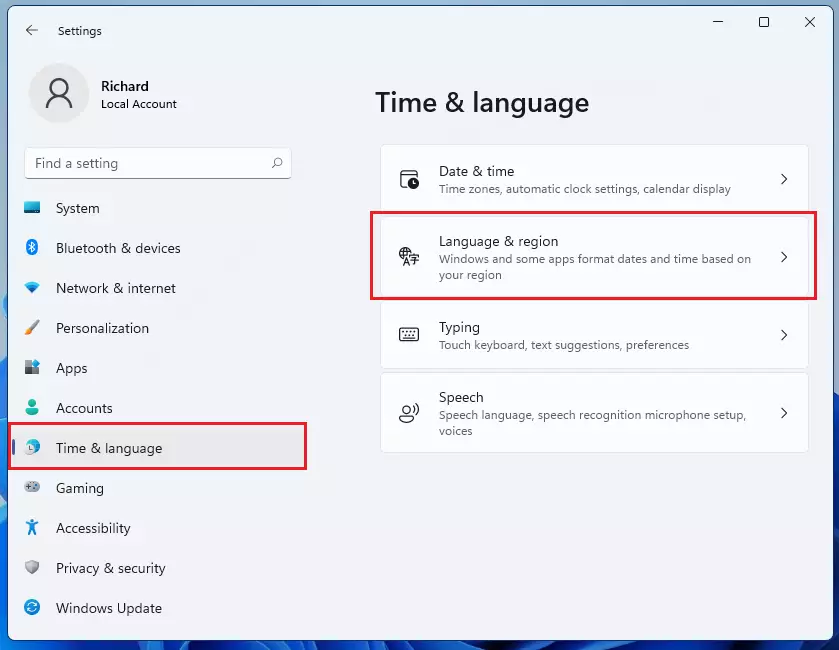
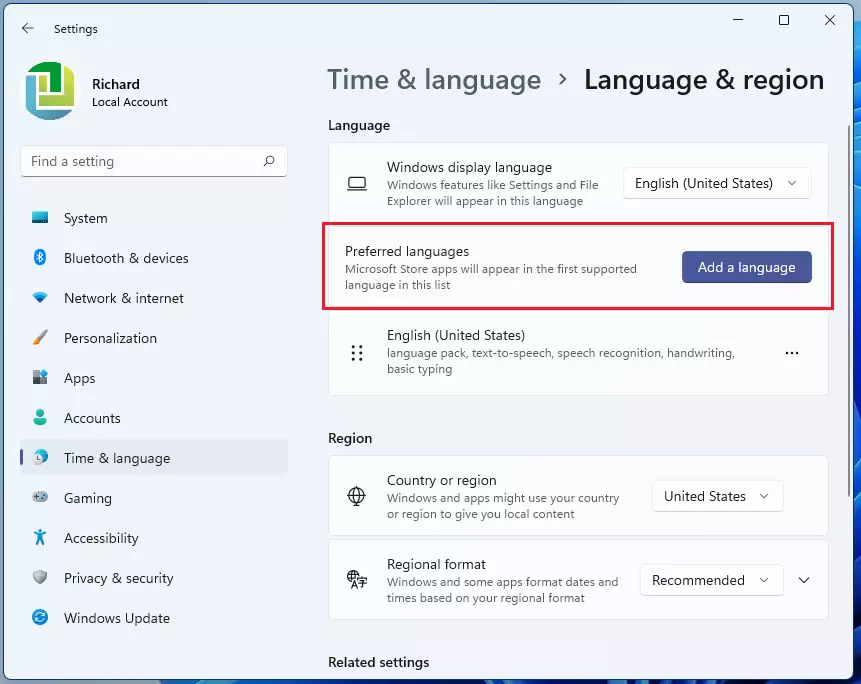
On the Language & region settings pane, under Language, select the Preferred languages tile, and click the Add a language button as highlighted below.
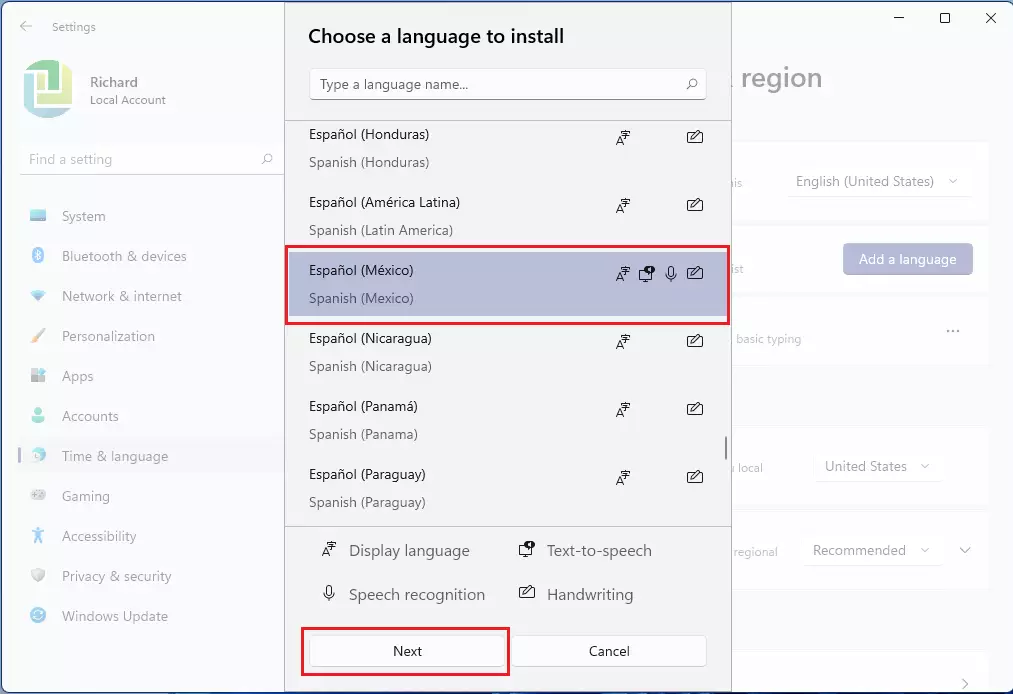
Next, choose a language to install from the list of available languages, and click Next to continue.
Next, select the optional language features and preferences you want to install with your preferred Language and click the Install button.
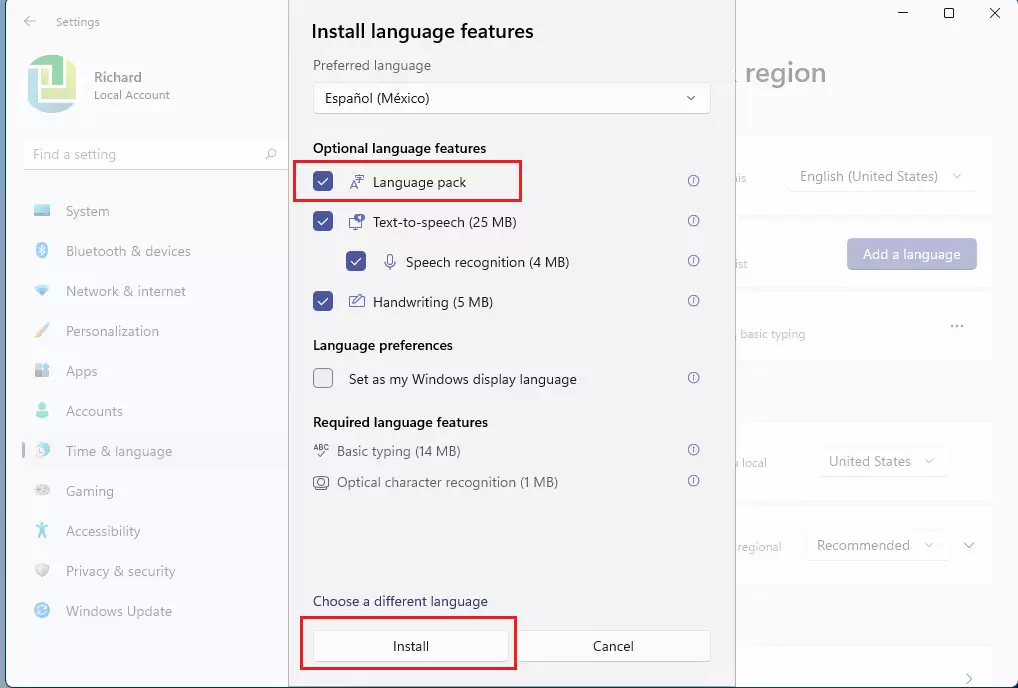
Wait for your preferred language pack and optional features to be downloaded and installed for your account profile.
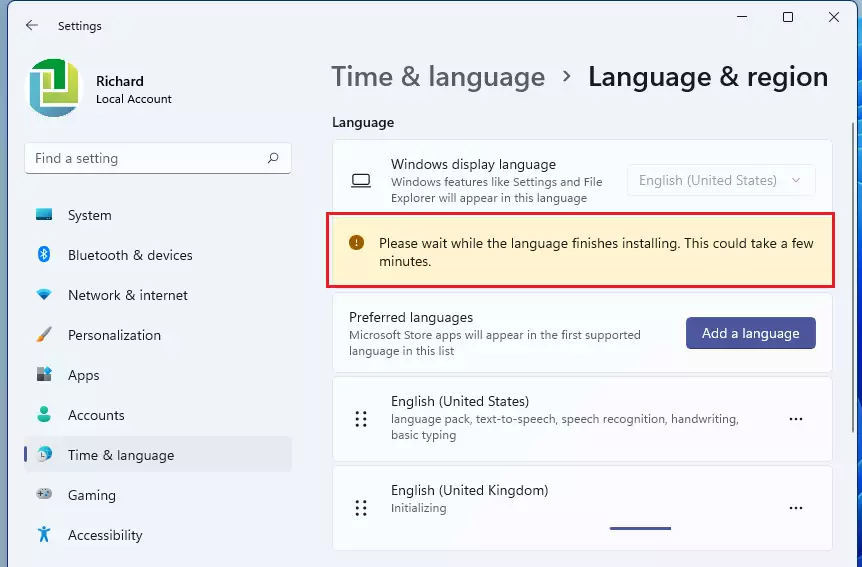
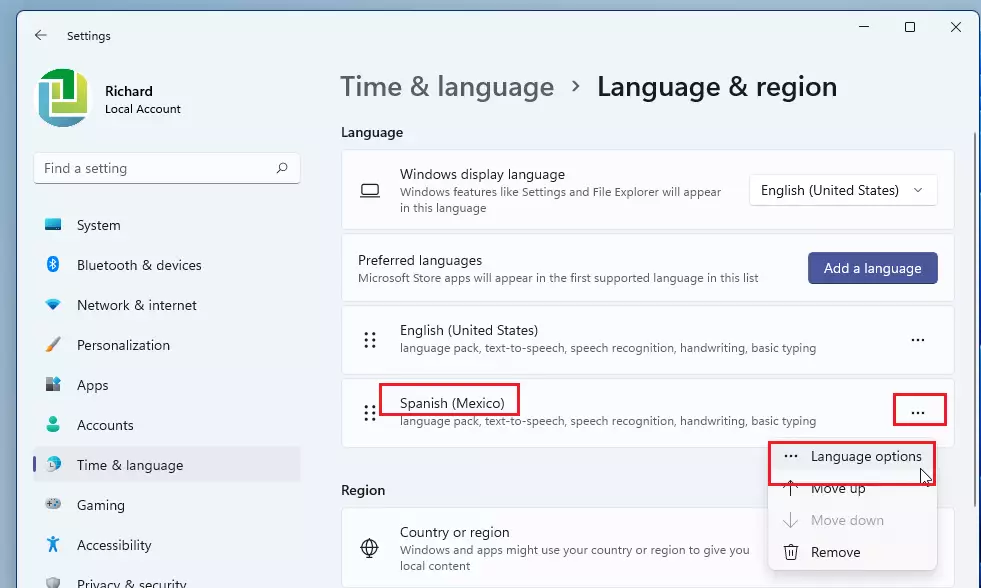
If you did not select the optional language pack feature above, here’s how to download and install it. Back on the Language & Region settings pane, under Preferred Languages, locate the language in which you want to install its language packs.
Then, select the Options (ellipses) for the Language, and click on Language options.
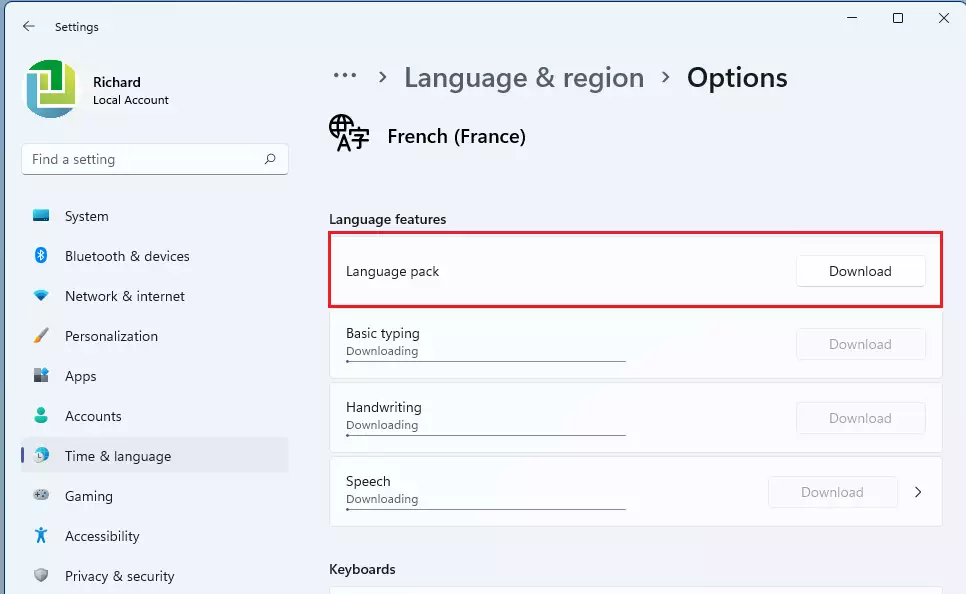
Under Language features, click Download to download the language pack for the preferred Language you installed.
That should do it! You have successfully installed a language pack in Windows 11. Under the Preferred Languages tile, you’ll see all the installed languages available to be used with your account.
Conclusion:
- Installing a language pack in Windows 11 enhances your user experience by allowing you to use Windows features in your preferred language.
- The process is straightforward and involves accessing the Settings app and navigating to the Language & Region settings.
- By adding the appropriate language pack, you can access various features, such as text-to-speech, handwriting support, and more.
- Once installed, the chosen language becomes available under the Preferred languages list, enabling seamless switching between different languages.
- Regularly check for updates to language packs to ensure you have the latest features and improvements.



Leave a Reply to haberb Cancel reply