
Sometimes you forget your Wi-Fi password and need to see it again. If your Windows 11 PC is already connected to the Wi-Fi, you can easily find the saved password. This guide will show you simple steps to find your Wi-Fi password on your computer.
What is a Wi-Fi Password?
A Wi-Fi password (also called a security key) is what you type to connect your device to the internet through a wireless network. Your computer remembers this password so you don’t have to type it every time.
Before You Start
- Look at the back or bottom of your Wi-Fi router or modem — many have the default Wi-Fi password printed there.
- If you or someone else changed the password, follow the steps below to find it on your Windows 11 PC.
Method 1: Find Wi-Fi Password Using Windows Settings
- Click on the Start button (Windows icon) in the bottom-left corner.
- Click on Settings. You can also press Windows + I on your keyboard to open Settings quickly.
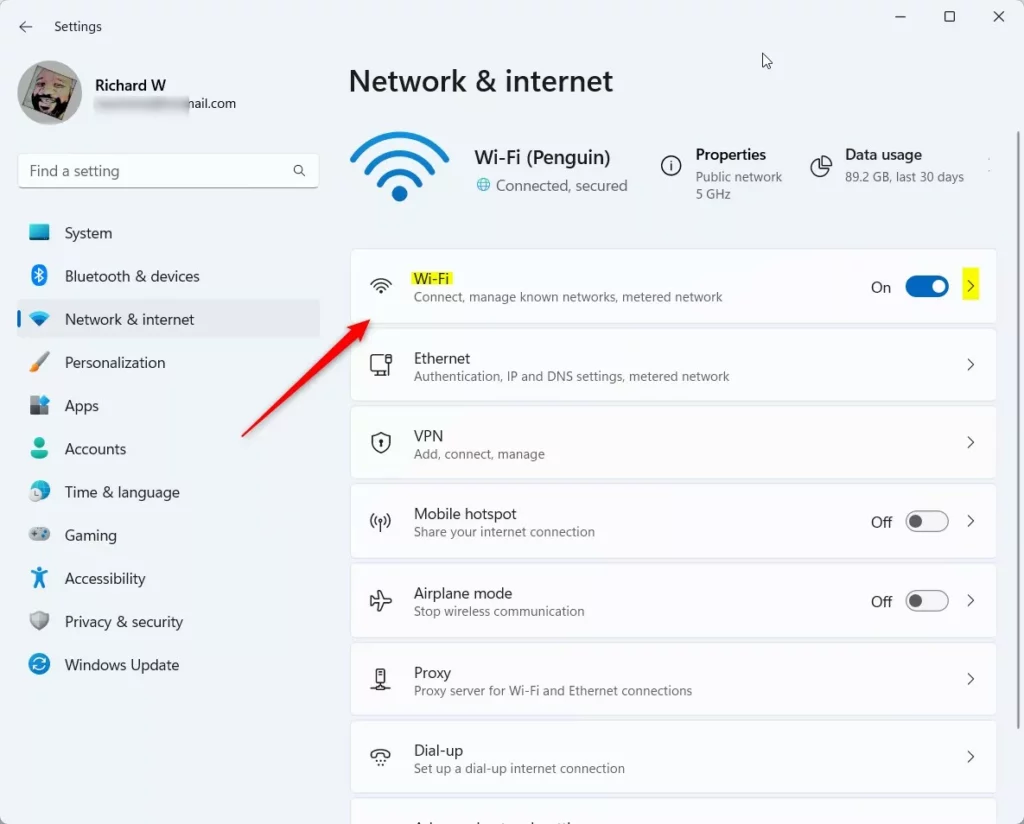
- In Settings, click Network & internet on the left side menu.
- Click on Wi-Fi.
- Click on your connected Wi-Fi network name to open its properties.
- Scroll down and find the Security key or View Wi-Fi security key option.
- Click on it, and Windows may ask you for your PC password or to confirm your identity.
- After confirming, your Wi-Fi password will be shown.
Here is what the Wi-Fi settings page looks like in Windows 11:
Method 2: Find Wi-Fi Password Using Quick Settings
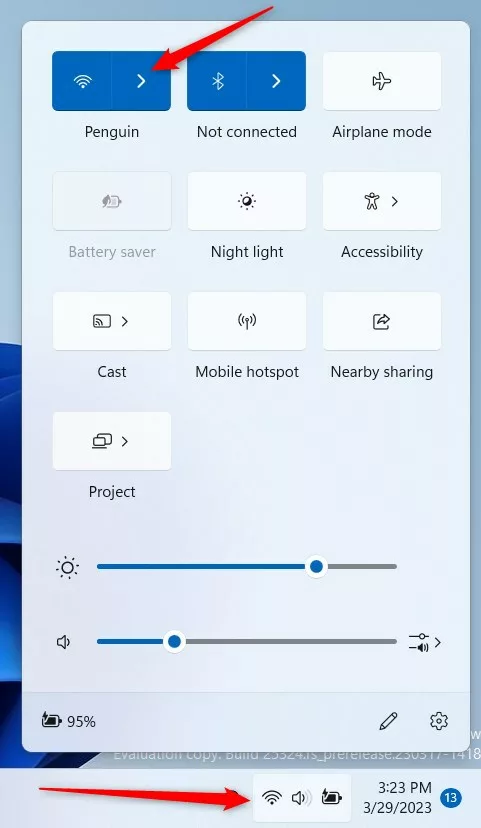
- Click on the network icon at the bottom-right corner of your screen (near the clock) to open Quick Settings.
- Click the Wi-Fi button to see your connected network.
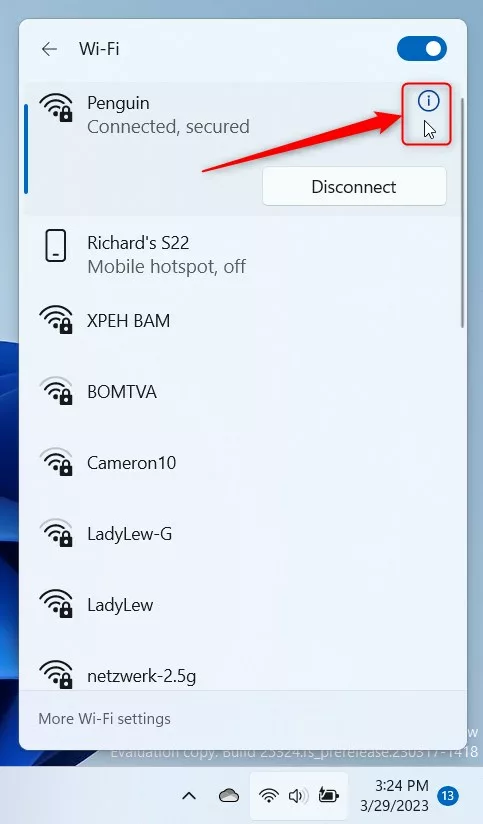
- Click Properties under your Wi-Fi network.
- Scroll down and select View Wi-Fi security key.
- Confirm your PC password if asked, and your Wi-Fi password will appear.
Method 3: Find Wi-Fi Password Using Command Prompt
You can also use a simple command to see your Wi-Fi password. Follow these steps:
- Press Windows + S on your keyboard, type cmd, then click Command Prompt in the results.
- In the Command Prompt window, type this command and press Enter:
netsh wlan show profile
This shows all Wi-Fi networks your PC has connected to.
- Find the network name (SSID) you want the password for.
- Type this command, replacing YourWiFiName with your Wi-Fi network name, then press Enter:
netsh wlan show profile "YourWiFiName" key=clear
- Look for the line Key Content — that is your Wi-Fi password.
Example:
netsh wlan show profile "HomeNetwork" key=clear
The command will show details about the Wi-Fi network including the password next to Key Content.
Summary
- Windows 11 stores your Wi-Fi password so you don’t have to type it every time.
- You can find your saved Wi-Fi password in the Settings app or Quick Settings.
- If you like, use the Command Prompt to see the password with a simple command.
- Knowing your Wi-Fi password helps you connect other devices or share it with family and friends.
That’s it! Now you know how to find your Wi-Fi password on your Windows 11 computer.
If you want to learn more about Windows 11 tips, check out this helpful guide.


Leave a Reply Cancel reply