How to find Bluetooth Settings in Windows 11

You find Bluetooth settings in Windows 11 by navigating through the main Settings app.
Bluetooth settings allow you to manage all your connected wireless devices, control their discovery, and configure how they interact with your PC. This includes pairing new devices, removing old ones, and adjusting power management options for Bluetooth adapters.
For instance, you can quickly check if your Bluetooth adapter is recognized by Windows 11 by looking for the Bluetooth section within the ‘Devices’ menu.
Accessing these settings helps you ensure a stable connection for your mice, keyboards, headphones, and other peripherals. You can also toggle Bluetooth on or off easily from this central location, managing your device connectivity efficiently.
Step 1Open the Windows Settings App
First, you need to open the main place where you change your computer’s settings. Think of the Settings app as your computer’s central hub for adjustments.
Here are two ways to open it:
- Press the Windows key and the I key on your keyboard at the same time. This is a quick shortcut many people use.
- Click the Start button in the bottom left corner of your screen. Then, click the gear icon that says “Settings”.
Either way, you will see a window with different sections to manage your computer.
Step 2Go to Bluetooth & devices
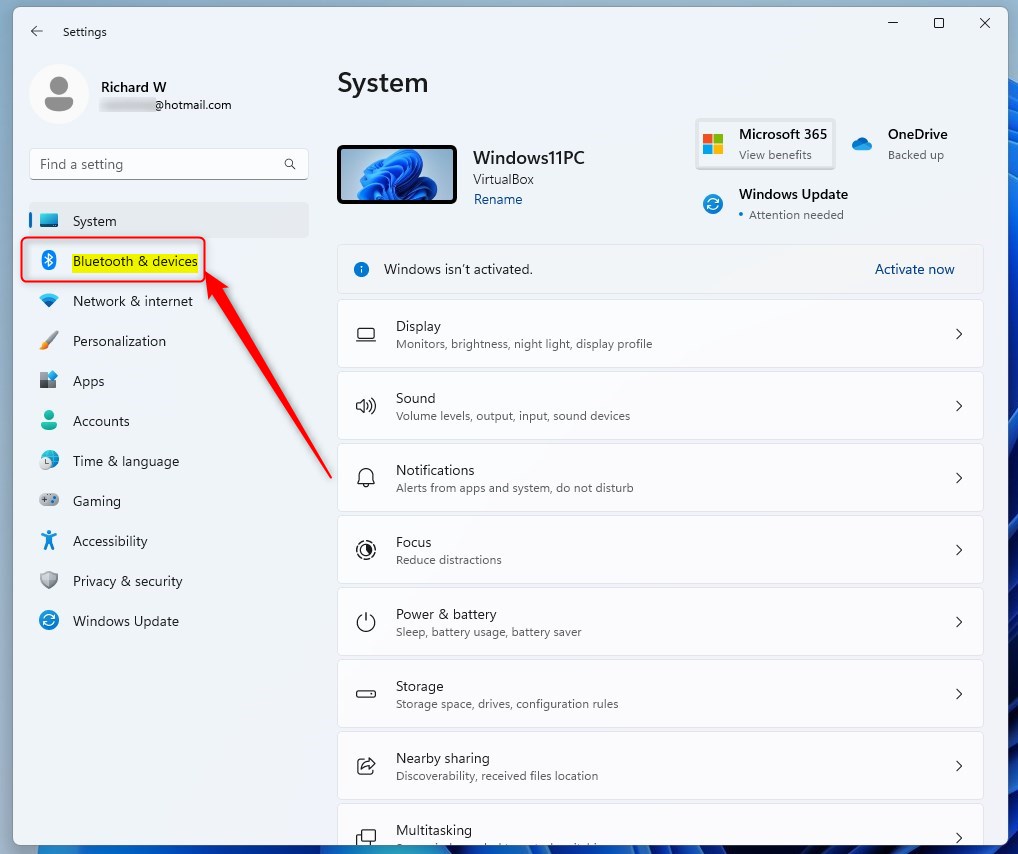
Now that the Settings app is open, find the section for your wireless connections and devices.
On the left side of the Settings window, click on “ Bluetooth & devices”. This will show you settings for Bluetooth, printers, mice, and other hardware connected to your computer.
Step 3Go to the Devices Section
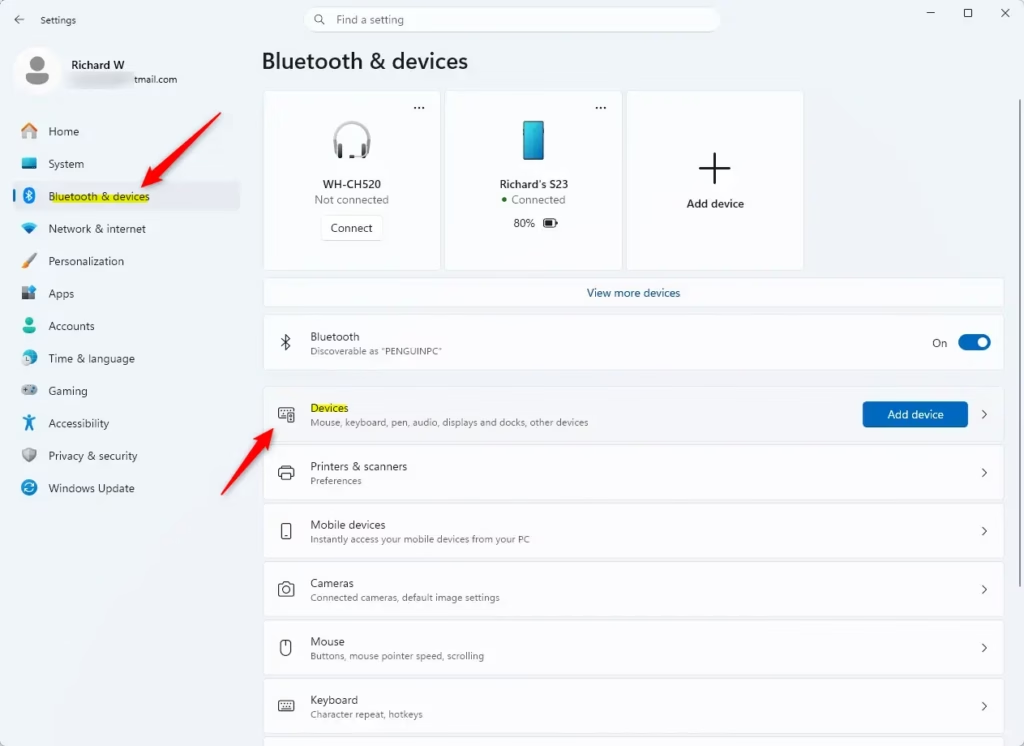
You’re now in the “ Bluetooth & devices” area. Look for the section that manages the hardware itself and click on “Devices”. Windows then shows all hardware connected to your PC, including Bluetooth components and the devices they control.
Step 4Find “More Bluetooth settings”
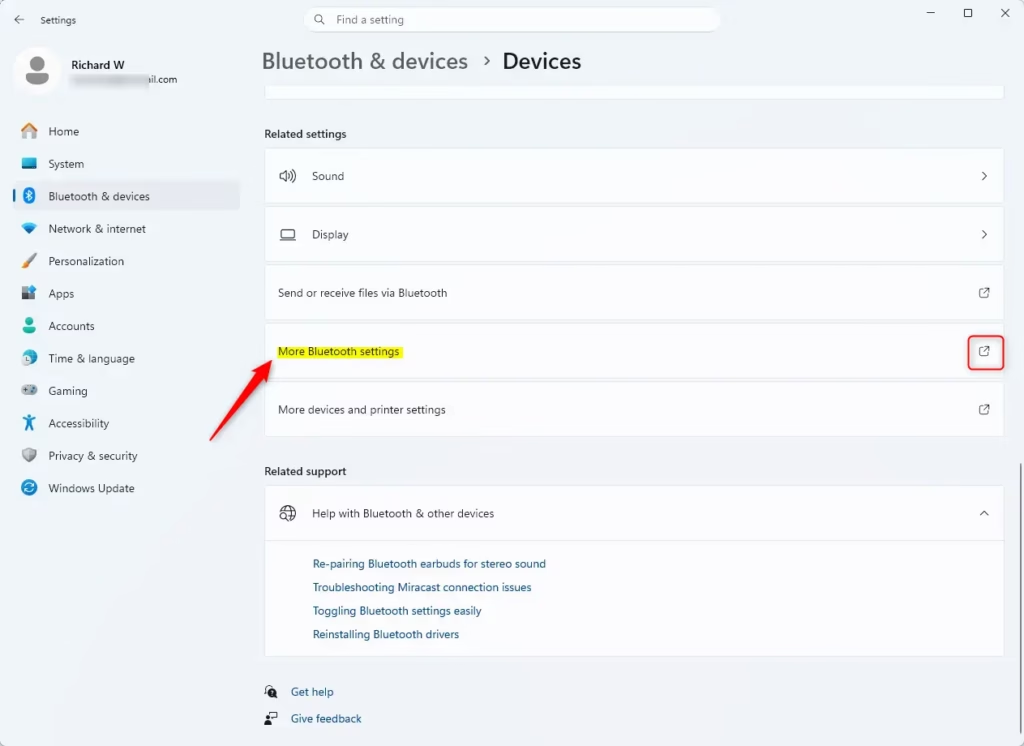
This is where we find the extra settings! You are in the “Devices” section. Scroll down a little.
Look for the “More Bluetooth settings” link, which might be under a “Related settings” heading. Click it.
Note: If you don’t see “More Bluetooth settings”, don’t worry. It usually means your computer doesn’t have Bluetooth built-in, or the needed software drivers are not installed. You might need to check your computer’s details or visit the maker’s website to see if Bluetooth is supported and to get the right drivers.
Step 5Look at the Bluetooth Settings Window
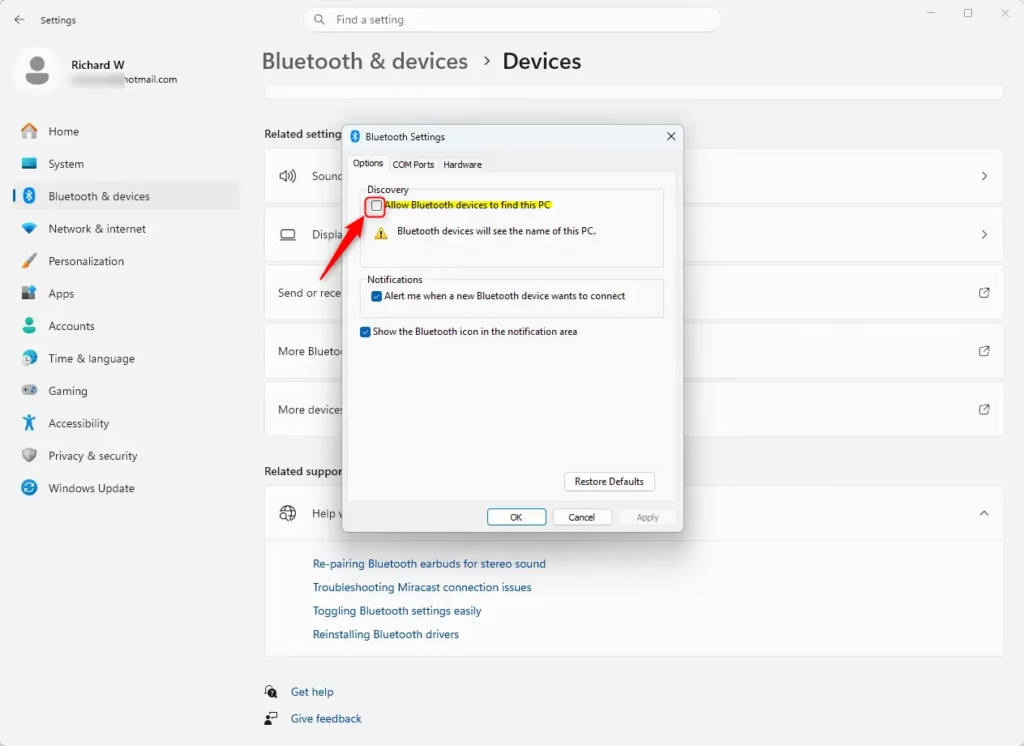
A new window called “ Bluetooth Settings” will appear. This is where you can find those extra settings we talked about. This window gives you more control over how Bluetooth works.
What You Might Find in Advanced Bluetooth Settings
The options might be slightly different depending on your hardware and Windows updates. Here’s what you might see:
- Discovery Settings: You might find options here to control if your PC can be seen by other Bluetooth devices, or if it can see other devices. This is important for connecting new gadgets.
- Connection Options: Some settings might help your PC manage Bluetooth connections. For example, it might automatically reconnect to devices you’ve used before or manage power use for Bluetooth.
- Hardware Properties: Sometimes, you can see details about your Bluetooth part, like who made it, its model, and the driver version.
- Bluetooth Icon Management: You might be able to choose if the Bluetooth icon shows up in your system tray (the area near the clock on your taskbar).
Be careful: Only change settings in this window if you understand what they do. Changing advanced hardware settings without knowing could stop your Bluetooth from working. If you are unsure, it’s best to leave the setting as it is or find more information.
Reference:
Summary
To find advanced Bluetooth settings in Windows 11, open Settings (Windows key + I), go to “Bluetooth & devices”, then click “Devices”. Look for and click “More Bluetooth settings” under “Related settings”. This opens a new window with options to control Bluetooth discovery, connections, and hardware details.
Was this guide helpful?

About the Author
Richard
Tech Writer, IT Professional
Richard, a writer for Geek Rewind, is a tech enthusiast who loves breaking down complex IT topics into simple, easy-to-understand ideas. With years of hands-on experience in system administration and enterprise IT operations, he’s developed a knack for offering practical tips and solutions. Richard aims to make technology more accessible and actionable. He's deeply committed to the Geek Rewind community, always ready to answer questions and engage in discussions.

No comments yet — be the first to share your thoughts!