
If you have RGB lights on your keyboard, mouse, or other accessories, Windows 11 can now make those lights match your computer’s accent color automatically. This means your device’s lights will change color along with your Windows theme for a cool, coordinated look!
This guide will show you easy steps to turn on or off the “Match my Windows accent color” option using Windows 11’s Dynamic Lighting feature.
What is Dynamic Lighting?
Dynamic Lighting is a new Windows 11 feature that lets your computer control the RGB lights on your accessories, like keyboards or speakers, without needing extra software. It helps your lights look great and work smoothly with Windows.
How to Turn On RGB Accent Color Matching
- Turn on Dynamic Lighting first. If you need help, see this easy guide: How to Turn On or Off Dynamic Lighting in Windows 11.
- Open the Settings app on your PC. You can do this by clicking the Start button and choosing the gear icon or pressing
Windows + I. - Click Personalization.
- Find and click the Dynamic Lighting section.
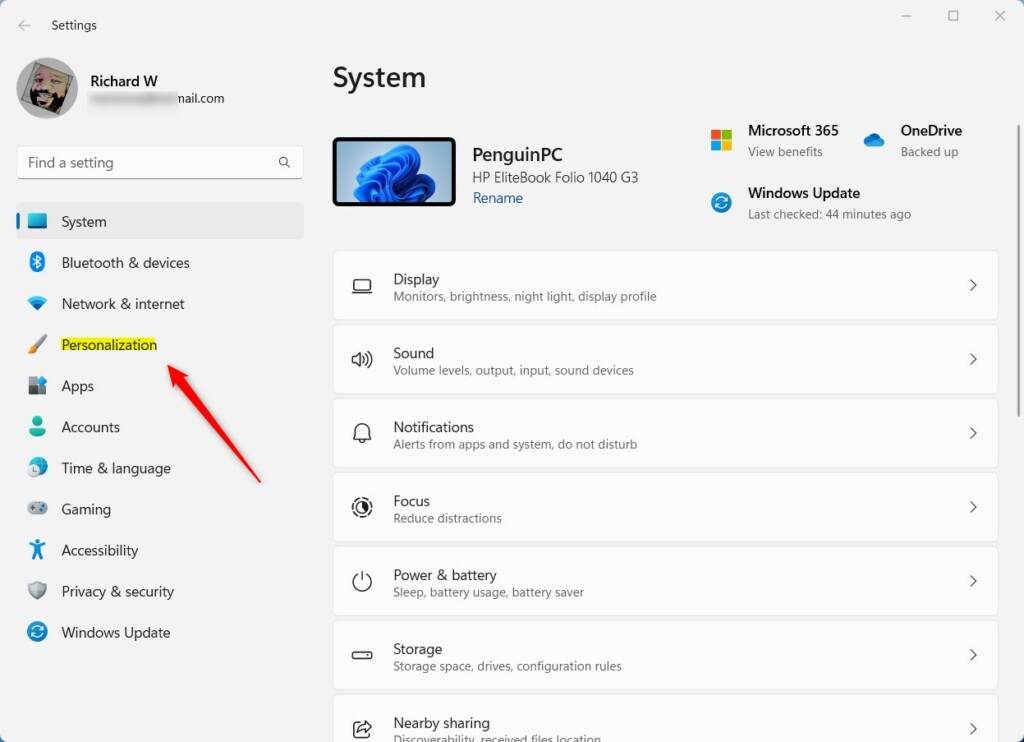 Open Personalization in Settings
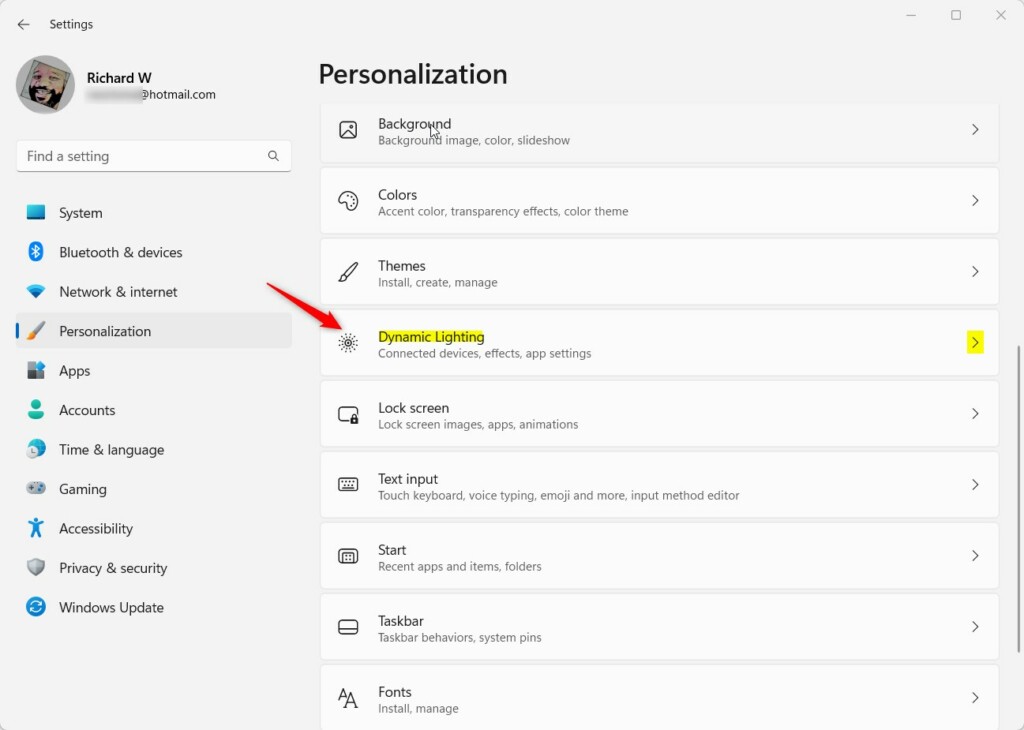
Dynamic Lighting Settings - Under Effects, pick a color style that you like (choose a solid color).
- Turn on the toggle for Match my Windows accent color.
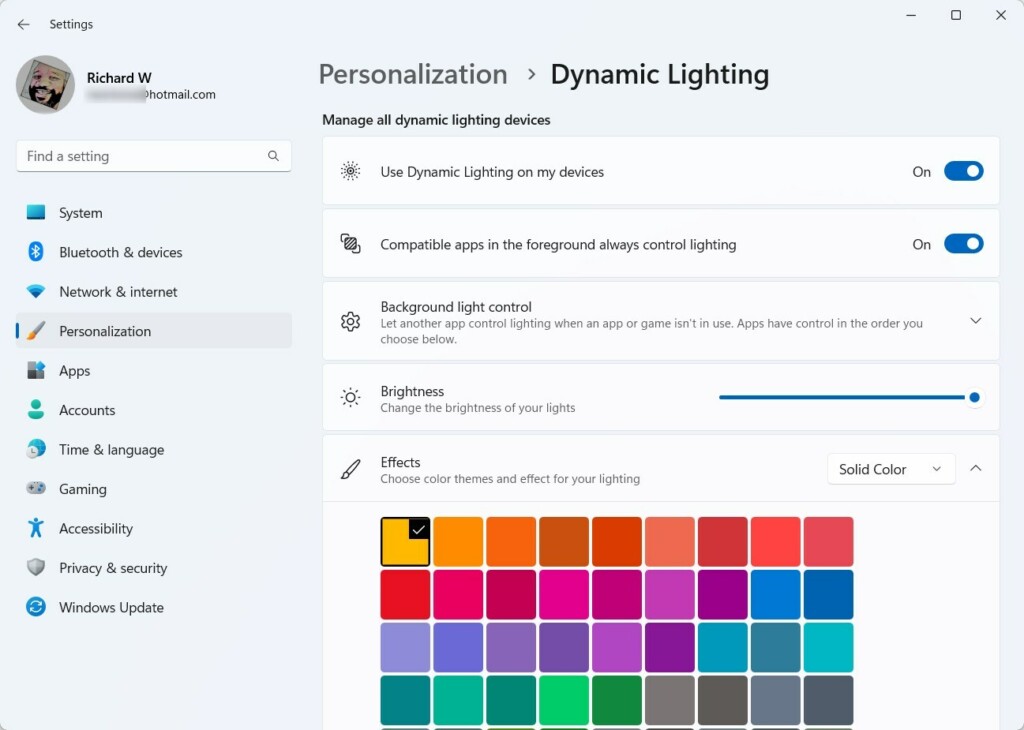
Turn on “Match my Windows accent color” - Now your RGB accessories like your keyboard, mouse, and other devices will light up using your Windows accent color!
That’s it! Enjoy your personalized RGB lighting that matches your Windows look.
Summary
- Dynamic Lighting lets Windows 11 control RGB lights on your devices without extra apps.
- You can set your lights to match your Windows accent color for a unified look.
- Just open Settings > Personalization > Dynamic Lighting to set it up.
- Toggle “Match my Windows accent color” on or off whenever you want.
Want to learn more about other cool Windows 11 features? Check out this guide on resetting the Settings app.

Leave a Reply Cancel reply