How to Enable Remote Desktop in Windows 11

This guide shows you how to turn Remote Desktop on or off in Windows 11 using simple steps.
What is Remote Desktop?
Remote Desktop is a tool built into Windows. It lets you connect to your computer from another device, so you can use your computer even if you’re not in front of it. For example, you can access your work computer from home or help a family member by remotely controlling their PC.
By default, Remote Desktop is turned off in Windows 11. You can switch it on whenever you need it and turn it off when you don’t.
Why Use Remote Desktop?
- Work from anywhere by connecting to your home or office PC.
- Help friends or family fix computer problems remotely.
- Access your files and programs even if you’re away from your computer.
Important: Turning on Remote Desktop can make your computer more open to others, so be careful who you allow to connect. Always use strong passwords and only add people you trust.
How to Turn On Remote Desktop in 🪟 Windows 11
Follow these easy steps to enable Remote Desktop:
- Open the Settings app: Click the Start button (the Windows icon at the bottom-left corner), then click the Settings gear icon.
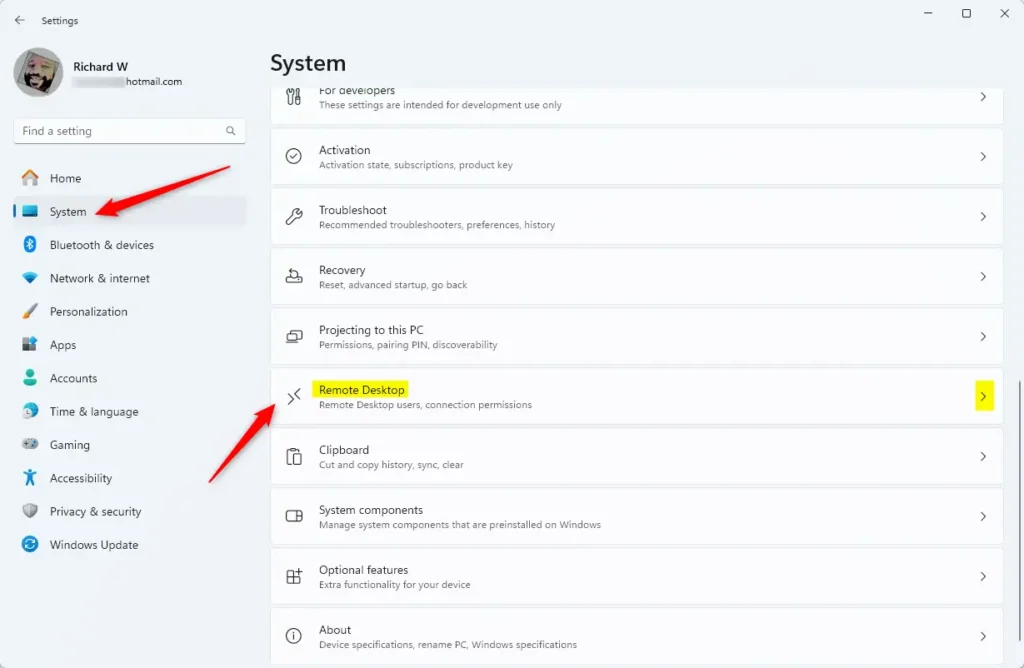
- In Settings, click System on the left side menu.
- Scroll down on the right side and click Remote Desktop.
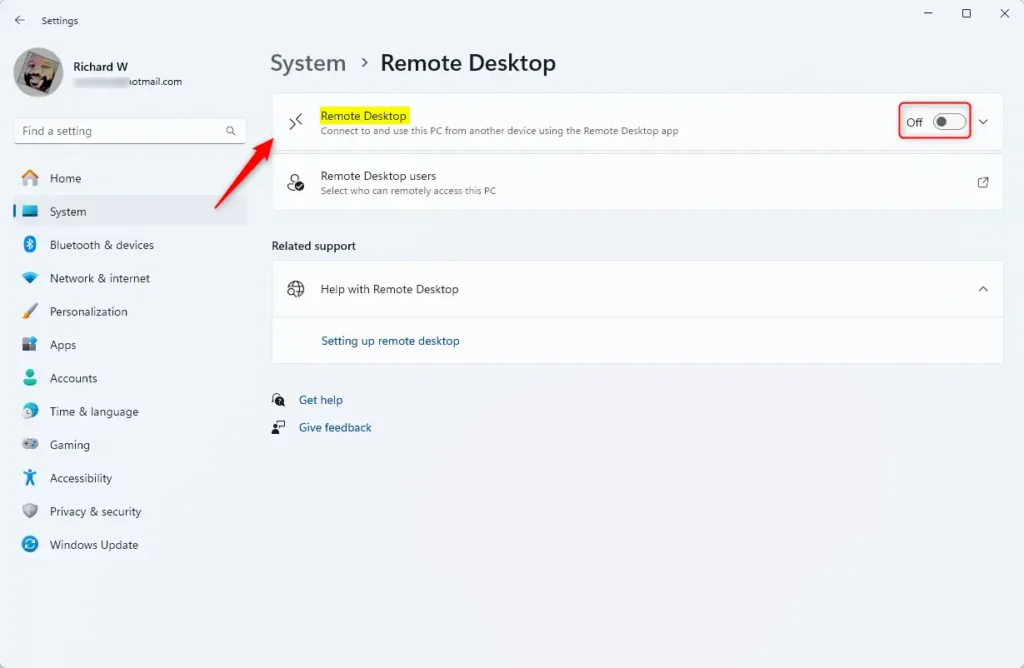
- Find the switch next to “Remote Desktop” and slide it to the On position.
- You will see a confirmation message. Click Confirm to enable Remote Desktop.
How to Add Users Allowed to Connect
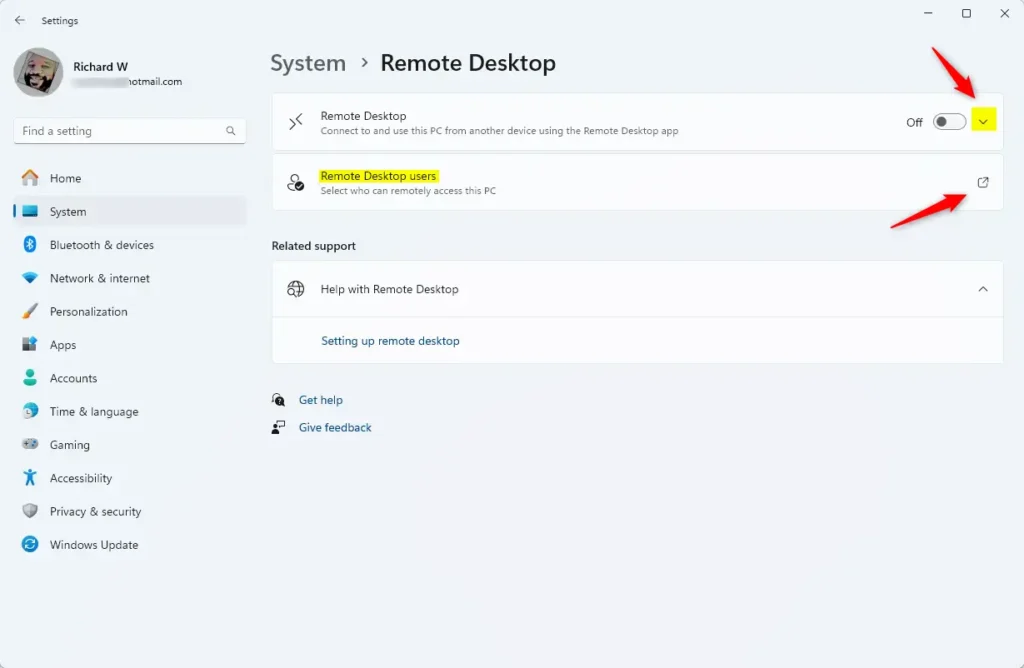
By default, only users with administrator rights on your computer can connect using Remote Desktop. If you want to let someone else connect, you need to add them to the Remote Desktop users list:
- In the same Remote Desktop settings page, click the link that says “Users that can remotely access this PC” or Add users.
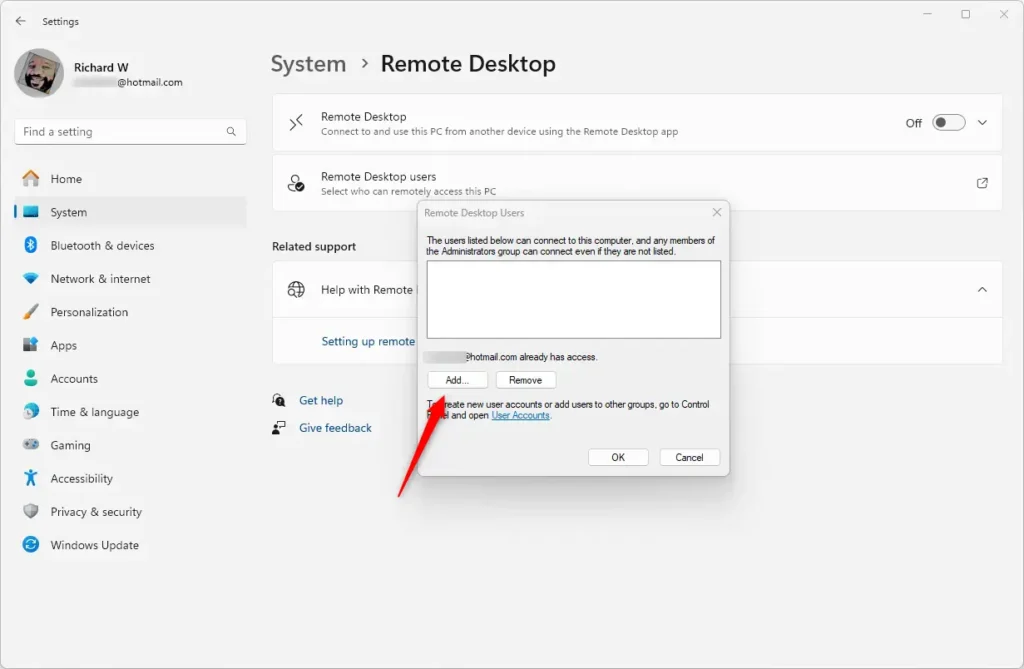
- Click the Add button.
- Type the username of the person you want to allow, then click OK.
That’s all! Now the users you added can connect to your PC remotely (if they have the right password).
Summary
- Remote Desktop lets you use your Windows 11 computer from far away.
- It’s turned off by default to keep your PC safe.
- You can turn it on anytime from the Settings app.
- Only people you add can connect to your PC remotely.
- Remember to think about security before enabling Remote Desktop.
For more step-by-step guides, visit how to use the Settings app in Windows 11.
Was this guide helpful?

About the Author
Richard
Tech Writer, IT Professional
Richard, a writer for Geek Rewind, is a tech enthusiast who loves breaking down complex IT topics into simple, easy-to-understand ideas. With years of hands-on experience in system administration and enterprise IT operations, he’s developed a knack for offering practical tips and solutions. Richard aims to make technology more accessible and actionable. He's deeply committed to the Geek Rewind community, always ready to answer questions and engage in discussions.




No comments yet — be the first to share your thoughts!