
If your Windows 11 computer ever has trouble starting up, the Quick Machine Recovery feature can help fix it faster. This guide will show you how to turn this feature on or off in simple steps.
What is Quick Machine Recovery?
Quick Machine Recovery is a helpful tool in Windows 11 that automatically tries to fix your PC if it can’t start properly. Instead of you having to do anything, it can look for fixes online and repair your system by itself. This means less waiting and less hassle if something goes wrong.
There are two main parts to this feature:
- Cloud remediation: Your PC connects to the internet and looks for fixes from Windows Update.
- Auto remediation: Your PC tries to fix problems automatically without you having to step in.
Why Use Quick Machine Recovery?
- Faster fixes: Helps your PC recover quickly from startup problems.
- Automatic updates: Uses the latest fixes from Microsoft.
- Less hassle: You don’t need to do complicated repairs yourself.
- Easy to turn on or off: You can control it in Windows Settings.
How to Turn On or Off Quick Machine Recovery
Follow these steps to enable or disable Quick Machine Recovery on your Windows 11 PC:
- Open the Settings app.
You can do this by clicking the Start menu and selecting Settings, or by pressing Windows key + I on your keyboard. - Go to System > Recovery.
On the left side, click System. Then on the right, find and click Recovery. - Find Quick Machine Recovery.
Scroll down and click on the Quick machine recovery section to open it. - Turn it on or off.
Use the switch to enable or disable Quick Machine Recovery. - (Optional) Enable automatic searching for fixes.
If you turn on Quick Machine Recovery, you can also choose how often your PC should keep looking for solutions if it doesn’t find one right away. - Close Settings.
Your changes will be saved automatically.
Visual Guide
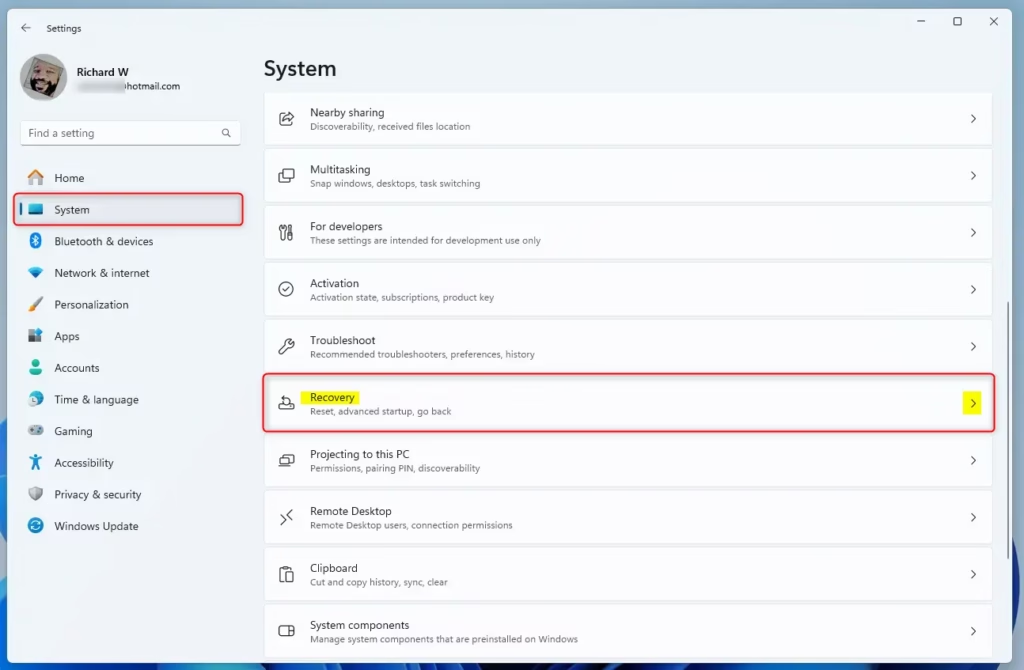
Step 2: Find the Recovery option in Settings.
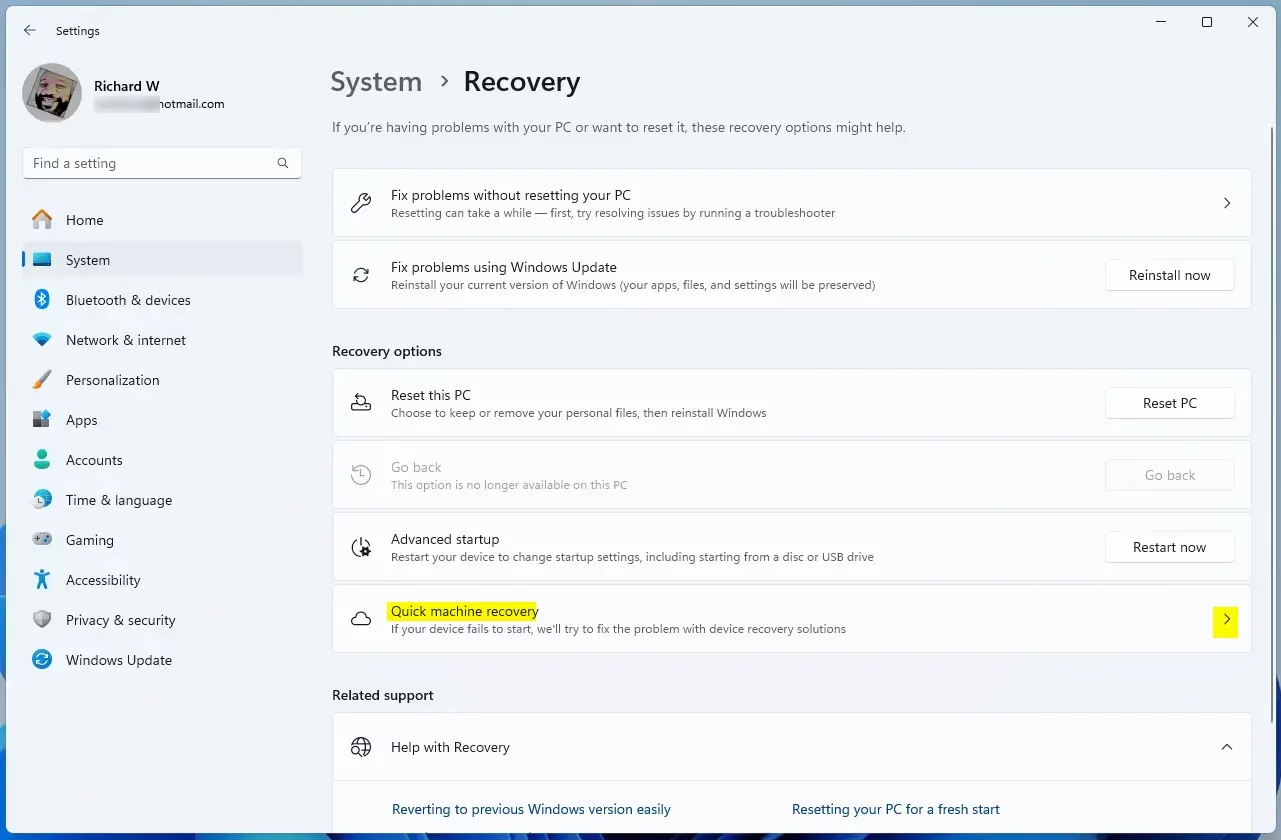
Step 3: Open Quick Machine Recovery settings.
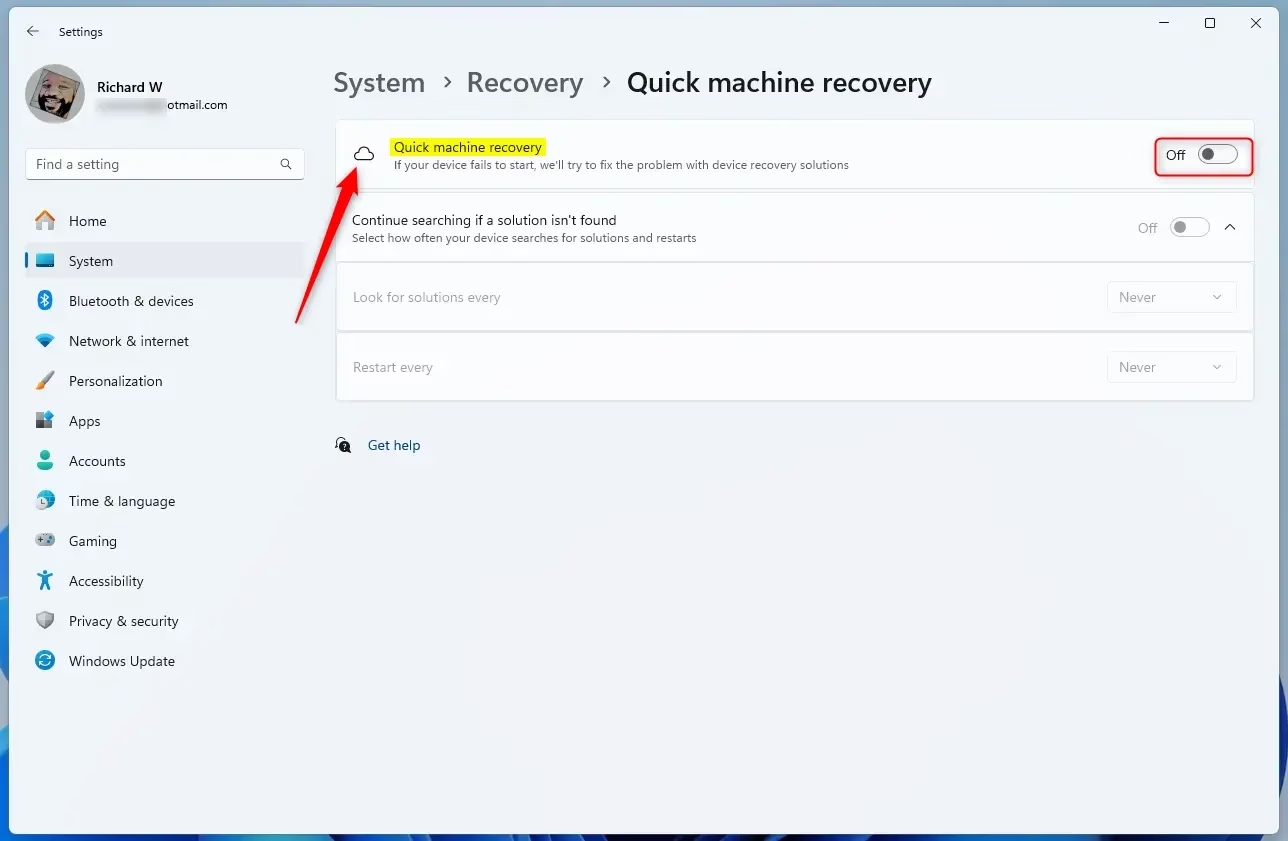
Step 4: Turn the feature on or off.
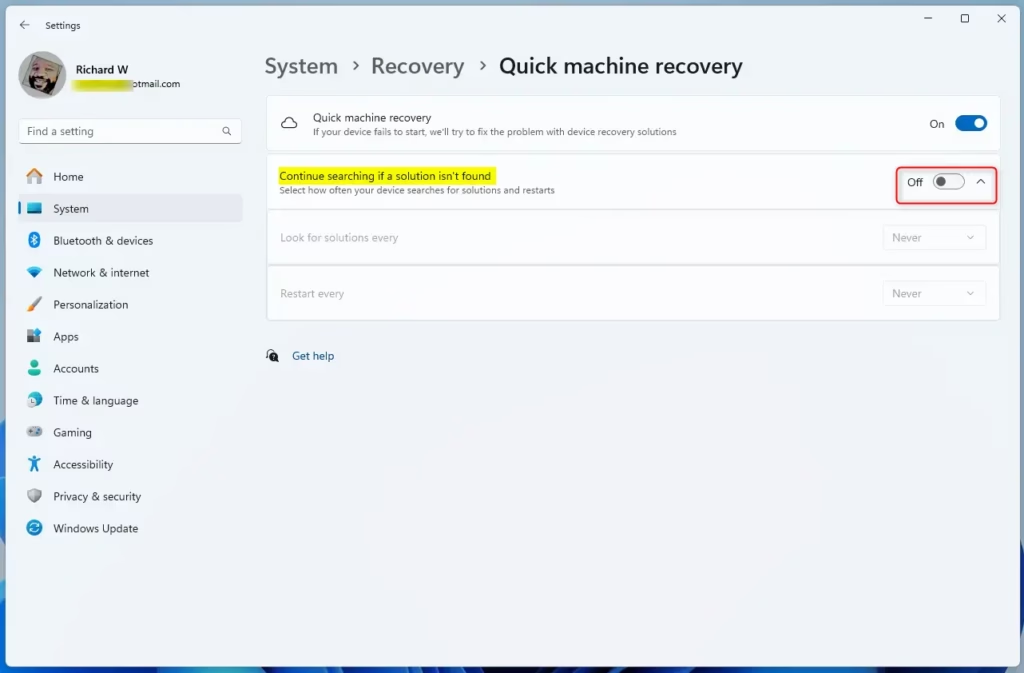
Step 5: Choose to keep looking for fixes automatically.
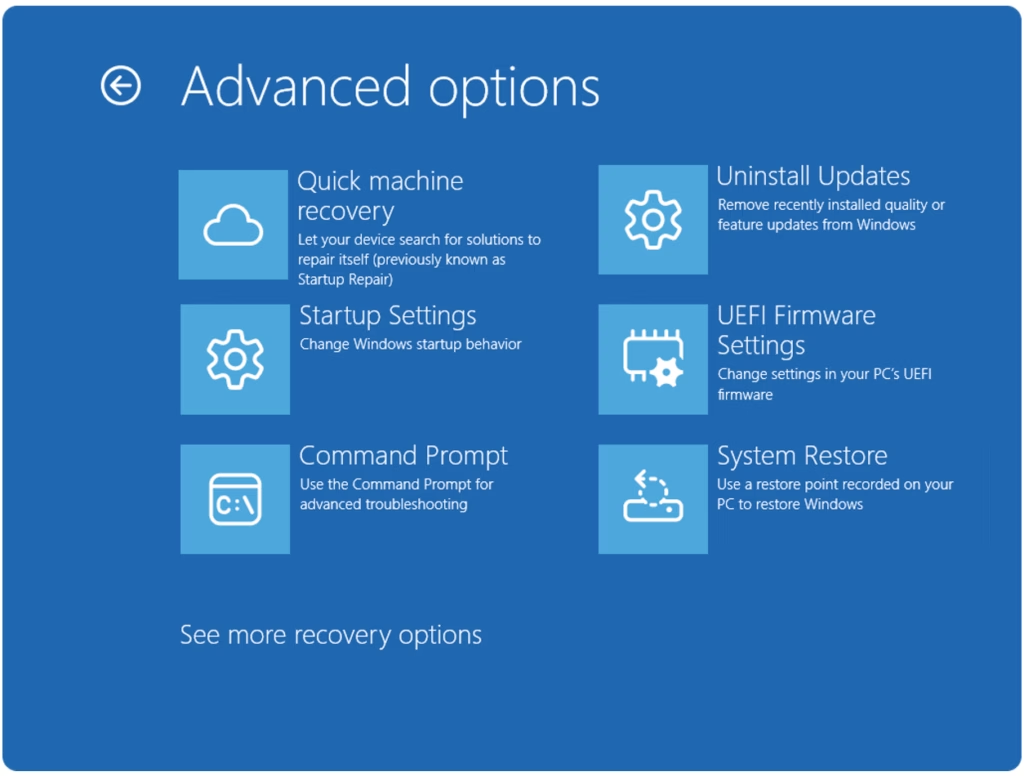
After you turn it on, you can also access Quick Machine Recovery when your PC needs advanced recovery options (called WinRE).
More Info and Help
If you want to learn more from Microsoft’s official guide, check out their page here:
Quick Machine Recovery – Microsoft Docs
For extra help with Windows Settings, see this guide:
How to Open and Use Windows Settings
Summary
Quick Machine Recovery in Windows 11 helps your computer fix startup problems quickly by:
- Automatically finding and applying fixes from the internet.
- Reducing the need for you or IT help to manually repair your PC.
- Being easy to turn on or off through Settings.
This feature is part of Microsoft’s efforts to make Windows more reliable and secure for everyone.
That’s all there is to it! Your PC will now be better prepared to recover from startup issues with less hassle.


Leave a Reply Cancel reply