
This guide shows you how to turn your touchpad on or off in Windows 11. If your laptop has a built-in touchpad, you can control it anytime you want.
Reference:
Surface touchpad use and settings – Microsoft Support Surface Typing Covers have a two-button touchpad that supports gestures and works like a mouse. Learn about its features and how to change touchpad settings.
Option One: Turn On or Off Touchpad in Settings
- Open Settings by pressing
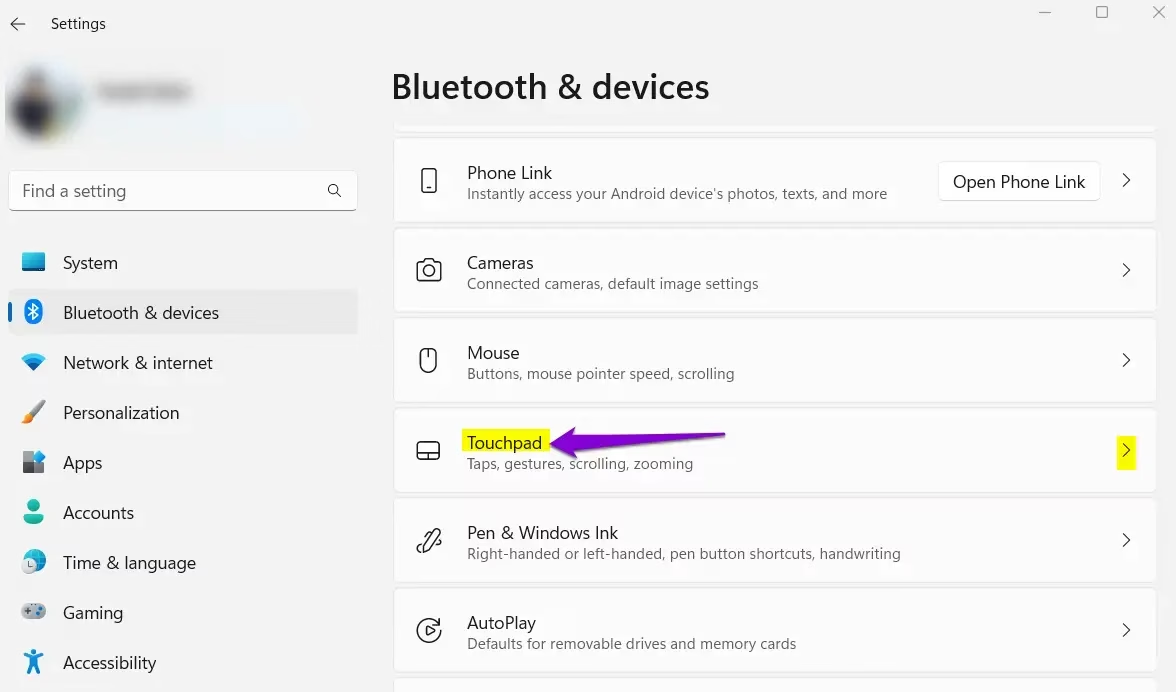
Win+I. - Click on Bluetooth & devices on the left side. Then click on Touchpad on the right side. (see screenshot below)
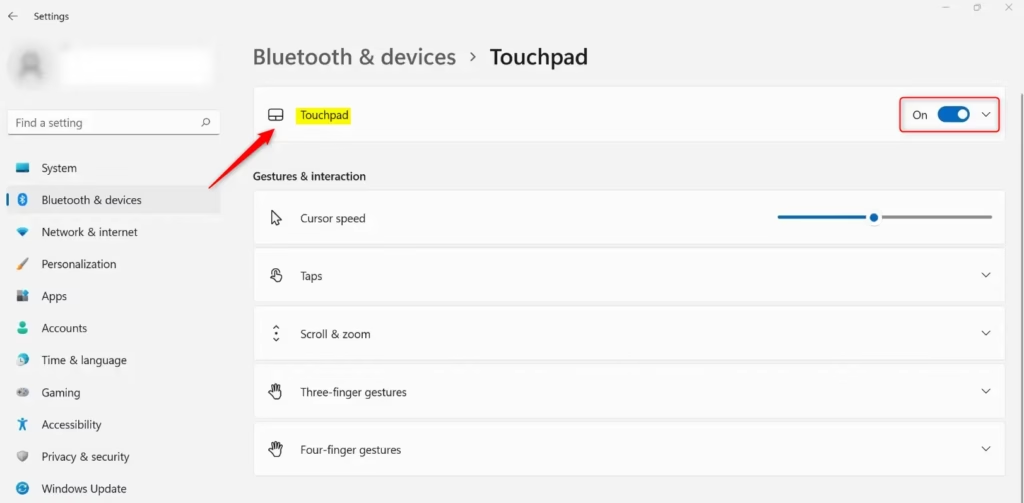
- Click on Touchpad to expand the menu. (see screenshot below step 4)
- Turn the touchpad On (default) or Off based on what you want. (see screenshot below)
- You can now close Settings if you like.
Option Two: Turn On or Off Touchpad Using Registry
Turn On Touchpad
This is the default setting.
Run the command below.
reg add "HKEY_CURRENT_USER\Software\Microsoft\Windows\CurrentVersion\PrecisionTouchPad\Status" /v Enabled /t REG_DWORD /d 1 /f
Turn Off Touchpad
⚠️ Admin privileges required
Run the command below.
reg add "HKEY_CURRENT_USER\Software\Microsoft\Windows\CurrentVersion\PrecisionTouchPad\Status" /v Enabled /t REG_DWORD /d 1 /f
Summary
You now know two ways to control your touchpad in Windows 11. The easiest way is through Settings. Just open Settings, go to Bluetooth & devices, click Touchpad, and turn it on or off. If you prefer using the registry, you can download and run a registry file to make the change. Either method works well depending on what you prefer.



Leave a Reply Cancel reply