
This article explains how to enable or disable Surf game in the Microsoft Edge browser on Windows 11.
Surf game in Microsoft Edge is a built-in browser game that allows users to take a break and enjoy some casual fun while browsing the web. It’s a simple and engaging surfing game designed to be easy to play and enjoy, where you can control a character riding a surfboard, navigating through waves, and avoiding obstacles.
Users can play the Surf game in Microsoft Edge by typing this URL edge://surf in the address bar and pressing the Enter key.
The game can often be played even when you’re offline, making it highly accessible and convenient. You can play it with your keyboard and mouse, touch, Xbox, PlayStation, Switch Pro, and the Xbox Adaptive Controller.
Enable/disable Surf game in Edge
As mentioned, admins can disable Surf game in the Microsoft Edge browser. It is enabled by default.
Here’s how to do it.
First, open the Windows Registry and navigate to the folder key path below.
Remember to back up your registry before making any changes or create a System Restore point as a precaution.
ComputerHKEY_LOCAL_MACHINESOFTWAREPoliciesMicrosoftEdge
Right-click Edge > New > DWORD (32-bit) Value and name the new DWORD AllowSurfGame.
Double-click and open the AllowSurfGame name and set the value to 0 to disable the “Surf game” feature in Edge.
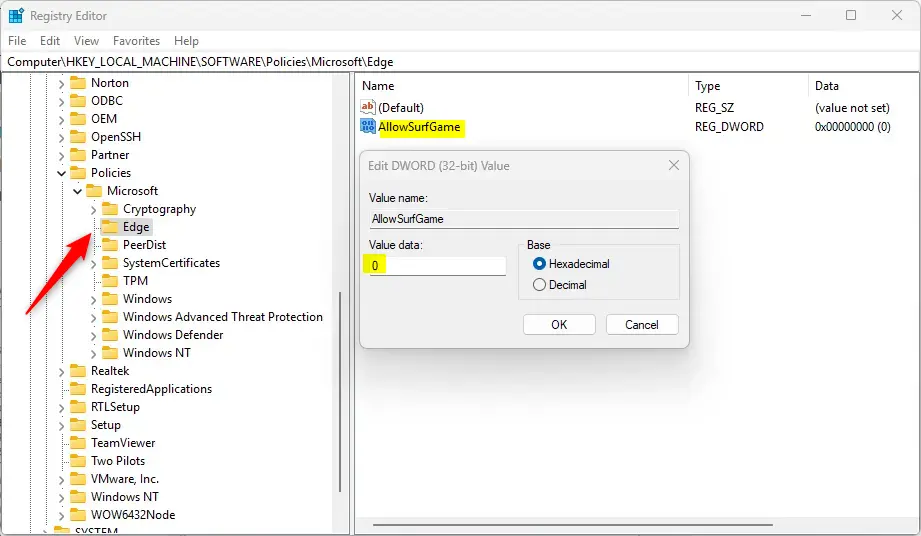
Delete the “AllowSurfGame” name created above to restore the default behavior and allow Surf game in Edge.
AllowSurfGame
You may have to reboot your computer to apply the changes.
That should do it!
Conclusion:
Enabling or disabling the Surf Game feature in Microsoft Edge is straightforward. Here are the key points to remember:
- The Surf Game is a built-in browser game for casual fun while browsing.
- It can be accessed easily by entering edge://surf in the address bar.
- The game can be played offline and supports various input methods.
- Admins can disable the feature through the Windows Registry if needed.
- Always back up your registry or create a System Restore point before making changes.
- Rebooting your computer may be necessary to apply changes after modifying the registry.
Enjoy your time using the Surf Game in Microsoft Edge!


Leave a Reply Cancel reply