
This tutorial will show you how to turn on or off the press and hold feature for right-clicking with a pen in Windows 11.
You can connect a pen to your Windows 11 computer using Bluetooth. This lets you use your pen with special pen features.
When you press and hold with a pen, it works the same as a right-click with your mouse.
Why would you want this? The press and hold feature lets you right-click using your pen. You can turn this on or off depending on your needs.
What happens when you enable it? When you press and hold your pen tip, it performs a right-click action.
Starting with Windows 11 build 26120.3671 (Beta 24H2), build 26200.5518 (Dev), and build 27842.1000 (Canary), Windows added new options. You can now control whether pressing and holding your pen (or touch) performs a right-click action.
Reference:
Use a pen with Windows – Microsoft Support
Learn how to use a tablet pen with Windows for drawing, note-taking, and navigation. Discover pairing, settings, and productivity tips for an enhanced digital experience.
Option One
Enable or Disable Pen Press and Hold for Right-clicking in Settings
- Open Settings by pressing Win+I.
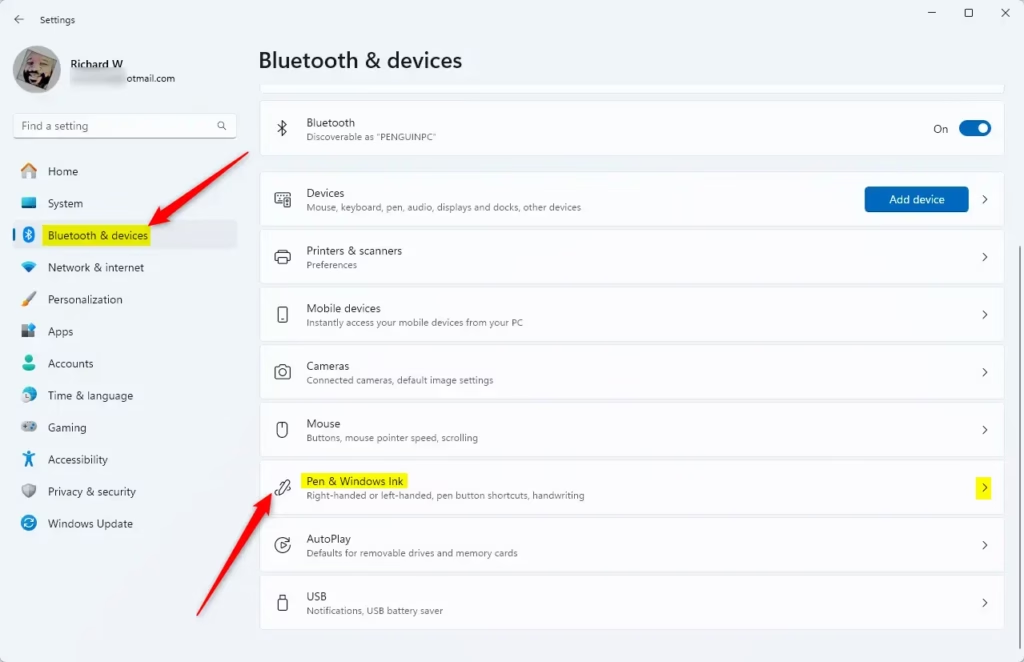
- On the left side, click Bluetooth & devices. On the right side, click Pen & Windows Ink.
Open Pen & Windows Ink settings
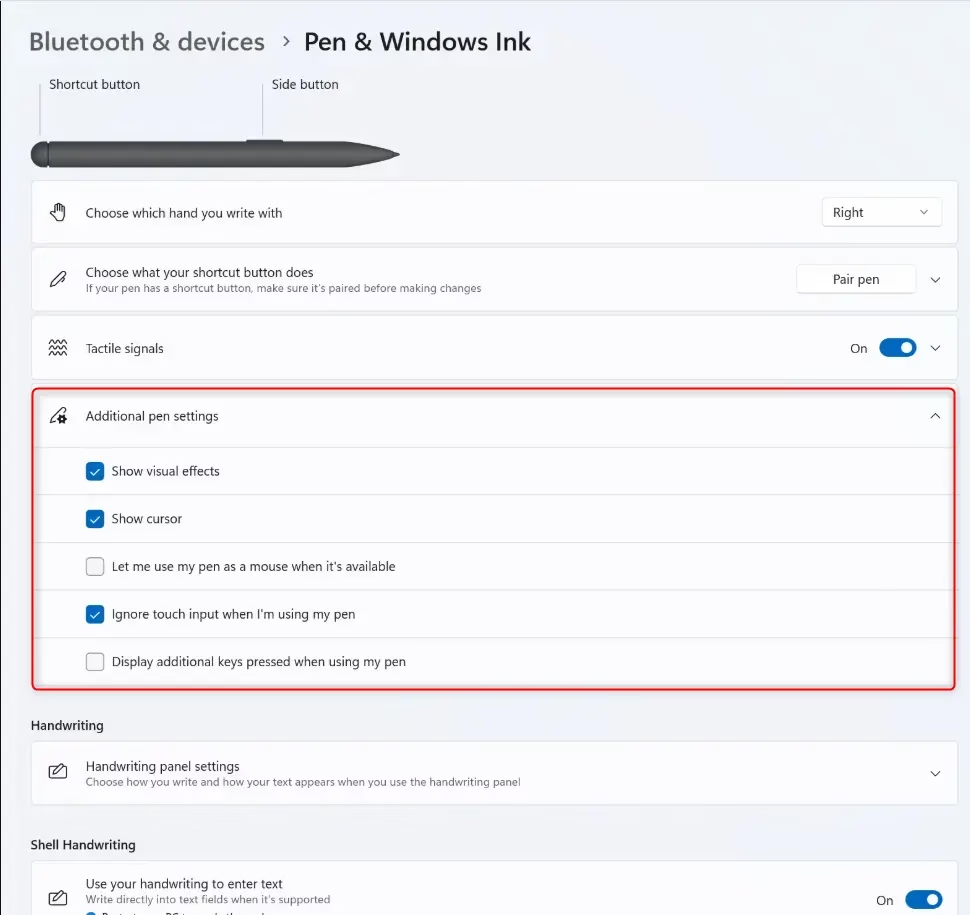
- Click Additional pen settings to expand it.
- Check the box (to enable) or uncheck the box (to disable) Enable press and hold to perform a right-click equivalent. Choose what you want.
- You can now close Settings.
Option Two
Enable or Disable Pen Press and Hold for Right-clicking in Control Panel
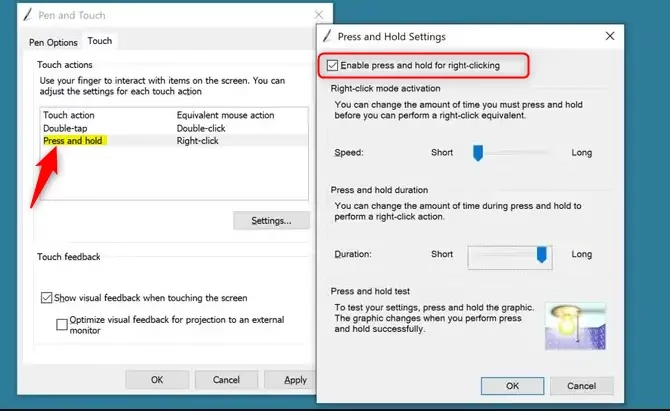
- Open Control Panel in icons view. Click the Pen and Touch icon.
- Do the following:
- Click the Pen Options tab.
- Select Press and hold.
- Click Settings.
- Check (to enable) or uncheck Enable press and hold for right-clicking. Choose what you want. Click OK.
- [Admin Required] Click OK.
- You can now close Control Panel.
Option Three
Enable or Disable Pen Press and Hold for Right-clicking Using Registry
- [Admin Required] Open Windows Terminal as an administrator and run one of the commands below.
Enable Pen Press and Hold for Right Clicking
This is the default setting.
reg add "HKCU\Software\Microsoft\Wisp\Pen\SysEventParameters" /v HoldMode /t REG_DWORD /d 1 /fDisable Pen Press and Hold for Right-clicking
reg add "HKCU\Software\Microsoft\Wisp\Pen\SysEventParameters" /v HoldMode /t REG_DWORD /d 3 /fSummary
You now know three ways to control the pen press and hold feature in Windows 11. You can use Settings for an easy method, Control Panel for another option, or the Registry Editor for advanced users. The press and hold feature lets your pen work like a right-click. You can turn it on or off based on how you like to work with your pen.

Leave a Reply