

This post describes steps to enable or disable, requiring users to press CTRL+ALT+DEL on the sign-in screen before signing into Windows 11.
The lock screen is the screen or curtain you see when you turn on your computer before the sign-in screen. It is also displayed once your computer is locked after you step away or press the Windows key + L.
For added security, you can set up Windows to require users to press the CTRL+ALT+DEL key on the login screen before logging on.
Requiring CTRL+ALT+DELETE before users sign in ensures they communicate through a trusted path when entering their passwords.
Below is how to enable or disable requiring users to press the CTRL+ALT+DEL keys on the sign-in screen before signing into Windows 11.
How to enable or disable ctrl+alt+delete on the sign-in screen in Windows 11
As described above, requiring CTRL+ALT+DELETE before users sign in ensures they communicate through a trusted path when entering their passwords.
Below is how to do that in Windows 11.
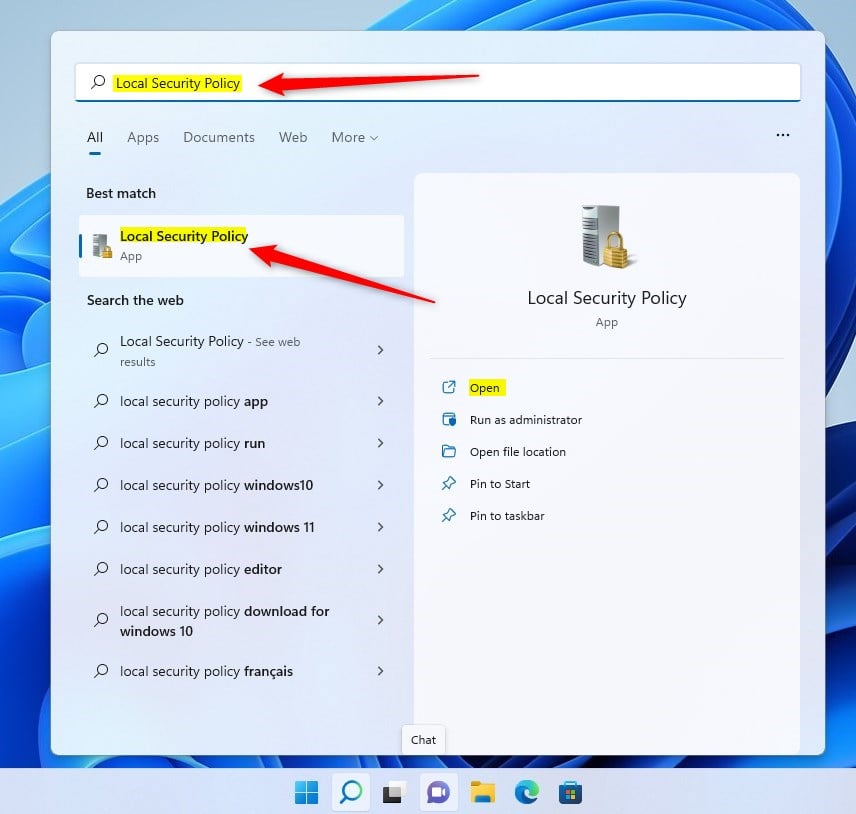
To do that, open Local Security Policy (secpol. msc) by clicking on the Start Menu and searching for Edit group policy, as highlighted below.
Under Best match, select Local Security Policy to launch Local Security Policy Editor.
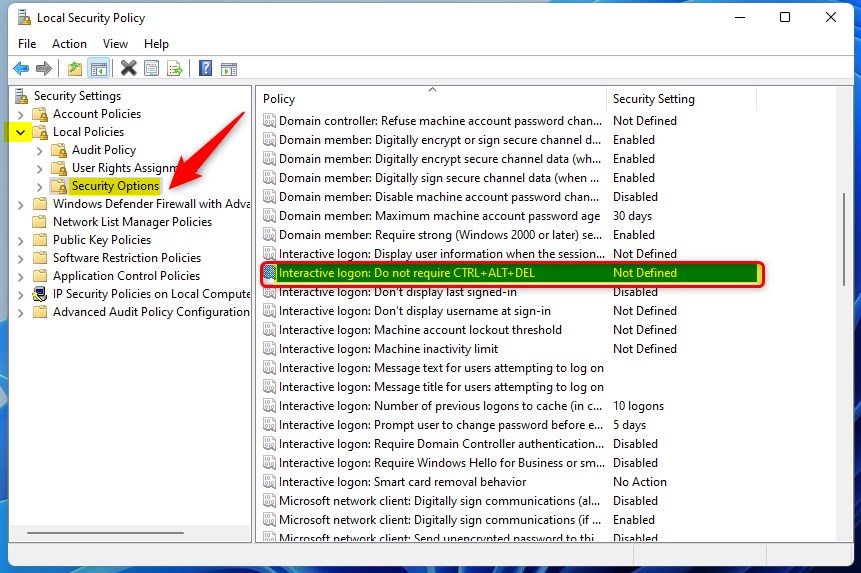
In the left pane of Local Security Policy Editor, expand the tree:
Local Policy -> Security Options
Then, in the Security Options details pane on the right, locate and double-click the setting Interactive logon: Do not require CTRL+ALT+DEL.
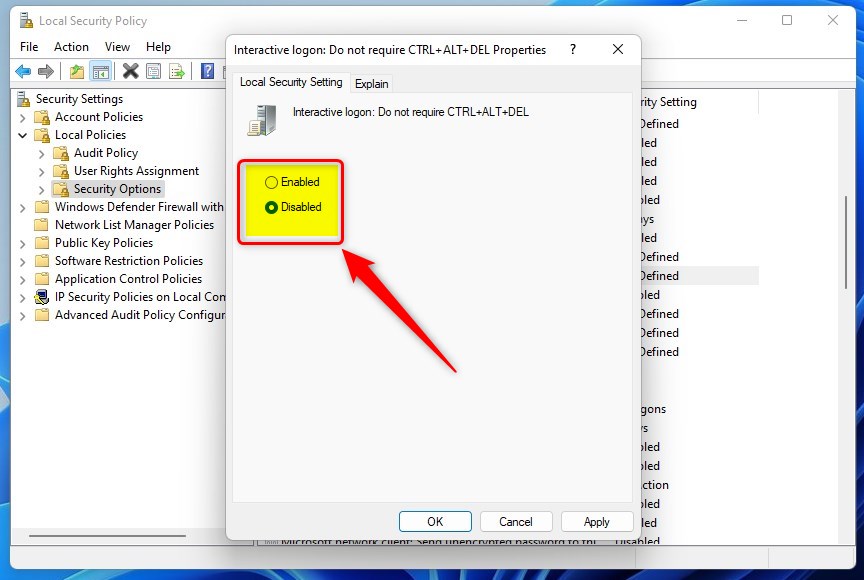
On the Interactive logon: Do not require CTRL+ALT+DEL policy Properties window, select Enabled (disable secure sign-in) or Disabled (enable secure sign-in), and click OK.
Local Security Policy is only available in the Windows 11 Pro, Enterprise, and Education editions.
If you run Windows Home and don’t have the Local Security Policy editor, open the Windows Registry editor to configure it there.
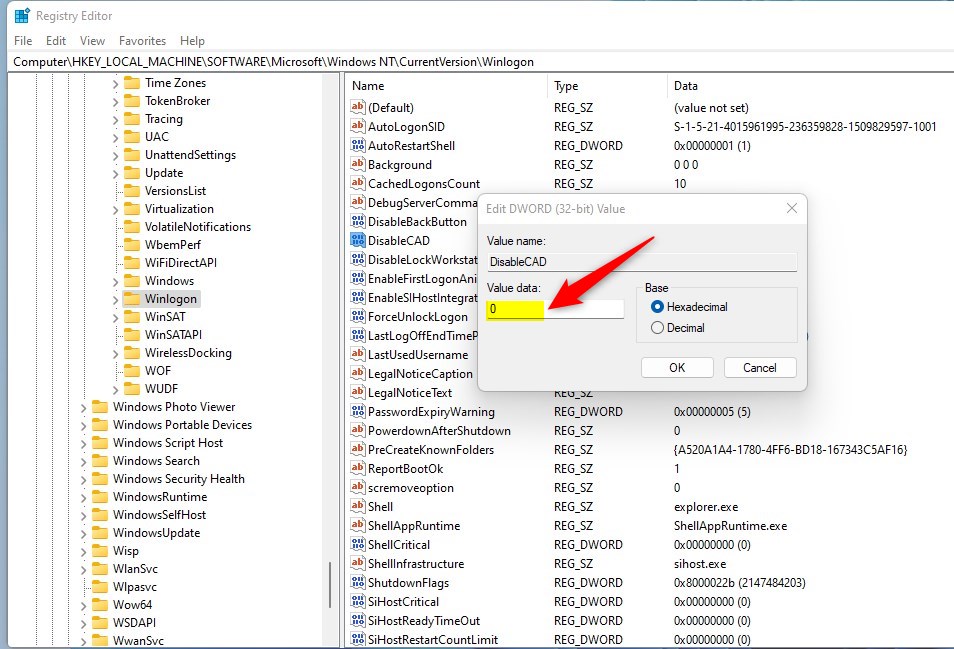
When Windows Registry opens, navigate to the tree path below:
HKEY_LOCAL_MACHINESOFTWAREMicrosoftWindows NTCurrentVersionWinlogon
Then, in the right pane of the System key, double-click on DisableCAD REG_DWORD data to open.
Note: If you don’t see data for disabled, right-click in a blank area of the window, select New, choose DWORD (32-bit) Value, and type DisableCAD for the name to create one.
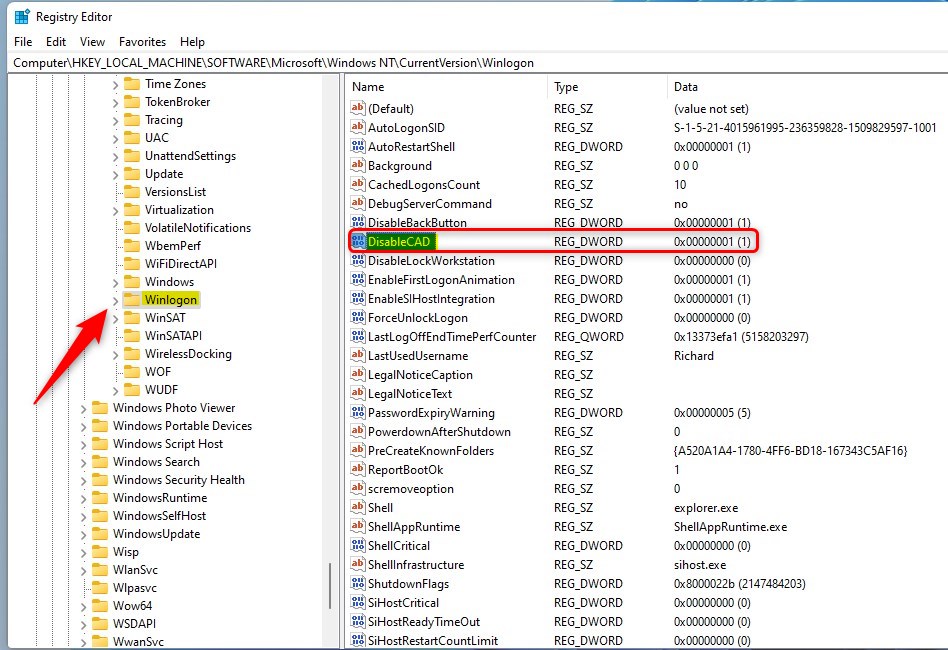
In the DWORD (32-bit) Value field, enter 0 to add or 1 to enable or disable CTRL+ATL+DEL options on the sign-in screen.
That should do it!
Conclusion:
- Enabling CTRL+ALT+DEL for sign-in adds an extra layer of security to Windows 11.
- Windows 11 Pro, Enterprise, and Education editions can use the Local Security Policy Editor to configure this setting.
- The Windows Registry editor can be used for the same purpose for Windows Home users.
- Navigate to HKEY_LOCAL_MACHINESOFTWAREMicrosoftWindows NTCurrentVersionWinlogon in the Registry Editor to make the necessary changes.
- By following these steps, you can ensure a trusted path for entering passwords and enhance the security of your Windows 11 device.



Leave a Reply Cancel reply