
This tutorial shows you how to turn on or off a security feature in Windows 11. When enabled, users must press Ctrl + Alt + Delete on the lock screen before signing in.
Why This Matters
The lock screen is what you see when your computer starts up or when you lock it (press Win + L). You need to get past this screen to reach the sign-in screen.
Enabling secure sign-in adds extra protection. It forces users to press Ctrl + Alt + Delete before signing in. This prevents fake sign-in screens created by malware from stealing your password.
What You Need
You must be signed in as an administrator to change this setting.
Option One: Use the User Accounts Tool
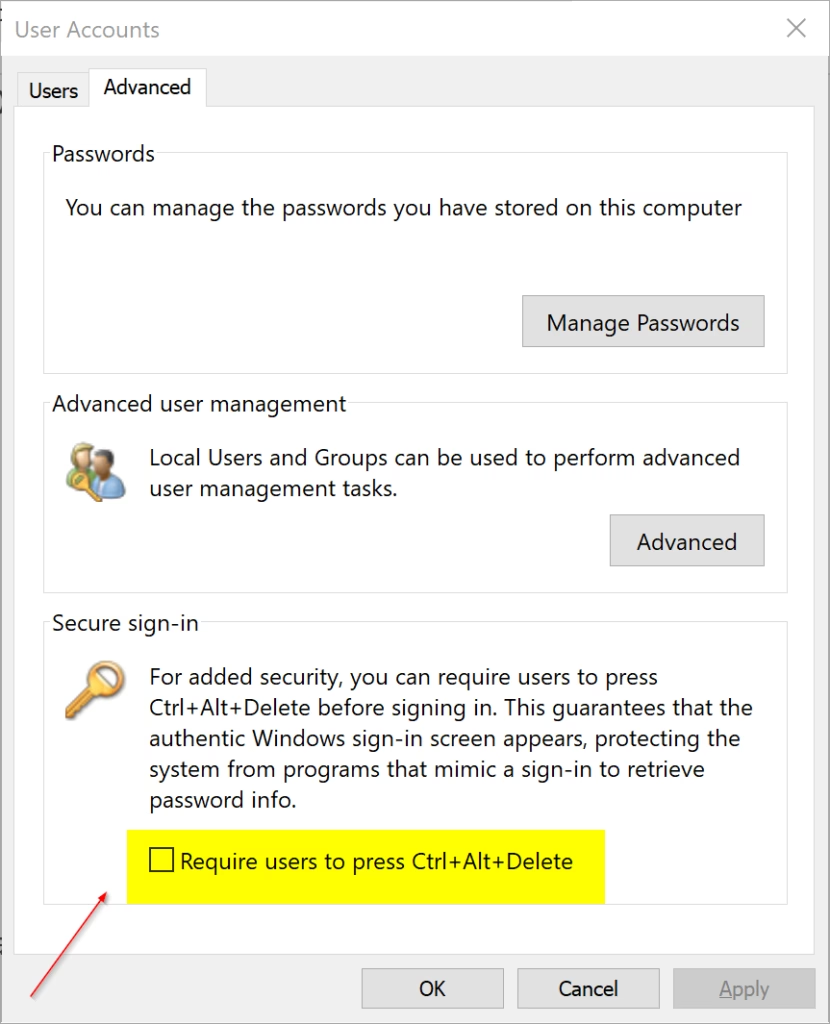
- Open the User Accounts tool (netplwiz).
- Click the Advanced tab.
- Check the box next to Require users to press Ctrl+Alt+Delete to turn it on. Uncheck it to turn it off.
- Click OK.
Option Two: Use Local Security Policy
Note: This option only works on Windows 11 Pro, Enterprise, and Education editions. All versions can use Option Three instead.
- ⚙️ Admin Required: Open Local Security Policy by typing
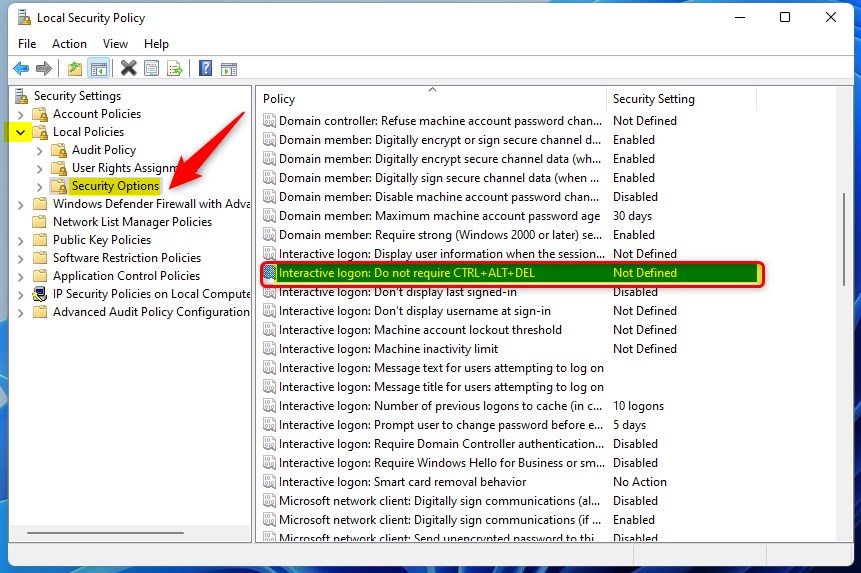
secpol.mscin your search bar. - In the left pane, click Local Policies, then click Security Options.
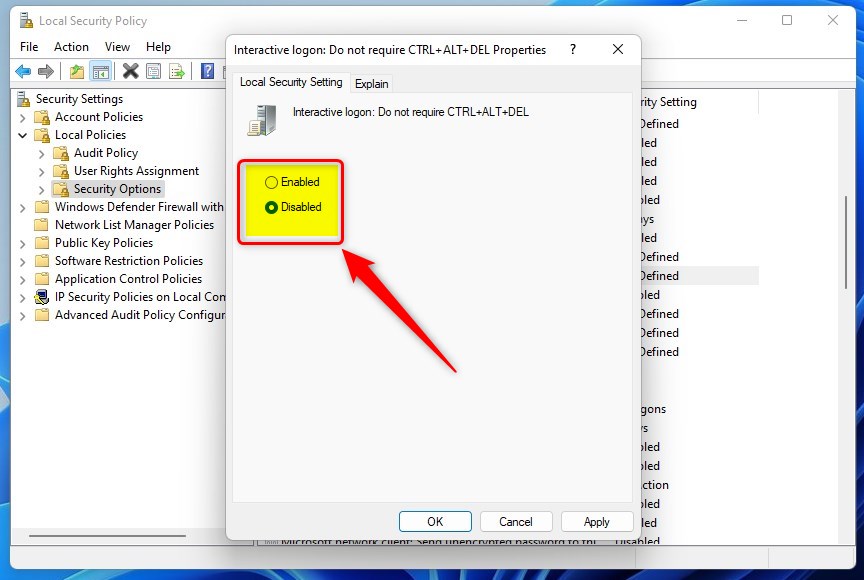
- In the right pane, double-click Interactive Logon: Do not require CTRL+ALT+DEL.
- Select Enabled to turn off secure sign-in. Select Disabled to turn it on.
- Click OK.
- Close Local Security Policy if you want.
Option Three: Use the Registry
⚙️ Admin Required: The registry is an advanced tool. Mistakes here can cause problems.
To Turn On Secure Sign-in
Find this registry path and change the value:
reg add "HKLM\SOFTWARE\Microsoft\Windows NT\CurrentVersion\Winlogon" /v DisableCAD /t REG_DWORD /d 0 /f
reg delete "HKCU\Software\Microsoft\Windows NT\CurrentVersion\Winlogon" /v DisableCAD /f
reg add "HKLM\SOFTWARE\Microsoft\Windows\CurrentVersion\Policies\System" /v DisableCAD /t REG_DWORD /d 0 /f
reg delete "HKCU\Software\Microsoft\Windows\CurrentVersion\Policies\System" /v DisableCAD /f
To Turn Off Secure Sign-in
This is the default setting.
Set the entry:
reg add "HKLM\SOFTWARE\Microsoft\Windows NT\CurrentVersion\Winlogon" /v DisableCAD /t REG_DWORD /d 1 /f
reg delete "HKCU\Software\Microsoft\Windows NT\CurrentVersion\Winlogon" /v DisableCAD /f
reg delete "HKLM\SOFTWARE\Microsoft\Windows\CurrentVersion\Policies\System" /v DisableCAD /f
reg delete "HKCU\Software\Microsoft\Windows\CurrentVersion\Policies\System" /v DisableCAD /f
Summary
You now know how to control whether users must press Ctrl + Alt + Delete before signing in to Windows 11. Three methods are available: the User Accounts tool (easiest), Local Security Policy (Pro editions only), or the Registry (advanced). Enabling this feature prevents malicious programs from displaying fake sign-in screens. Always sign in as an administrator to make these changes.

Leave a Reply