How to Enable or Disable Copilot Actions in Windows 11

This guide shows you how to turn the Copilot Actions feature on or off in the Copilot app on Windows 11.
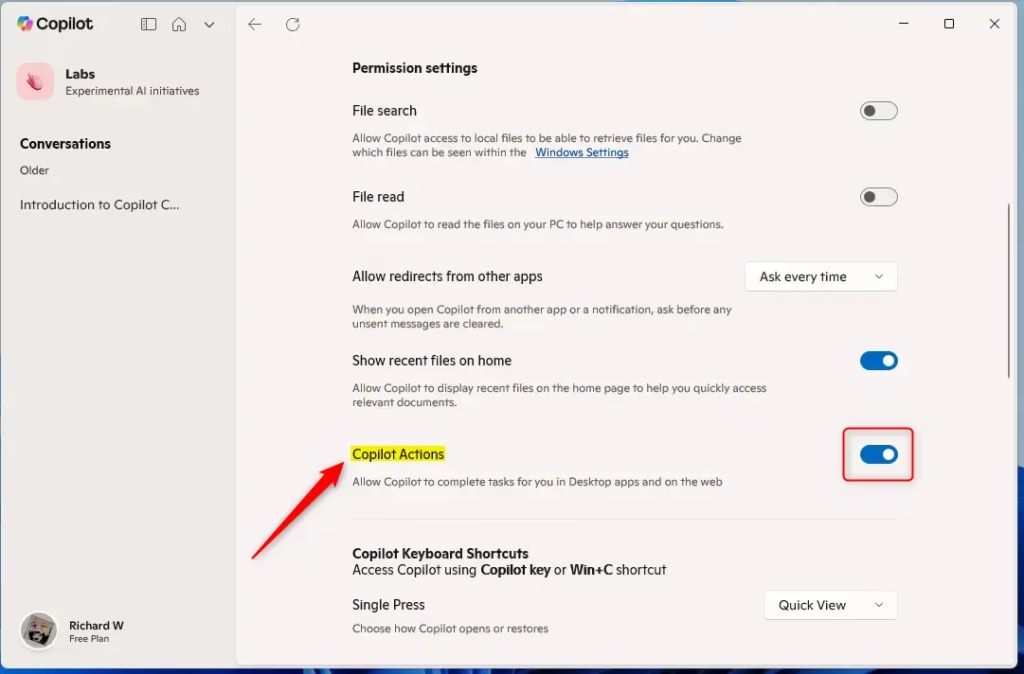
Open the Copilot app and sign in. Navigate to Settings by clicking your account icon, then select Settings. Use the toggle under Permission settings to turn Copilot Actions on or off.
What is Copilot Actions?
Copilot Actions is a helpful feature that lets you get things done on your computer. You tell Copilot what you want to do in plain language. Then it tries to finish the task for you by working with your desktop and web apps.
Why Use Copilot Actions?
- Easy to use: Copilot understands your words and helps you finish tasks.
- Save time: It works with apps and websites automatically for you.
- Customize your experience: You can turn it on or off anytime.
- Works with your Microsoft account: Keeps your settings synced.
Steps to Turn Copilot Actions On or Off
Turning Copilot Actions on or off is simple and can be done directly within the Copilot app.- Open the Copilot app: Click on the Copilot icon in your taskbar. If you don’t see it, search for “Copilot” in the Start menu. For more details, see this guide.
- Sign in to your Microsoft account: If you aren’t signed in yet, log in with your Microsoft account to save your settings. Need an account? Learn how to create one here.
- Go to Settings: In the Copilot app, click the Account button (usually your profile picture or initials). Then select Settings.
- Turn Copilot Actions on or off: In Settings, look for Permission settings. Find the Copilot Actions option. Use the toggle button to switch the feature on (blue) or off (gray).
- Close Settings: When you’re done, exit the Settings page. Your choice saves automatically.
Visual Guide
Here are pictures to help you find the settings:
More Helpful Links
Summary
You can turn Copilot Actions on or off in Windows 11 to control how you use the Copilot app. Open Copilot, sign in, go to Settings, and toggle the feature. This helps you get more done on your PC.
What are Microsoft Copilot actions?
Copilot Actions is basically a way for Microsoft’s AI to handle tasks for you. It lets Copilot manage and carry out actions across different apps and services.
How to enable Copilot function?
Now I can go to file options and then copilot. And then reclick the box to enable copilot. And click okay.
How to enable Copilot mode?
Click on the three dots in the top right corner then click on settings. Select AI innovations from the lefthand menu. Now enable co-pilot mode. All done now let’s test it.
Was this guide helpful?

About the Author
Richard
Tech Writer, IT Professional
Richard, a writer for Geek Rewind, is a tech enthusiast who loves breaking down complex IT topics into simple, easy-to-understand ideas. With years of hands-on experience in system administration and enterprise IT operations, he’s developed a knack for offering practical tips and solutions. Richard aims to make technology more accessible and actionable. He's deeply committed to the Geek Rewind community, always ready to answer questions and engage in discussions.


No comments yet — be the first to share your thoughts!