

This article explains enabling or disabling the “Collections” feature in Microsoft Edge on Windows 11.
The Collections feature in Microsoft Edge is a tool that allows users to gather and organize content from the web. It lets you save text, images, and links from different websites in a single place, making collecting information for research, projects, or personal interests easier.
You can quickly revisit saved content without searching your browser history.
You can share collections with others, making collaborating on projects or sharing findings easier.
If you don’t find the feature helpful or rarely use it, disable it to keep your browser interface cleaner or improve browser performance.
Enable or disable Collections in Edge
As mentioned, users can enable or disable the “Collections” in Microsoft Edge.
Here’s how to do it.
First, open the Microsoft Edge browser.
Then click on Setting and more (Alt+F) 3 horizontal dots button on the top right corner and select Settings.

Select “Privacy, search, and security” on the Settings page on the left.

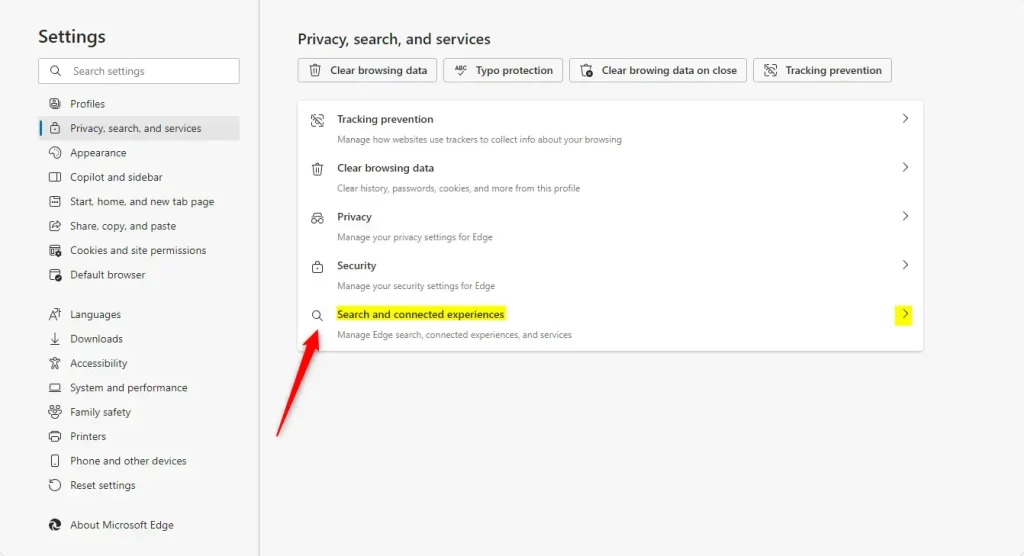
On the “Privacy, search, and services” page, click the “Search and connected experiences” tile to expand it.
Under the Search and connected experiences section, toggle the “Save content using Collections in Microsoft Edge” switch button to enable or disable it.
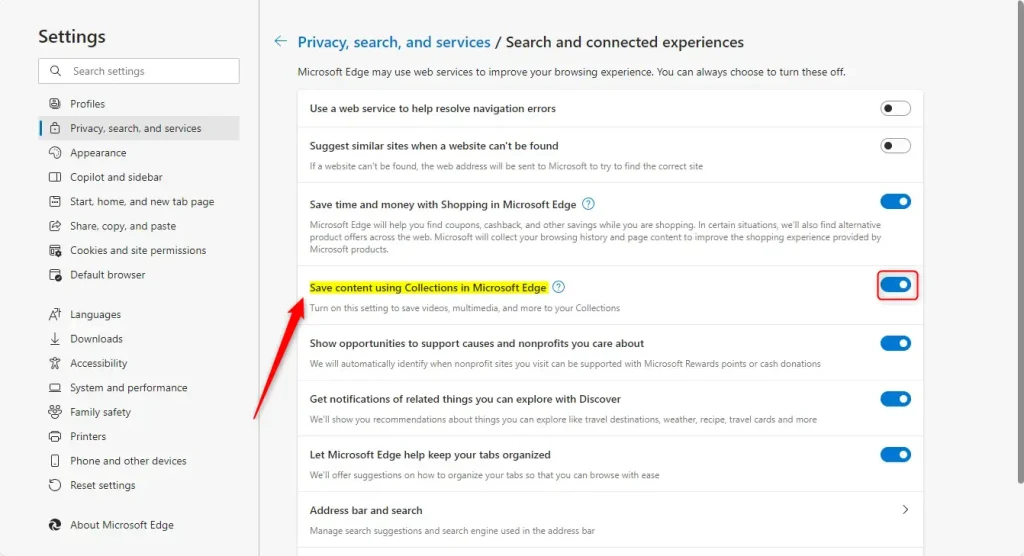
Restart Edge to apply your changes.
Enable or disable the Collections feature using the Windows Registry
Another way to enable or disable Edge’s “Collections” feature is to use Windows Registry Editor.
First, open the Windows Registry and navigate to the folder key path below.
Remember to back up your registry before making any changes or create a System Restore point as a precaution.
ComputerHKEY_LOCAL_MACHINESOFTWAREPoliciesMicrosoftEdge
Right-click Edge > New > DWORD (32-bit) Value and name the new DWORD EdgeCollectionsEnabled.
Double-click and open the EdgeCollectionsEnabled name and set the value to 0 to disable the “Collections” feature in Edge.
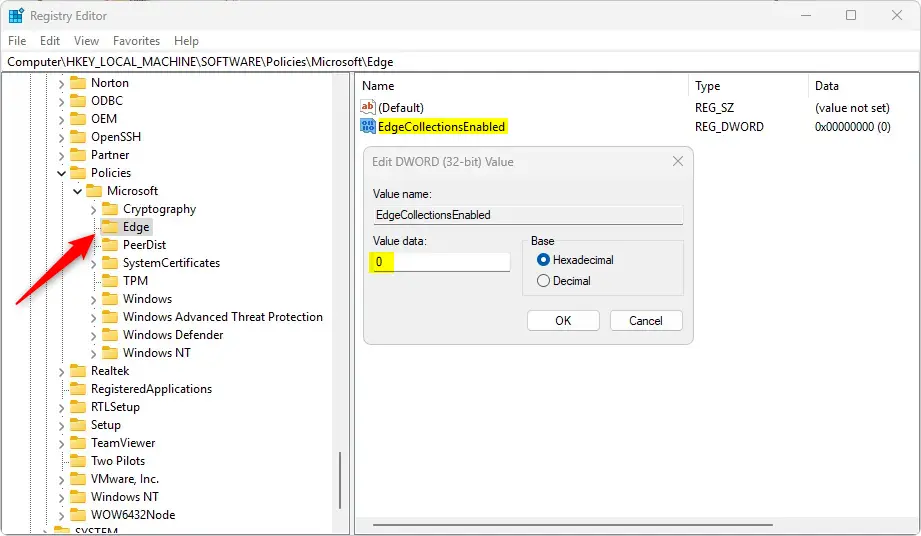
Delete the “EdgeCollectionsEnabled” name created above to restore the default behavior and allow collections in Edge.
EdgeCollectionsEnabled
You may have to reboot your computer to apply the changes.
That should do it!
Reference:
Conclusion:
Enabling or disabling the Collections feature in Microsoft Edge allows users to customize their browsing experience according to their needs. Here are the key takeaways:
- Organize Web Content: Collections make gathering and categorizing information from multiple sources easier.
- Improved Collaboration: Sharing saved collections can enhance teamwork and project discussions.
- Easy Management: Users can quickly revisit their saved content without navigating browser history.
- Customization Options: Users can enable or disable the feature to suit their preferences and streamline their browser interface.
- Registry Editor: For advanced users, the Windows Registry offers another method to toggle the Collections feature.
Following the outlined steps, you can easily manage the Collections feature in Microsoft Edge, allowing for a tailored browsing experience.



Leave a Reply Cancel reply