

This post describes steps to turn On or Off adaptive or automatic brightness in Ubuntu Linux.
Ubuntu Linux will adjust the screen’s brightness based on the surrounding lighting conditions, particularly laptops with advanced graphics cards and integrated light sensors.
With adaptive brightness enabled, Ubuntu Linux provides optimal brightness and contrast levels while saving power and providing longer battery life.
Whether in a dark room or in direct sunlight, automatic brightness will adjust the screen and display the content in readable settings. This ensures that the screen is always easy to see in different ambient light conditions and helps to reduce battery consumption.
How to enable or disable automatic brightness in Ubuntu Linux
As mentioned above, in laptops with advanced graphics cards and integrated light sensors, Ubuntu Linux automatically adjusts the screen’s brightness based on the surrounding lighting conditions.
Below is how to enable or disable adaptive brightness in Ubuntu Linux.
Ubuntu Linux has a centralized location for the majority of its settings. From system configurations to creating new users and updating, all can be done from the System Settings panel.
To get to System Settings, open the Activities overview and start typing Settings.

Alternatively, click on the System menu at the top-right corner of the top bar on your desktop.
On the System menu, select Settings as highlighted below

In the Settings app, click on Power tile to expand.
In the Power Saving section, ensure that the Automatic Screen Brightness switch is set to the On position to enable.
To disable automatic screen brightness, switch it to Off.
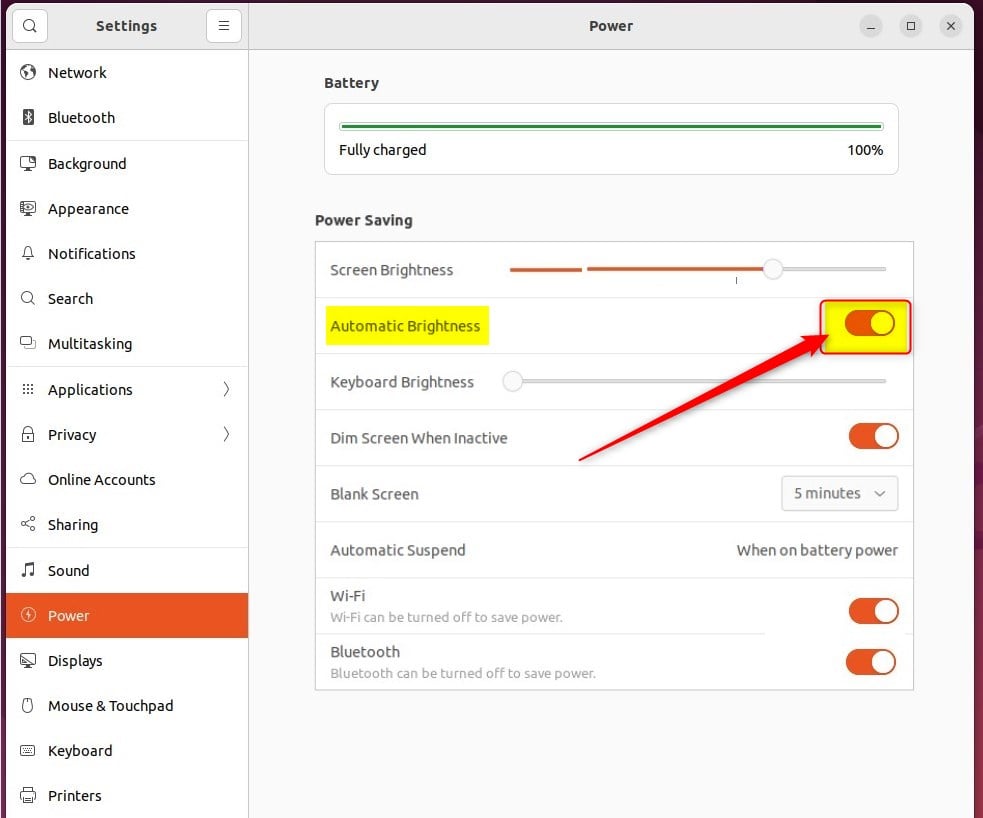
That should do it! You can now close the settings app.
Conclusion:
- Ubuntu Linux’s adaptive brightness feature adjusts the screen’s brightness based on surrounding lighting conditions, providing optimal brightness and contrast levels while saving power and prolonging battery life.
- Enabling automatic brightness ensures the screen is always easy to see in different ambient light conditions and helps reduce battery consumption.
- To enable or disable automatic brightness in Ubuntu Linux, access the System Settings panel, navigate to the Power section, and toggle the Automatic Screen Brightness switch to the desired position.
This post provides a clear and straightforward guide for managing adaptive and automatic brightness settings in Ubuntu Linux, enhancing the user experience and energy efficiency.
Leave a Reply Cancel reply