How to Enable JavaScript in Microsoft Edge on Windows 11

You enable JavaScript in Microsoft Edge on Windows 11 by adjusting your browser’s privacy and security settings.
JavaScript is a scripting language that allows websites to deliver dynamic and interactive content, making them functional beyond static pages. Without it, many modern websites simply won’t work as intended.
For example, you might find that forms won’t submit, videos won’t play, or essential website elements fail to load if JavaScript is disabled. Enabling it ensures you can access the full functionality of the web, as designed.
Microsoft Edge, by default, keeps JavaScript enabled. However, if you’ve noticed issues with specific sites on your Windows 11 PC, checking this setting is a crucial first step to troubleshooting.
To enable JavaScript in Microsoft Edge, go to Settings > Privacy, search, and services > Site permissions. Click on JavaScript and ensure the “Allow (recommended)” toggle is switched on. This will allow websites to run interactive content properly.
Step 1Open Edge Settings
First, open your Microsoft Edge browser. Look in the top-right corner of the browser window. You’ll see three small dots stacked vertically (…). Click these dots. This opens a menu with various options.
Tip: You can also type edge://settings into the address bar at the top of Edge and press Enter. This is a quick way to get to the settings.

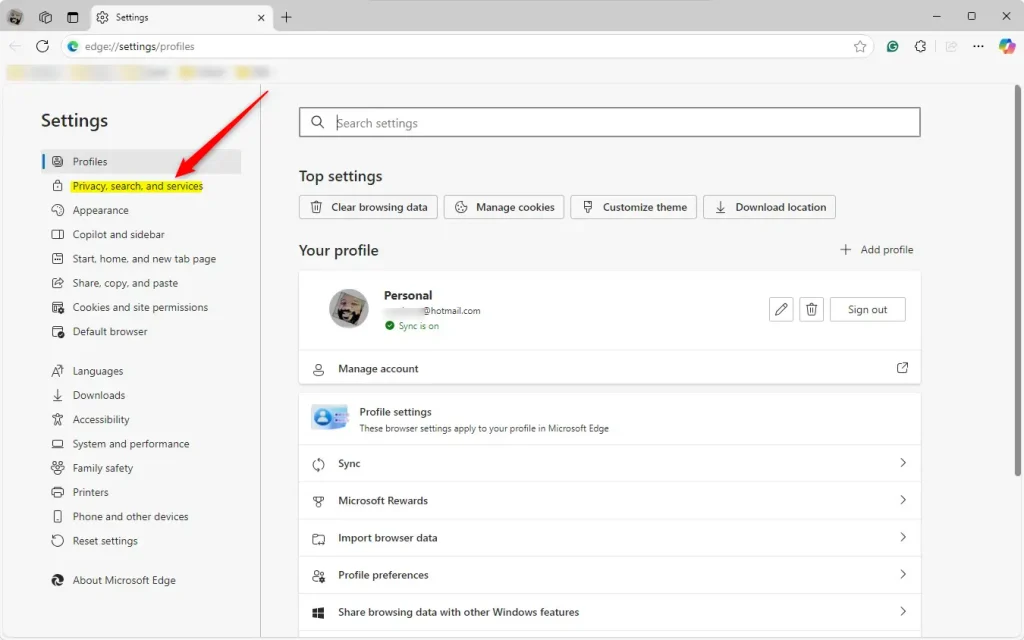
Step 2Go to Privacy, Search, and Services
In the menu that pops up, find and click on “Settings.” This opens the main settings page for Edge. On the left side of this page, you’ll see a list of categories. Click on “Privacy, search, and services.”
Step 3Find Site Permissions
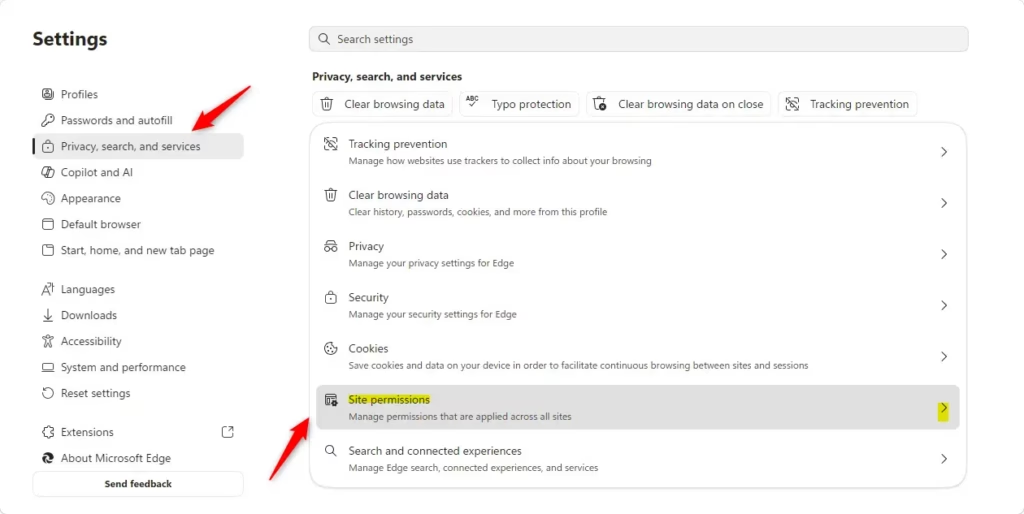
You’re now in the “Privacy, search, and services” section. Scroll down until you find “Site permissions.” This area controls what individual websites can do, like use your camera or run scripts.
Under “Site permissions,” you’ll see a link that says “All permissions.” Click this link.
Step 4Find and Enable JavaScript
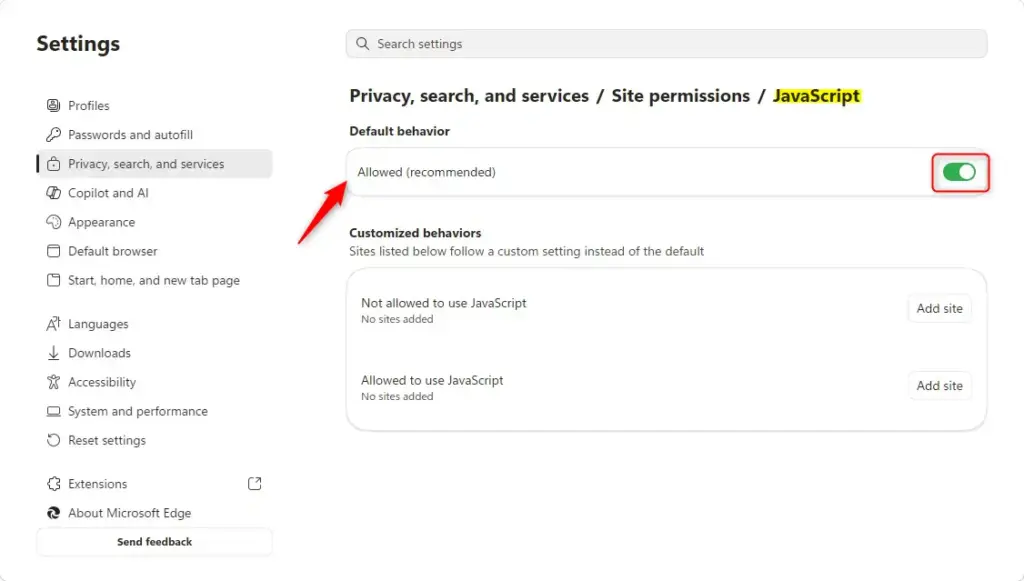
You are now looking at a list of all the permissions websites can request. Scroll through this list until you find “JavaScript.” Click on it.
You will see the settings for JavaScript. Look for a switch or a button that says “Allow (recommended).” Make sure this option is turned on. If it is off, click the switch to turn it on. It should change to show it is enabled.
Reference:
https://support.microsoft.com/en-us/sharepoint/legacy/enable-javascript
Summary
To make sure websites work correctly in Microsoft Edge, you need to ensure JavaScript is enabled. You can do this by going into Edge’s Settings, navigating to Privacy, Search, and Services, then Site Permissions, and finally finding JavaScript and setting it to “Allow (recommended).” This small change can fix many website display and functionality issues.
Was this guide helpful?

About the Author
Richard
Tech Writer, IT Professional
Richard, a writer for Geek Rewind, is a tech enthusiast who loves breaking down complex IT topics into simple, easy-to-understand ideas. With years of hands-on experience in system administration and enterprise IT operations, he’s developed a knack for offering practical tips and solutions. Richard aims to make technology more accessible and actionable. He's deeply committed to the Geek Rewind community, always ready to answer questions and engage in discussions.




No comments yet — be the first to share your thoughts!