

This post explains how to turn off or disable the OneDrive Personal Vault feature.
We showed you how to set up OneDrive Personal Vault in Windows 11 a few days ago. Personal Vault is a protected area in OneDrive that you can only access with a robust authentication method or a second step of identity verification, such as your fingerprint, face, PIN, or a code sent to you via email or SMS.
Your locked files in Personal Vault have an extra layer of security, keeping them more secure if someone gains access to your account or device.
If you set up your OneDrive Personal Vault and want to disable or turn it off, the steps below will show you how.
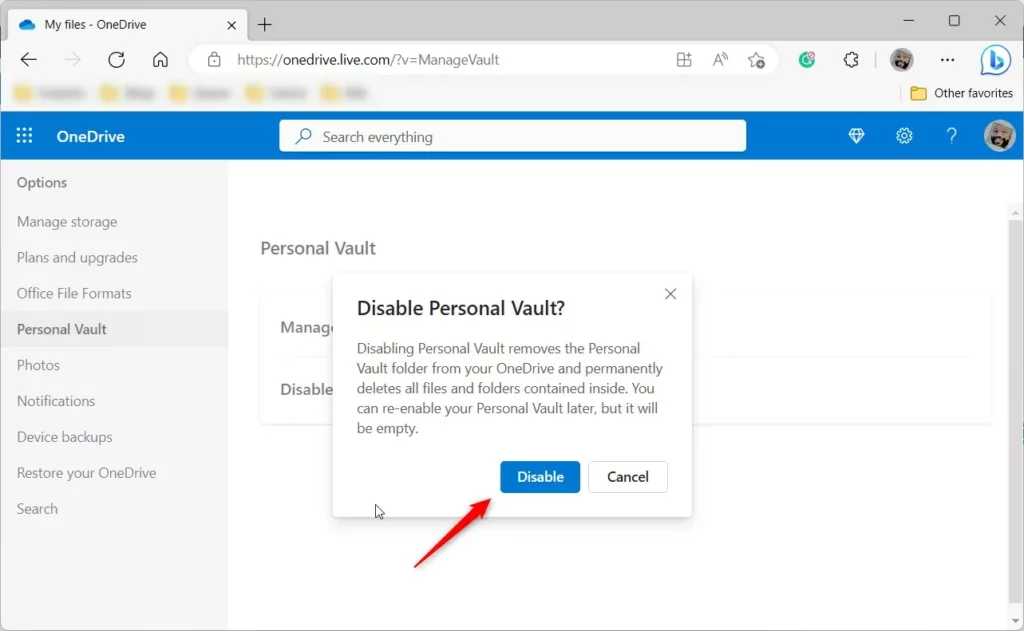
When you disable your Personal Vault, it will delete the Personal Vault folder from your OneDrive. As a result, all files, folders, and any items you previously deleted from the Personal Vault will be permanently deleted and cannot be restored from the recycle bin.
Disable your OneDrive Personal Drive
As mentioned above, users can disable or turn off their OneDrive Personal Vault anytime. However, if they do, all files, folders, and any items you previously deleted from the Personal Vault will be permanently deleted and cannot be restored from the recycle bin.
When you re-enable your Vault, it will remain empty.
Here’s how to do that.
First, open your OneDrive account page online and sign in with your Microsoft account, if not already.
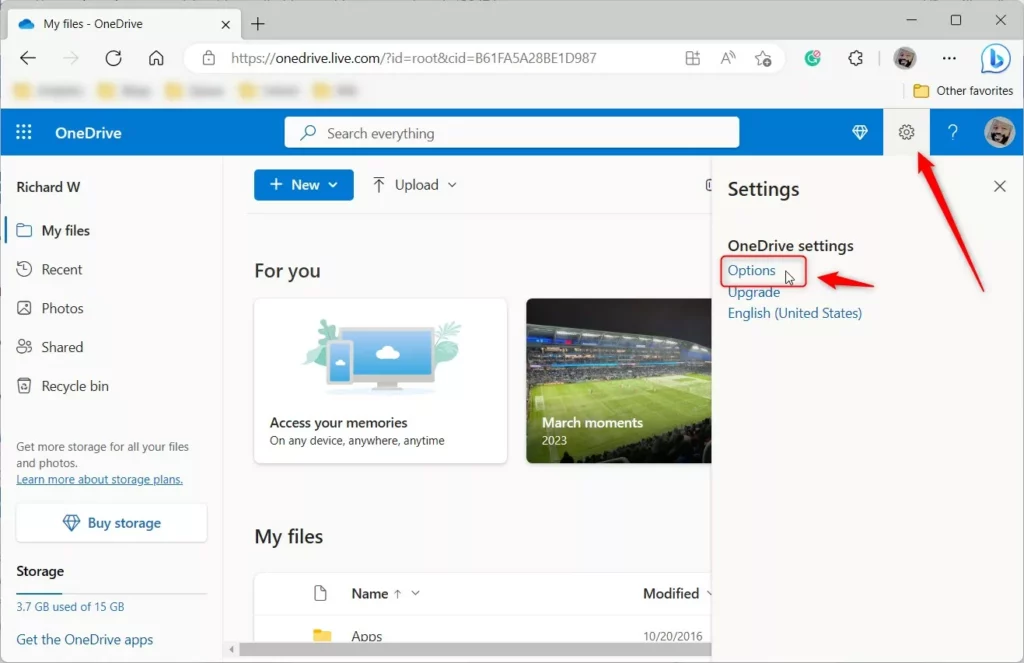
Then, click the Settings (gear) icon and select Options.
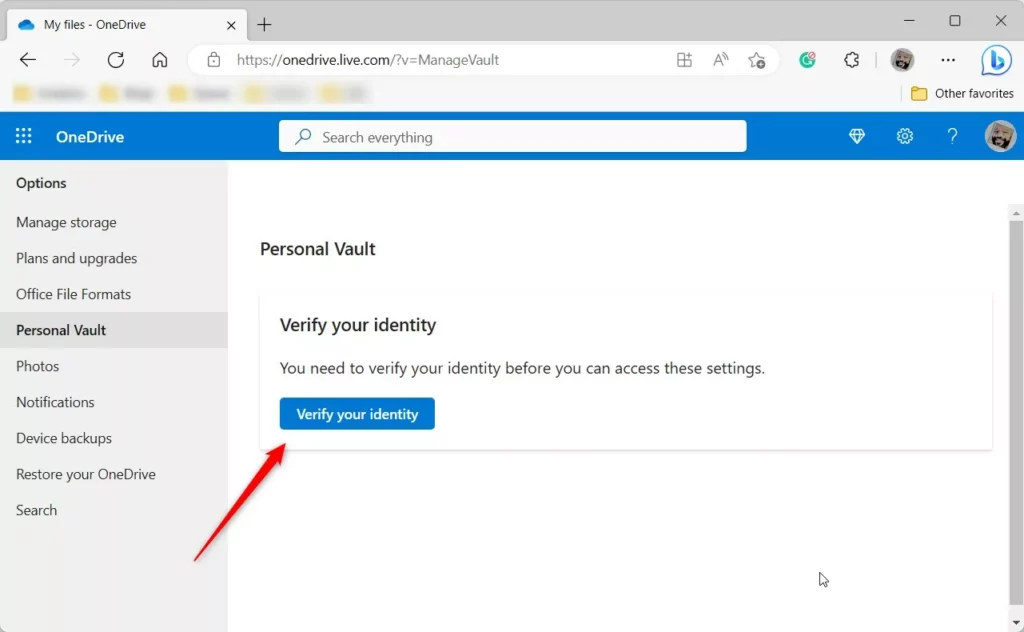
Then select Personal Vault in the left pane, and click Verify your identity to access your Vault.
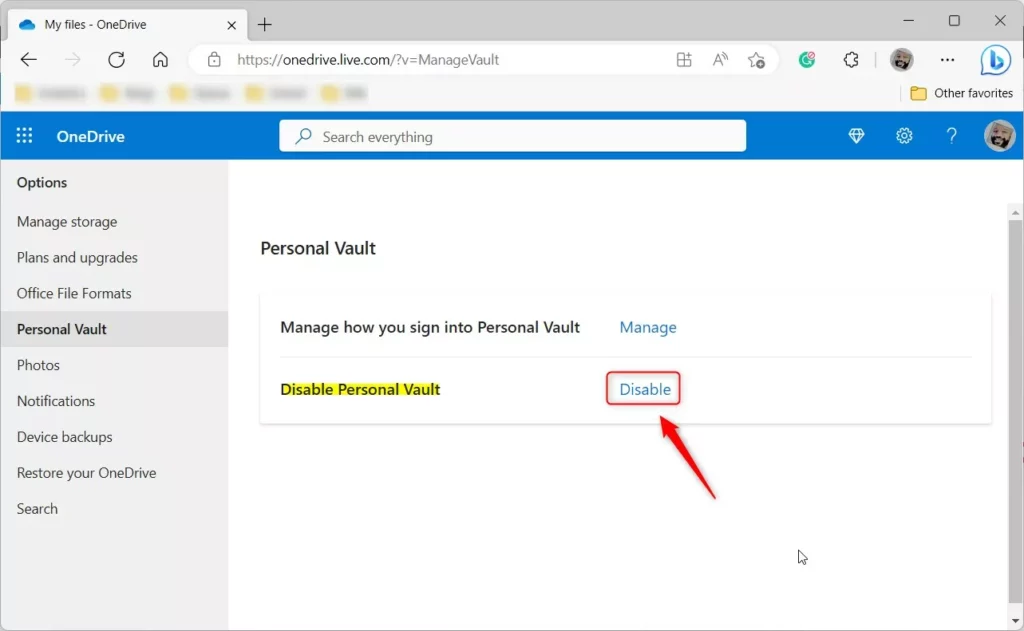
Once your identity has been identified, click the Disable link to disable your Vault.
Confirm that you want to disable, then click Disable.
That should do it!
Conclusion:
- Turning off or disabling OneDrive Personal Vault in Windows 11 is a straightforward process that involves accessing your OneDrive account settings online.
- Disabling the Personal Vault will delete the folder from your OneDrive, permanently removing any files, folders, or items previously deleted from the Vault.
- If you decide to re-enable the Vault later, it will be empty.
- Remember that once disabled, the files and folders from the Personal Vault cannot be restored from the recycle bin.



Leave a Reply to David Clarke Cancel reply