

This post describes the steps to create a startup disk in Ubuntu Linux.
Ubuntu Linux lets you create a bootable disk that you can use to restore your computer when there’s a problem. The flash drive must have at least 2GB of storage capacity to create a startup disk.
Any data on the USB flash drive will be erased or lost when you create a startup disk. So, ensure you’re not using a critical flash drive and don’t have any valuable data.
To create the disk, you must download an ISO image of the version of Ubuntu Linux you want to install or use to repair your local computer.
Below is how to use the Startup Disk Creator tool to create a startup disk in Ubuntu Linux.
How to create a startup disk in Ubuntu Linux
As described above, users can use Startup Disk Creator to create a startup disk that can be used to install or repair their computer.
It’s assumed that you have downloaded an Ubuntu ISO image.
To create a startup disk from an Ubuntu ISO image.
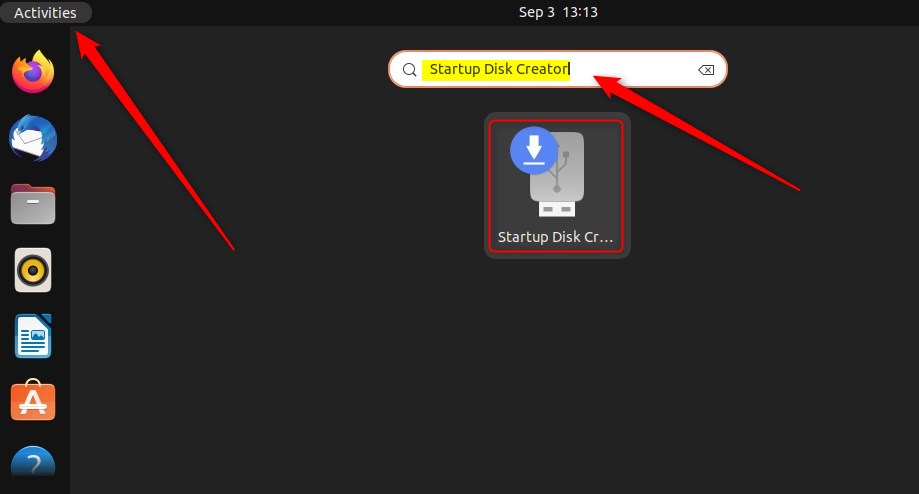
Open Startup Disk Creator via the Activities search bar and launch the app.
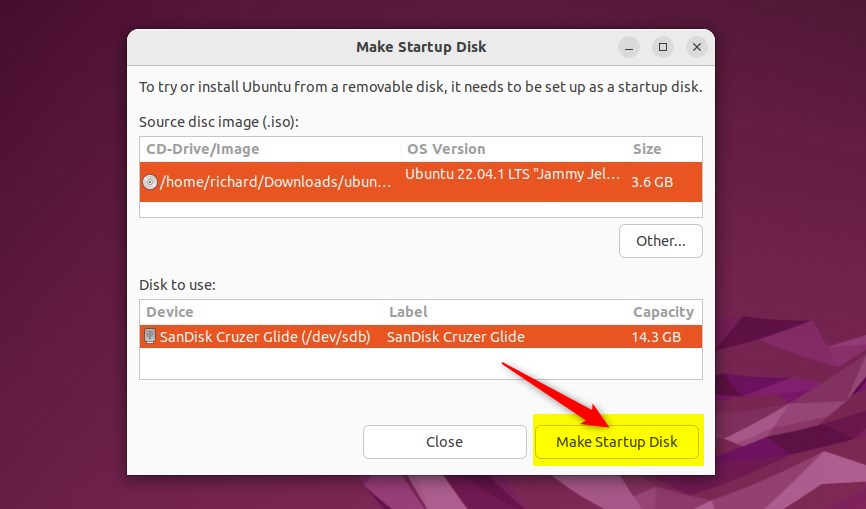
If the ISO image is in your Download folder and there is just one ISO image, Startup Disk Creator will have selected it; otherwise, select the correct ISO image you want to install.
If your computer has just one USB flash drive, Startup Disk Creator will have selected it; otherwise, select the correct driver into which the USB flash drive is plugged.
Click Make Startup Disk.
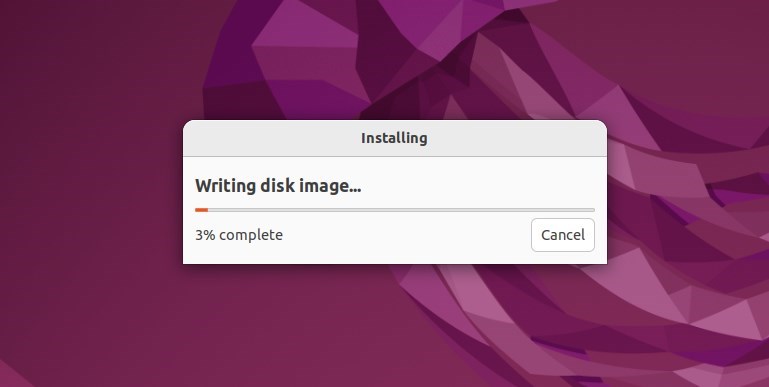
Click Yes to confirm. The process should take ten minutes or less.
When the “Installation Complete” window opens, click Quit.
When you’re done, grab the USB flash drive and boot the computer you want to install Ubuntu on from the drive. If the computer boots properly, Ubuntu Linux should be installed on the computer.
That should do it!
Conclusion:
- Creating a startup disk in Ubuntu Linux is essential for system recovery and installation.
- Ensure the USB flash drive has sufficient storage capacity and no valuable data before creating a startup disk.
- The Startup Disk Creator tool simplifies creating a bootable disk from an Ubuntu ISO image.
- After following the steps, users can boot their computers from the startup disk to install or repair Ubuntu Linux.



Leave a Reply Cancel reply