How to Configure Startup Applications from Settings in Windows 11

Startup applications in Windows 11 are programs that automatically run when you turn on your PC.
These apps can slow down your computer’s boot time, especially if many are set to launch simultaneously. Windows 11 allows you to manage these startup programs directly through the Settings app, offering a straightforward way to improve performance.
By reviewing and disabling unnecessary startup items, you can significantly speed up how quickly your computer becomes ready to use. This simple adjustment makes a noticeable difference in your daily computing experience.
Open Settings by pressing Windows key + I, then navigate to Apps > Startup. Toggle the switch next to any application to turn it Off to prevent it from starting automatically with Windows.
Manage Startup Programs in 🪟 Windows 11 Settings
The Windows Settings app lets you easily manage which programs start automatically when you turn on your computer.
Open Settings
You can open the Windows Settings app by clicking the Start button and then the Settings gear icon, or by pressing the Windows key + I on your keyboard.
Tip: If you like keyboard shortcuts, remember that Windows key + I is the quickest way to open Settings.
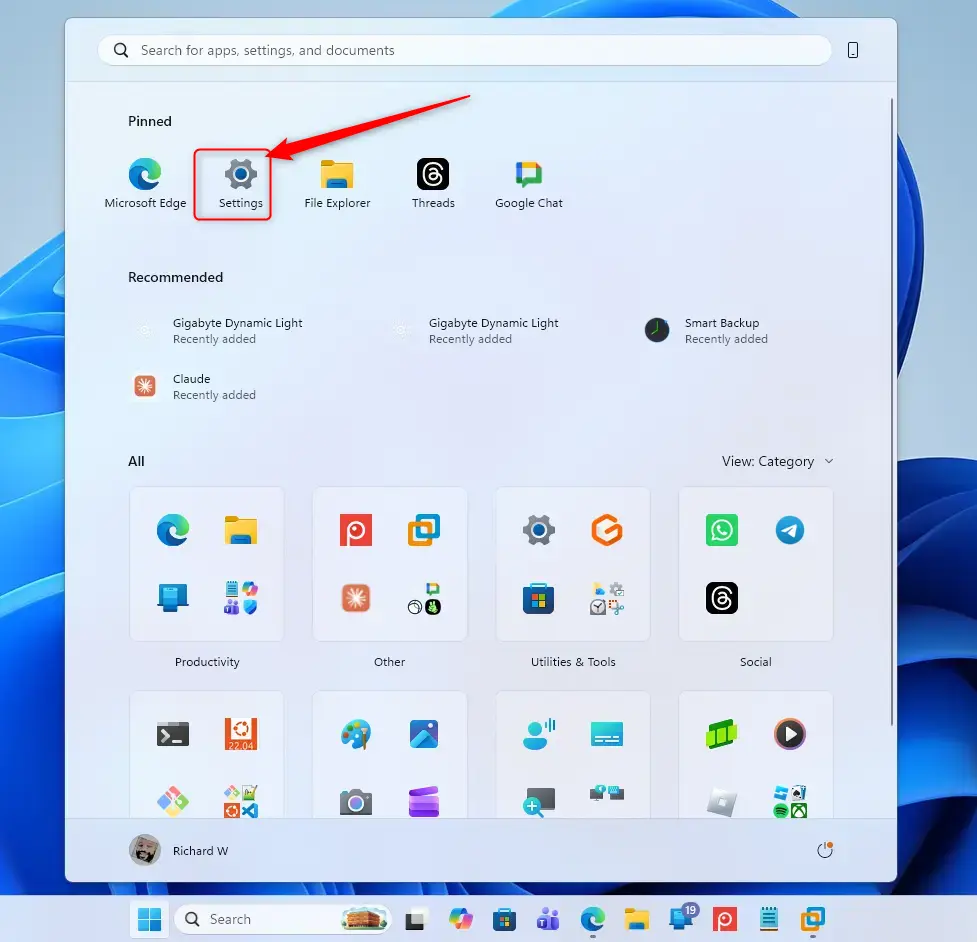
Go to Apps
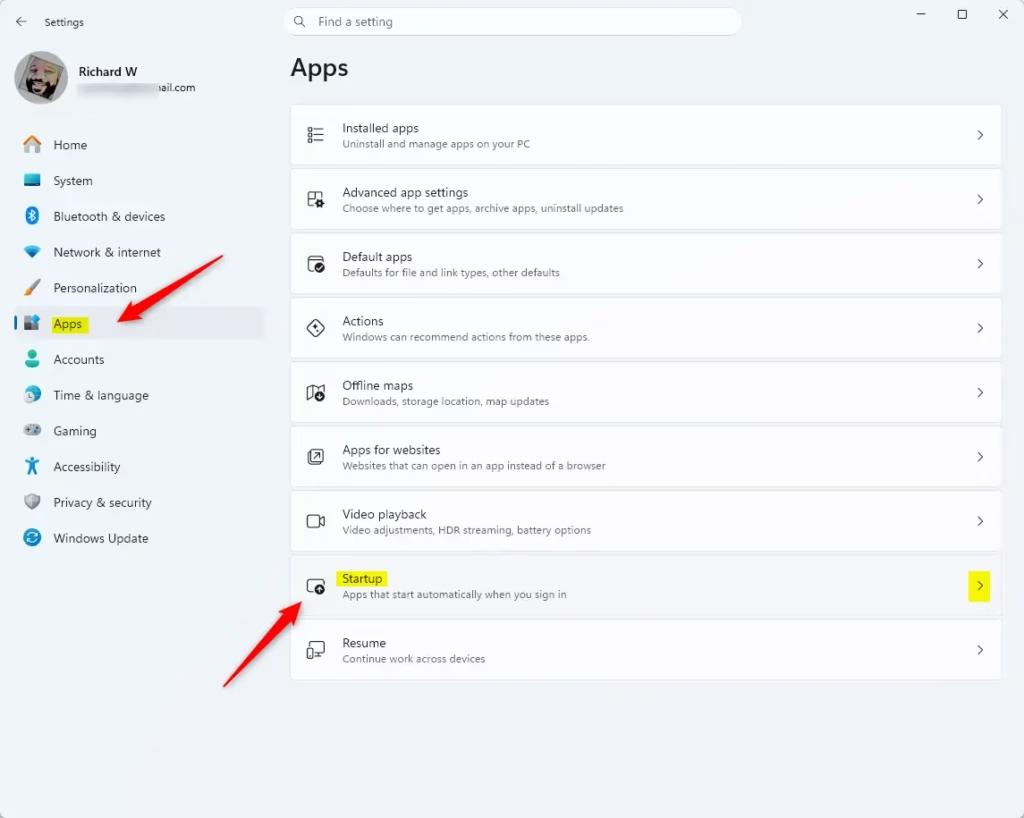
When the Settings window opens, you will see different categories. Click on Apps. This section manages the programs installed on your computer.
Find the Startup Section
Inside the Apps section, look at the options on the left side. Scroll down until you see and click on Startup. This is where you can see all the apps set to start with Windows.
Manage Your Startup Apps
In the Settings app, you’ll see a list of startup apps, each with a switch you can use to control whether it starts automatically.
- To stop an app from starting automatically: Click the switch next to its name to turn it Off. The switch will usually turn gray to show it’s off.
- To let an app start automatically: If you turned off an app before and want it to start with Windows again, click its switch to turn it On. The switch will usually turn blue or another bright color.
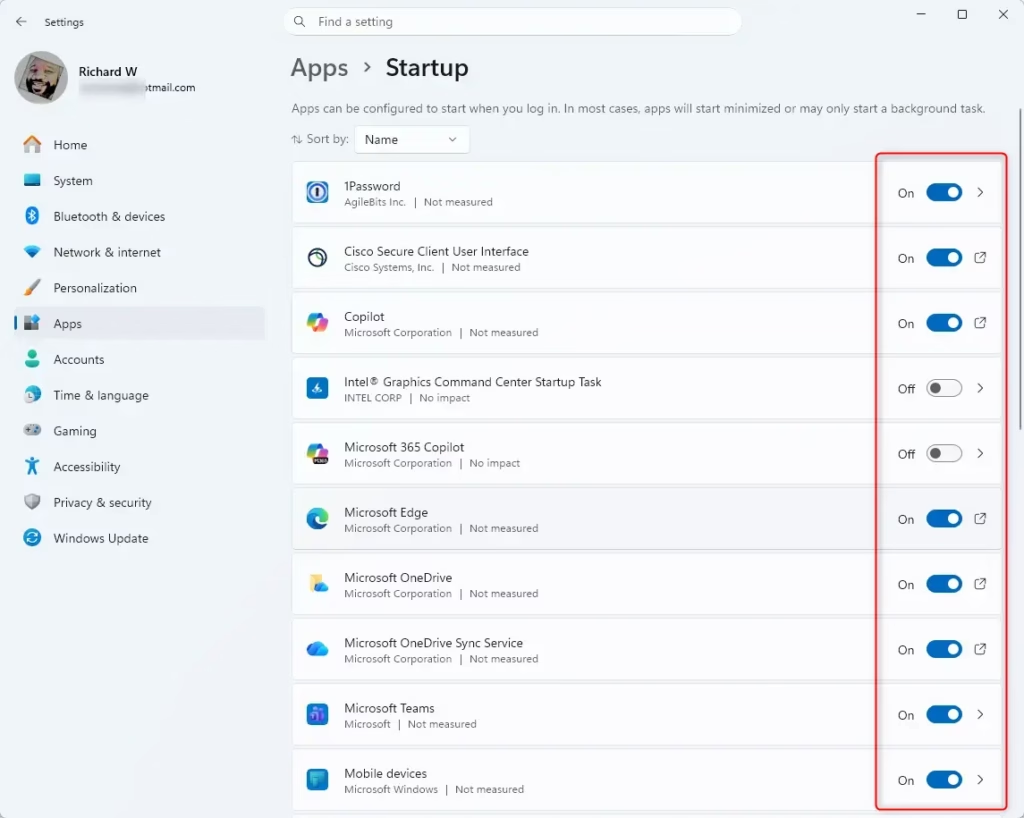
A small arrow might appear next to certain apps. Clicking it can reveal more startup settings, though this is less common for everyday applications.
What If Your App Isn’t Listed?
If an app you want to manage isn’t showing up in the Settings startup list, you’ll need to check other places like Task Manager or File Explorer.
Reference:
Summary
Turning off unneeded startup programs makes your computer start up much faster and run more smoothly by freeing up system resources.
What happens when done? After you turn off startup apps, your computer will boot up quicker. You will see your desktop and be able to use programs sooner. Your system will also feel more responsive as it won’t be trying to run as many applications at once.
Was this guide helpful?

About the Author
Richard
Tech Writer, IT Professional
Richard, a writer for Geek Rewind, is a tech enthusiast who loves breaking down complex IT topics into simple, easy-to-understand ideas. With years of hands-on experience in system administration and enterprise IT operations, he’s developed a knack for offering practical tips and solutions. Richard aims to make technology more accessible and actionable. He's deeply committed to the Geek Rewind community, always ready to answer questions and engage in discussions.
No comments yet — be the first to share your thoughts!