
This tutorial shows you how to change the time format on your Windows 11 computer. Your time format affects how the clock displays on your taskbar and throughout Windows.
Why Change Your Time Format?
Windows lets you pick how you want to see the time. You might want 12-hour format (with AM/PM) or 24-hour format. You can also customize it to show the time the way you prefer.
What Happens When You Change It?
Once you change your time format, Windows updates how the time appears everywhere on your computer. The clock on your taskbar will show your new format right away.
Where Windows Stores This Information
Your time format settings are saved in the Windows registry at this location:
HKEY_CURRENT_USER\Control Panel\International
The specific settings are stored in these values:
sShortTimesTimeFormat
Format dates and times – Globalization
Option One: Change Time Format in Settings
- Open Settings by pressing
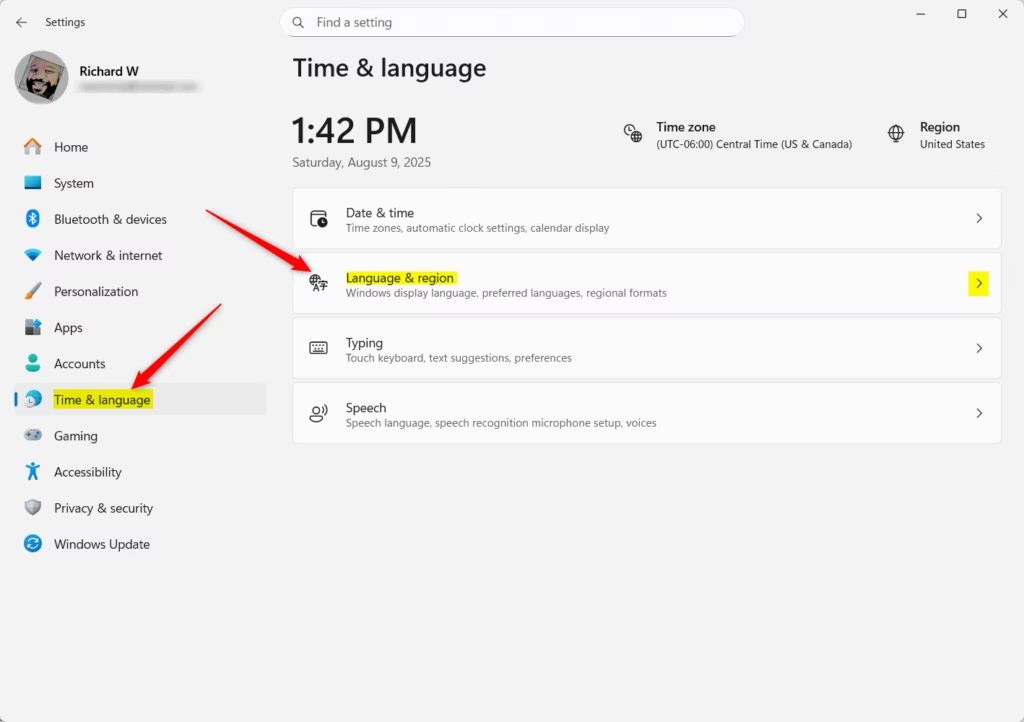
Win+Ion your keyboard. - Click on Time & language on the left side.
- Click on Language & region on the right side.
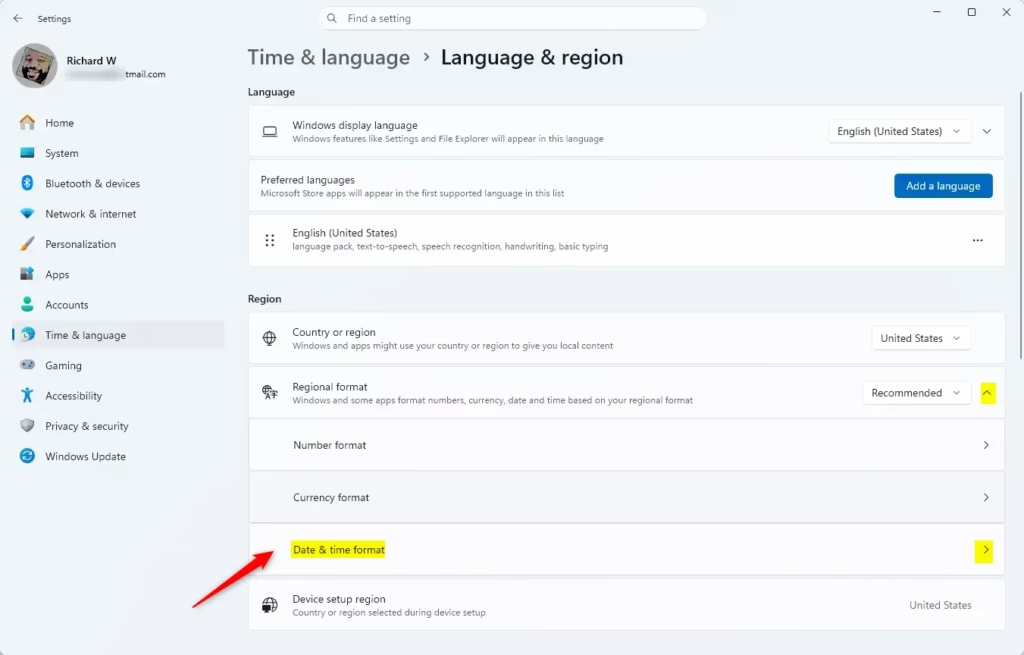
- Look for Regional format and click it to expand the options.
- Click on Date & time format (or Change formats on older Windows 11 versions).
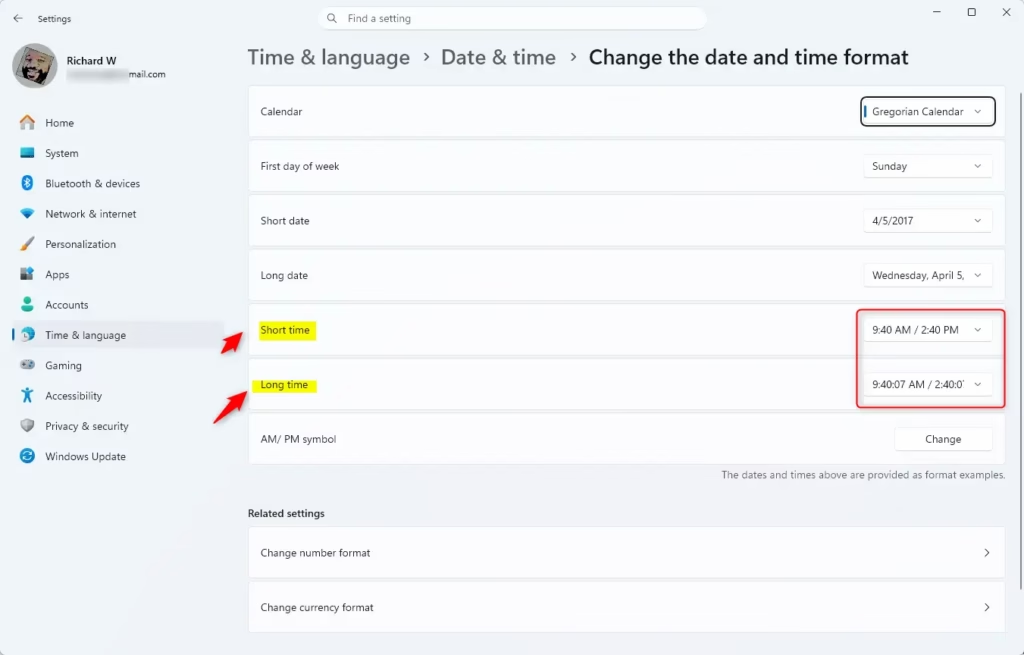
- In the dropdown menus, select the time format you want for Short time and Long time.
- Close Settings when you’re done.
Open Language & region Settings
Option Two: Change Time Format in Region Control Panel
- Admin privileges required. Open the Control Panel and switch to icons view.
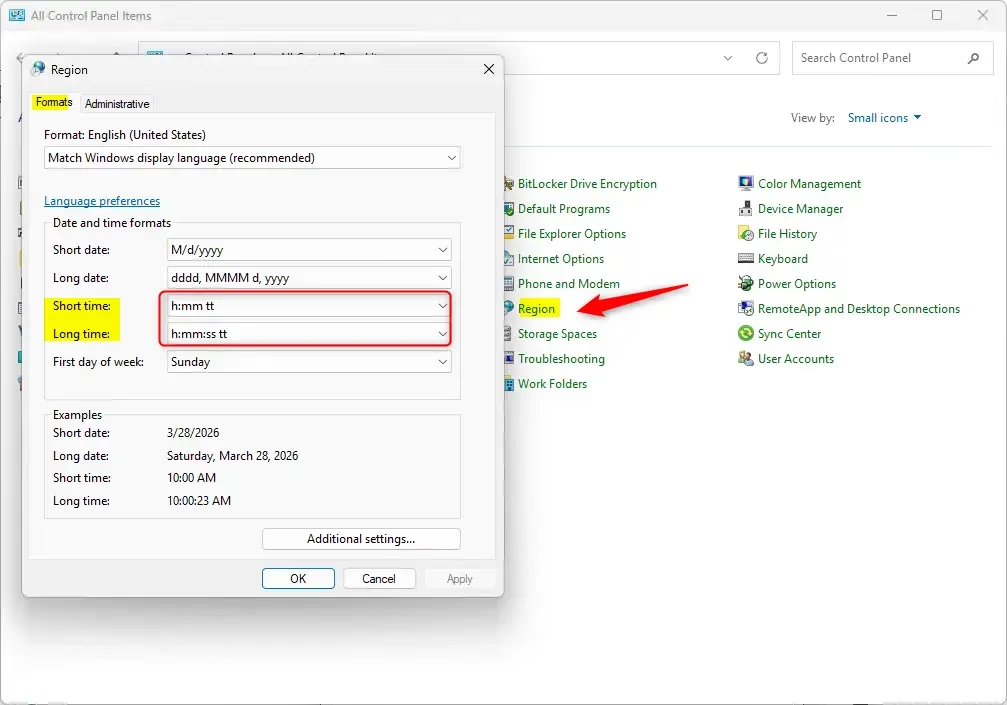
- Click on the Region icon.
- Go to the Formats tab.
- Use the dropdown menus to select your preferred format for Short time and Long time.
- Click OK to save your changes.
Option Three: Change Time Format with Custom Settings
- Admin privileges required. Open the Control Panel and switch to icons view.
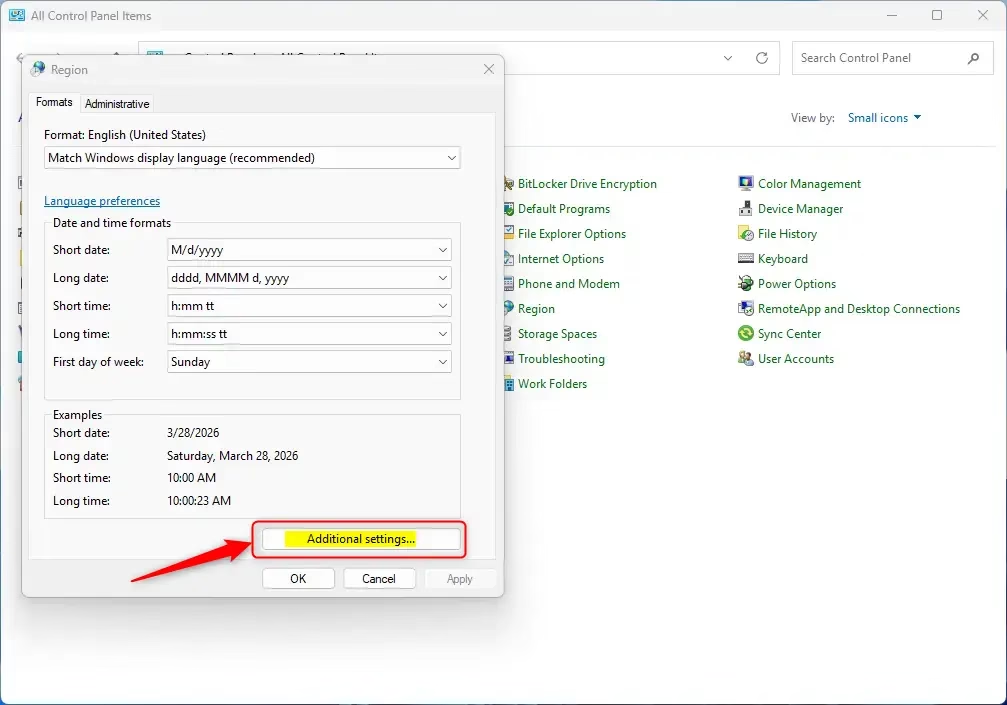
- Click on the Region icon.
- Go to the Formats tab.
- Click on Additional settings.
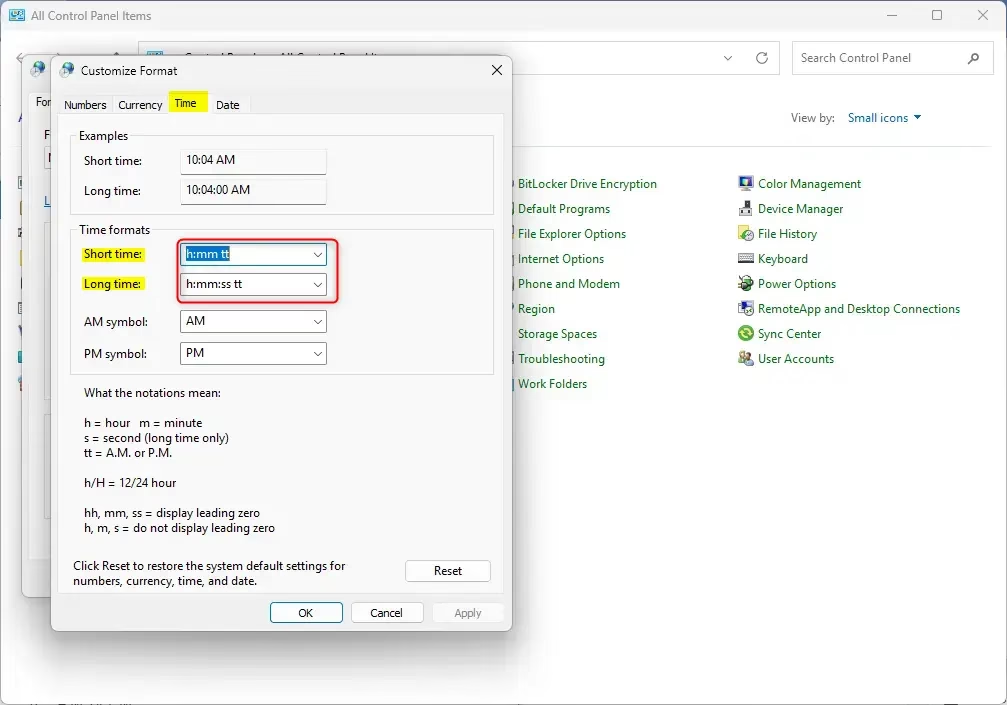
- Click on the Time tab.
- In the dropdown menus, select a format for Short time and Long time. You can also type a custom format in the text boxes if you want something different.
- Click OK.
- Click OK again to close the Region window.
Summary
Changing your time format in Windows 11 is easy and can be done three different ways. The quickest way is through Settings using the Time & language option. If you want more control or need to create a custom time format, you can use the Control Panel’s Region settings. Once you pick your preferred time format, Windows applies it right away to your clock and other time displays throughout your computer.
Leave a Reply