How to Change Dock Icon Size in Ubuntu Linux

You change your dock icon size in Ubuntu Linux through the Appearance settings.
The Ubuntu Dock, often called the Dash or Launcher, is the bar on your desktop that displays your open applications and pinned favorites. Adjusting its icon size directly impacts both their visibility and how much screen real estate they occupy.
For example, on Ubuntu 23.10, you have granular control over this setting to suit your preference. This simple customization can significantly improve your workflow.
You can enlarge icons for easier selection or shrink them to maximize space, tailoring your Ubuntu desktop to work better for you.
Navigate to Settings, then Appearance. Use the Icon size slider under Dock to adjust the size of the dock icons and the dock itself.
How to change the size of the Dock or launcher in Ubuntu Linux
As mentioned above, the application icons on the Dock are proportional to the size of the Dock. If you increase the icons, you also increase the Dock.
You can change the size of the icons and the Dock by adjusting the dock icons.
Here’s how to do that in Ubuntu Linux.
In Ubuntu, most settings are in one place: the System Settings panel. You can manage everything from system configurations to user accounts and updates there.
To open System Settings, head to the Activities overview and type Settings.

Alternatively, click the System menu in the top-right corner of your desktop.
On the System menu, select Settings, as highlighted below.

In the Settings app, click the Appearance tile.
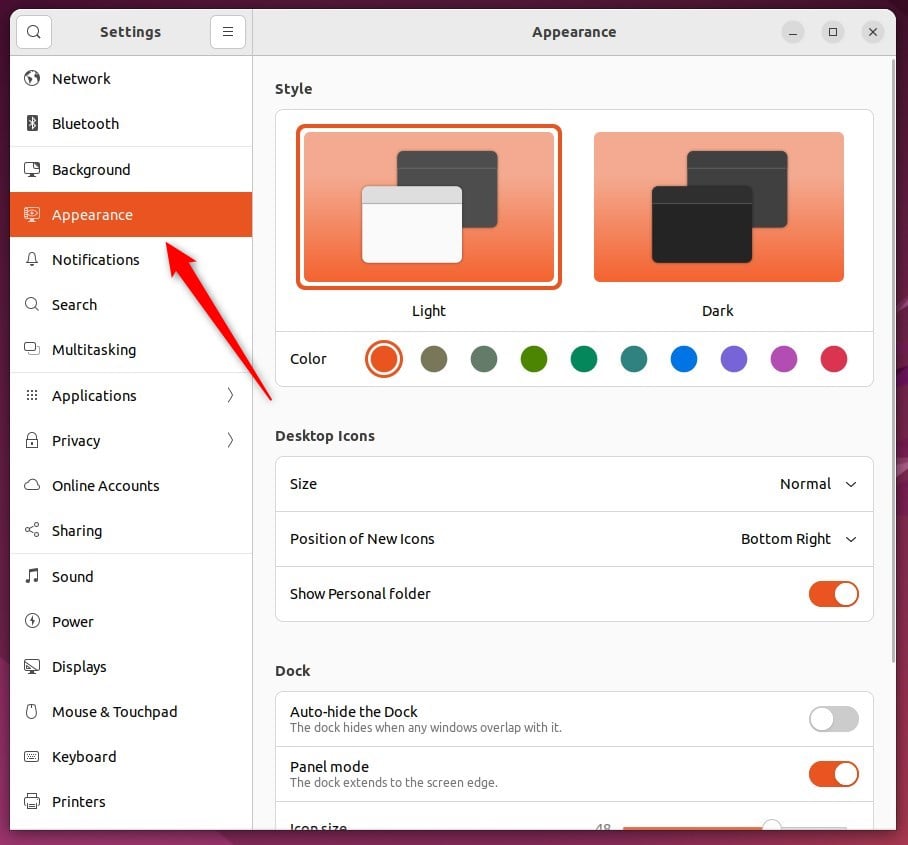
On the System Settings -> Appearance settings panel, use the Icon size slider under Dock to increase or decrease both the icons and dock sizes.
You can choose between 16 and 64 pixels.
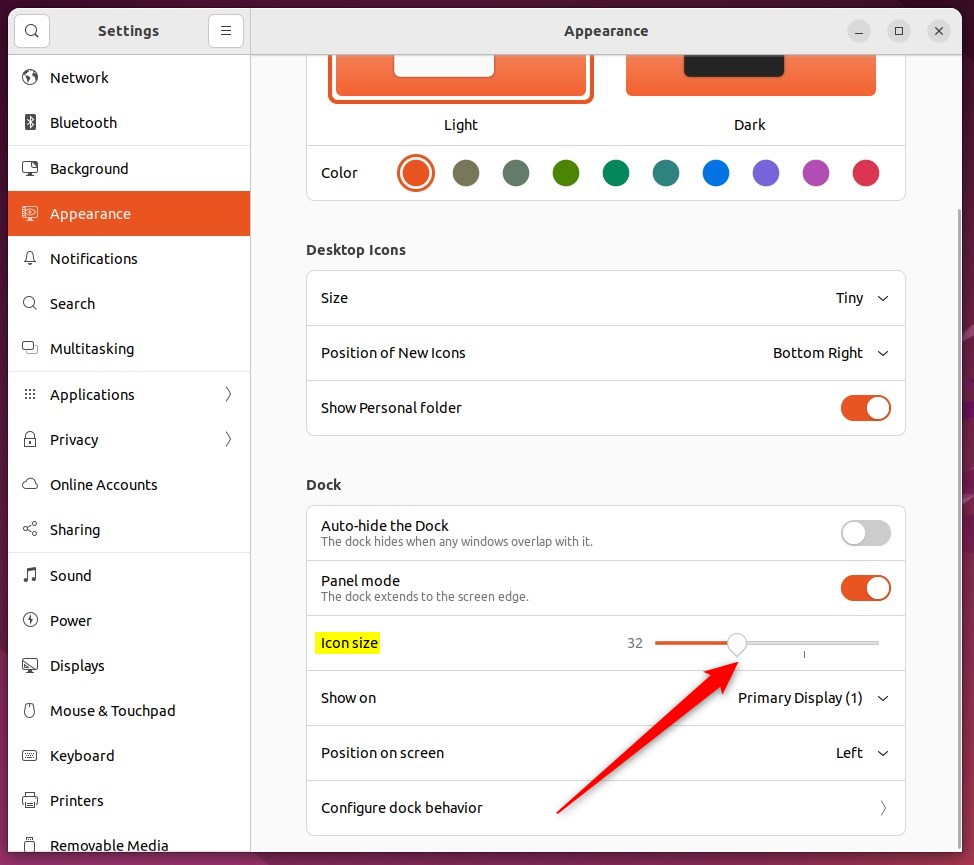
That’s it! You can now close the Settings app.
Conclusion:
- The article provides a comprehensive guide on changing the size of icons on the Dock or launcher in Ubuntu Linux, catering to users’ preferences for workspace customization.
- By following the steps outlined, users can seamlessly modify the size of application icons on the Dock, subsequently adjusting the Dock’s overall size to suit their specific workspace requirements.
- Including descriptive visuals further enhances the user experience, facilitating a clear understanding of the process.
- Readers are encouraged to leave comments if they encounter errors or wish to contribute additional insights, fostering an interactive and collaborative learning environment.
Was this guide helpful?

About the Author
Richard
Tech Writer, IT Professional
Richard, a writer for Geek Rewind, is a tech enthusiast who loves breaking down complex IT topics into simple, easy-to-understand ideas. With years of hands-on experience in system administration and enterprise IT operations, he’s developed a knack for offering practical tips and solutions. Richard aims to make technology more accessible and actionable. He's deeply committed to the Geek Rewind community, always ready to answer questions and engage in discussions.

[…] can customize or change how the Dock appears. One can hide it automatically, change its position, increase or decrease the icons, show it on all monitors, and […]