
Do you use Windows Terminal? You can make it easier to see and organize your tabs by changing their colors. This guide will show you simple steps to change the tab colors in Windows Terminal.
What is Windows Terminal?
Changing tab colors in Windows Terminal requires opening the application, right-clicking your desired tab, and selecting the color option from the context menu, which takes less than thirty seconds to complete. Windows Terminal is a modern app where you can run command-line tools like:
- Command Prompt
- Windows PowerShell
- Bash (Linux commands) through Windows Subsystem for Linux (WSL)
It’s a handy place to run all your command-line tasks in one window.
Why Change Tab Colors?
- Make it easier to tell different tabs apart.
- Organize your work by color.
- Personalize your Terminal to your liking.
How to Change Tab Colors in Windows Terminal
- Open Windows Terminal: Click the Start menu. Type
Terminalin the search box. Then click Windows Terminal in the results.
- Right-click the tab you want to change: At the top of the Terminal window, find the tab you want to color. Right-click on it to open a menu.
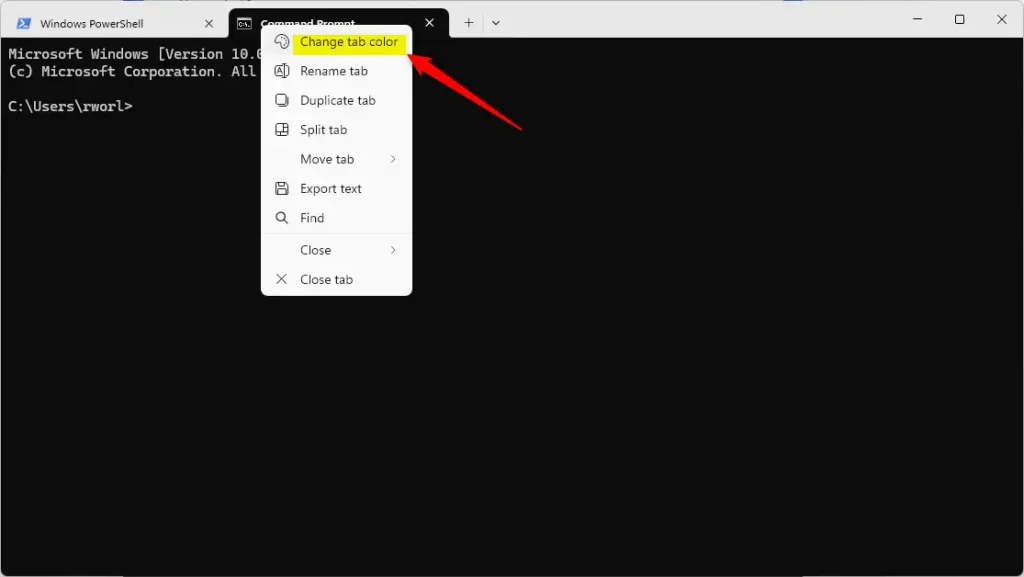
- Select “Change tab color” from the menu.
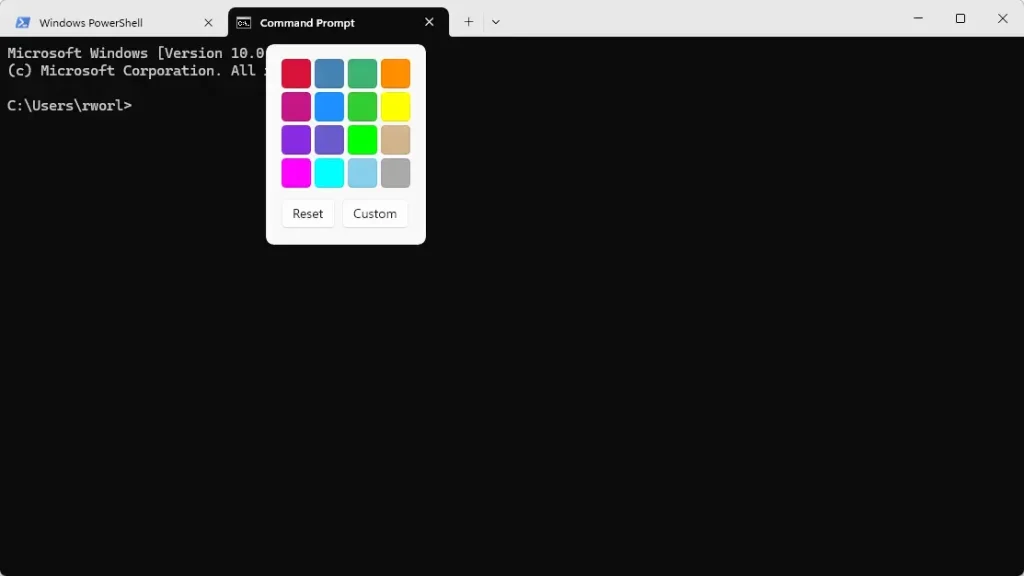
- Pick a color for your tab:
- Click one of the preset colors to use it.
- Click Reset to go back to the default color.
- Click Custom to choose your own color using a color picker.
- You can also enter specific color codes like RGB or hex if you want a precise color.
- Watch your tab change color: After you select a color, the tab will change to that color immediately.
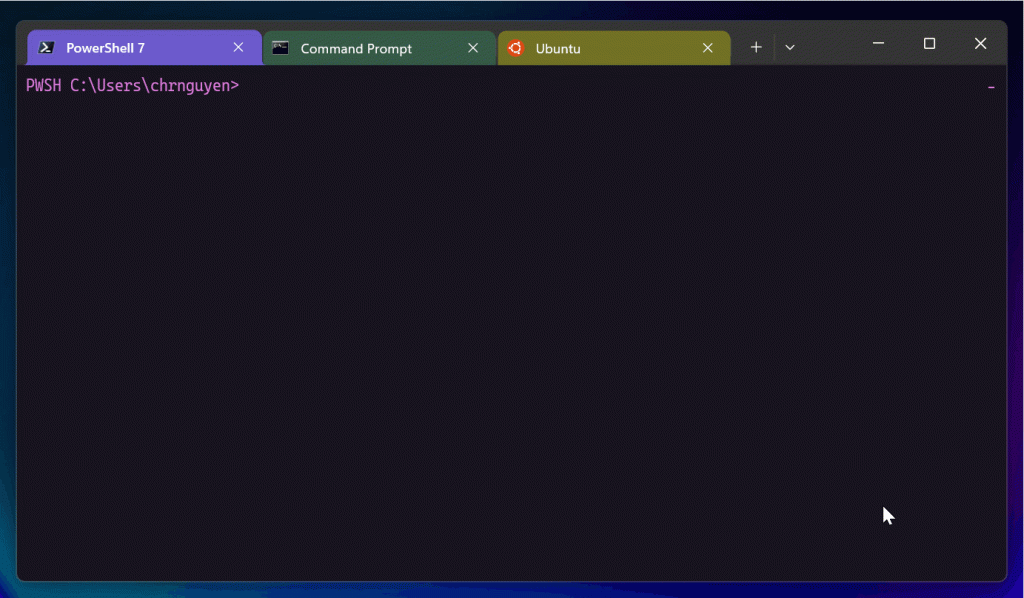
That’s It!
Now your Windows Terminal tabs will have colors that help you stay organized and work faster.
Extra Tips
- You can change the colors anytime by right-clicking the tab again.
- Use different colors for different projects or tasks.
- Try pressing
Ctrl + Tabto switch between tabs and see the color indicators in action!
Learn More
Microsoft added this helpful feature in the Windows Terminal Preview version 1.23. To learn more, visit the official Microsoft blog.
Summary
- Changing tab colors is quick and easy.
- Colors make your Terminal sessions easier to manage.
- You can use preset or custom colors.
- New Windows Terminal updates keep improving your experience.



Leave a Reply Cancel reply