
What Are Mouse Keys?
Mouse Keys lets you move your mouse pointer using the number keys on your keyboard. This is very helpful if using a regular mouse or touchpad is hard for you.
For example, pressing the 5 key clicks, + double-clicks, and other number keys move the pointer up, down, left, or right.
Why Use CTRL and SHIFT to Control Mouse Speed?
You can make the pointer move faster or slower by holding down the CTRL or SHIFT key while using Mouse Keys. This gives you more control. But first, you need to turn on the option that lets you do this.
How to Turn On “Hold CTRL to Speed Up and SHIFT to Slow Down”
- Open Windows Settings:
- Click the Start menu (Windows icon) and select Settings, or
- Press Windows key + I on your keyboard.
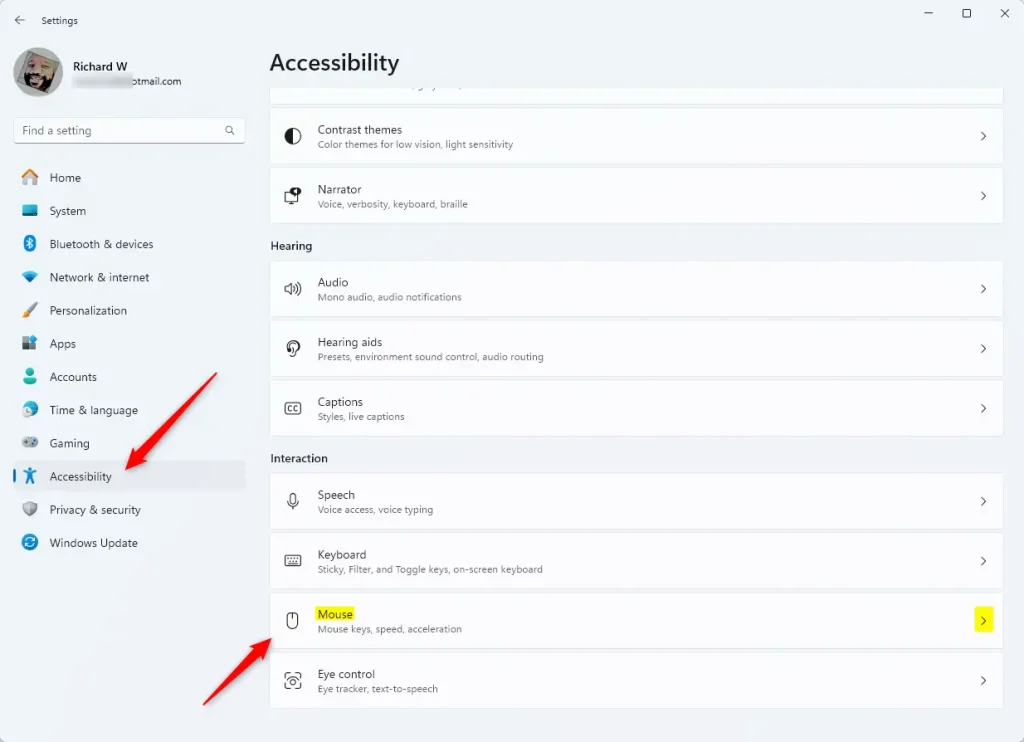
- In the Settings window, click Accessibility on the left side.
- Scroll down and click on Mouse to open the mouse accessibility options.
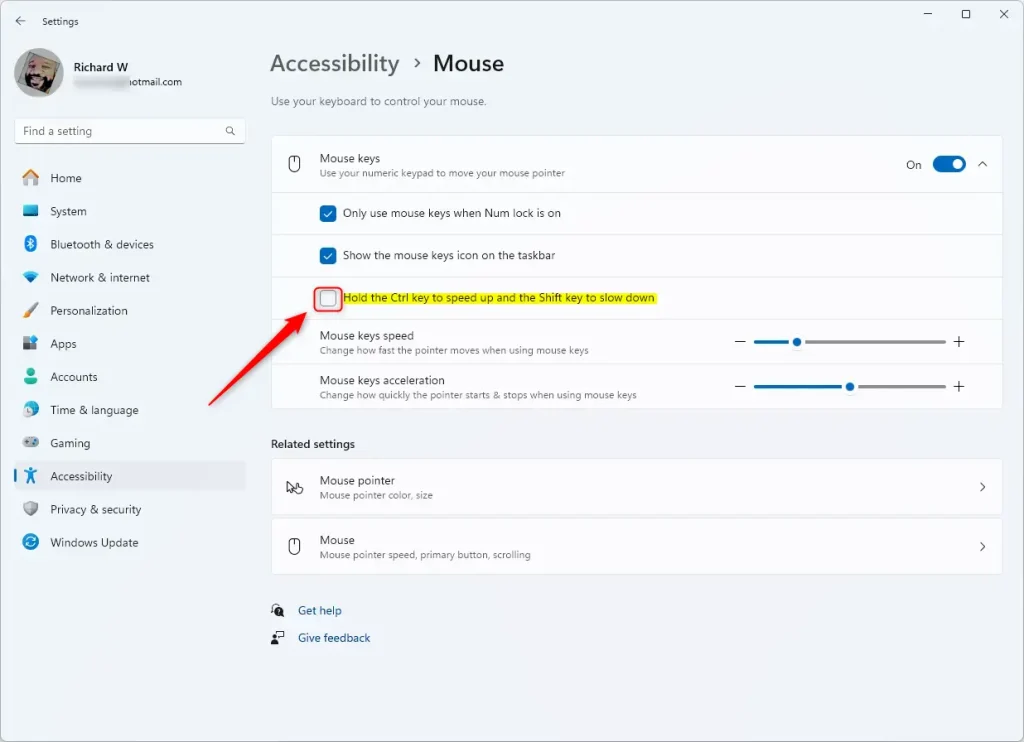
- Turn on the Mouse keys toggle switch.
- Check or uncheck the box for “Hold the Ctrl key to speed up and Shift key to slow down” to enable or disable this feature.
Here is what the Mouse settings look like:
And this is the checkbox to control the speed with CTRL and SHIFT:
When you are done, you can close the Settings app.
Summary
You can control how fast your mouse pointer moves using the numeric keypad and the CTRL and SHIFT keys in Windows 11. This is helpful if a regular mouse or touchpad is hard to use. By following the steps above, you can easily turn this feature on or off to fit your needs. If you want, share your tips or questions in the comments to help others learn.



Leave a Reply Cancel reply