How to Change MAC Address on Windows 11

You change your MAC address on Windows 11 by spoofing it through the network adapter’s properties in Device Manager.
A MAC (Media Access Control) address is a unique hardware identifier assigned to your network interface controller (NIC), acting like a digital serial number for your device on a local network.
While the physical MAC address cannot be altered, Windows 11 allows you to temporarily assign a different, randomized MAC address to your network adapter, a process known as MAC spoofing.
This technique is useful for troubleshooting network connectivity issues or bypassing network access restrictions.
How to change your MAC address in 🪟 Windows 11
Follow these steps to update your address. Please note that these steps require admin privileges to complete.
First, open your settings. You can do this by pressing the Windows key + I on your keyboard or by clicking Start and then Settings.
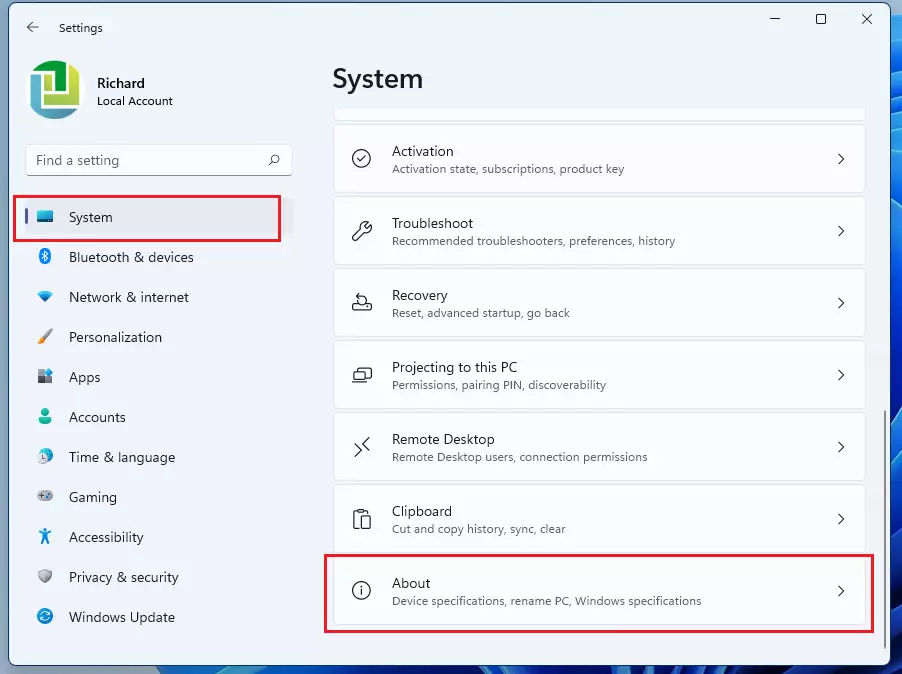
Once the Settings window is open, click System on the left, then scroll down and click About on the right side of the screen.
In the About menu, look for Device Manager and click it to open a new window. 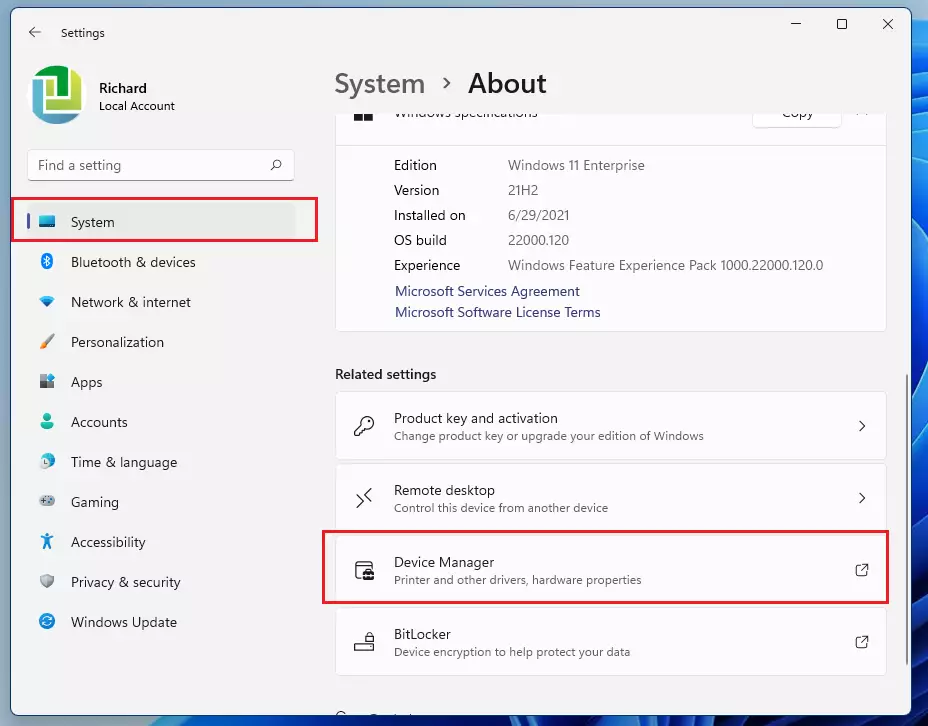
In the Device Manager, find the section called Network adapters and click the small arrow next to it to see your hardware. Right-click the adapter you are currently using and select Properties. 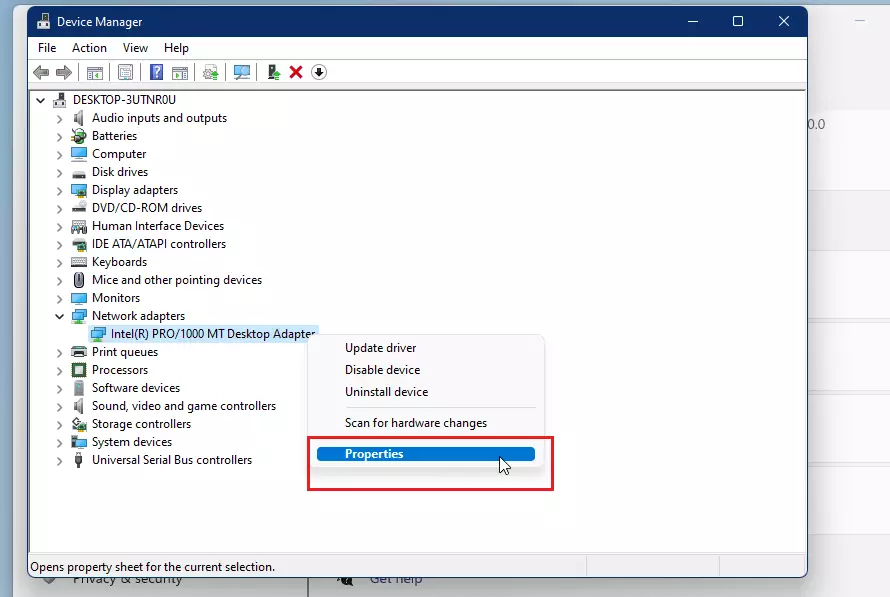
In the window that pops up, click the Advanced tab. Look through the list in the Property box until you find Locally Administered Address. Click on it, then select the Value box on the right. Type in your new 12-digit code using numbers 0-9 and letters A-F. 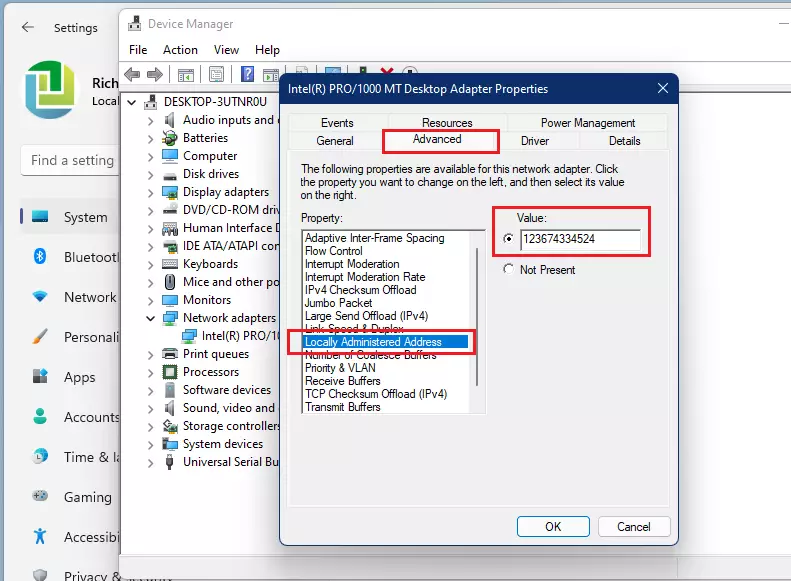
Click OK to save your changes. To confirm your computer is using the new ID, open the Command Prompt and type the following command:
ipconfig /all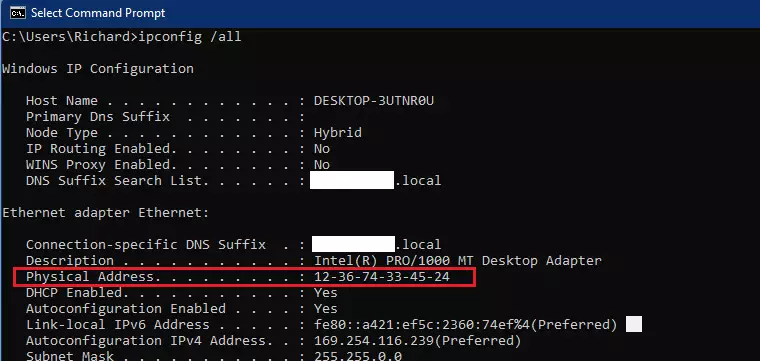
Summary
Changing your MAC address is a simple way to troubleshoot network issues by giving your computer a new digital ID. You can manage this through the Device Manager by selecting Locally Administered Address under the Advanced tab of your network adapter. Always make sure your new address follows the 12-digit alphanumeric format to keep your connection stable.
Was this guide helpful?

About the Author
Richard
Tech Writer, IT Professional
Richard, a writer for Geek Rewind, is a tech enthusiast who loves breaking down complex IT topics into simple, easy-to-understand ideas. With years of hands-on experience in system administration and enterprise IT operations, he’s developed a knack for offering practical tips and solutions. Richard aims to make technology more accessible and actionable. He's deeply committed to the Geek Rewind community, always ready to answer questions and engage in discussions.

This is not compatible with many modern Wi-Fi adaptors in laptops. No such field exists – “Locally Administered Address”
This doesn’t work.
No such field as “Locally Administered Address”.