

This article describes how to change the HungAppTimeout period in Windows 11.
If you have an app open with tasks running and try to shut down, restart or sign out of your desktop, Windows will not automatically follow through with your command.
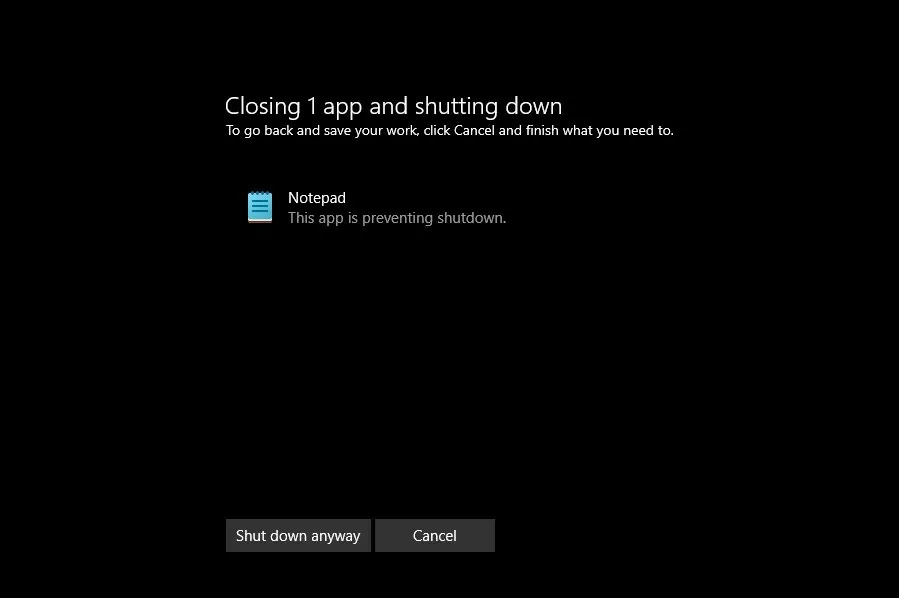
Instead, Windows will wait 5 seconds (HungAppTimeout) before prompting with the End Task dialog asking you to cancel and close the app or shutdown anyway.
If you do not respond to the prompt after a minute, Windows will automatically return to your desktop without shutting down or restarting your computer.
The HungAppTimeout also specifies how long the system should wait for apps and processes to end after the user clicks the End task button. The default value is 5 seconds.
Here’s how to change that HungAppTimeout value to control whether your computer waits long enough after the user clicks the End task button before ending the task.
Change HungAppTimeout for all users
As described above, you can control how long your system waits after the user clicks the End task button on the dialog window before ending the task.
Here’s how to change the HungAppTimeout.
First, open the Windows Registry, and navigate to the folder key path below.
HKEY_USERS.DEFAULTControl PanelDesktop
If you don’t see the Desktop folder key, right-click on the Control Panel key, then create the subkey (Desktop) folders.
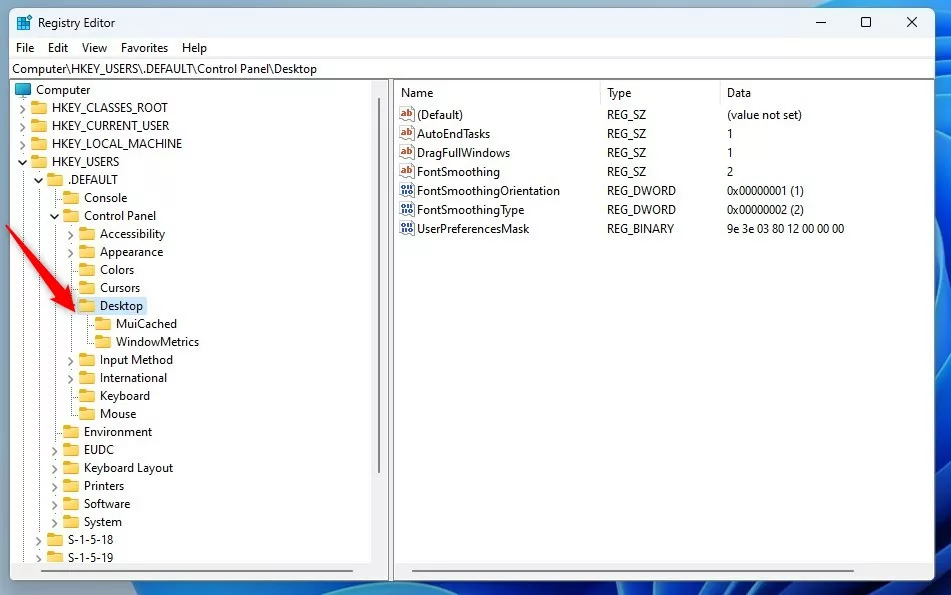
Right-click the Desktop folder key’s right pane and select New -> String Value. Next, type a new item named HungAppTimeout.
Double-click the new item name (HungAppTimeout) and then update the Value data, making sure you keep your existing value:
- Delete item (default).
- The default value is 5000 milliseconds (5 seconds).
- Do not use a value less than 100 milliseconds (1 second).

Save your changes and restart your computer.
If you don’t want this change to apply to all users on the system, then use the registry key path:
HKEY_CURRENT_USERControl PanelDesktop
Then follow the same steps above.
Below is an example of the AutoEndTasks prompt in Windows 11.
That should do it!
Conclusion:
- HungAppTimeout is a critical setting in Windows 11 that determines how long the system waits before ending tasks.
- Adjusting the HungAppTimeout value can control the wait time after clicking the End task button, providing greater flexibility for users.
- As this article outlines, changing this setting requires accessing the Windows Registry and navigating to specific key paths.
- It is paramount to exercise caution and follow the specified guidelines when modifying the HungAppTimeout value.
- Users can effectively manage the automatic task-ending behavior in Windows 11 by following the steps provided.
Leave a Reply to How to Turn On or Off the Automatic Termination of Tasks during Windows 11 Shutdown - Geek Rewind Cancel reply